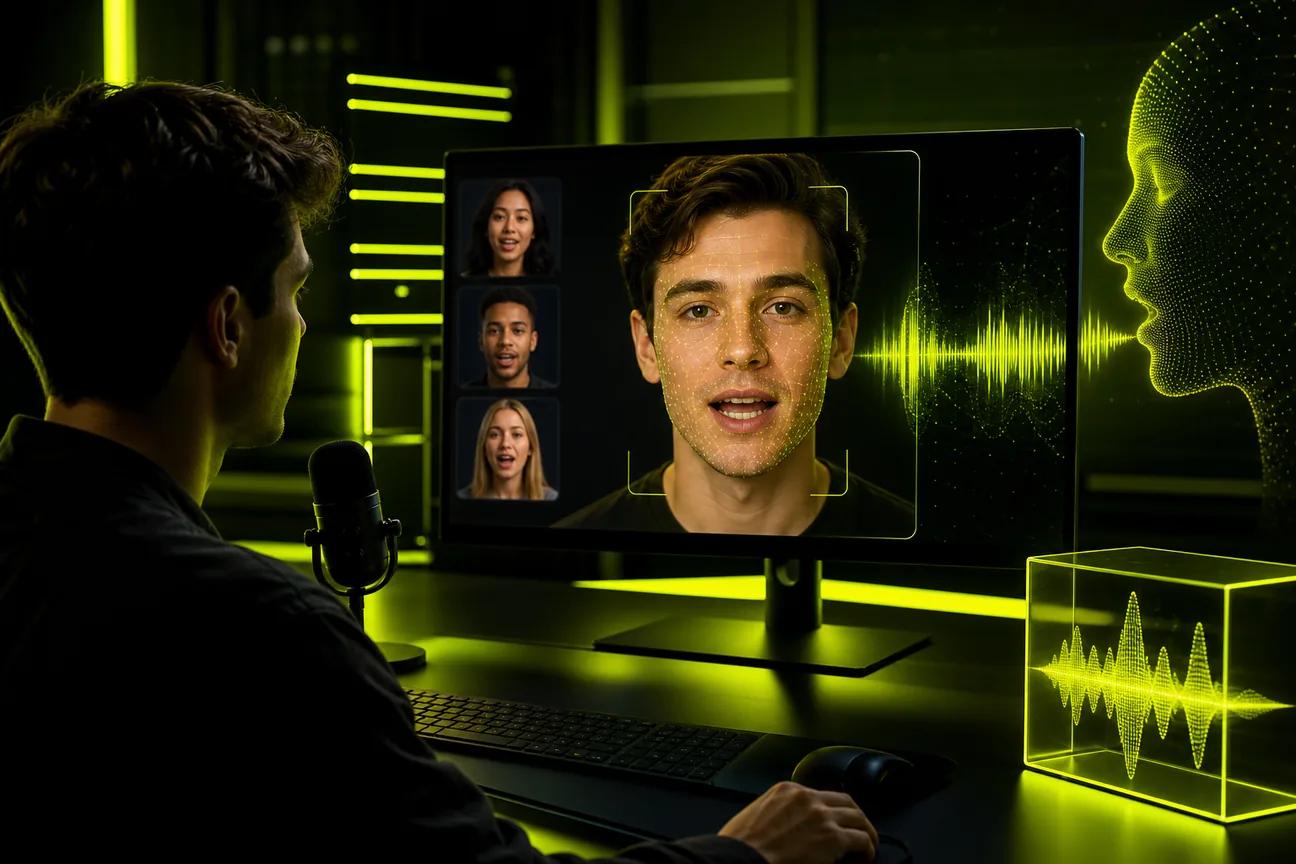
A mouth that moves to the beat can still miss every word. The best AI lip sync generator for your project depends on what you’re starting with: a photo, a finished video, or a script. Here are ten named tools, with a clear look at what’s known and what you should check before you make a clip.
1. Wan Studio
Wan Studio is a browser-based AI video creation platform for turning text prompts and images into short videos with synchronized sound, music, and lip-synced dialogue. It’s a good fit for social creators, small businesses, and marketers who want a product photo or scene idea to become a short ad without filming.
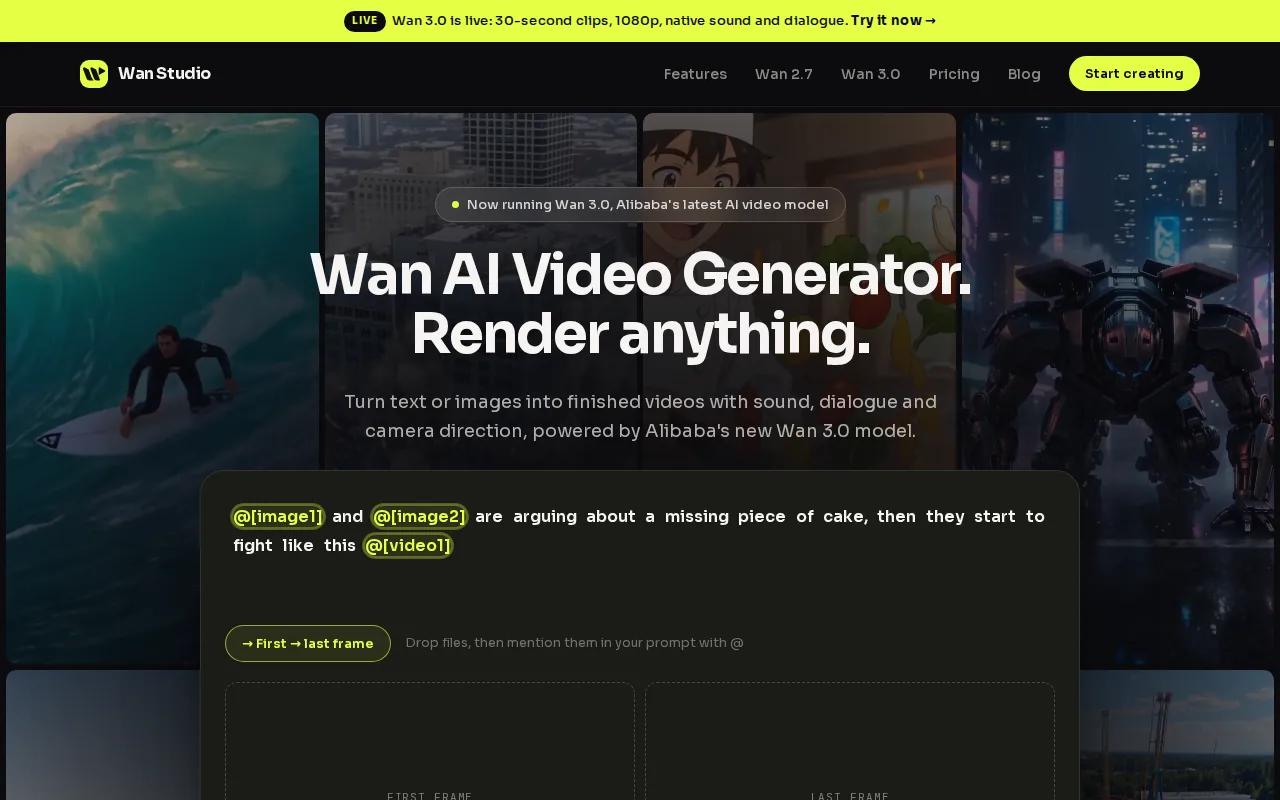
Start with a photo as the first frame, or describe the scene in text. Wan Studio gives you access to Wan models in the browser, so there’s no local setup. For a product spot, you might upload a picture of a coffee mug and prompt a short camera move, then add a line like “Meet your new desk-side coffee cup.” The character speaks that line as part of the generated scene.
Model choice matters. Wan 2.5 can generate a 5- or 10-second clip with sound, while Wan 2.7 supports clips up to 15 seconds at 720p or 1080p. Wan 3.0, the default model described for Wan Studio, supports clips up to 30 seconds at up to 1080p. These details help you plan a short-form post, but they don’t promise flawless mouth movement or a character that stays identical in every shot.
For a simple test, use one clear reference image and one short line of dialogue. The Wan 2.5 model workflow is a useful place to start when you want an image-to-video clip with native sound. Check the face, words, and audio before you post. Lip sync can vary between generations.
Wan Studio is our recommendation here for creators who want to make a scene from a prompt or photo, rather than only dub an existing video. It’s also worth checking the model and plan details before you build a longer story around one character.
2. Sync Labs: For high-quality video lip sync
Sync Labs is a video-to-video lip-sync tool for creators who already have footage and want to dub it. It’s best for teams that put mouth accuracy ahead of making a whole scene from scratch.
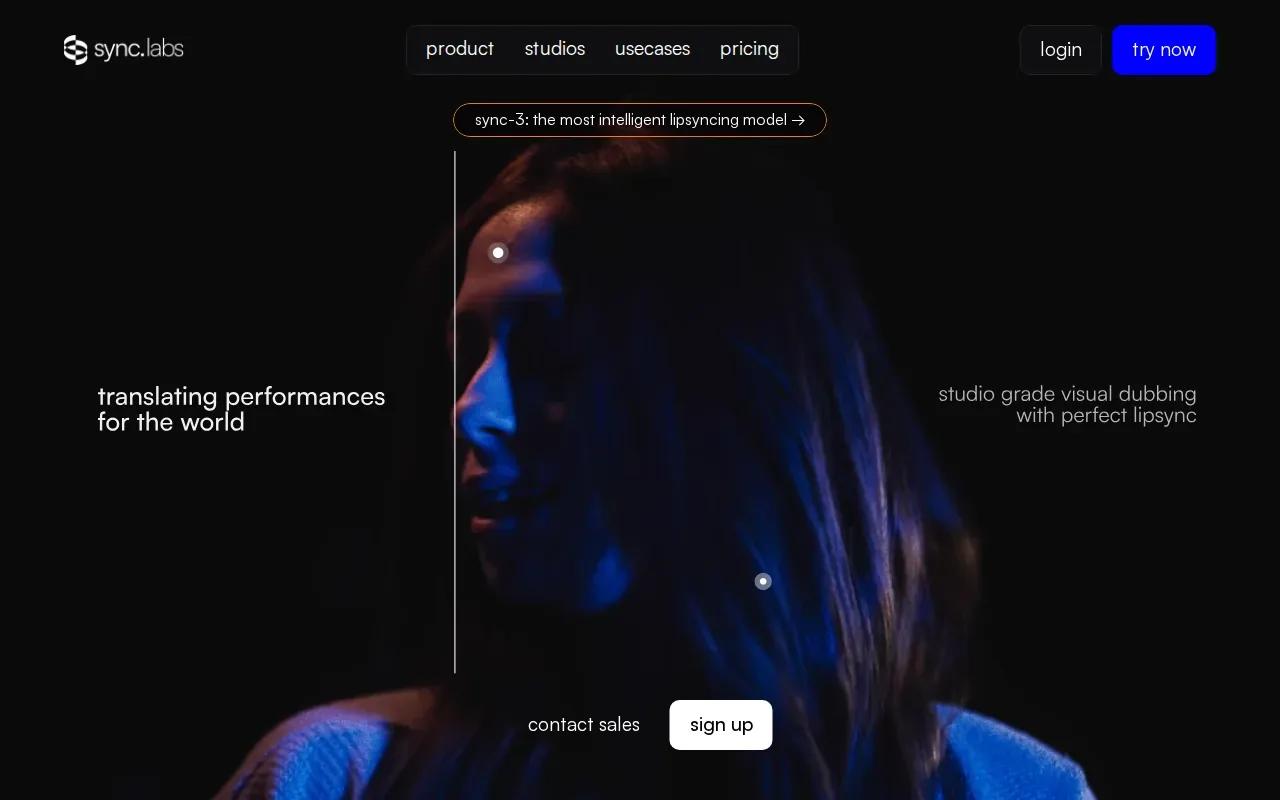
Sync Labs’ distinction is its focus on high-quality video-to-video dubbing.
Audio preparation is part of the result. Before dubbing, review the source video and audio together. For a music clip, work on a short vocal section first. Listen to the output with the full mix, not only the isolated voice. The final test is whether the words look right in the scene you’ll actually publish.
Check current model and plan details before preparing a long dub.
3. D-ID: For an API-first talking-avatar workflow
It suits teams that want to connect avatar video generation to a product or repeatable content workflow.
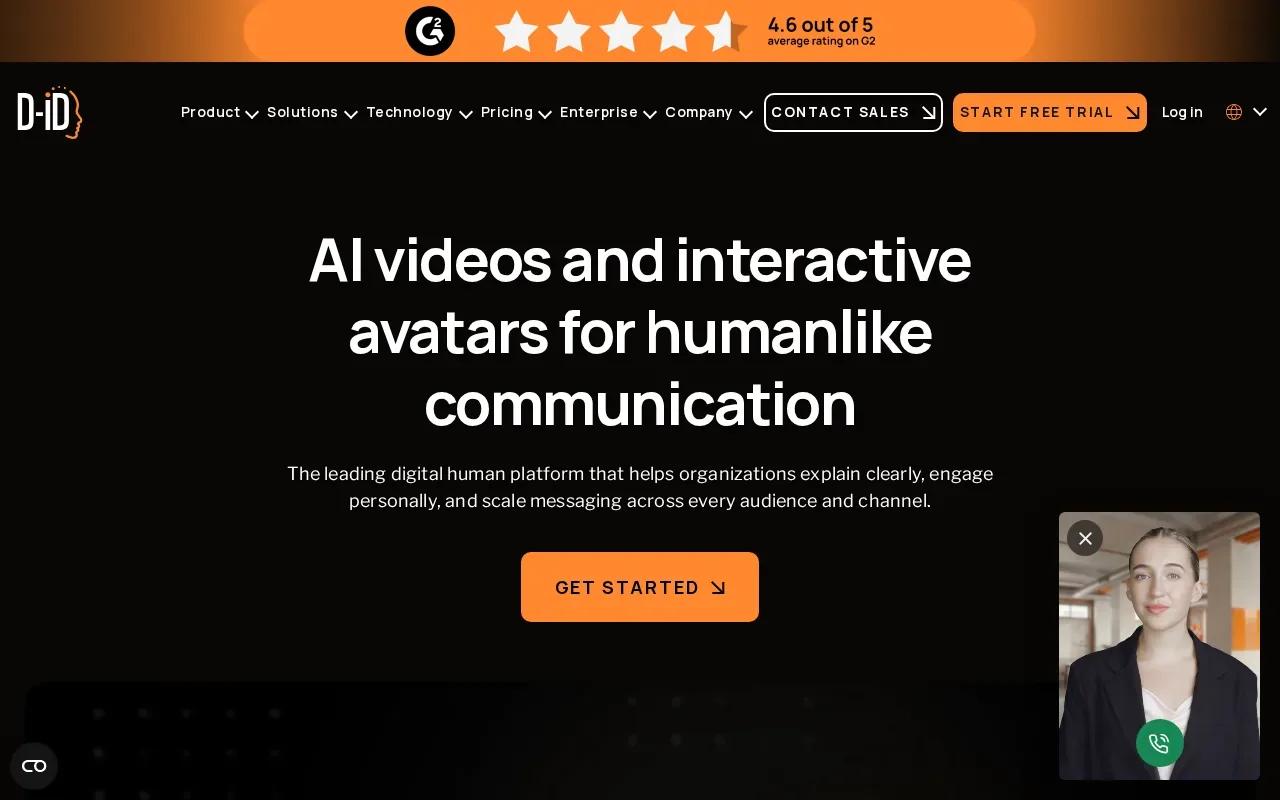
For a still-image avatar, start with a clear, well-lit image where the face is visible and oriented toward the camera. Checking the image before writing a script can help you prepare a smoother production workflow.
It places D-ID’s lip-sync quality slightly below Sync Labs. That makes D-ID worth testing as a talking-avatar option.
Before building a batch workflow, try a small sample and check that it fits your production needs.
4. LivePortrait by Kuaishou: For stylized portraits and portrait tests
LivePortrait by Kuaishou is a portrait-animation model that can use audio or video input. It’s best suited to creators working on talking heads, avatars, or stylized portraits, especially when they want to test motion on a modern GPU.
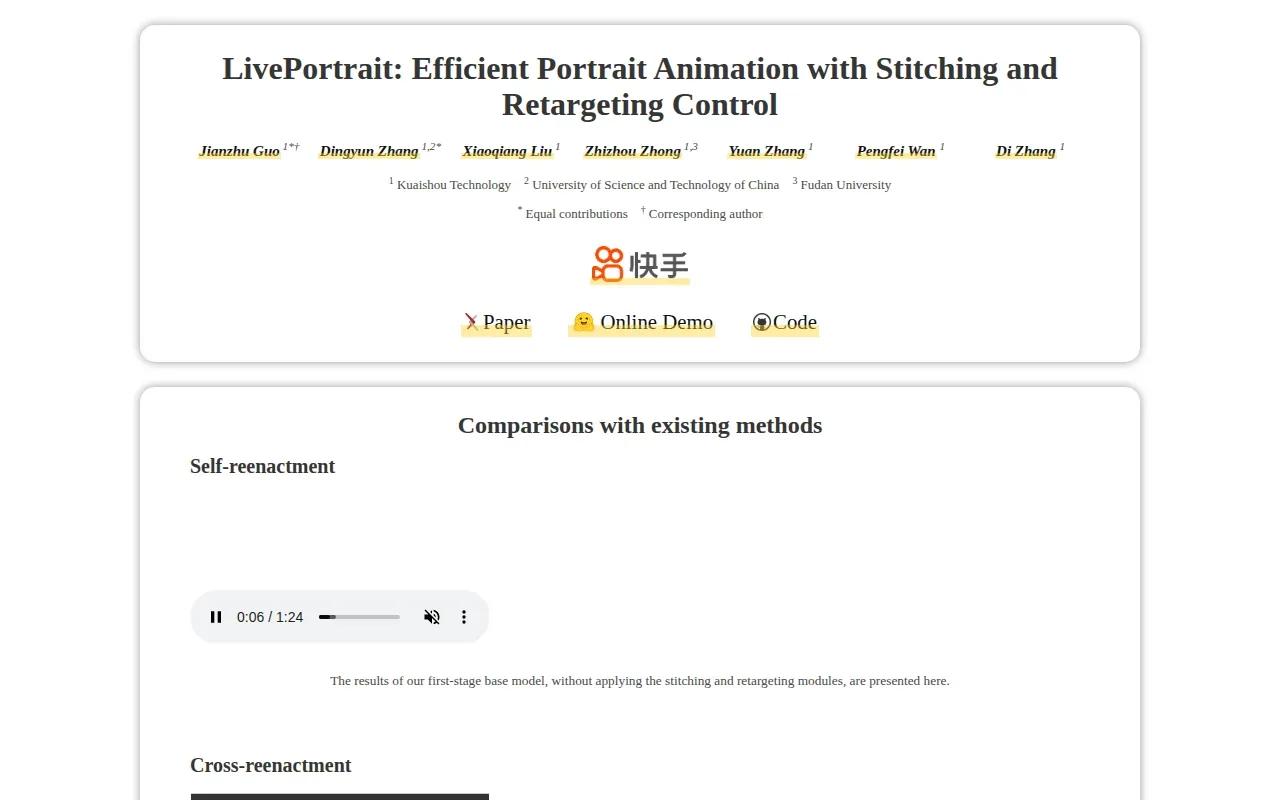
For a test, check the render speed on the hardware and workflow you plan to use.
Its portrait-animation focus is a different starting point from a full text-to-video workflow. If you already have a designed character image or a talking-head shot, it may fit that asset. The available details don’t establish specific output resolution, price, or maximum clip length. Verify those before you commit a project.
For character consistency, keep the same reference image and framing when you compare clips. Then watch for changes in the face, head movement, and mouth shape. A short test can show whether the model’s look fits your intended style, but it can’t prove identity will hold through a much longer video.
5. Pixazo: For hosted lip-sync models in a browser
Pixazo runs hosted lip-sync models in a browser, alongside enterprise offerings. It’s best for users who want a hosted solution without local setup. For hands-on marketers and social creators, this can be a way to explore a lip-sync workflow without managing local software or a GPU.
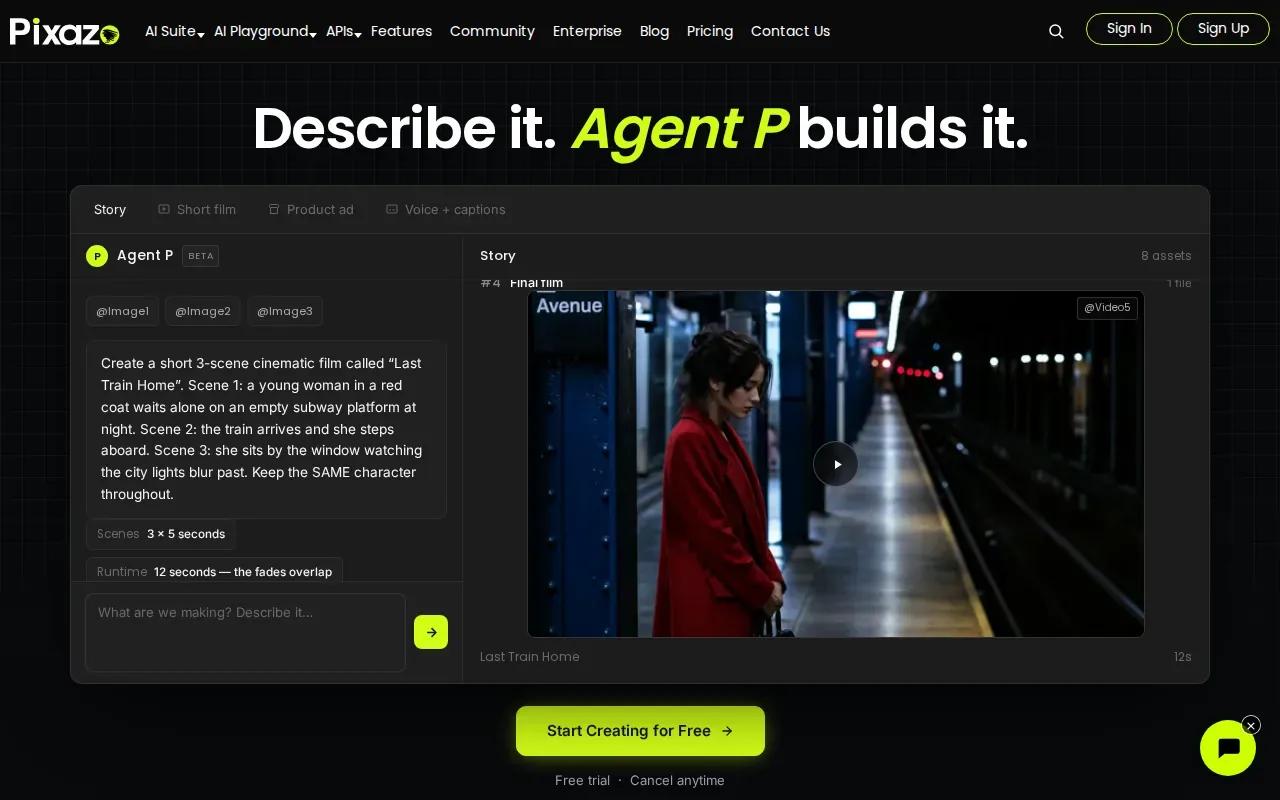
Before using a result in an ad, TikTok, Reel, or YouTube Short, review the mouth movement alongside the audio. Check that names sound right, timing feels natural, and the on-screen text matches the spoken message. If you are comparing versions, use the same short segment and review each one carefully rather than assuming the results will be identical.
For localized content, test a short dialogue segment in each language you need and inspect the mouth movement and finished audio together. Review names, timing, and on-screen text before publishing, especially when the clip is intended to promote a product or service.
6. VEED: For generating and editing in one workflow
VEED brings lip-sync generation and video editing into one workflow. It’s aimed at marketers and solopreneurs who want to prepare talking-head content, edit it, dub it, or add subtitles without moving through separate apps.
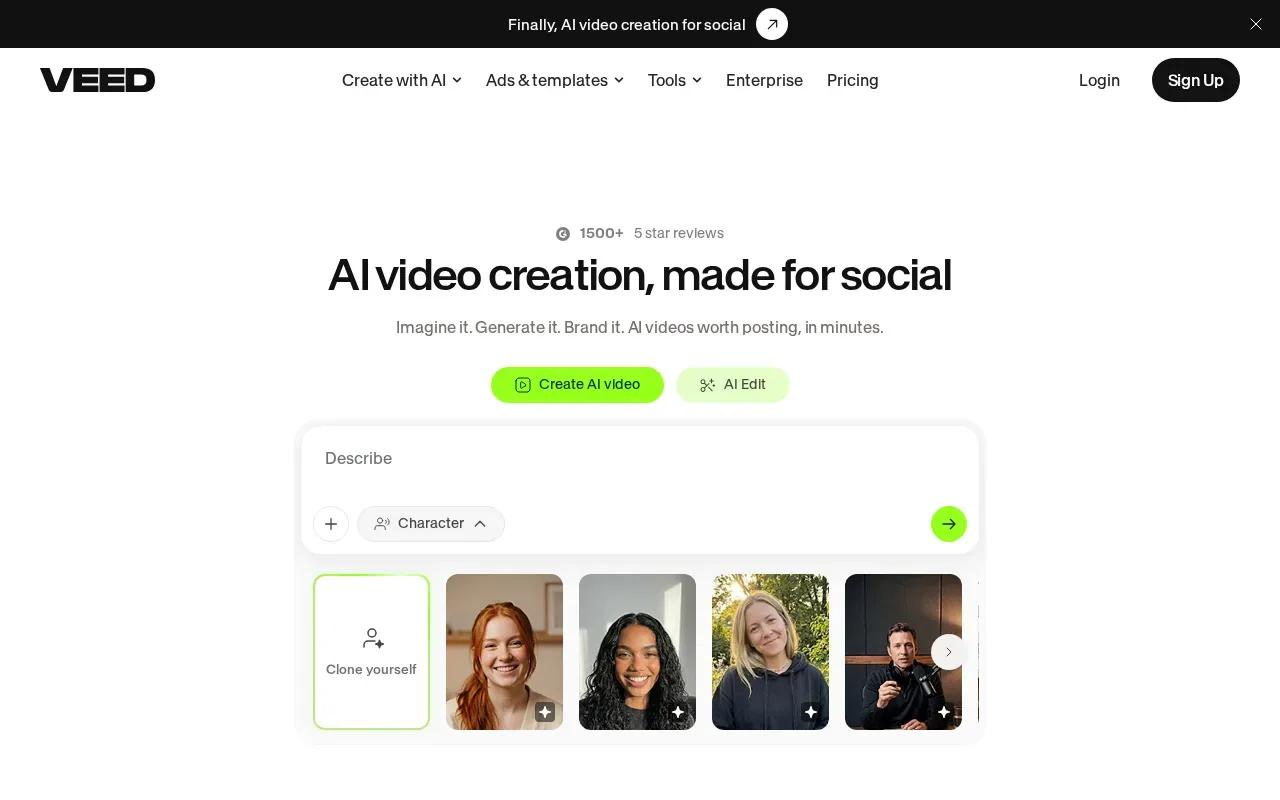
The same workflow can include AI editing, dubbing, and subtitles. That combination is useful when the lip-synced clip is only one part of the finished post. You can generate or prepare the talking shot, then add captions and make the rest of the edit in the same place.
Before you start, decide whether the source is a generated talking head, a video to dub, or a clip that mainly needs editing. Those aren’t the same job. Ask which input type the selected lip-sync route accepts, and check its available resolution and clip length.
A focused test saves time. Use one short line, inspect the mouth movement, then check the captions against the spoken words. If your post includes a product detail or offer, make sure the edit keeps that message easy to read on a phone.
VEED may be a fit when editing tasks matter as much as the lip-sync pass. Confirm the chosen route’s limits before planning a full campaign around it.
7. Kling AI: For exploring generative video with lip sync
Kling AI is a generative video option to investigate if you’re exploring AI-made scenes with lip sync.
That distinction matters. A generative video model may be part of a different workflow from a service built to dub a finished video. Before you start, look for the exact feature you need: a way to supply dialogue or audio, control over the scene, and a supported output length that fits your edit.
For a fair test, use the same short dialogue and reference idea you plan to use elsewhere. Keep the shot simple, with the face easy to see. Then review the result for mouth timing and whether the scene follows your prompt. If you need to make several clips with the same character, compare identity across those outputs too.
Don’t plan a long sequence until you’ve checked the current limits in your account.
8. HeyGen: For polished avatar-led marketing and training videos
HeyGen is a fit for avatar-led marketing, sales, training, and internal videos. It’s a sensible pick when your content needs a presenter-style format rather than a cinematic scene built from a product photo.
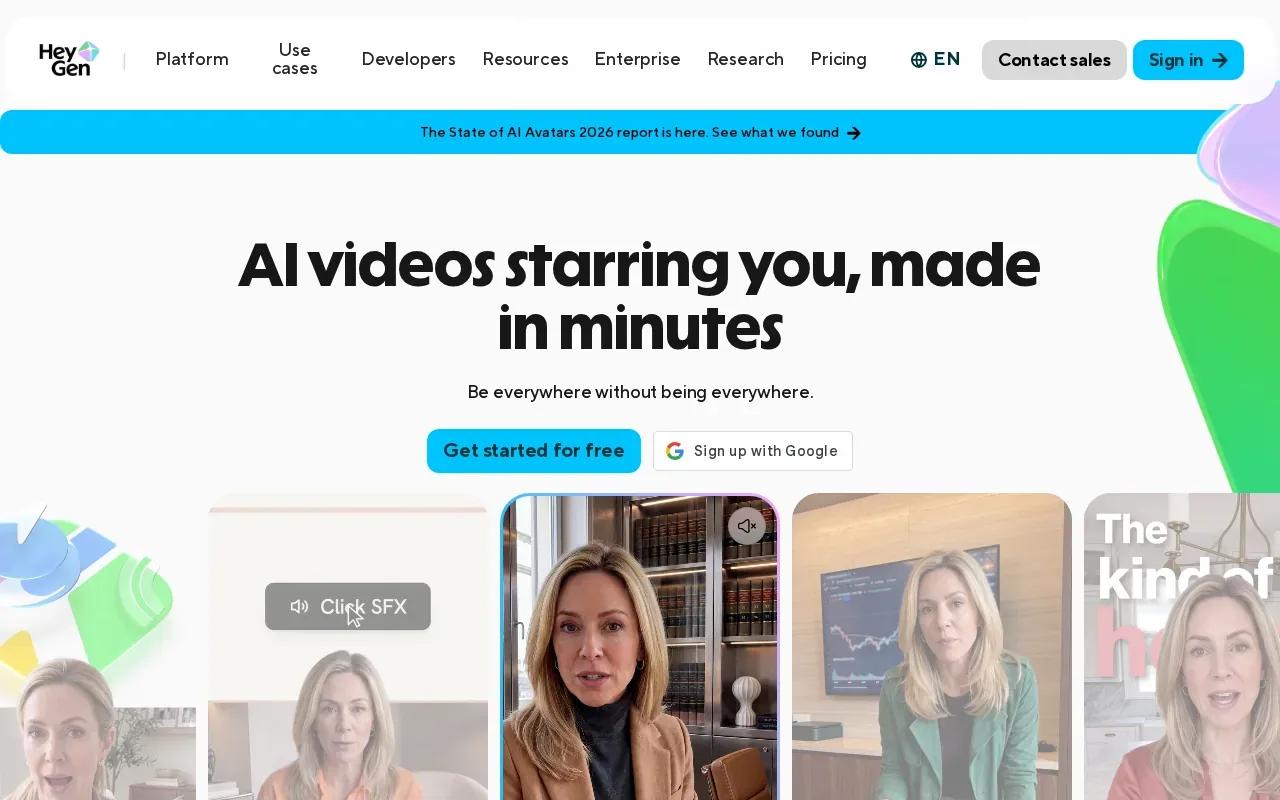
The avatar and lip-sync quality are described as natural-looking. Those observations are useful for choosing a first test, but they aren’t a guarantee for every avatar or script. Review the actual output with your brand voice and audience in mind.
A training clip has different needs from a short social ad. For training, the presenter should be easy to understand over a longer explanation. For a sales message, the first few seconds need to make the offer clear. Build a short sample for the format you plan to publish, then check whether the avatar’s delivery feels right for that role.
The research doesn’t provide a confirmed price, duration cap, or resolution for HeyGen. Check current terms before you assign recurring work to it.
9. fal.ai: For developers comparing hosted generative media models
fal.ai is a developer platform for integrating generative media models. It’s best for teams that want to compare or build with hosted models through a technical workflow, rather than use a single consumer editing screen.
It also says the platform has more than 1,000 models. That wide choice may help developers evaluate options for a product or pipeline, but the model list alone won’t tell you which one fits a lip-sync job.
Check each model’s accepted inputs, output format, duration, and cost before you build around it. A model that generates a scene from text may not take an existing video and dubbed audio. A lip-sync model may need a face video or a clean audio file. These are separate capabilities, even when they appear in the same model catalog.
For a first technical test, pass one short source clip through the specific model you intend to use. Keep the input and prompt fixed when comparing outputs. That gives your team a useful baseline before wiring the model into an app or batch process.
10. Lipdub by Captions: For dubbing and lip sync across languages
Lipdub by Captions is aimed at translating videos into other languages while syncing lip and face movement to the dubbed audio. It’s best for creators and marketers who have a finished video and need versions for different language audiences.
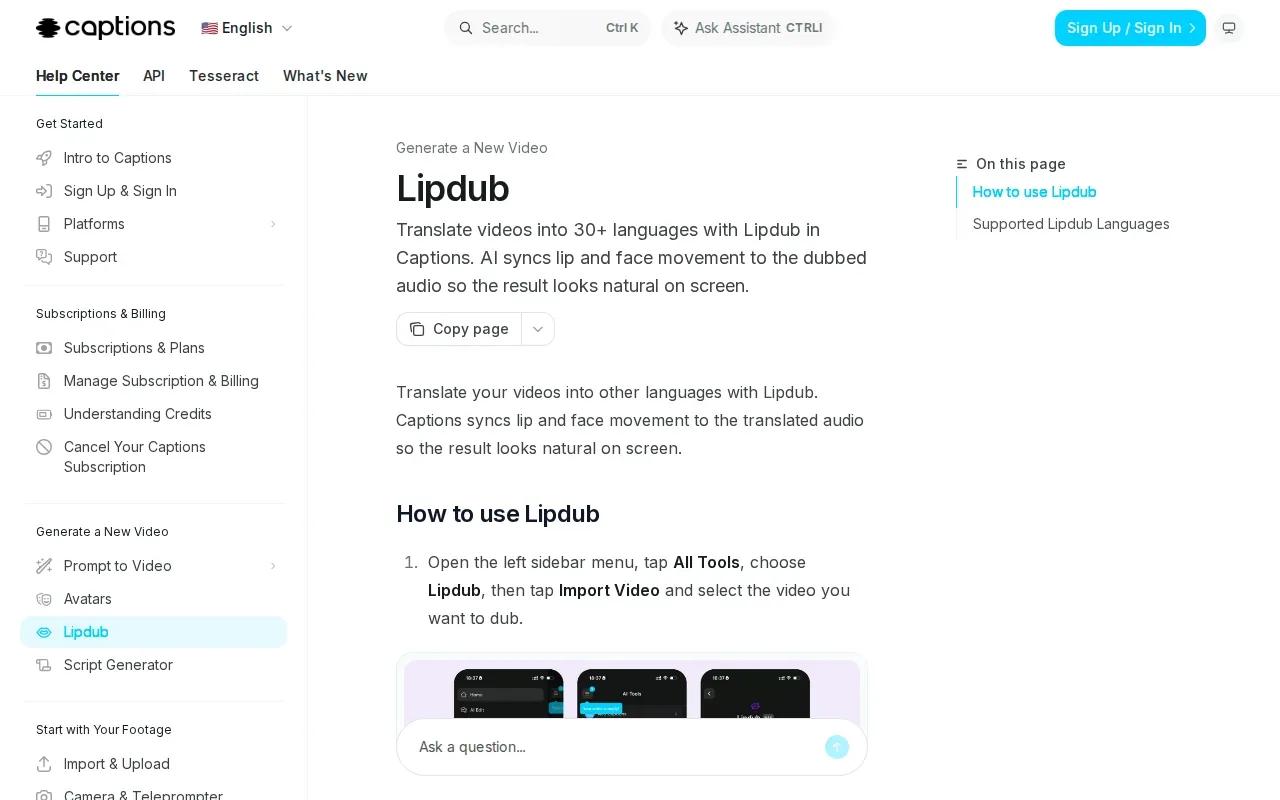
The AI syncs lip and face movement to the new audio so the result looks natural. Treat that as a reason to test the workflow, not a promise that every phrase will land perfectly in every language.
For a useful review, pick a short segment with clear speech and a visible face. Listen for correct names and meaning in the translated audio. Then compare the mouth movement with the new voice. A line that takes longer or less time in translation can change pacing, so check pauses and cuts as well as the lips.
Check the current plan before translating a full campaign. Start with one version, get approval on the spoken wording, then decide whether to prepare more language cuts.
AI lip sync generator comparison: fit, inputs, and limits
Use this comparison to narrow the field by workflow, not by claims of “perfect” sync. Specs such as price, resolution, and clip length aren’t available for every tool, so confirm them on the current product page before you plan a budget.
| Tool | Best fit | Known input or workflow | Known limit or detail |
|---|---|---|---|
| Wan Studio | Prompt- or image-led short scenes | Text prompts and images | Wan 2.5: 5 or 10 seconds; Wan 2.7: up to 15 seconds; Wan 3.0: up to 30 seconds |
| Sync Labs | High-quality video dubbing | Video input | Duration depends on plan |
| D-ID | Talking avatars | Studio workflow | Check current terms |
| LivePortrait by Kuaishou | Talking heads and stylized portraits | Audio or video | Portrait-animation model |
| Pixazo | Hosted model access | Face video and audio, or image and script | Model-specific terms need checking |
| VEED | Generation plus editing | Video editing workflow | Route-specific limits need checking |
| Kling AI | Exploring generative video | Not confirmed in supplied details | Check inputs, resolution, and duration |
| HeyGen | Avatar marketing and training | Avatar-led workflow | Other limits need checking |
| fal.ai | Developers testing hosted models | Generative media model integrations | Confirm details for the model you select |
| Lipdub by Captions | Video translation and dubbing | Existing video with translated audio | Check current translation options |
For short scenes made from a product image or prompt, Wan Studio is the most direct starting point in this shortlist. You can compare its Wan 2.7 model capabilities with your planned shot length and output size. If you already have footage, focus your test on video-to-video tools instead.
Preparing audio and reference images for better sync
Good inputs make review easier. They don’t guarantee a perfect result, but they remove common sources of confusion before the model generates.
Keep each audio slice short and clear
If your model has a short duration cap, split the track into sections that fit. Save each slice with a clear name and keep its matching lyric lines or script nearby. If the first audio file covers the second verse by mistake, the prompt and sound will disagree.
For songs, use an isolated vocal stem when the tool supports it. Listen through the voice track first. If words blur into the beat, make a cleaner source before asking the model to animate a face.
A brief silence buffer at the start can make it easier to line up the first word during editing. Keep the pause short, then check whether the tool preserves it or shifts the audio. Don’t assume every model handles timing the same way.
Use one clear reference image
Choose a face that is large enough to read and not hidden by glasses, hair, or a strong side angle. For a character you want to reuse, keep the same reference image across clips. It gives you a consistent starting point, though it can’t guarantee the generated face will stay identical.
Think about shot size too. A close-up makes mouth movement easier to inspect. A mid shot gives you more room for gestures. A far shot works better for B-roll, where the face may not need to carry the dialogue.
Match the prompt to the audio
For spoken dialogue, include the exact line in your prompt when the tool supports text instructions. For a song, include the lyrics that match the audio slice. A prompt that only says “singing” gives less detail about which words the character should appear to say.
Describe the shot in order if you want a clip with more than one camera angle. For example, begin with a close-up, then cut to a mid shot, then return to the face. Keep the instructions simple enough that you can tell whether the model followed them.
Frequently asked questions
What is the best AI lip sync generator for creators?
The best AI lip sync generator depends on whether you’re making a new scene, dubbing existing footage, or building an avatar workflow. Wan Studio is a good starting point for prompt- or image-led short videos. Sync Labs focuses on video dubbing, while D-ID and HeyGen suit talking-avatar work. Test a short clip before choosing a tool for a full campaign.
Can I make lip-sync videos from a photo?
Yes, some AI lip sync workflows can start from a still image or reference image. Wan Studio turns text prompts and images into short video scenes, and D-ID’s studio supports talking avatars. Use a clear, front-facing image when possible. Then inspect the mouth and face, because a still reference doesn’t ensure every generated frame will look natural.
How do I make AI lip sync look more accurate?
Use clear audio, match the prompt text to the spoken words, and keep the face visible. For music, an isolated vocal track can help when the model supports it. Split long audio into clips that fit the tool’s limit. Use the same reference image across related clips, then watch each result with the final soundtrack.
Can AI lip-sync tools handle long videos?
Some can, but the limit varies by tool and plan. D-ID lists a five-minute video limit, while Sync Labs’ maximum duration depends on subscription. Wan Studio’s listed model limits range from short clips up to 30 seconds on Wan 3.0. For longer work, check current limits and test whether the model keeps the face consistent between segments.
Do AI lip sync generators include editing and subtitles?
Some include editing tasks alongside lip sync. VEED’s described workflow includes AI editing, dubbing, and subtitles. Other tools may focus on generating or dubbing the clip, so you’ll finish the cut in a separate editor. Before you start, check whether the tool exports the format and resolution your editing workflow needs.
Conclusion
If you’re starting from a prompt or product photo, begin with Wan Studio and test one short clip with a clear line of dialogue. Review the mouth movement before posting, then adjust your prompt or source image if needed. Try Wan Studio with a small creative test before you build the whole campaign around it.