To use Wan, open a Wan app in your browser, pick a model, describe your shot in plain language, set the length and aspect ratio, and generate. Wan returns a finished clip with sound. You can also call Wan through an API, or run the open-source Wan 2.2 on your own GPU.
This guide walks through each route, then shows the exact workflow for text-to-video, image-to-video, reference characters, dialogue, video editing and 30-second scenes.
Three Ways to Use Wan
Wan isn't a single app. It's a family of models from Alibaba (new to it? Start with what Wan is), and you reach it in one of three ways:
| Route | Setup time | Models | Sound | Best for |
|---|---|---|---|---|
| Browser app, such as Wan Studio | About 2 minutes | Wan 3.0, 2.7, 2.5 | Yes | Creators, marketers, small teams |
| API, such as the Wan API | An afternoon | Wan 3.0, 2.7, 2.5 | Yes | Developers building video into a product |
| Local, in ComfyUI or Diffusers | A few hours | Wan 2.1, 2.2 | No (except audio-driven S2V) | Tinkerers with a strong NVIDIA GPU |
The steps below use Wan Studio, since it runs every current hosted Wan model in one prompt box. The same ideas carry over to any Wan app.
How to Make Your First Wan Video, Step by Step
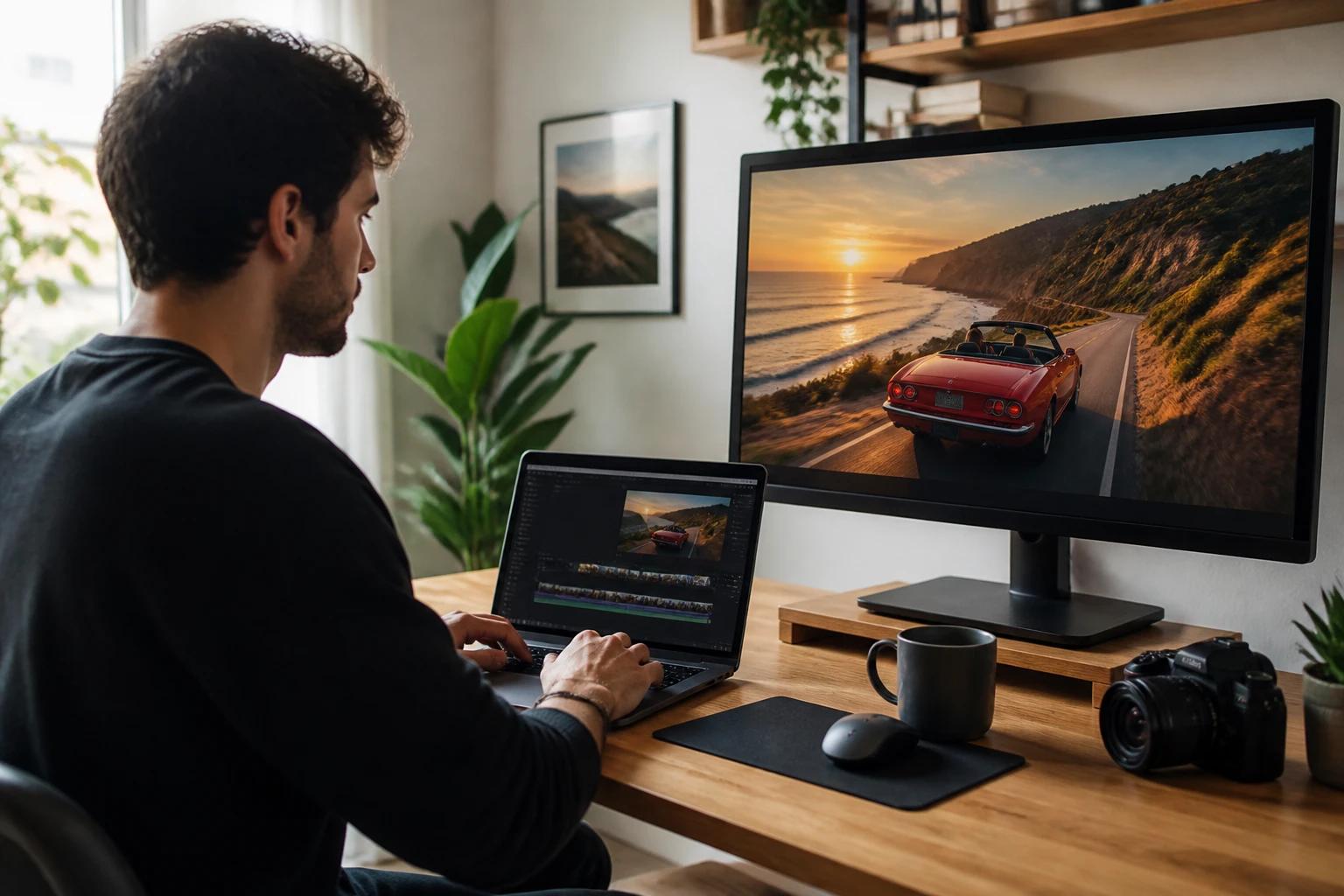
Your first video takes about two minutes of setup plus generation time. Here's the full process.
Step 1: Create an account
Go to trywan.ai and sign up with your email. The free plan gives you 160 credits a month, enough for up to two Wan 2.5 videos at 480p, with no card required. To use Wan 3.0 or Wan 2.7, or to export at 720p and 1080p, choose a paid plan from $14 a month on the pricing page.
Step 2: Choose a mode and a model
In the prompt box, pick Video (or Image for stills), then choose a model from the menu. Wan 3.0 is selected by default.
| Model | Clip length | Resolution | Inputs | Use it for |
|---|---|---|---|---|
| Wan 3.0 | 2 to 30 s | 480p, 720p, 1080p | Text or a first frame | New scenes, ads, short stories |
| Wan 2.7 | 2 to 15 s | 720p, 1080p | Text, first and last frame, reference images, clips and audio, video edit | Consistent characters, edits, loops |
| Wan 2.5 and 2.5 Fast | 5 or 10 s | 480p to 1080p (Fast: 720p and 1080p) | Text or a first frame | Quick drafts and the free plan |
Step 3: Write your prompt
Describe the shot the way a director would: who is in it, where they are, what happens, how the camera moves, what the light looks like, and what we hear. Put spoken lines in quotation marks so the character says them with lip sync.
For formulas and dozens of ready-made examples, see our Wan prompt guide.
Step 4: Add an image or references (optional)
Drag a file into the prompt box to use it. On any model, a single photo can be the first frame for image-to-video. On Wan 2.7, you can attach several images, video clips or an audio file, then type @ in your prompt to tag each one where it belongs.
Step 5: Set the aspect ratio, resolution and length
Choose 16:9 for YouTube and landscape players, 9:16 for TikTok, Reels and Shorts, 1:1 or 4:3 for feeds. On Wan 3.0, Auto lets the model pick the framing that suits your prompt. Then set the resolution and duration. Longer and sharper clips use more credits, so draft short and low, then finish long and high.
Step 6: Generate and review
Click Generate. When the clip is ready, watch it twice with the sound on: once for the story, once for details like hands, faces, on-screen text and lip sync.
Step 7: Refine and download
If something is off, change one thing in the prompt at a time so you can see what fixed it. When you're happy, download the MP4. Every generation also stays in your media gallery.
How to Use Wan for Text-to-Video
Text-to-video works best when you describe one subject doing one clear thing. Write in this order: subject, setting, action, camera, light and style, then sound. Anything you leave out, Wan decides for you.
If the result feels static, add motion and speed words like "sprints," "slowly turns" or "wind whips her hair." If it feels chaotic, cut elements until one action carries the shot.
How to Use Wan for Image-to-Video
With image-to-video, your photo fixes the subject, setting and style, so the prompt should describe only motion and camera. Re-describing what's already in the picture wastes words and can fight the image.
- Pick a sharp, well-lit image with the subject fully in frame.
- Crop it to the aspect ratio you plan to export, so Wan doesn't have to invent the edges.
- Upload it as the first frame.
- Describe what moves, how fast, and what the camera does.
On Wan 2.7, you can also set a last frame. Wan animates the journey from the first image to the second, which is ideal for transitions and before-and-after shots. Use the same image for both to make a seamless loop. For more on this workflow, read how to turn a photo into a video.
How to Keep a Character Consistent With References
Reference inputs on Wan 2.7 let you reuse the same person, product or location across clips. Attach your images, video clips or audio, then type @ in the prompt to tag each file. Tags appear as @[image1], @[video1] and so on.
Give every reference one clear job in the sentence:
Use clean references: one subject per image, good light, a plain background. Keep the same reference files for a whole series so your character looks the same in every post.
How to Add Dialogue, Sound Effects and Music
Wan generates sound with the picture, and you control it with words:
- Dialogue: name the speaker, show an action, then quote the line. "The chef slams the pan down and says, 'Service!'" Short lines sync best.
- Two speakers: describe each person distinctly and set the order. "The old fisherman says... Then the girl replies..."
- Sound effects: describe the action and the material, such as boots on gravel or rain on a tin roof, and Wan adds matching sound. You can also name the effect directly.
- Music: name a style and mood, such as "tense string score" or "upbeat 90s pop."
- Silence: write "No dialogue." or "No background music." when you don't want them, otherwise Wan may add its own.
On Wan 2.7, you can attach your own audio track, such as a voiceover or a song, to drive the scene.
How to Edit a Video With Wan 2.7
Edit mode changes an existing clip while keeping its motion. Switch to edit, upload the base video, and describe one change at a time:
Good edits include outfits, weather, time of day, color grade and overall style, such as turning live action into claymation. Ending with "keep everything else unchanged" helps Wan leave the rest alone.
How to Make Longer Videos With Wan 3.0
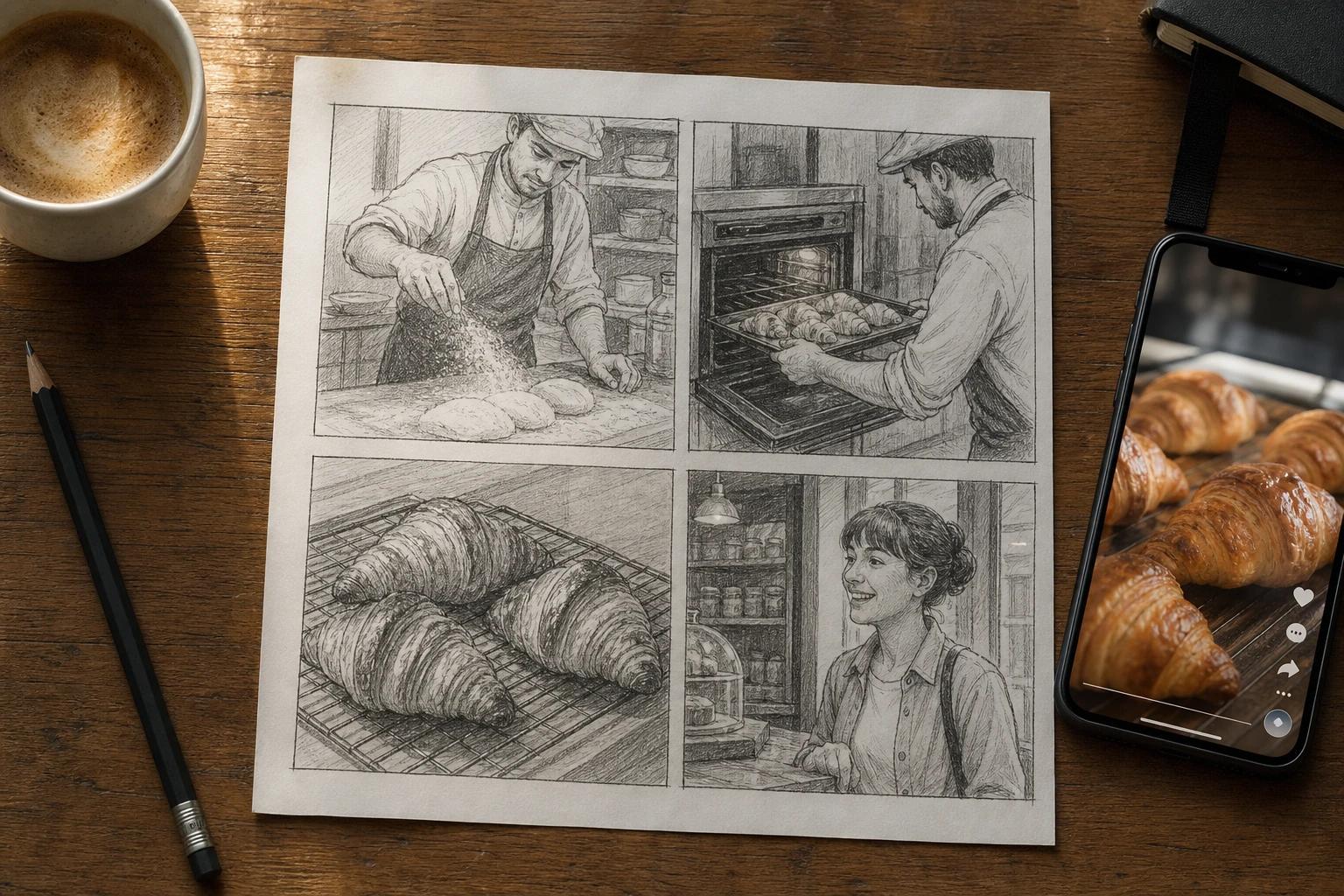
Wan 3.0 generates up to 30 seconds in one go. Set the duration, then structure the prompt as shots with timestamps, keeping each shot to a few seconds:
Need more than 30 seconds? Generate several clips with the same characters, using Wan 2.7 references or each clip's last frame as the next clip's first frame, then join them in an editor. See how Wan compares in our guide to the best AI video generator for 30 seconds.
How to Use the Wan API
The Wan API lets you generate Wan videos from your own code, with the same models and sound as the app. It's asynchronous: you submit a job, get an ID back right away, and collect the finished MP4 when it's ready.
- Create an account, choose any paid plan, and generate an API key in your dashboard.
- Send a POST request to https://trywan.ai/api/v1/generate with your key as a bearer token.
- Poll the job's status, or register a webhook so Wan Studio calls you when the render is done.
- Download the MP4 with sound from the URL in the response.
A basic request carries these fields:
| Field | Example | What it does |
|---|---|---|
| model | wan-3.0 | Which Wan model renders the clip |
| prompt | A cinematic dolly shot of a neon-lit alley at night, rain, steam | The scene description |
| duration | 8 | Clip length in seconds |
| aspect_ratio | 16:9 | Frame shape |
| resolution | 1080p | Output resolution |
Usage is billed per second of generated video from your plan's credits, with no per-seat fees or minimums.
How to Use Wan 2.2 Locally in ComfyUI
If you'd rather run Wan on your own hardware, use the open-source Wan 2.2 in ComfyUI. It's free per clip, works offline and supports community add-ons like LoRAs. In exchange, clips are silent, about 5 seconds long and capped at 720p.
What you need: an NVIDIA GPU. The compact Wan 2.2 TI2V-5B model makes 720p video at 24 fps on a 24 GB card like the RTX 4090. The larger 14B models need more graphics memory or offloading. On an 8 GB card, the older Wan 2.1 1.3B model handles 480p.
- Install or update ComfyUI to the latest version.
- Open the workflow templates and load a Wan 2.2 text-to-video or image-to-video workflow.
- Download the model files the template asks for (the diffusion model, text encoder and VAE) into the folders it names. The official files are on GitHub and Hugging Face.
- Choose TI2V-5B for a single consumer GPU, or the A14B models for higher quality if you have the memory.
- Enter your prompt, set the resolution and frame count, and queue the job.
Python developers can also run Wan 2.2 through Hugging Face Diffusers. For audio-driven animation, Alibaba's Wan2.2-S2V model animates a character from a sound file.
How to Save Credits on Wan
Credits scale with model, length and resolution, so the cheapest workflow is to find the idea small and finish it big:
- Draft small. Test prompts on Wan 2.5 or Wan 2.5 Fast at 5 seconds and a low resolution.
- Scale once. When a prompt works, run it on Wan 3.0 or 2.7 at full length and 1080p.
- Change one thing at a time. You'll learn what actually fixed a problem instead of re-rolling blindly.
- Start from an image when you know the look. A first frame removes guesswork about style and framing.
- Use credit packs for occasional projects. One-time packs on Wan Studio never expire, so you're not paying for idle months.
Common Wan Problems and How to Fix Them
Most bad generations come from the prompt, not the model. Here are the usual suspects:
| Problem | Likely cause | Fix |
|---|---|---|
| The clip barely moves | No motion in the prompt | Add a clear action, a speed and a camera move |
| Too much happens at once | Too many subjects or actions | Keep one subject and one action per shot |
| A face or outfit changes mid-clip | Vague description or a long clip | Use a first frame or Wan 2.7 references; name distinctive features |
| Lip sync drifts | Long lines or unclear speakers | Shorten lines and tie each one to the speaker's action |
| Unwanted music or voices | Wan filling a gap you left open | Add "No background music." or "No dialogue." |
| Garbled signs or captions | Text rendering limits | Add exact text later in your editor |
| Subject cropped at the edges | Image and aspect ratio don't match | Crop the image to your export ratio, or use Auto framing on Wan 3.0 |
| The camera won't hold still | Wan adds movement by default | Write "Fixed camera, no camera movement." |
Frequently Asked Questions
How do I use Wan for free?
Sign up for Wan Studio's free plan. It gives you up to two Wan 2.5 videos a month at 480p, with sound, no watermark and no card. If you have a strong NVIDIA GPU, you can also run the open-source Wan 2.2 locally at no cost per clip. See Wan free for details.
Can I use Wan on my phone?
Yes. Wan Studio runs in the browser, so it works on phones, tablets and computers without an app or download. Vertical 9:16 output is ready for TikTok, Reels and Shorts.
How do I use Wan 2.2?
Wan 2.2 is open source, so most people run it in ComfyUI or Hugging Face Diffusers on their own GPU. Load a Wan 2.2 workflow template, download the model files it lists, write a prompt and queue the job. For sound, dialogue and longer clips, use a hosted model like Wan 3.0 instead.
How long can a Wan video be?
Up to 30 seconds per generation on Wan 3.0, 15 seconds on Wan 2.7, and 5 or 10 seconds on Wan 2.5. For longer pieces, generate several clips with consistent characters and join them in an editor.
How do I make a character talk in Wan?
Put the line in quotation marks and tie it to the speaker, for example: the coach claps once and says, "Again, faster." Wan generates the voice and lip movement with the video. Keep each line short for the cleanest sync.
Which Wan model should beginners use?
Start with Wan 3.0, the default on paid plans, because it handles long, multi-shot scenes from a plain prompt. On the free plan, use Wan 2.5 to learn how prompts translate into motion and sound.
Can I use Wan videos commercially?
On Wan Studio, every paid plan includes a commercial licence. The open-source Wan 2.1 and 2.2 use the Apache 2.0 licence, which also allows commercial use. Either way, make sure you have rights to any faces, logos or music you feed in.
Conclusion
Using Wan comes down to a short loop: pick the right model, describe the shot clearly, generate, and refine one change at a time. Start with a 5-second draft, then scale the winner to a full 1080p scene. Create a free Wan Studio account and make your first clip today, then sharpen your results with our Wan prompt guide.