A still photo can become a moving clip with a prompt and a few clicks. The catch is that tools vary in how much control they give you over sound, dialogue, and scene length. Here are five options for turning images into video, starting with Wan Studio.
1. Wan Studio
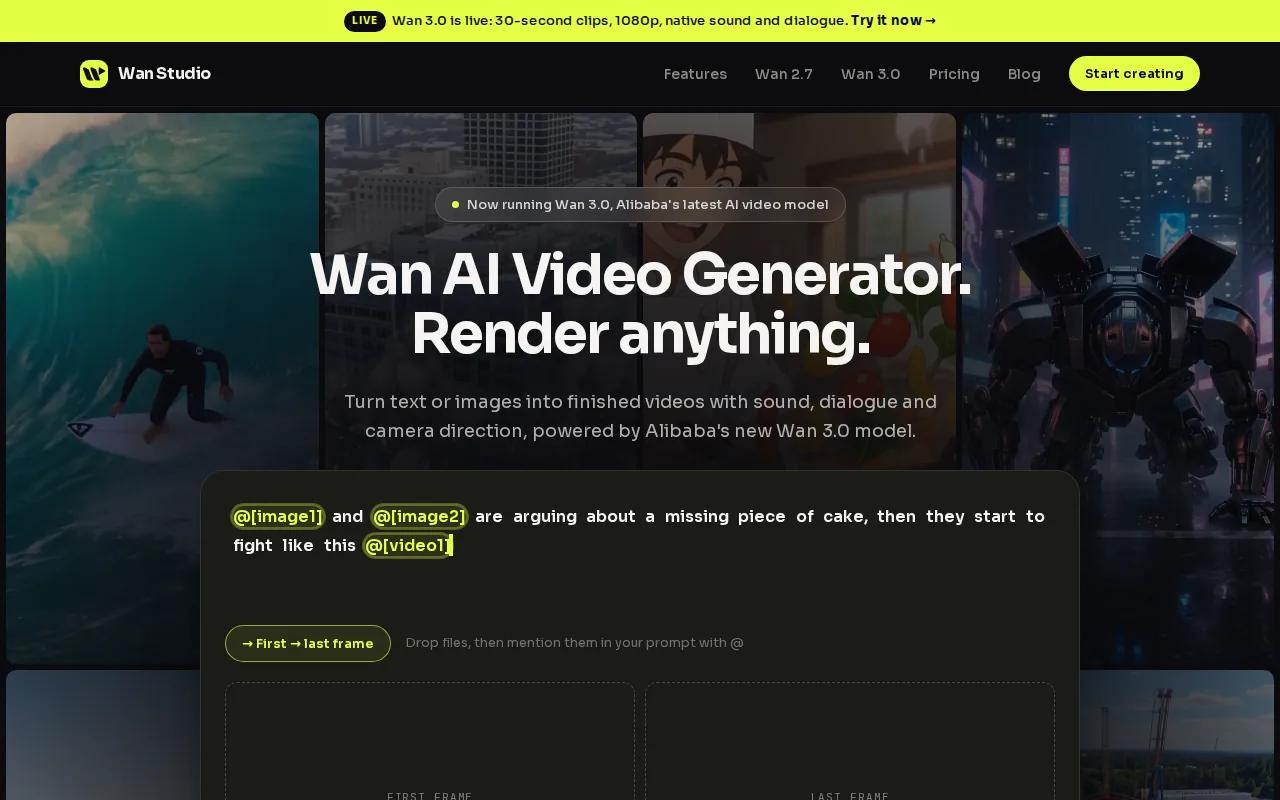
Wan Studio is a browser-based tool for turning prompts or images into short videos. It fits social creators, small business owners, and marketers who want a product photo to become a promo without filming.
An image-to-video tool uses a still image as a visual starting point, then generates movement based on your prompt. The broader idea of generative artificial intelligence is to make new content from a user’s input.
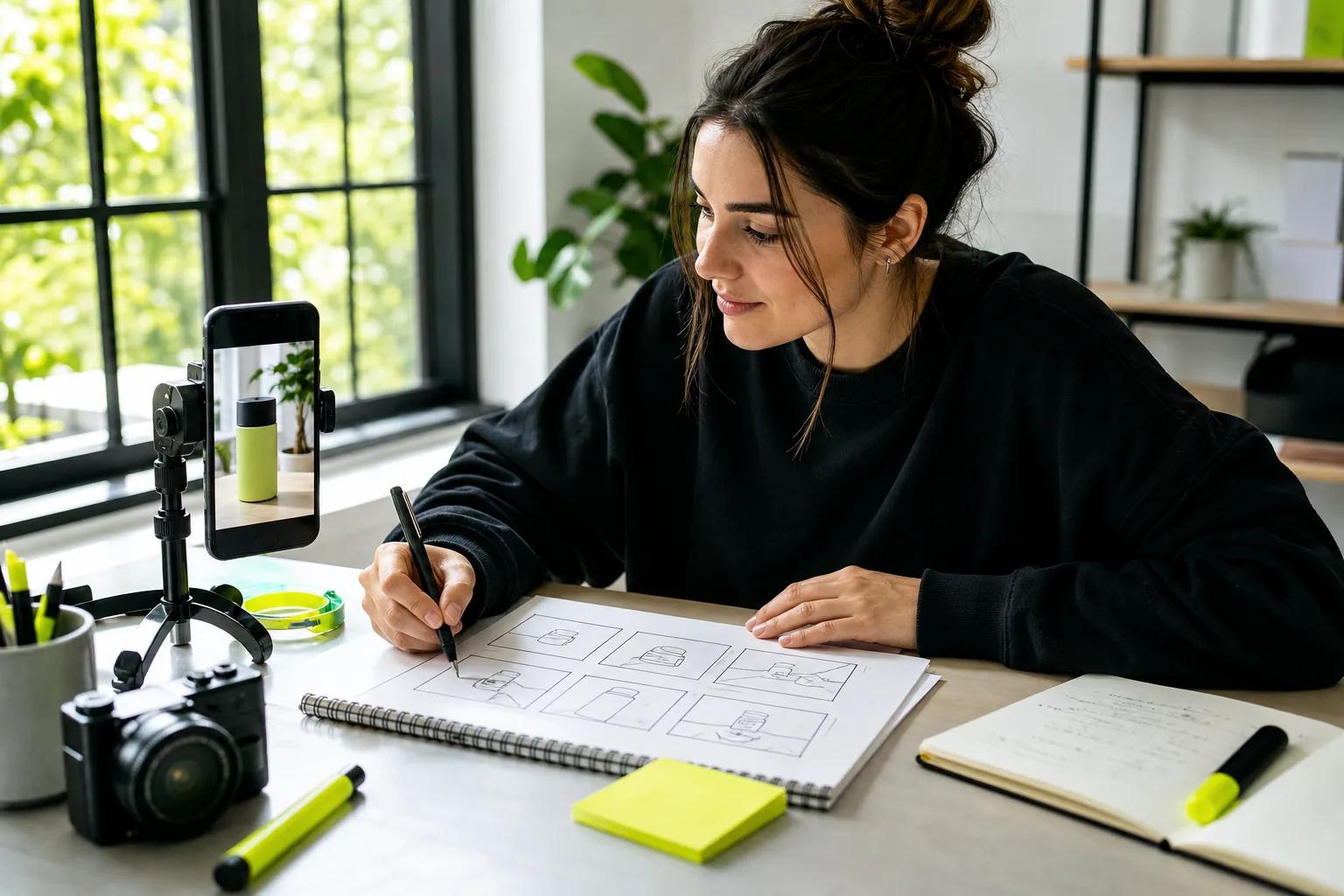
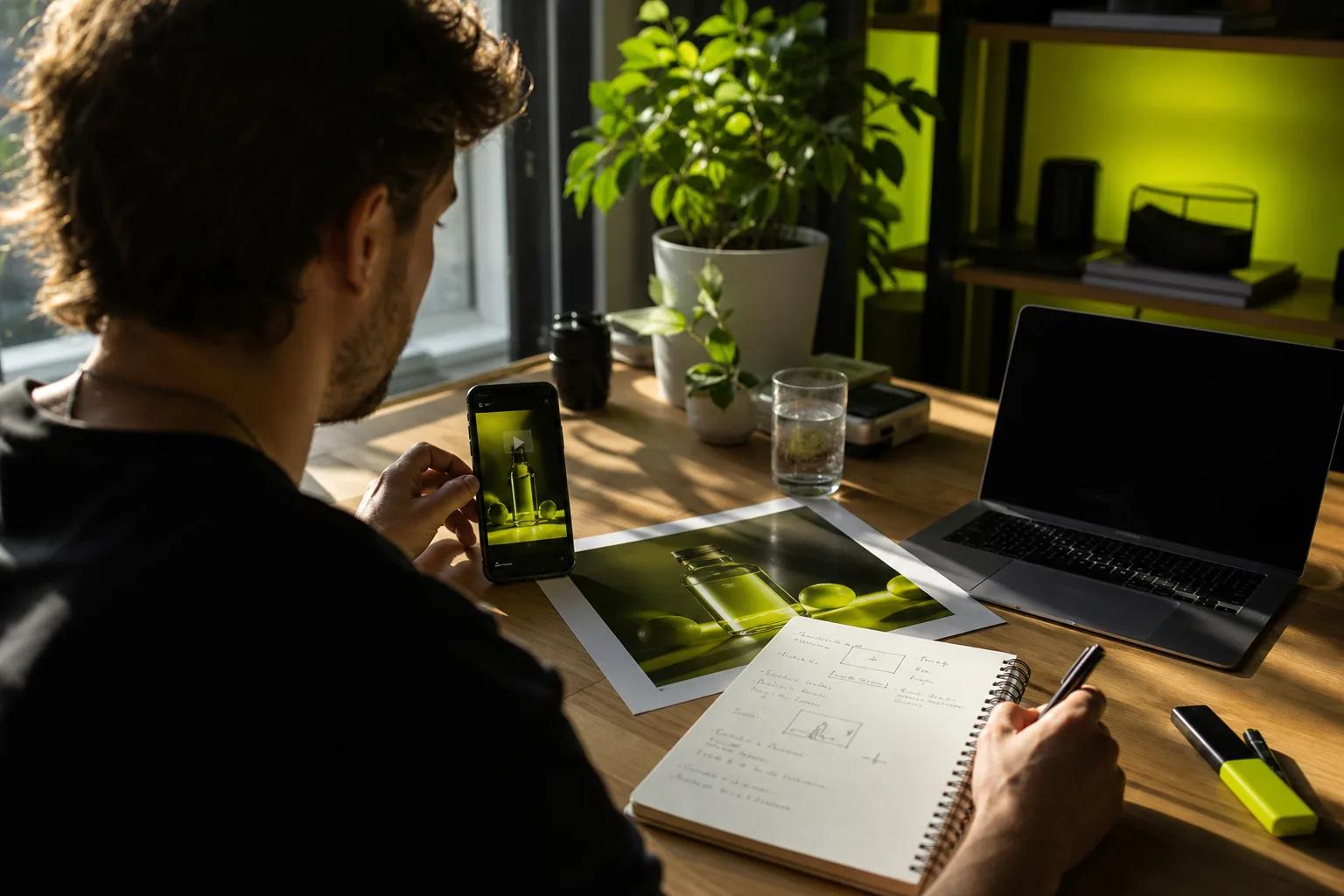
In Wan Studio, drop in a photo as the first frame. Describe what should move and how the camera should act, then set the clip length and aspect ratio before you generate. A prompt such as “slow push toward the jar, sunlight crosses the label” gives the model a clear action to build around.
Wan 3.0 can make clips up to 30 seconds, with native sound and lip-synced dialogue. It also keeps characters consistent from shot to shot. For a short-form ad, you could start with a product image, describe a camera move, then add a spoken line in quotes. The result is a generated clip with audio, not a silent animation that needs a separate voice track.
The free plan gives you a couple of Wan 2.5 videos each month at 480p, with no card required. Wan 2.5 includes native sound, but the longer clips and character consistency described above are Wan 3.0 features on paid plans. Paid plans start at $14 per month and include a commercial licence.
If you want a closer look at the image-led workflow, Wan Studio’s image-to-video AI generator comparison explains how a still can anchor the look of a clip.
2. Kling VIDEO 3.0 series: Multi-Shot Scenes and Lip Sync
Kling VIDEO 3.0 series is an image-to-video option with Multi-Shot scene planning and sound sync. It suits creators who want a single generated clip to move through more than one shot.
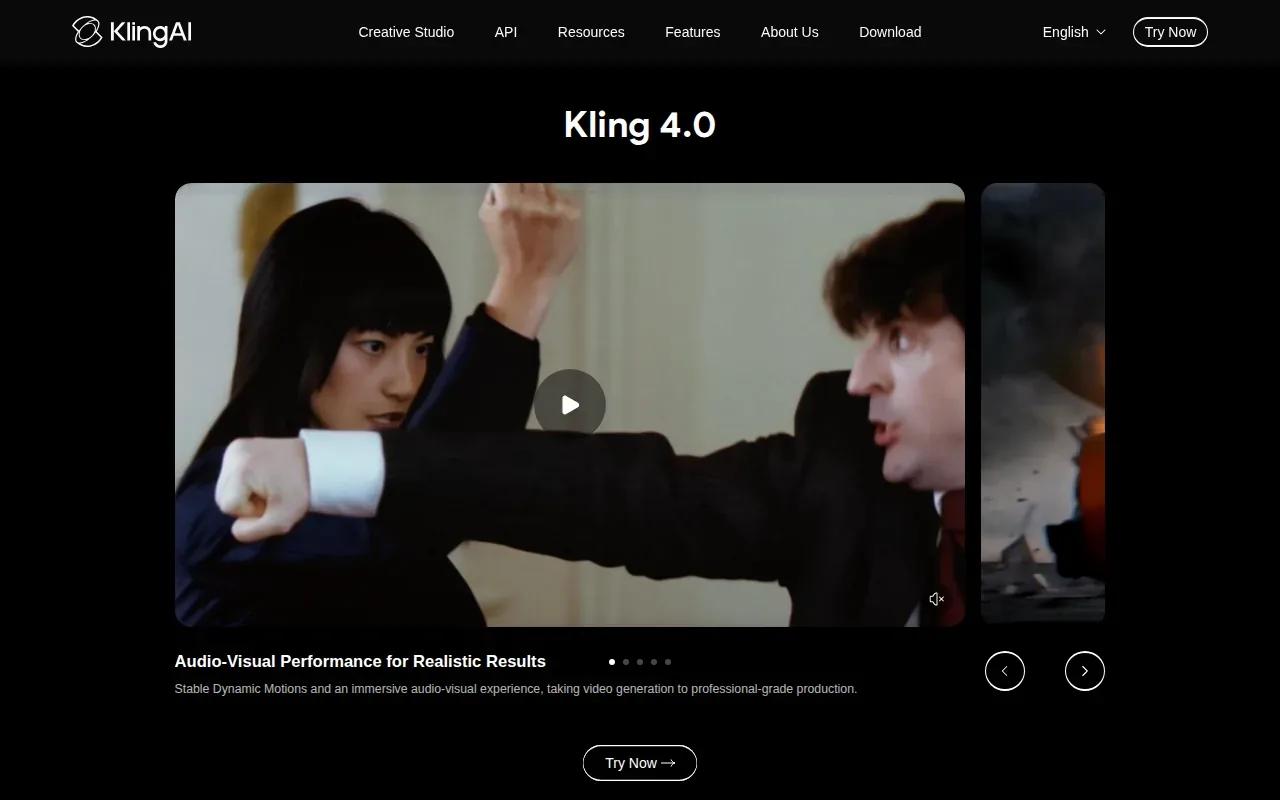
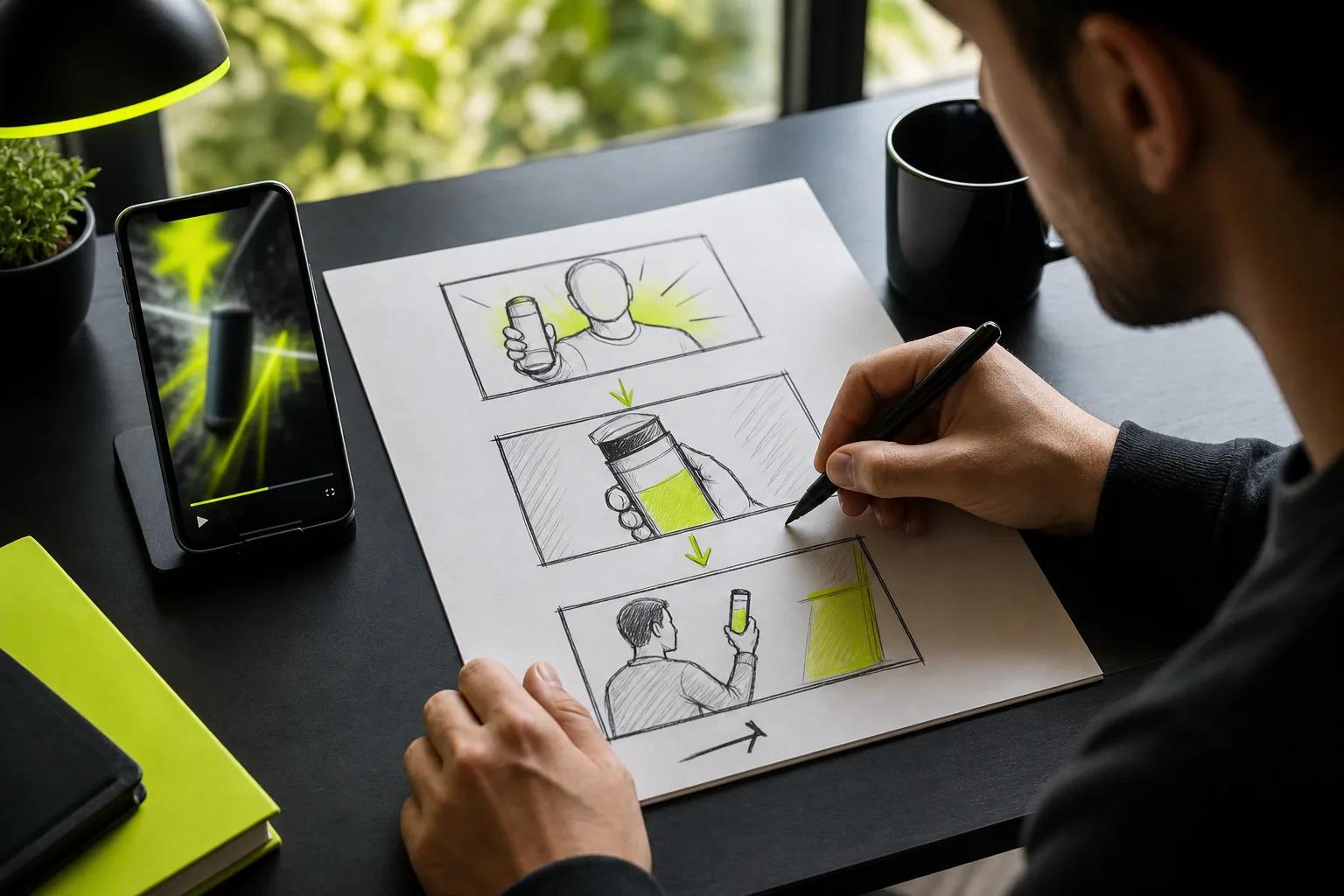
With Multi-Shot on, the model can intelligently plan scene transitions from your prompt. For example, a product clip could open on a wide view, then cut closer to a detail. That gives the scene a change in pace without building every shot by hand in an editor.
If you plan a talking character, check how the lip sync looks before you use the clip. Lip sync matches mouth movement to spoken audio.
Multi-Shot can help when a short ad needs a beginning and a visual change before the end. It’s also useful for a brief character exchange or a quick product reveal. For a simple still photo with one gentle camera move, though, a multi-shot setup may be more than the job needs.
Think about your source image before writing the prompt. Name the subject and the action, then say what the camera does. If the scene has dialogue, make clear who speaks. That gives the tool useful direction without turning the prompt into a full production script.
Choose Kling VIDEO 3.0 when the clip needs planned shot changes alongside sound sync. Choose a simpler motion brief when a single camera move will do.
3. Veo 3.1 by Google: Native Audio in Short Clips
Veo 3.1 by Google generates synchronized native audio with a video clip. It’s a fit for creators who want dialogue or scene sound in the same generation as the visuals.
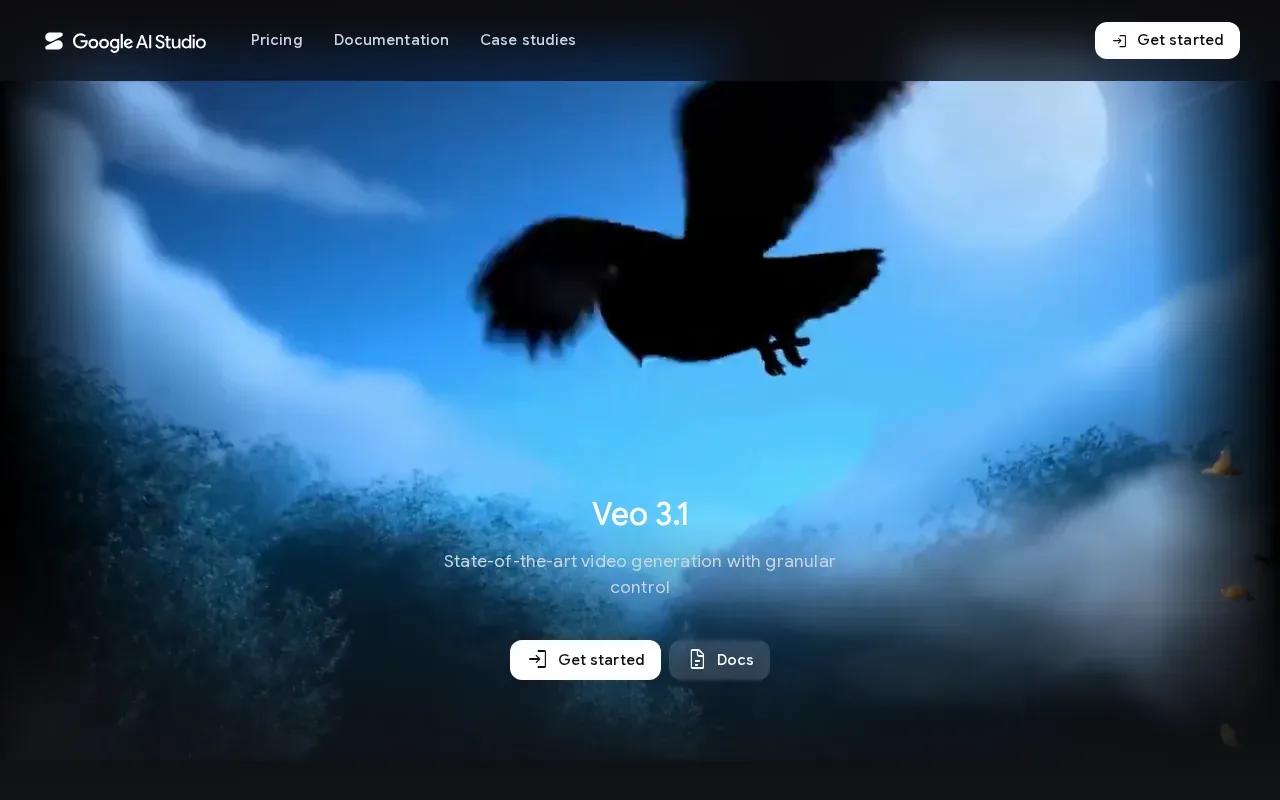
The clip limit is eight seconds. That’s enough time for a quick product tease, a short reaction, or one clear visual beat. It’s a tighter fit for a full mini-story, so plan one action that reads quickly instead of asking the clip to carry several beats.
Veo 3.1 generates dialogue, effects, and ambience in the same pass. It also supports lip sync through its generated dialogue. That can reduce the need to build a separate sound layer after the video is ready, though you should still watch the output and check that the spoken line fits the scene.
For a product photo, keep the prompt focused. Ask for one camera move, such as a slow push toward the item, and one clear sound cue. A crowded prompt can pull attention away from the main shot. A concise brief makes it easier to judge whether the final clip does what you need.
The short cap is the main planning point. If your post needs a longer story, consider a tool with a longer clip limit. If it needs one quick shot with generated sound, eight seconds can be enough.
Veo 3.1 is best treated as a short-scene choice. Build the idea around a single moment, then decide whether that moment works for your feed or ad.
4. Vidu by ShengShu Technology: Start-and-End Frame Control
Vidu by ShengShu Technology supports start-and-end frame control, native audio, and clips up to 16 seconds. It suits creators who know how a shot should begin and where they want it to land.
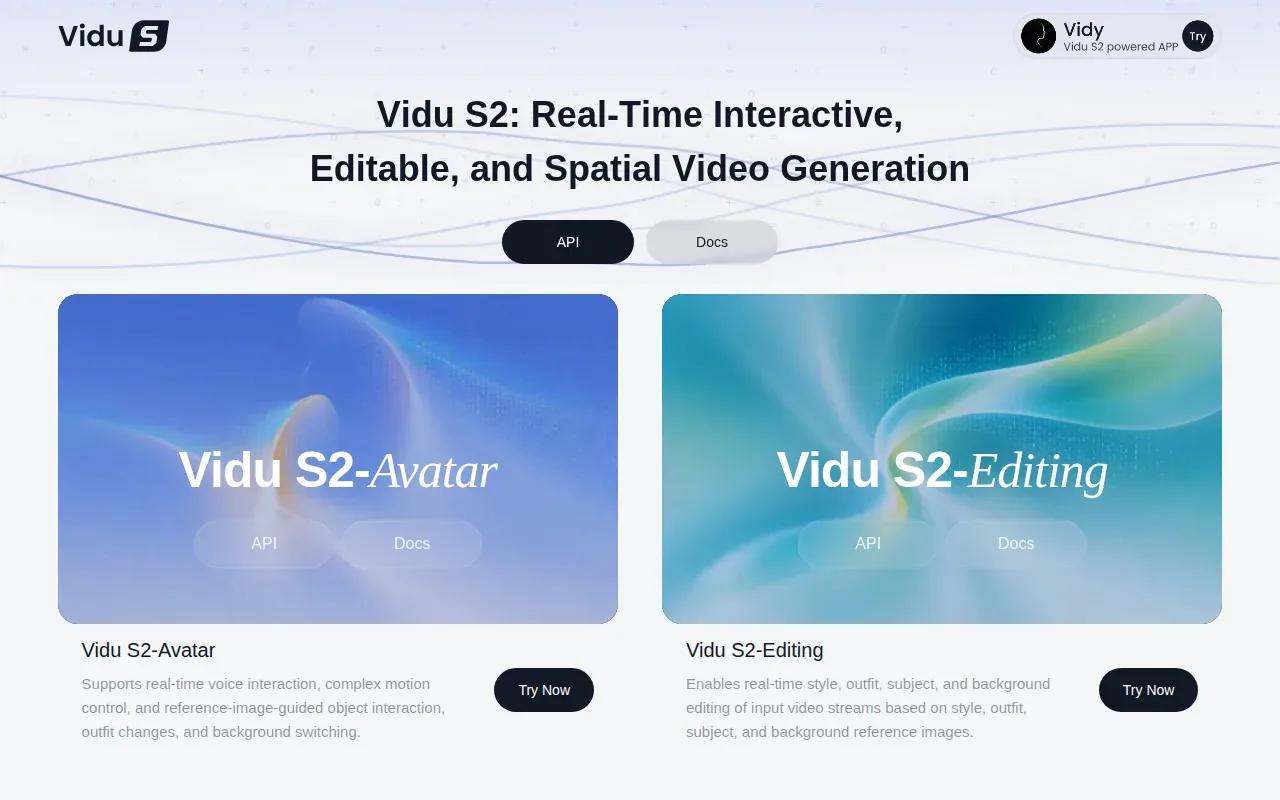
Upload the opening image, then provide an ending image when you need a specific final look. Vidu generates the motion between them. That setup can help with a transition, a product reveal, or a loop where the last frame needs to connect with the next post.
The image-to-video workflow also lets you describe the movement you want. For example, you might start with a close product photo and end with a wider lifestyle frame. The two images define the visual endpoints; your prompt describes how the scene should move between them.
For a clean result, start with a sharp image and clear lighting. Blurry source photos can make the generated clip look unclear, especially once the subject starts moving. If the final frame matters, choose it before you generate rather than hoping the model lands on the right composition.
Vidu’s 16-second maximum gives you more room than a brief teaser. It can suit a short product story, while the frame controls help when the opening and ending composition need to match a creative plan.
5. Pika: A Free Tier With Clear Limitations
Pika has a Free plan that runs on one-time credit packs. It’s a fit for a low-stakes test or a casual social clip, as long as its output limits work for your use.
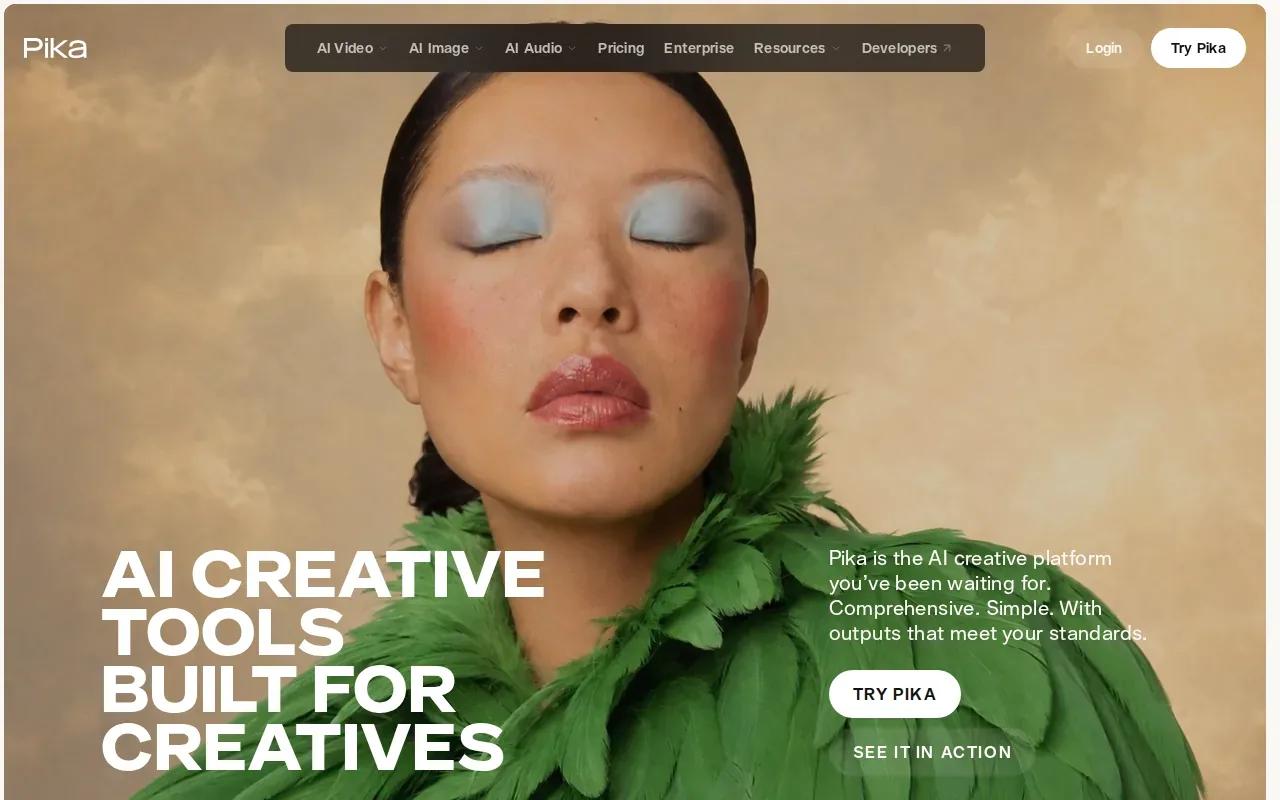
The Free plan has no monthly credits, so you buy a credit pack before you generate. Output has no watermark, but the Free and $10 Starter plans don’t include a commercial licence; that starts on the $35 Creator plan. Those terms matter if you’re preparing a paid ad or a file for a client; test the look first, then check the usage rights before publishing.
For a personal post, a Free plan clip may be enough to see whether an idea works. For a product campaign, check the full workflow against your delivery needs. If you need commercial use, the Free plan isn’t the right finished-output choice.
Give Pika one clear visual action to animate. A gentle turn or a simple reveal is easier to assess than a prompt with several scene changes. Keep the source image sharp, and review the clip at the size where people will see it.
Pika’s free access makes it easy to test image motion. The key is to treat the free result as a draft when the usage terms don’t fit your final post.
AI Image to Video Converter Comparison: Which Tool Fits Your Workflow?
The best fit depends on the shot you need to publish. Compare the tools by the job they handle, not by a long feature checklist. A quick social teaser has different needs from a talking character or an ad with a planned final frame.
| Tool | Best fit | Known clip and output details | Watch for |
|---|---|---|---|
| Wan Studio | Short promos with sound or dialogue | Wan 3.0: up to 30 seconds; up to 1080p. Free Wan 2.5: couple of videos monthly at 480p. | Wan 3.0 and commercial licence are on paid plans. |
| Kling VIDEO 3.0 series | Multi-shot scenes | Planned shot changes with native audio. | Check lip sync on talking shots. |
| Veo 3.1 by Google | Brief clips with generated sound | Eight-second clips with synchronized native audio. | Keep the idea to one short beat. |
| Vidu by ShengShu Technology | Clips with defined opening and ending frames | Up to 16 seconds, with native audio. | Prepare the ending frame when the final composition matters. |
| Pika | Casual tests on a free tier | Free plan runs on one-time credit packs, no watermark. | Commercial licence starts on the $35 Creator plan. |
For a product photo that needs a spoken line, Wan Studio’s Wan models provide native sound and dialogue, while Wan 3.0 adds clips up to 30 seconds. For a scene built around shot changes, Kling VIDEO 3.0 series has Multi-Shot. For a fixed visual destination, Vidu’s frame control can help shape the transition.
Wan Studio’s free Wan plan details explain the 480p Wan 2.5 allowance. Explore Wan model options.
FAQ: AI Image to Video Converter Questions
What does an AI image-to-video tool do?
An AI image-to-video tool turns a still image into a moving clip based on a prompt. You upload a photo, describe the action or camera move, then generate and review the result. Some tools also create sound or dialogue. The exact options vary by model, so check clip length and output limits before building a campaign around one.
How do you turn a photo into a video?
Upload the photo as the first frame, write a prompt that says what should move, then generate a clip. Review the result for visual details before you download it.
Can AI image-to-video tools add sound and dialogue?
Yes, some models generate sound with the video. In this shortlist, Wan models, Kling VIDEO 3.0 series, Veo 3.1, and Vidu support native audio. Wan 3.0 and Veo 3.1 support lip-synced dialogue. Check the model details before you generate.
What file format can I download?
Wan Studio exports clips sized for TikTok, Reels, YouTube Shorts and ads. Export formats can differ across tools, so check the download options in the tool you choose. If you’re making a clip for a social feed, also check the frame shape and resolution before you start; the right export settings can save a crop or re-render later.
Can I use an AI-generated video on TikTok, Reels, or Shorts?
Yes, short AI-generated videos can be made for social platforms, but set the frame shape and usage rights first. Wan Studio supports formats for TikTok, Reels, and Shorts. Its paid plans include a commercial licence; its free plan is for trying the tool. Check each service’s terms before using a clip in an ad.
Conclusion
For a creator who needs a product photo or prompt to become a short clip with sound, Wan Studio is the strongest starting point in this shortlist. A sharp image and one camera move make a clear starting point; Wan 3.0 supports clips up to 30 seconds.