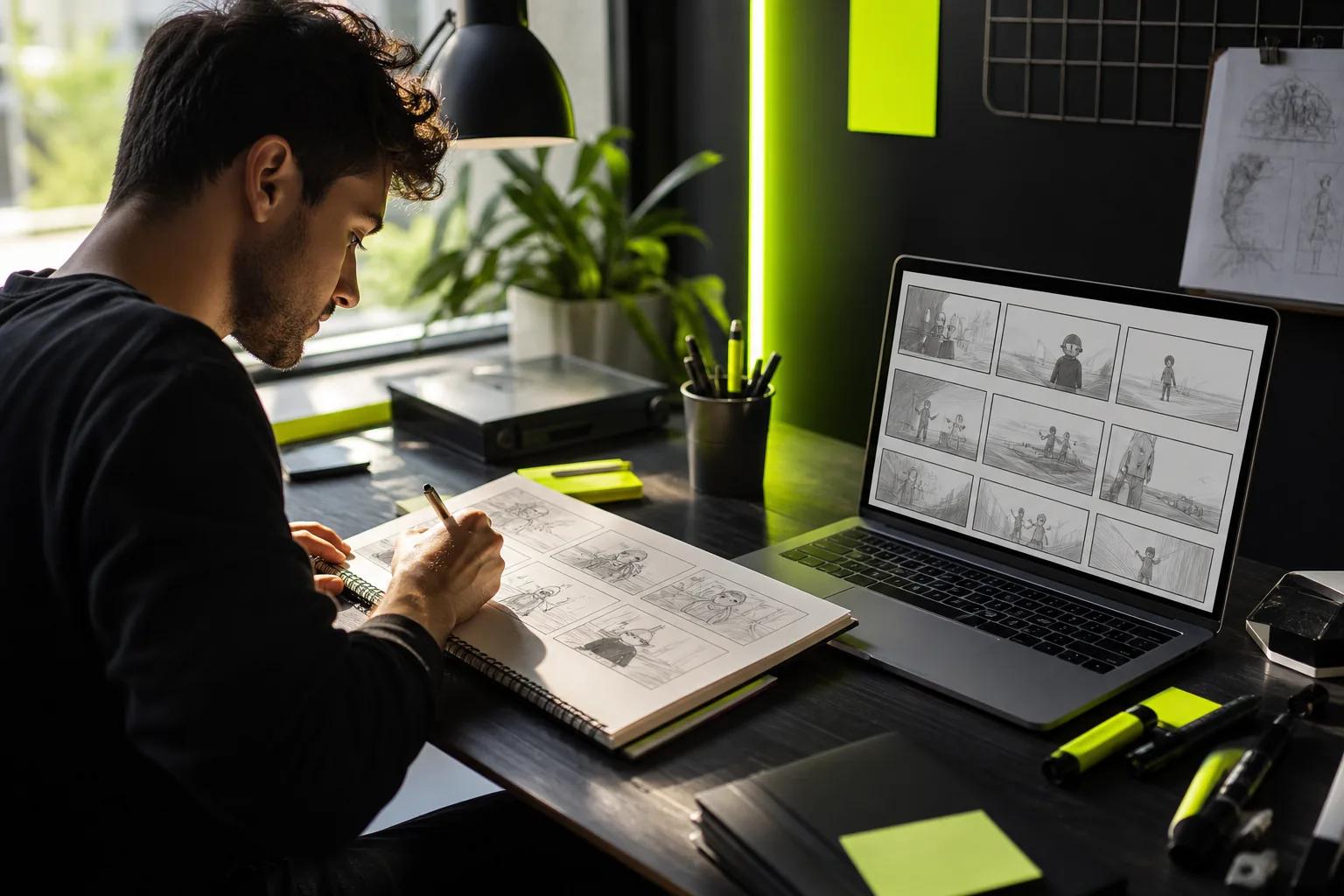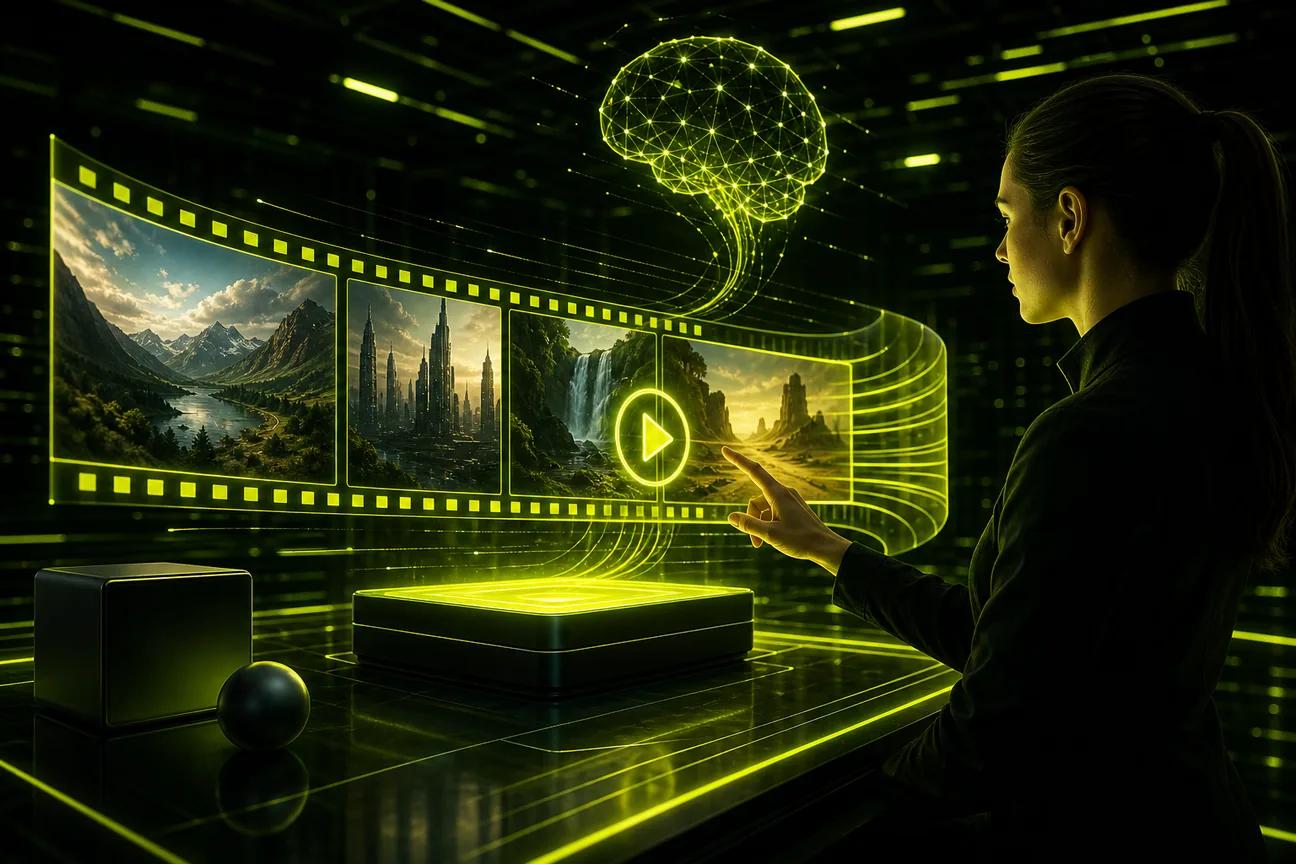
A still photo can become a product spot, a quick story, or a vertical clip with one well-aimed prompt. Strong AI image-to-video prompts tell the model what should move, what should stay put, and how the camera should behave.
Use the formula and templates below as a starting point. Then change one detail at a time, so you can see what improved the result.
AI Video Prompt Building Blocks: A Reusable Formula
Think of a prompt as a short shot brief. Start with the subject, then say what happens. Add the camera move and the look. If sound matters, describe it too.
A simple reusable formula is: subject + action + camera + light and style + sound + constraints. For image-to-video, the uploaded image already sets much of the scene. Focus your words on motion and on what must stay the same.
For example: “A ceramic mug on a kitchen counter. Steam curls upward as the camera slowly pushes in. Soft morning light. A kettle clicks off in the background. Keep the mug shape and printed design unchanged.” That gives the model one main action and one camera move. It also names a detail you want protected.
Camera terms can be plain. Try a slow push-in to draw attention to a product, a pan to follow a moving subject, or a locked shot when the frame should not shift. A camera movement changes how a viewer reads the same scene, so name one clear move instead of leaving the camera up to chance.
Keep the action small enough for the clip. “The cat blinks and turns its head” is easier to stage than asking it to leap, run, and exit the frame in a few seconds. For short ads, lead with the moment that should catch attention. A label can stay in view while light moves across it.
Negative cues help set limits. Add only the ones that matter: “no camera shake,” “no extra objects,” or “keep the background still.” Some generators have a separate negative-prompt field; others take these as plain text. If the unwanted detail remains, simplify the scene or change the source image.
Build prompt fields around the shot idea, then test one change at a time. Wan Studio works in a browser, and Wan models can generate synchronized sound and music. With the relevant model, dialogue in quotes can be spoken with lip movement, so review the face and audio before posting.
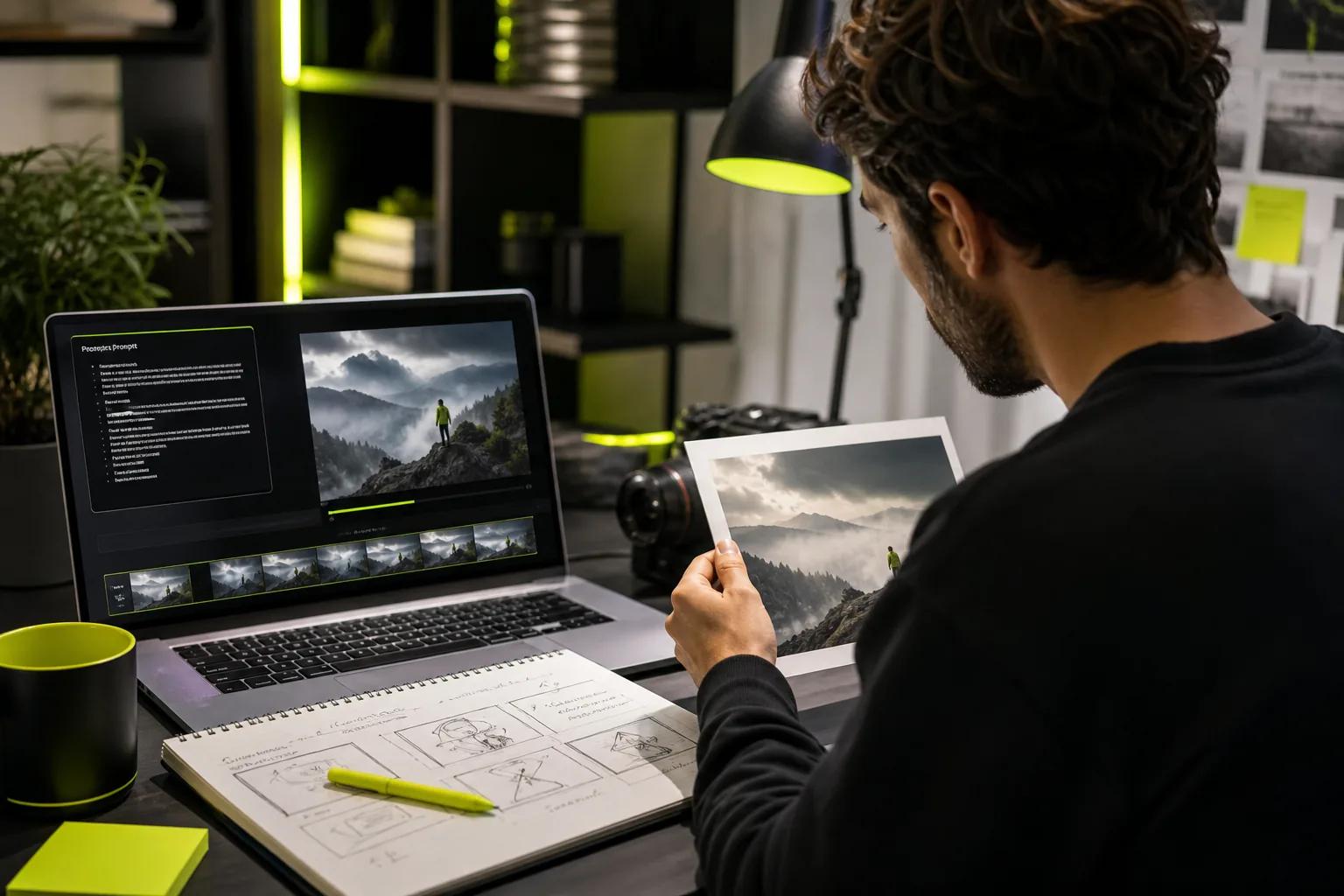
One more rule saves time: draft short and simple before adding extra beats. If the first version misses, adjust one prompt detail. That gives you a clearer read on what changed.
Copy-and-Adapt AI Image-to-Video Prompt Templates
These templates work best when you replace the bracketed parts with details from your own image. Keep each clip focused on one main action. Add a second event only when the clip has room for it.
Product photo
“[Product] on [surface or setting]. [One small action, such as steam rising or a hand lifting it]. Slow [push-in or pan]. [Light and mood]. Keep the product shape, color, and label unchanged. [Sound direction].”
Example: “A glass jar of honey on a sunny kitchen counter. A spoon lifts a small ribbon of honey. Slow push-in. Warm window light. Keep the jar and label clear. Soft kitchen room tone, no speech.” This gives a small shop a focused clip to test before filming a larger campaign.
Character moment
“[Character from the image] [one clear action] in [setting]. The camera [one move]. [Lighting and visual style]. [Character emotion]. They say, “[short line].” [Sound or music direction]. Keep the face and outfit consistent.”
Example: “A young illustrator looks up from a sketchbook in a quiet studio. The camera slowly pushes in. Soft side light, hand-painted animation. She smiles and says, “That’s the one.” Gentle room tone.” Wan’s models support native sound and dialogue, but generated speech and lip movement still need a quick review.
Travel or outdoor scene
“[Subject] in [specific place]. [Weather or environmental motion]. The camera [move and direction]. [Visual style]. Keep [important details] in frame. Ambient sound: [specific sound].”
Example: “A red canoe beside a pine-lined lake at dawn. Ripples move across the water as the camera pans slowly from the canoe to the misty shore. Cool early light, natural color. Keep the canoe in frame. Soft water and bird sounds.” The source image anchors the location, while the prompt directs the motion.
Short scene with a cut
“[Opening shot and action]. Cut to [second angle showing the same subject]. [End action]. Keep the same visual style and subject details across both shots.” Use a cut only when the next angle is close enough to the first scene. A new location or a big style change asks the model to invent more, which can make continuity harder.
Before generating, pick the aspect ratio for the destination. Vertical 9:16 suits phone-first posts; a landscape frame suits a wide player. If you’re starting with a photo, explore Wan Studio’s photo-to-video page. Crop the image for the target frame when you can, so the model has fewer edges to fill in.
Reference Images and Character Sheets: A Single-Image Workflow
A reference image gives the model a visual starting point. Use a product photo when shape and layout matter. Use a character image when the same face, outfit, or look should carry through a scene.
For a single-image workflow, choose a clear still where the main subject is easy to see. Keep the subject fully in frame and check that the crop matches the final video shape. Then write only the new motion, camera direction, and any detail that must remain fixed. Re-describing every visible object can pull attention away from the movement you want.
Say what moves and what stays still. For a product photo, try “The camera makes a slow push toward the jar as sunlight crosses the label. Keep the jar and lettering fixed.” For a portrait, “She blinks and turns slightly toward the window. The camera stays still. Keep her face and clothing consistent.”
A character sheet can help when a story needs the same character in more than one shot. Make one reference image with clear views of the face and outfit. Keep the description of the character short in later prompts, then focus on the action and setting. It’s a guide, not a promise that every frame will match perfectly.
Reference-driven video uses images as cues for the scene. In Wan Studio, Wan 2.7 supports reference images and clips; you can tag them in the prompt by their role. Wan 3.0 takes text or a first-frame image, so pick the model that fits the input you have.
Wan Studio is an independent browser-based product that gives access to Wan models. Wan 3.0 supports scenes up to 30 seconds and character consistency shot to shot. For image references beyond a first frame, use Wan 2.7 instead.
Before you build a full sequence, test the still with a short motion prompt. If the face, product, or crop shifts in an unwanted way, refine the source image or simplify the action first.
AI Video Models, Prompt Helpers, and a Reusable Prompt Library
Different models can read prompts in different ways. Keep the shot idea steady while testing a model, and note which words or settings change the result. Names you may see in creator tutorials include Runway, Google Veo, Seedance, Kling, Pika, and Hailuo. Treat model names and prompt syntax as separate choices: the same shot brief may need a small rewrite in another generator.
Wan Studio gives you access to Wan 3.0, Wan 2.7, and Wan 2.5 in a browser-based studio. Wan 3.0 is the default on paid plans and supports text or a first-frame image, native sound, and clips up to 30 seconds. Wan 2.7 handles reference images and clips, plus video edits. Wan 2.5 is the free-plan model, with a couple of videos a month at 480p and no card required.
| Need | Prompt or model choice | What to check |
|---|---|---|
| Animate a fixed product photo | Image-to-video with a first-frame image | Product shape and label stay clear |
| Keep a character across shots | Wan 3.0 for a multi-shot scene; Wan 2.7 for added image or video references | Face, outfit, and scene continuity |
| Build a clip around speech | A model with native dialogue, such as Wan 2.5, Wan 2.7, or Wan 3.0 | Words, sound, and lip movement match |
| Test a short visual idea | Start with a short, lower-resolution draft | Framing and motion work before a larger render |
A prompt helper can turn a rough idea into a structured brief. Give it the image context, the audience, the clip length, and the fields you want: subject, action, camera, style, sound, and constraints. Ask it to keep the wording plain. Then inspect the output yourself. A helper may add a camera angle or a sound cue you never asked for.
Build a prompt library around jobs you repeat, not around fancy wording. Save the prompt with a clear label such as “vertical product reveal” or “character intro.” Keep the image type, model, ratio, and a note on what worked with it. Store the best version alongside the draft that failed, if the difference teaches you something useful.
When you test a prompt, change one variable at a time. First adjust the camera. Then, if needed, tune the action or light. This makes each result easier to judge than rewriting the whole brief after every generation.
Wan Studio shows a live credit estimate before generation. Shorter, lower-resolution drafts can help you check the action before rendering a final version. Paid plans start at $14 per month and include a commercial licence; review the current plan details before using an output in a campaign.
FAQ
What should I include in an image-to-video prompt?
Include the subject’s action, the camera move, and any detail that must stay unchanged. Add a visual style or light cue when it affects the result. If sound matters, describe it. Since the image already shows the subject and setting, keep the prompt focused on what should happen next.
How long should an AI video prompt be?
There’s no fixed word count that works for every model. Write enough to name the action, camera, style, and key limits, then stop. A short prompt with one clear action is often easier to refine than a long paragraph with several events that compete for attention.
Can I use negative prompts to stop unwanted details?
Yes, when the generator supports a negative prompt field. You can also phrase key limits in the main prompt, such as “no camera shake” or “keep the background still.” Use only limits tied to a problem you’ve seen. Too many restrictions can make the request harder to follow.
Why does the same prompt create different videos?
The same text can lead to different results because generation includes variation, and a new source image or setting changes what the model sees. To compare takes, keep the image and settings steady. Change one prompt detail at a time, then save the version that best matches your goal.
Conclusion
Start with one clear image and one main action, then make a short draft before polishing the prompt. When you’re ready to test a scene, explore Wan 2.7’s reference-driven workflow or save your best prompt for the next clip.