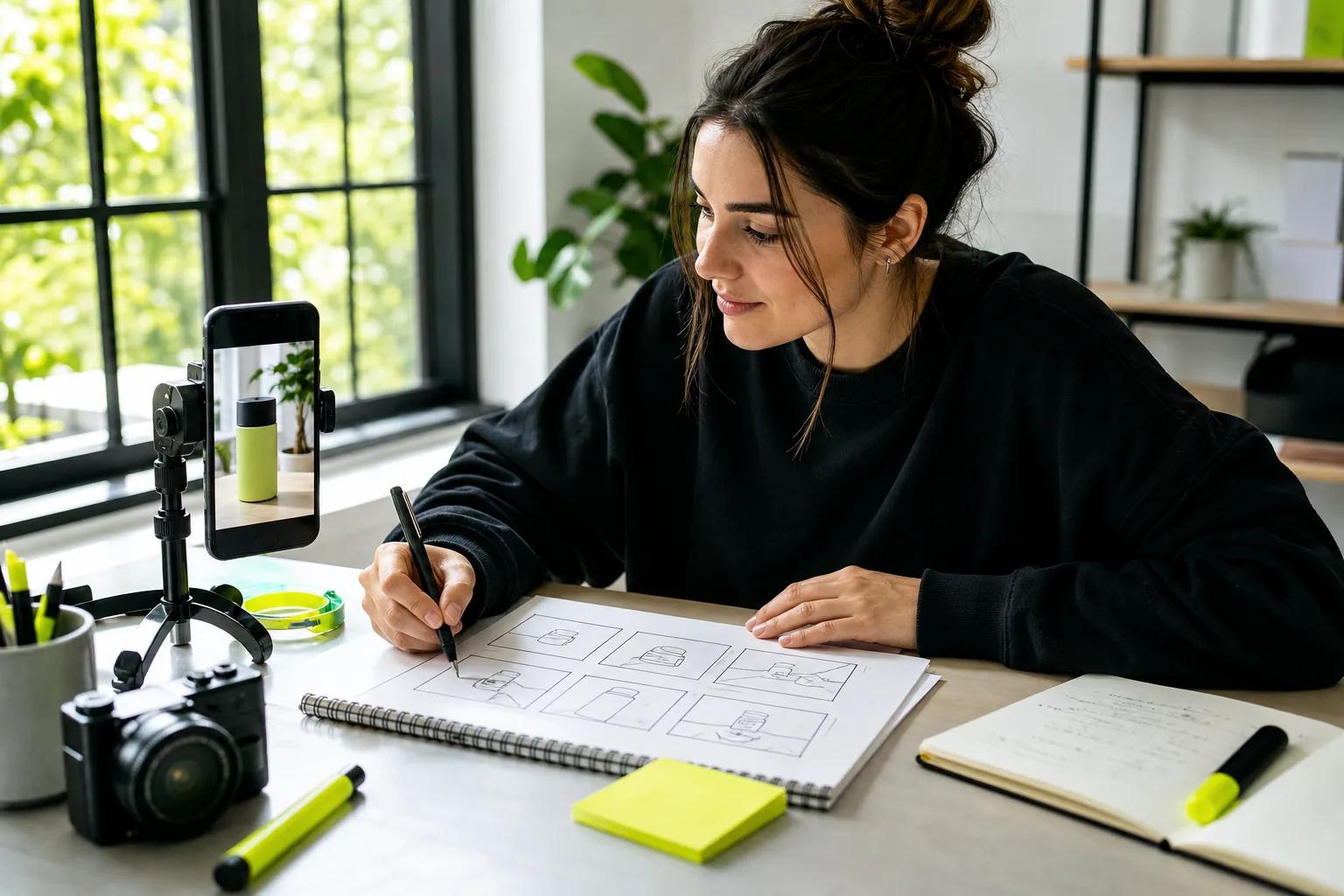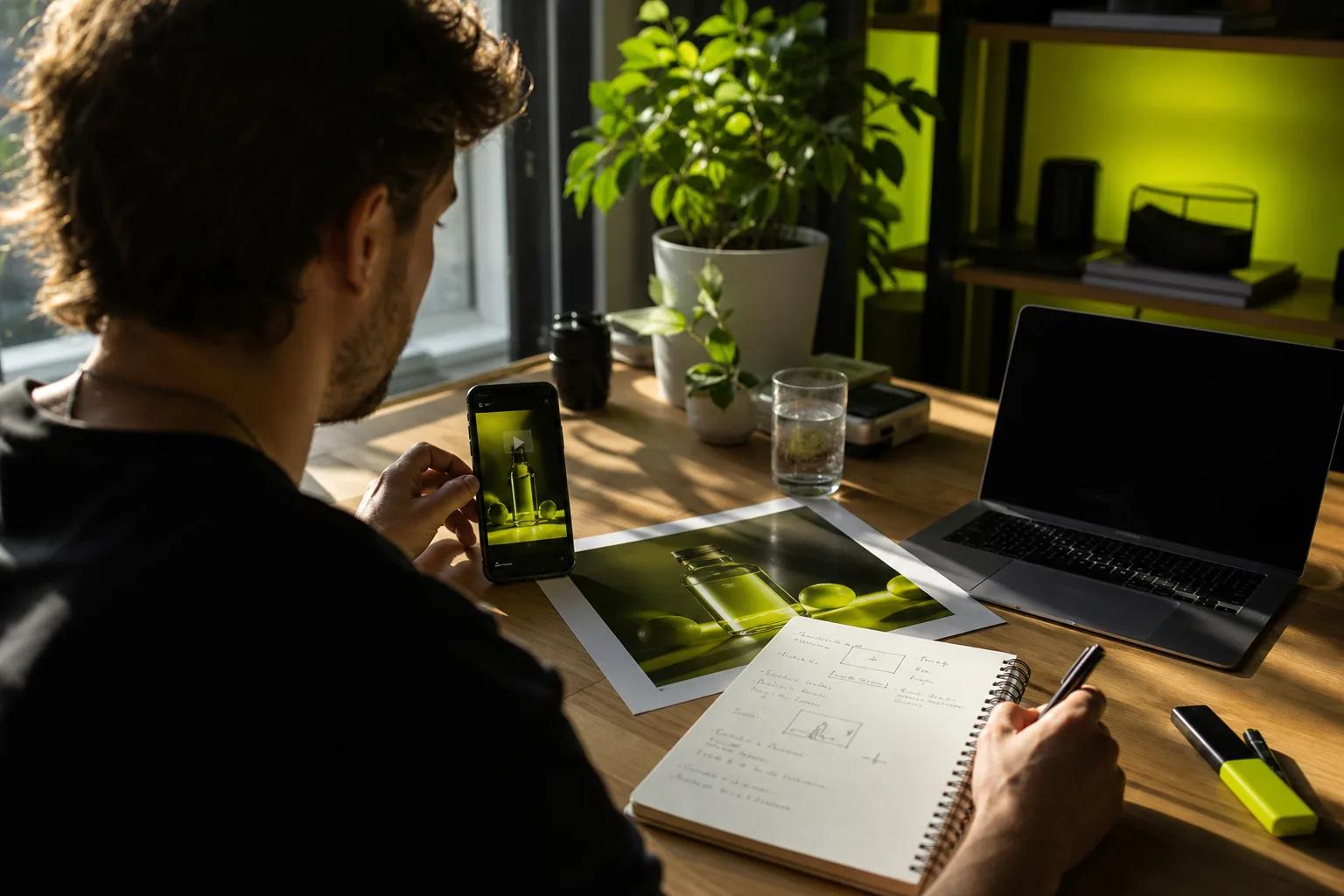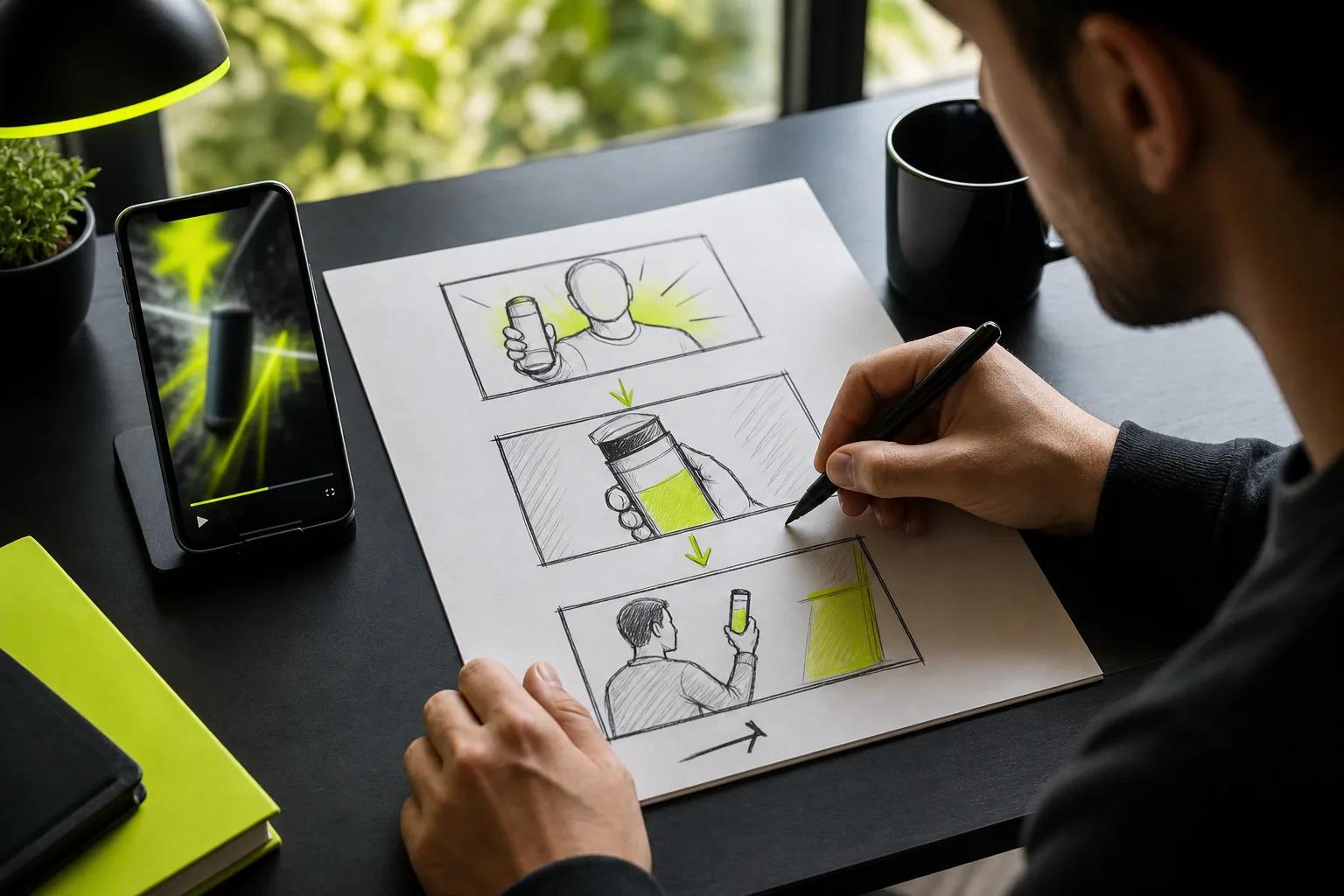
A still photo can become a moving scene in a few steps. To animate photos with AI, start with one clear image, choose a single action, then review the result before you post it.
We analyzed 69 comments from YouTube and Reddit about animating photos with AI and found that 29% mentioned feature differences between tools.
This guide walks you through the full process in Wan Studio, from picking a photo to exporting a short clip for TikTok, Reels, or Shorts.
Step 1: Choose a Clear Photo and Define the Goal
Pick a sharp image with one main subject and a background that’s easy to read. A product on a clean counter, a portrait with space around the face, or a travel view with a clear foreground gives the model less room to guess.
Before you upload, decide what the motion should do. Should it draw attention to a product detail? Add atmosphere to a landscape? Give a character a small gesture? A single purpose helps you avoid random camera drift or motion that changes the subject.
Look at the image and name what must stay true. For a product shot, that might be the item’s shape, color, and label. For a portrait, it may be the person’s face and clothing. If a detail needs to stay readable, say so in your prompt and check it again in the finished clip.
Choose the image-to-video route when a particular photo needs to anchor the scene. Wan Studio takes a first-frame image for this workflow. Wan 3.0 is available on paid plans; the free plan uses Wan 2.5 at 480p.
Think about the final frame shape now, too. A vertical portrait may fit a phone screen with little cropping. A wide photo might need a tighter crop for a Reel or Short, which can cut off important details.
Step 2: Write a Motion Prompt That Fits the Photo
Write the prompt like a short shot brief. Name the action first, then add one camera move and any key visual details. Since the photo already shows the subject and setting, spend your words on what changes.
For example: “Steam curls gently above the bowl. Slow camera push-in. Keep the bowl’s shape and rim clear.” That gives the model a subject action, a camera direction, and a detail to protect.
Keep the first prompt simple. If you ask for a person to turn, wave, walk, and speak while the camera circles them, it’s hard to tell which instruction caused a bad result. Start with one subject motion and one camera move. Add another element only after you see what the first version does.
Pick the motion style that suits the image:
- Subtle movement: A blink, drifting hair, rising steam, or moving leaves can make a portrait or food photo feel alive.
- Depth or parallax: A gentle camera shift across a photo with clear foreground and background can suggest depth.
- Cinematic camera motion: A slow push-in or pan can guide attention toward a product or landscape detail.
- Character action: A small gesture can suit an illustrated character or a person in a scene.
Wan models support image-to-video, while the exact settings depend on the model you choose. Wan 3.0 can use a first-frame image and supports clips up to 30 seconds on paid plans. Wan 2.7 adds reference inputs and first-and-last-frame control when you need more direction across a scene.
For a character who should speak, put the exact line in quotation marks. Wan models with native audio can generate dialogue with lip movement, but you’ll still need to watch the result. For ways to refine camera moves and scene details, see these image-to-video prompt examples.
Step 3: Generate the First Animation in Wan Studio
Open Wan Studio in your browser and start with your image or prompt. Add the photo as the first frame for image-to-video. Then choose a model, aspect ratio, duration, and resolution that suit the draft you want to test.
If you’re trying the free plan, it includes a couple of Wan 2.5 videos a month at 480p, with no card required. Wan 2.5 supports 5- or 10-second clips. Paid plans include Wan 3.0, which supports clips from 2 to 30 seconds and output up to 1080p. The studio shows a live credit estimate before generation, so check it before you spend credits.
Keep your first attempt short. A 5-second draft is often enough to see whether a product stays recognizable or a camera move feels right. Use a lower resolution while testing. Once the motion works, generate the final version at the resolution you need.
Set the frame shape before you generate if you already know where the clip will go. Wan 3.0 can use adaptive framing or fixed ratios, including 9:16, 1:1, and 16:9. With an image as the first frame, the output follows the image’s aspect ratio, so crop your source with the destination in mind.
After you generate, watch the whole clip once at full speed. Then check the first and last seconds again. Does the action start soon enough? Does the camera settle cleanly? For a product, compare the item to the source photo. A smooth render can still alter a label or edge.
Wan Studio keeps generated media in its library for 30 days. Download any clip you want to keep beyond that window, especially if you’re gathering versions for a campaign.
Step 4: Refine Motion, Sound, and Dialogue
Review the clip for both movement and meaning. A face should still look like the source. A logo or product label should remain legible. The background shouldn’t ripple in a way that pulls attention away from the subject.
If something looks wrong, make a small change. Slow the motion, shorten the clip, or remove a second action from the prompt. Keep the photo fixed while you test the prompt, so you can tell whether the change helped. If you change the source image and the prompt at once, the result is harder to diagnose.
Sound needs its own review. Wan 2.5, Wan 2.7, and Wan 3.0 support native audio, including music, sound effects, and dialogue. Put spoken words in quotes when you want the character to say them. Then listen for whether the words fit the scene and check that the mouth movement matches the line.
For a product clip, ambient sound may be enough. A soft room tone or a short musical cue can support the image without competing with it. If the video contains a spoken offer, make sure the line is clear and accurate. Don’t let generated dialogue invent a product claim that your business can’t support.
Wan 3.0 can keep characters consistent across multi-shot scenes, for up to 30 seconds. If your workflow needs reference images or video edits, Wan 2.7 supports those inputs and has clips up to 15 seconds. For either model, inspect each shot for changes in a character’s face, clothing, or key props before using the sequence.
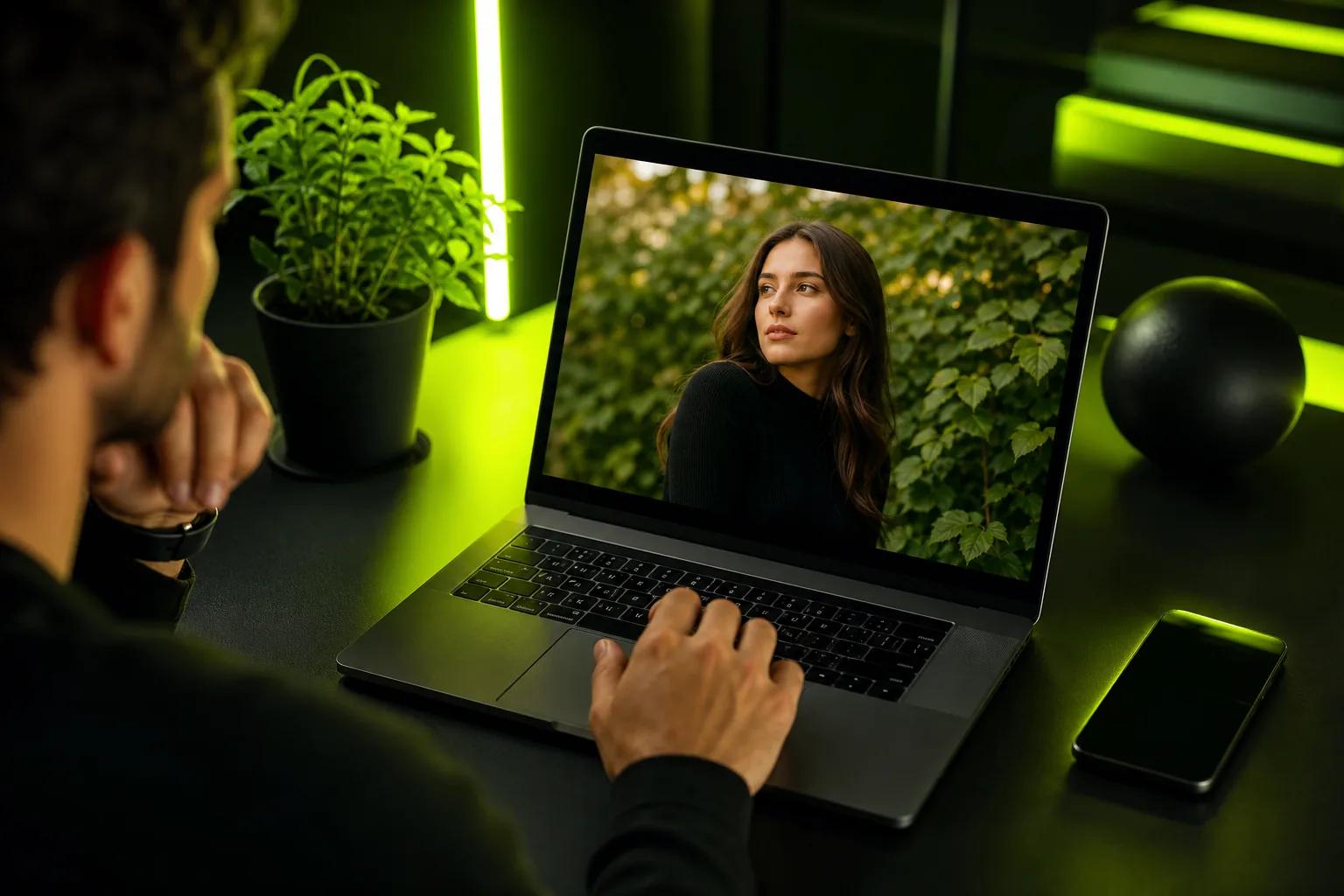
Animated photos can also depict real people in ways that mislead viewers. Get permission before using someone’s likeness, and don’t make a person appear to say something they never said. The term deepfake describes synthetic media that depicts a person in a misleading or fabricated way, so keep the context clear when you share realistic edits.
For Wan Studio’s rules on generated content and use, check its Terms before publishing. The paid plans include a commercial licence; use the free plan to try Wan out.
Step 5: Export and Adapt the Video for Each Platform
Download the finished video as an MP4, then check it on the device where people are likely to watch. Play it with sound and with the sound off. Make sure the opening image reads quickly, the subject stays in frame, and any dialogue is easy to follow.
Use a vertical 9:16 frame for TikTok, Reels, and YouTube Shorts when that’s the format you need. A square frame may work better in a feed, while 16:9 fits a landscape video. Keep the main subject near the center if the platform may crop the edges or cover part of the screen with controls.
One source image can support different edits, but don’t assume the same clip will fit every placement. A vertical version might need a closer crop. A landscape version may leave more room around the subject. Generate or frame each version for its intended use, then review the crop before you post.
For a short ad, lead with the clearest visual moment. Trim any slow opening that delays the point of the clip. If the product is the focus, make sure the first frame shows it clearly and that the motion doesn’t obscure a key feature. For a personal memory or YouTube B-roll, a slower move may feel more fitting.
Before you publish, compare the exported file with the original photo. Check faces, hands, product shape, and visible text. Make sure you have permission to use the image and any person shown. For a TikTok workflow, plan a vertical clip and review it before upload.
Wan Studio downloads generated clips as MP4 files with sound. Keep a copy of each final export outside the media library if you’ll need it after the 30-day storage period.
FAQ
How do I animate a photo with AI?
Upload a clear photo as the first frame, describe one motion, and generate a short clip. Name what should move and what must stay still. Add one camera move if it helps the shot. Review the result for changes to faces, product details, and text, then adjust the prompt before making another version.
Can I animate photos for free?
Yes, Wan Studio has a free plan with a couple of Wan 2.5 videos each month at 480p, with no card required. It’s a way to test the workflow. Paid plans include Wan 3.0 and a commercial licence. Check the current plan details before you make a clip for a paid campaign.
What format does Wan Studio export?
Wan Studio downloads generated videos as MP4 files with sound. Choose the aspect ratio for the platform before you generate when the model allows it. Then play the downloaded file to confirm the picture and audio work as expected. Keep a local copy of any clip you want to retain.
Can AI animate a photo of a real person?
AI can animate a portrait, but you should have permission to use the person’s likeness. Don’t use a generated clip to make someone appear to say or do something they didn’t. Wan Studio’s terms do not allow deceptive deepfakes or impersonation of real people.
Why does my animated photo look warped?
Warping can happen when the prompt asks for too much motion or the source image has a busy background or small details. Try a gentler action and one camera move. Generate another short take, then inspect the face, edges, and labels at full speed and frame by frame before choosing a version.
Conclusion
Start with one photo and one clear motion. Wan Studio gives you a browser-based way to make a short image-to-video clip, with Wan models that can add synchronized sound and dialogue. Make a short draft, inspect the details, then download the MP4 when it’s ready. Start with a free Wan Studio account and test one image before planning a full batch.