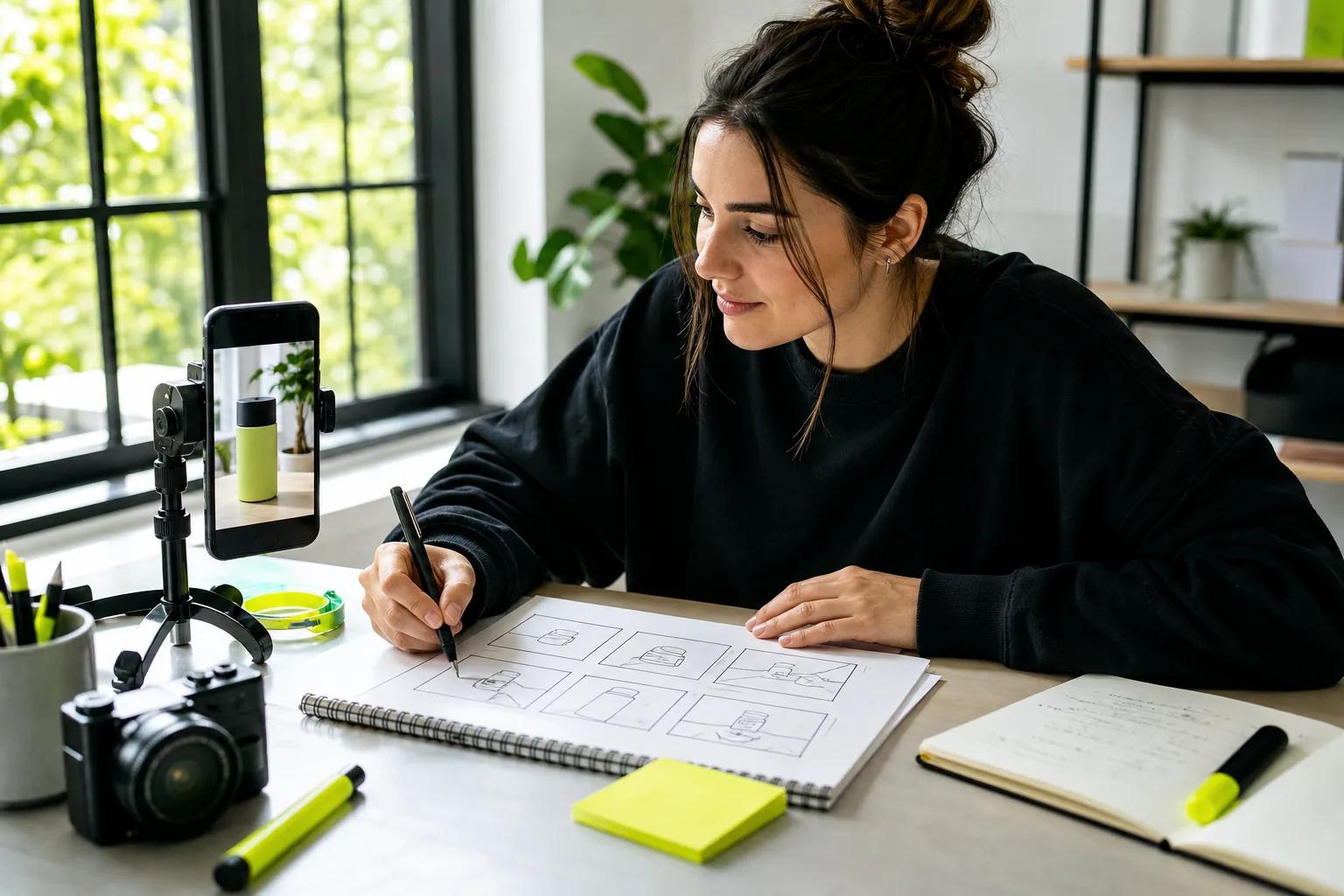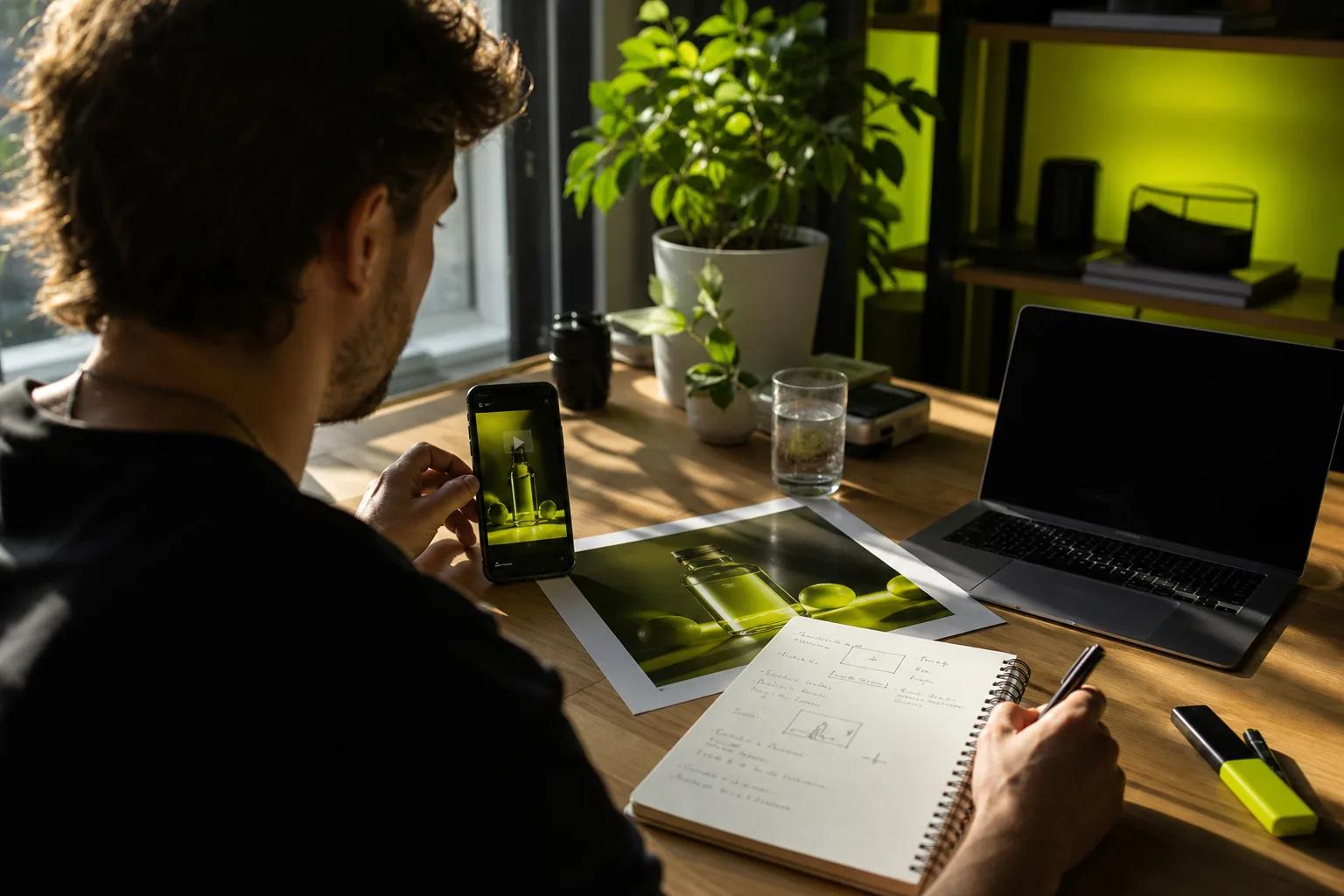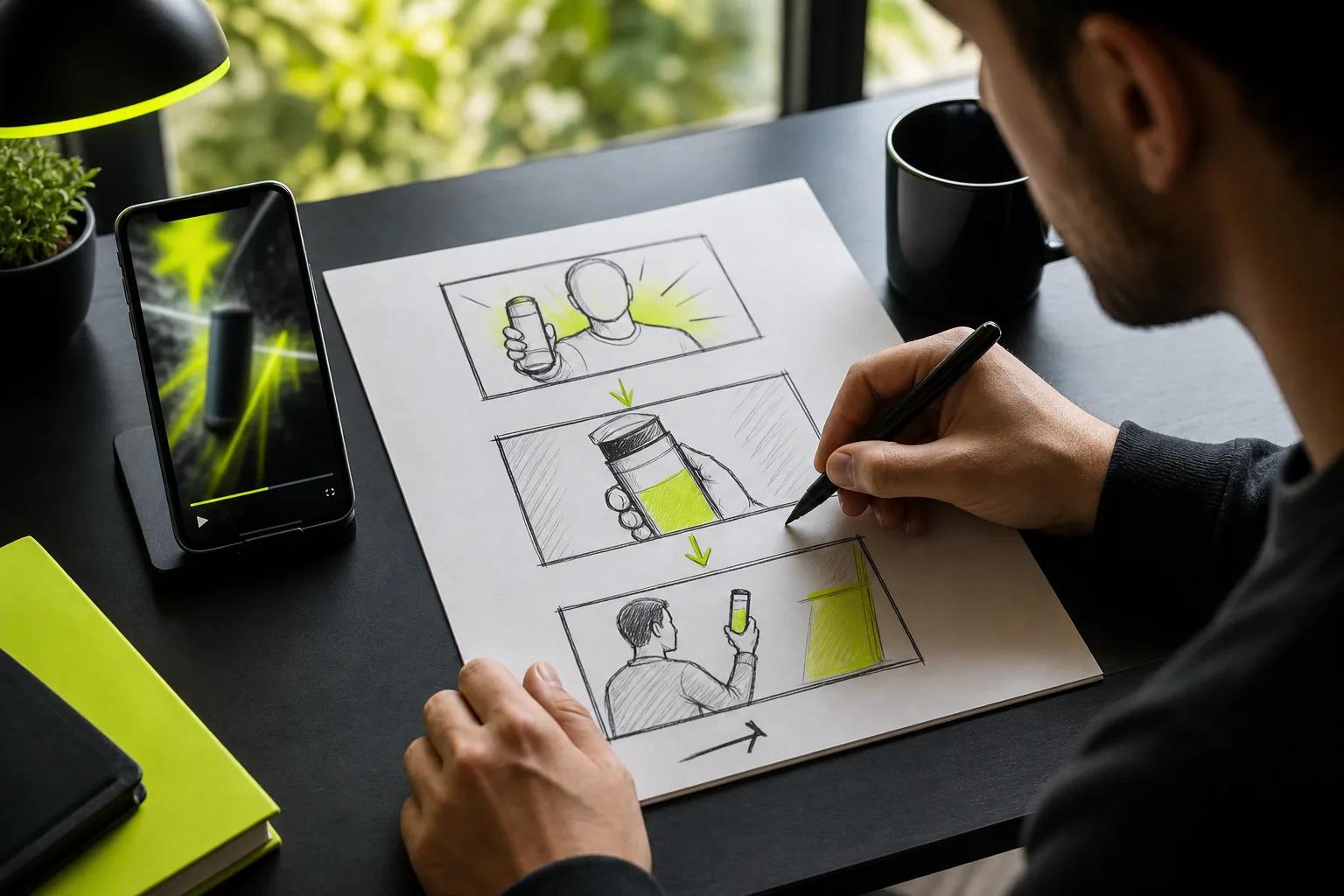
A still photo can become a short video with a few clear instructions. If you’ve wondered how to make an image move, start with one good photo and one simple action, then build from there.
We analyzed 40 comments and questions from YouTube, Reddit and Quora about Making images move and found that 42% mentioned animation methods.
This step-by-step workflow shows you how to animate a still with AI, refine the motion, and export a clip for social media. You can also use the same photo with basic pan or zoom effects when you don’t need the subject itself to move.
Step 1: Choose a Photo and Plan Its Motion
Pick a photo that gives the motion somewhere to go. A clear subject, sharp edges, and some room around the subject help the model make new frames without guessing too much.
Think about the action before you upload. A portrait might blink or turn slightly. A cup could release a curl of steam. For a product shot, a slow camera move may be safer than asking the item to spin. Small actions tend to keep the source image’s look better than several dramatic changes at once.
Check the crop, too. A vertical 9:16 frame suits full-screen social posts, while 16:9 works for a landscape video. If you’re not sure how the crop affects the result, see our guide on how to turn a photo into a video.
Before you generate, ask what must stay the same. For a product, that might be its shape or label. For a portrait, it could be the person’s face and clothing. AI can alter fine details as it invents movement, so a good starting photo matters, but it doesn’t guarantee every detail will stay exact.
Keep the first test modest. Choose one main action and leave enough space in the frame for it to happen.
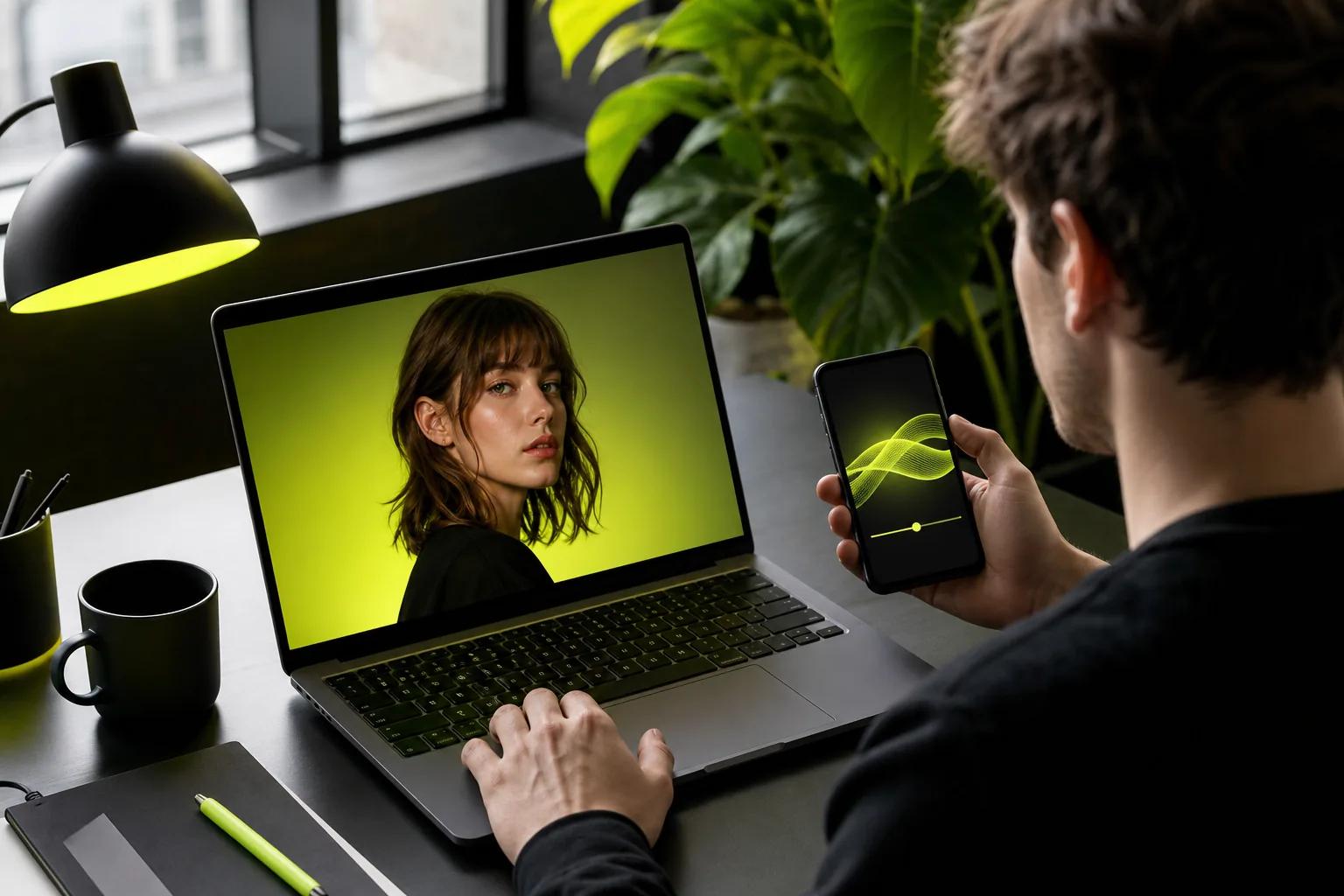
For a simple pan or zoom, a regular editor may be enough. Set the image’s starting position, move the playhead, then set a slightly different position later. The editor fills in the motion between those keyframes. Use a small change; a fast zoom can feel abrupt.
For a subject that needs to blink, turn, or interact with its surroundings, use image-to-video instead. It treats your image as the starting frame and generates the movement that follows.
Step 2: Animate the Image With an AI Video Tool
Choose a tool that accepts an image as a starting frame. In Wan Studio, open the browser-based studio, add your photo, and use it as the first frame. Then choose a model and set the clip’s duration, aspect ratio, and resolution.
Wan Studio provides a prompt-based interface for animating images.
On a paid plan, Wan 3.0 can make image-to-video clips from 2 to 30 seconds, with output options up to 1080p. It supports fixed ratios such as 9:16 and 16:9, or adaptive framing. For current options, visit the model page. Wan 3.0 generates native sound with the video, including music, ambient sound, or lip-synced dialogue when the prompt calls for it.
If you’re trying the workflow before paying, Wan Studio’s free plan includes a couple of Wan 2.5 videos a month at 480p, with no card required. The free plan is for trying the service; paid plans include 1080p options and a commercial licence. For a short social draft, start with a low resolution and a brief duration. That makes it easier to test the motion before spending credits on a final render.
Once the image and settings are in place, generate a first version. Don’t aim for a finished ad yet. You’re checking whether the model understands the action and framing.
If the shot needs attached reference images or a video edit, Wan 2.7 has those modes. Wan 3.0 uses text or a first-frame image, so pick the model based on the job.
Step 3: Write a Prompt That Directs the Movement
Your photo already shows the subject, colors, and framing. Use the prompt to explain what changes over time. Repeating a long description of the image can distract from the motion you want.
Start with one action. Then add a camera instruction and a short note about details that should remain consistent. For example: “The ceramic mug stays still as steam curls upward. Slow camera push-in. Keep the mug shape and colors unchanged.” That gives the model a clear job without asking it to invent a new scene.
For a portrait, try: “She blinks once and slowly turns toward the window. Gentle breeze moves a few strands of hair. Static camera. Keep her face and clothing consistent.” Keep the action suited to the pose. A close-up portrait can support a small expression change; it may not support a full-body dance.
For a product photo, protect the details that matter to your business. You could ask for a slow camera move while keeping the item’s shape and label consistent. Still, review the result closely. A generated clip can change fine print or a logo even when you ask it not to.
Wan models can generate sound with the image. Describe the sound only if it belongs in the scene. For dialogue, put the exact line in quotation marks and connect it to the speaker, such as: “The shop owner smiles and says, ‘Fresh coffee is ready.’” Wan’s native audio and lip sync depend on the model and prompt, so check both before publishing.
For a talking character, keep the line short. A long script gives the clip more to handle and can make timing harder to judge. For a product ad without speech, a sound cue or music direction may be enough.
Try this order: motion first, camera next, then sound or dialogue. Keep the shot directions in plain language. Our Wan prompt guide has more examples.
If the first prompt asks for a character to run, wave, turn, and speak while the camera circles, cut it down. One main action is a better first test.
Step 4: Review the Clip and Refine the Result
Watch the whole clip before deciding whether it works. A strong opening frame can hide a face that changes later, a product edge that bends, or movement that stops halfway through.
Check the shot in two passes. First, focus on the action and camera. Did the subject move as planned? Did the camera stay still or follow the direction you gave? Then watch for continuity issues in faces, hands, labels, and background lines.
For a product spot, pause on the label and product outline. For a portrait, look at the eyes and mouth. For an illustrated scene, check whether the original art style holds. If the clip includes speech, listen to the words and watch the mouth movement together.
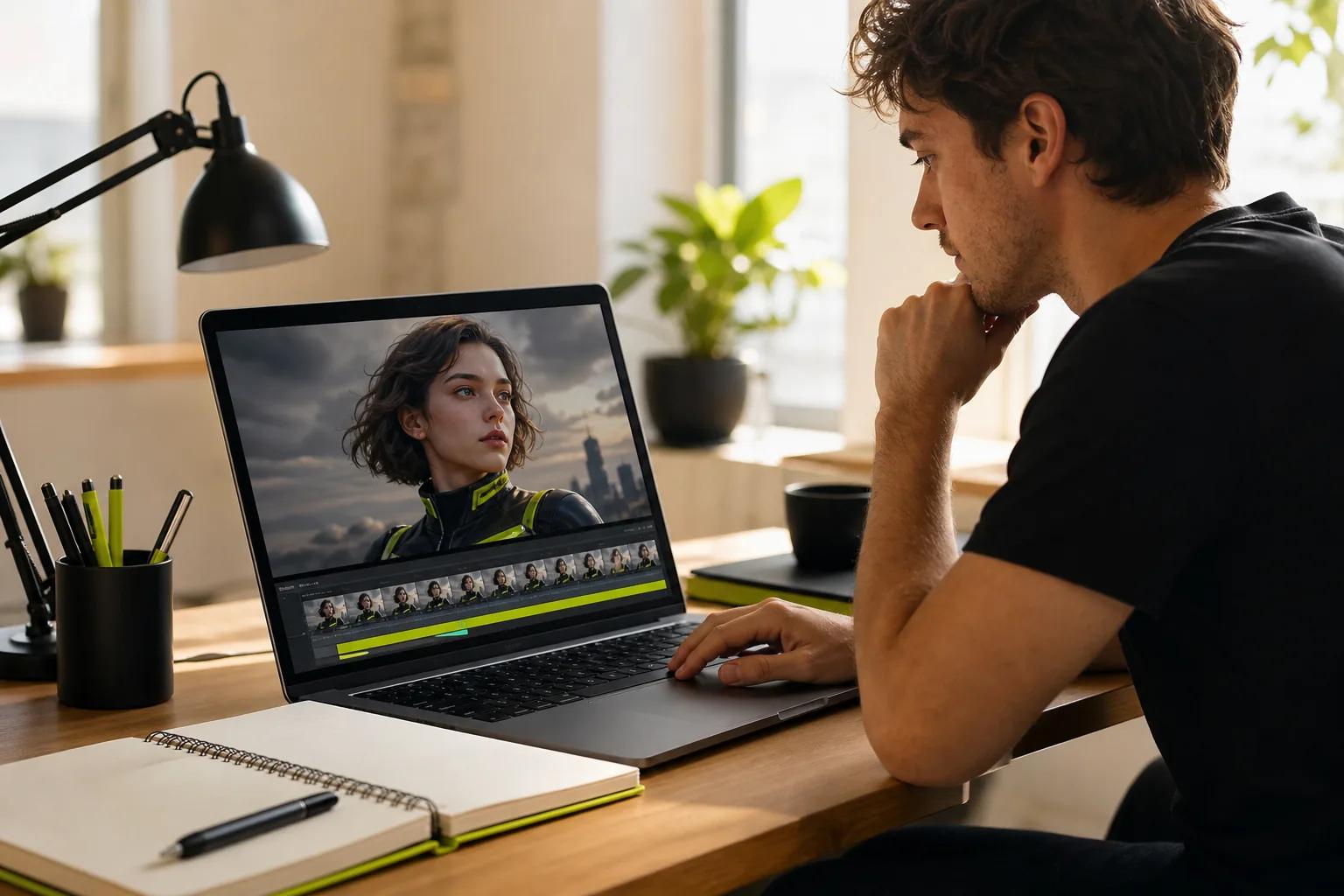
When something misses, change one part at a time. If the movement is too strong, ask for a gentler action. If the camera wanders, state that it should stay fixed. If a face or product shifts, shorten the clip or simplify the movement before changing the source image.
A short draft can help reveal prompt problems before you render a longer version. Wan 3.0 supports clips up to 30 seconds, but a longer duration doesn’t fix a weak motion plan. Start with the shortest length that can show the idea.
Some motion is better handled with a standard photo effect. If you only need a pan, zoom, fade, or moving text, keyframes can give you direct control without asking AI to invent new subject movement.
For a clean iteration, save the prompt that nearly worked. Then make one specific edit and generate another version. You’ll know which change helped instead of guessing.
Step 5: Add Sound and Export for Your Platform
Set the aspect ratio to match where you’ll post. Use 9:16 for a full-screen vertical clip, 16:9 for a landscape player, or another supported ratio if your layout calls for it. Keep the subject away from the edges so app controls or captions don’t cover the key action.
In Wan Studio, generated videos download as MP4 files with sound. Wan 3.0 supports output up to 1080p, and the studio has a live credit estimate before you generate. The free Wan 2.5 plan is limited to 480p; paid plans add higher resolution and a commercial licence. Check the live plan details before choosing a workflow for a brand campaign.
Before exporting a final version, watch once with sound on. Check that dialogue, music, or ambient sound fits the scene. Then watch with sound off. This helps catch a clip that depends on audio to make sense, or on-screen details that are too small to read.
Add captions in your editing or posting workflow when spoken words carry the message. Keep important text clear of interface buttons and the subject’s face. If you need a GIF, convert the finished clip in an editor that supports GIF export; Wan Studio’s generated video download is MP4.
If you’re posting on a website, a looping animation can draw attention, but give people a way to pause or stop motion that runs automatically.
For a final check, open the saved file on a phone. Confirm that the crop looks right, the sound plays, and the first second makes sense without a long lead-in.
If you’re making a social post, keep the export ready to upload and save a separate copy where you can find it. Wan Studio keeps generated media in its library for 30 days, so download clips you want to keep.
Frequently Asked Questions
Can I make an image move for free?
Wan Studio can generate video from an image and text prompt. Its free plan includes a couple of Wan 2.5 videos per month at 480p, and you don’t need a card to start. Use the free plan to test a photo and a short motion prompt. Paid plans add Wan 3.0, higher resolution options, and a commercial licence.
Can I make a moving image into a GIF?
Yes, if your editor can export GIF files. Wan Studio downloads generated videos as MP4, so make the clip there, then use a separate editor with GIF export if you need that format. GIFs suit short loops, while MP4 is a common choice for social video and keeps sound.
Why does my animated photo look warped?
Warping often happens when the prompt asks for too much movement or the source photo hides important details. Try shortening the clip, reducing the action to one clear movement, or choosing an image with more space around the subject. Then generate again and check the face, hands, text, and frame edges throughout.
Can I animate an image with CSS instead of AI?
Yes. CSS can move an image with effects such as a slow pan, zoom, or fade on a web page. That changes how the image is displayed, but it won’t invent a new action like a person turning their head. Choose CSS for simple page motion and image-to-video AI when the subject needs to move.
Conclusion
Start with a sharp photo and one modest action, then review the full clip before you publish. Wan Studio is a browser-based option for turning a first-frame image into a short video with sound. Try a short draft with your own photo, refine the prompt, and download the version that holds up.