AI photo animation turns a still picture into a moving clip, but the kind of motion can vary a lot. Some tools add a looping effect, while others build a short video around your image. Here are five options, plus Wan Studio, matched to the kind of clip you want to make.
We analyzed 52 comments and questions from YouTube, Quora and Reddit about AI photo Animation and found that 12% mentioned low resolution and inaccurate animations.
1. Wan Studio
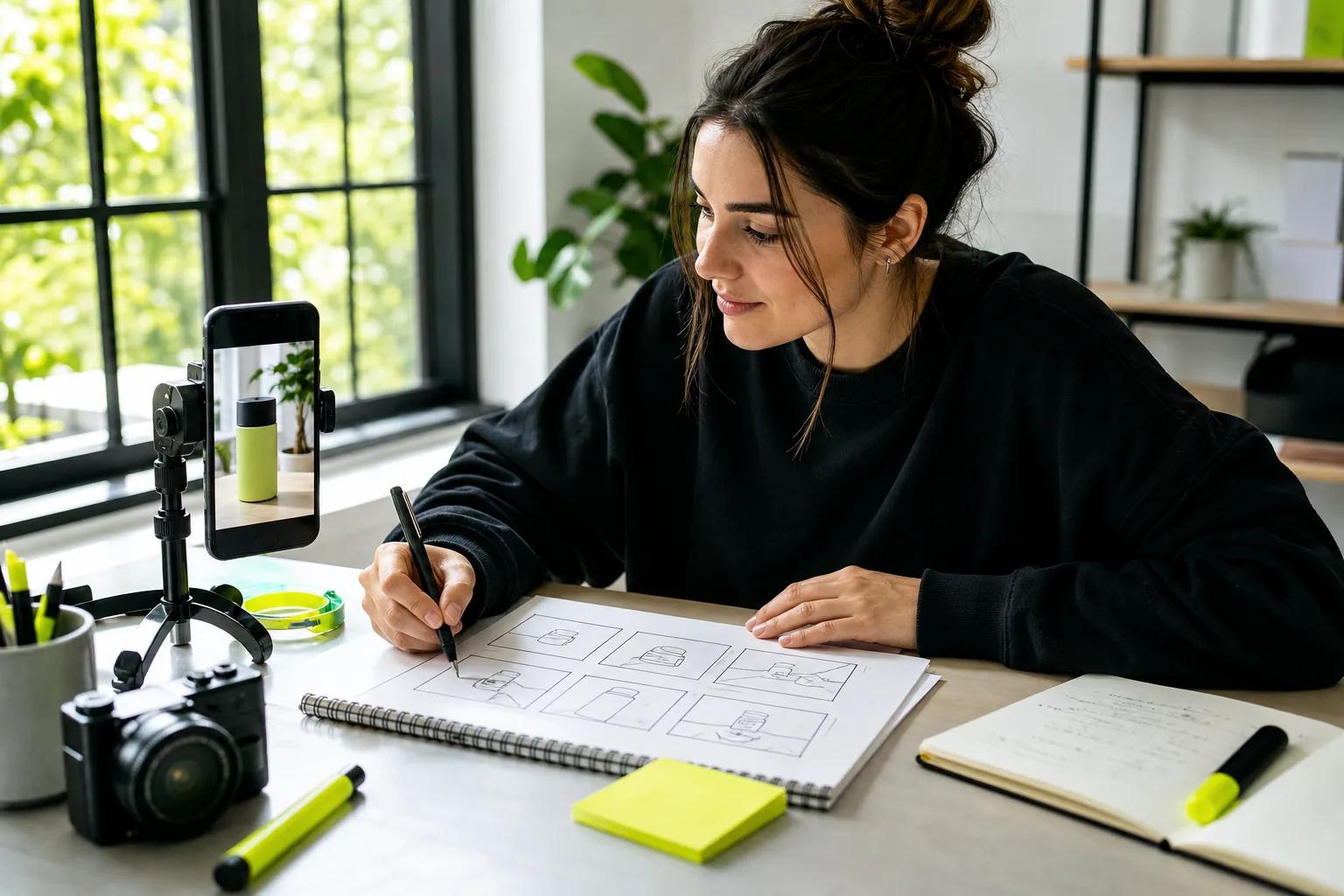
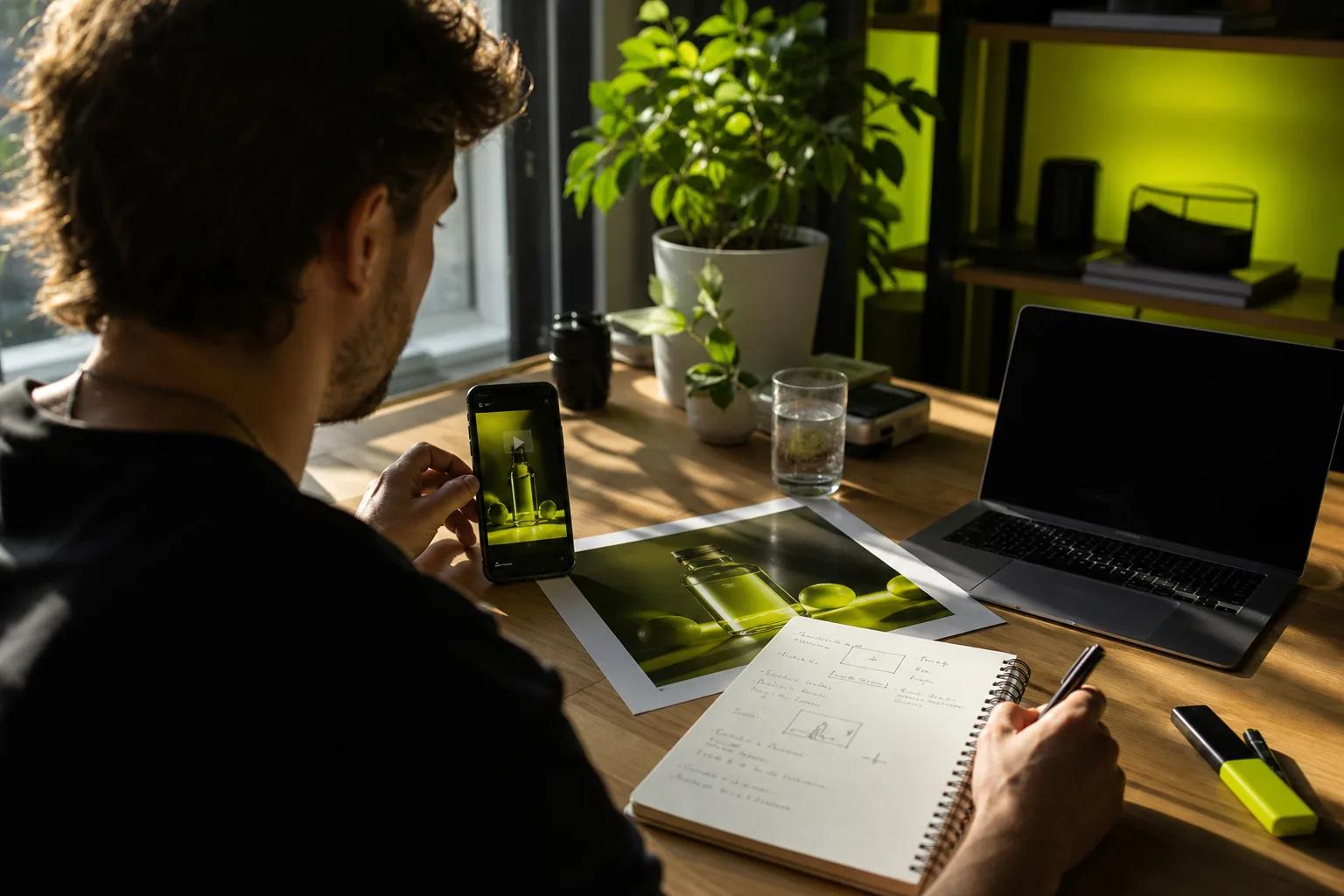
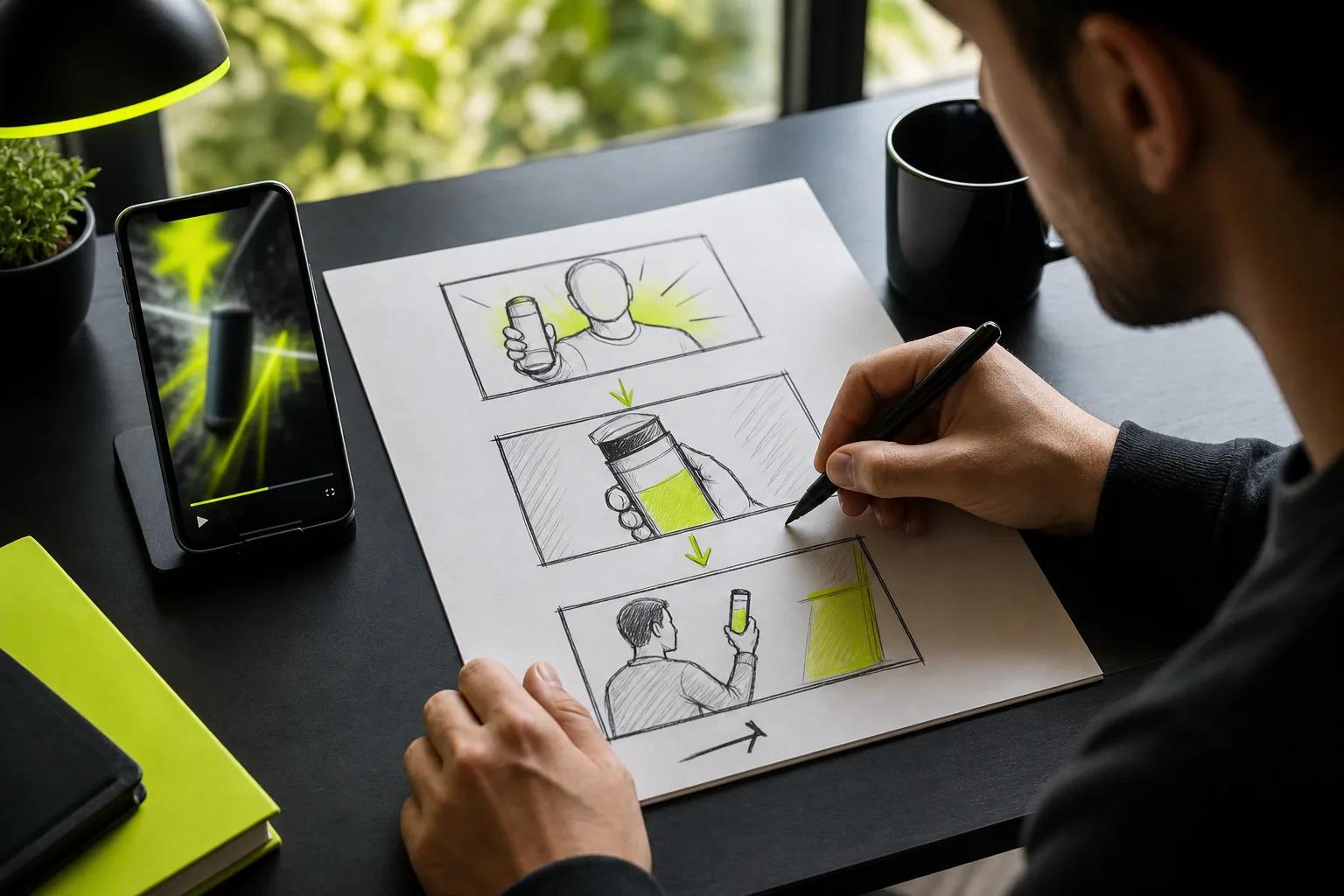
Wan Studio is a browser-based video creation platform that turns prompts and images into short videos with sound. It fits social creators, small business owners, and marketers who want to turn a product photo into a promo without filming.
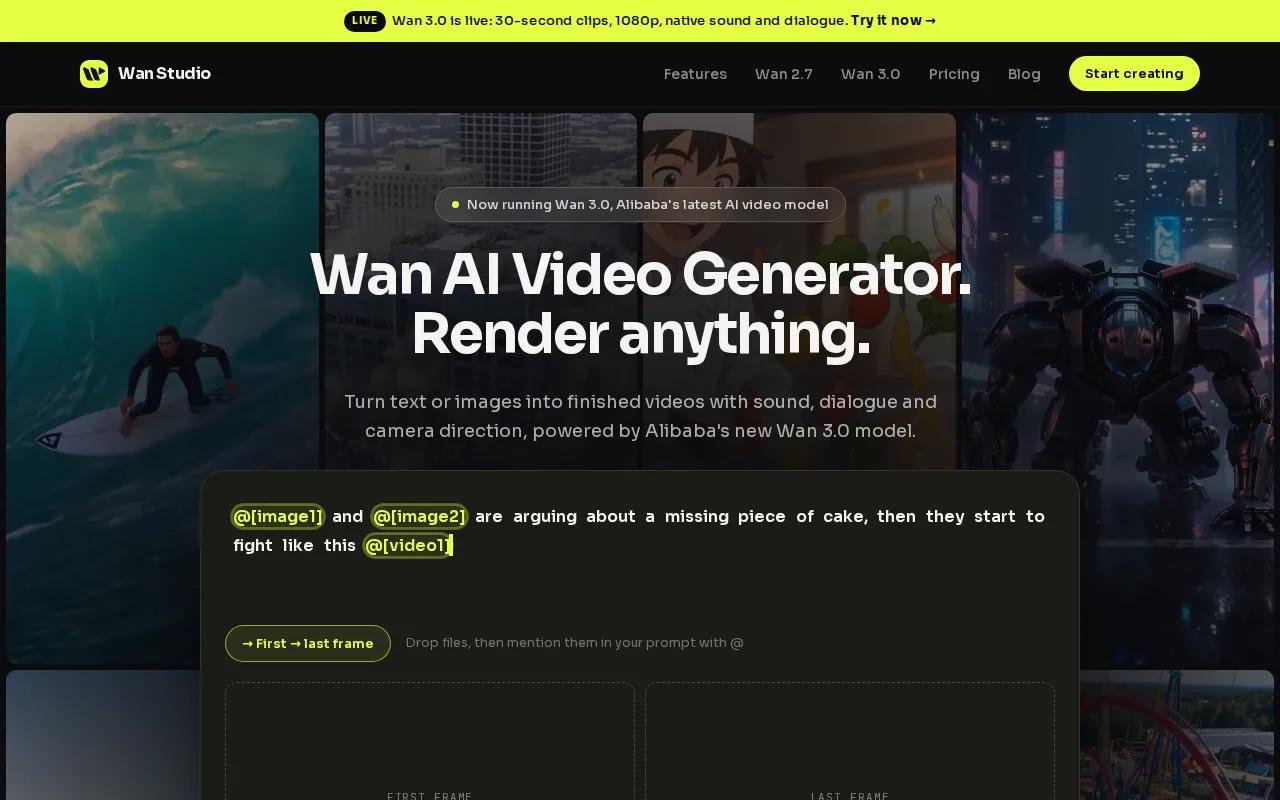
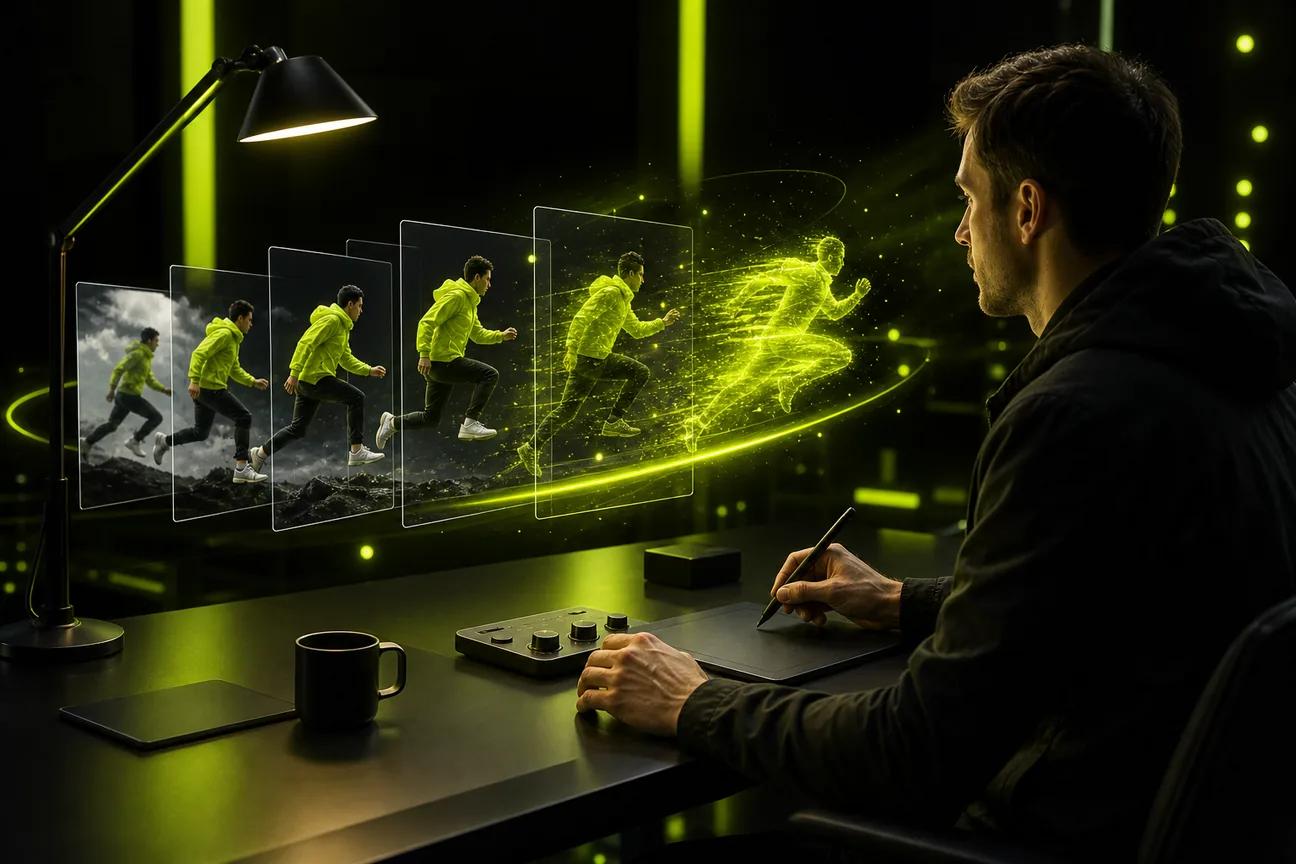
Start with a photo as the first frame. Then describe the action and camera move, such as a slow push toward a product or a character turning to face the viewer. Wan 3.0 supports clips up to 30 seconds and can keep characters consistent from shot to shot. It also generates music, sound effects, and lip-synced dialogue in the same pass. Put the line you want spoken in quotation marks in your prompt.
That combination is useful when a clip needs more than visual motion. A product image can become the opening shot of a short ad, while a character can speak a brief line. For a talking-photo project, the picture-to-speech workflow can help you plan the image and dialogue together.
Wan Studio gives you access through its own browser-based studio.
The free plan includes a couple of Wan 2.5 videos each month at 480p, with no card required. Paid plans start at $14 per month and include Wan 3.0 and a commercial licence. The free plan is a way to try the workflow; check the plan terms before using an output in a paid campaign.
2. Cutout.Pro: Fast photo-to-clip animation in one web app
Cutout.Pro is a web app for turning a photo into a short animation with a template. It suits creators who want a quick portrait or product clip and prefer choosing a ready-made motion over writing a detailed scene prompt.
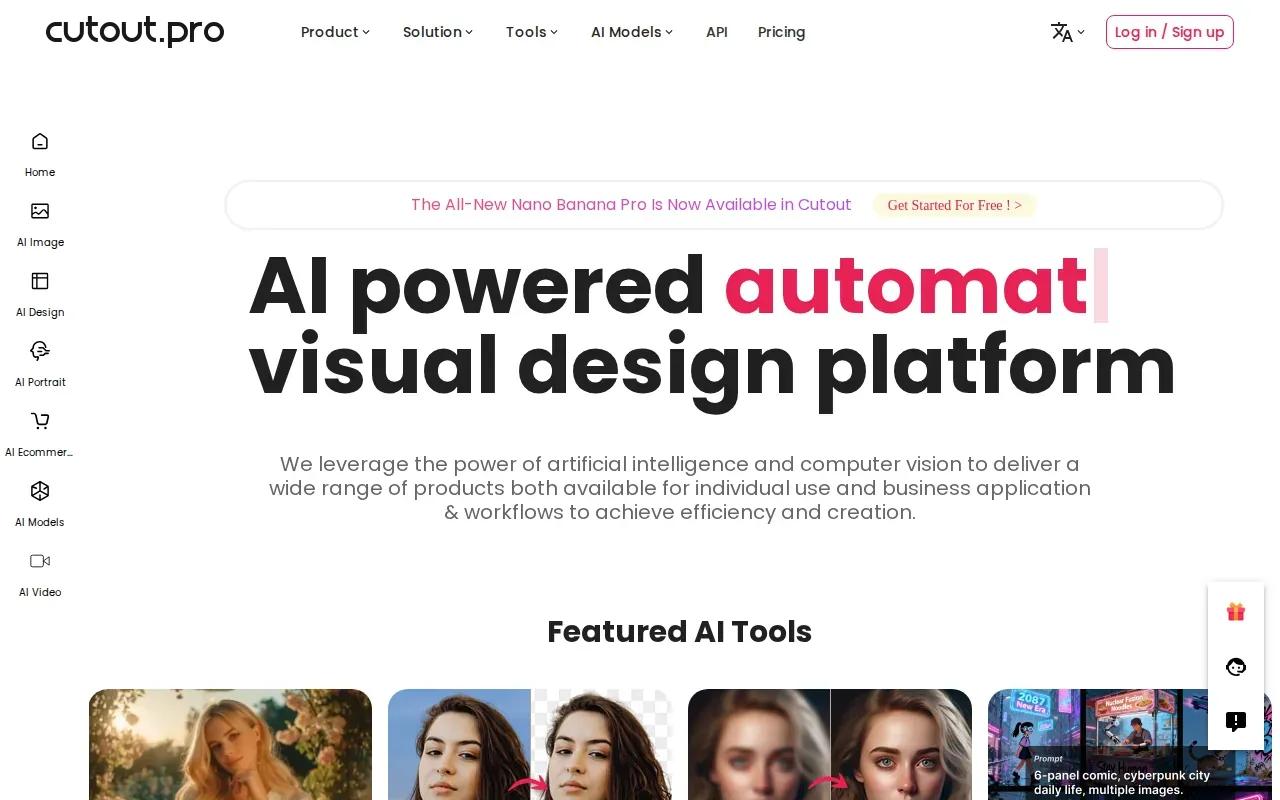
The workflow is direct: upload an image, pick a template, and generate. Templates include simple expressions and gestures, such as a person blinking, smiling, or turning their head. The tool also describes support for group and pet photos, as well as artwork and sculptures. That gives you room to test playful social posts or bring a single image into a campaign draft.
For a small marketing team, the template route can save time when the goal is a repeatable look. A staff member can try the same kind of motion on several portraits, then pick the version that suits the post. Cutout.Pro accepts JPG, PNG, and WEBP image files.
Its focus is on applying a chosen motion to the uploaded image. If you need a spoken script or a sequence of camera shots, compare that workflow with a video generator built around prompts and scene direction. But for a fast template-driven result, the three-step flow keeps the task simple.
3. Deep Nostalgia™ by MyHeritage: Animate faces in family photos
Deep Nostalgia™ by MyHeritage animates faces in still photos. It is best suited to family portraits and personal archives, especially when the goal is to see a familiar face blink, smile, or turn its head.
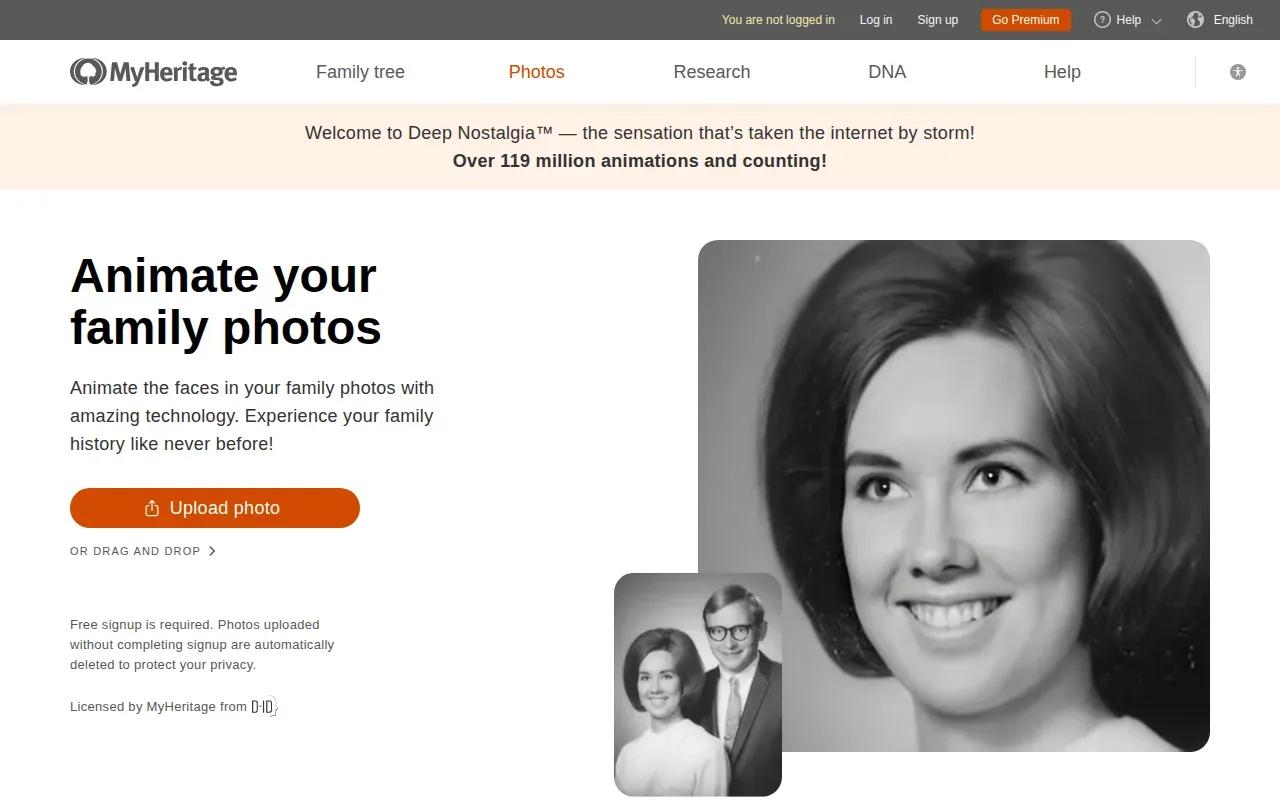
The tool uses video reenactment technology to create a short, simulated movement from a still portrait. You select a photo and the face you want to animate. The system then chooses an animation, and you can try other versions. MyHeritage says it works with black-and-white photos as well as color and colorized images.
This is a focused choice. It can help a family historian make a portrait easier to share in a digital family album, or give a scanned photo a small moment of movement for a personal post. It is not the same task as building a product ad with a moving camera or a spoken message. The motion centers on the face.
When you work with an old family image, think about who will see the result and how it may feel to them. A moving face can be touching, but it can also surprise someone who wasn't expecting it. Keep the context clear when sharing an animation with relatives.
Deep Nostalgia is the pick here when the image itself carries the story. For a broad scene or a marketing clip, a tool with more control over the full frame may fit better.
4. FlexClip: Photo effects, slideshows, and image-to-video
FlexClip is a browser-based video maker with photo effects, slideshow tools, and image-to-video workflows. It suits marketers and creators who want to combine stills with titles, music, transitions, or other video elements in one editing flow.
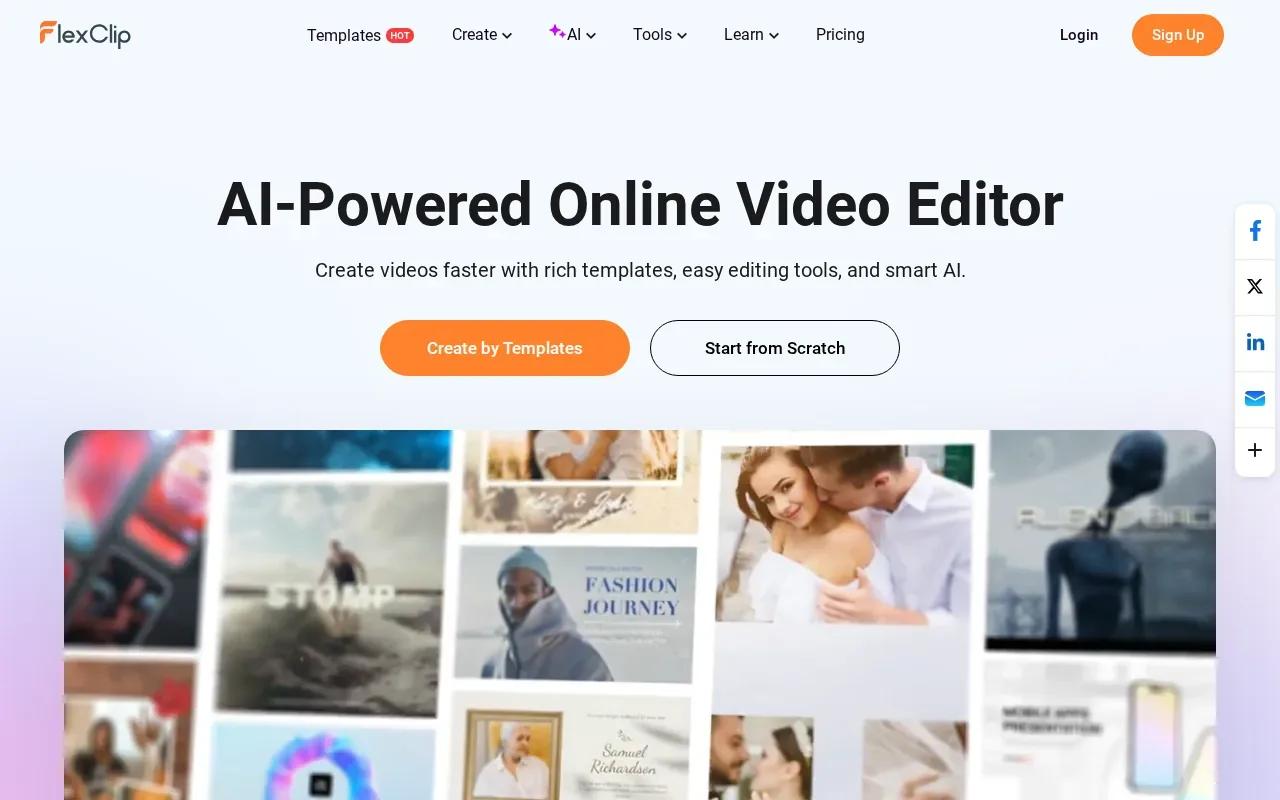
You can animate a single photo with an image-to-video prompt, apply a 3D camera movement, or arrange a set of images as a slideshow. The slideshow editor lets you add text and music, then export in different ratios and definitions. That makes it useful for a product announcement, a short event recap, or a sequence of images that needs captions to make sense.
Say you're making a vertical post for a new product. You could animate one image, add a title, then place it beside other photos in a short sequence. If the brief calls for several assets and a clear message, a timeline gives you more room to arrange them than a one-click animation tool. For a larger promotional workflow, compare the formats in AI promotional video generator tools before you settle on an approach.
Check the export settings against the channel you plan to use, especially if the campaign needs a higher output resolution.
Choose FlexClip when the motion is only one part of the job. It gives you a place to shape the surrounding slideshow or video, too.
5. PhotoMirage by Corel: Create looping motion from still images
PhotoMirage by Corel turns selected parts of a still image into looping motion graphics. It suits designers who want hands-on control over which areas move and which stay still.
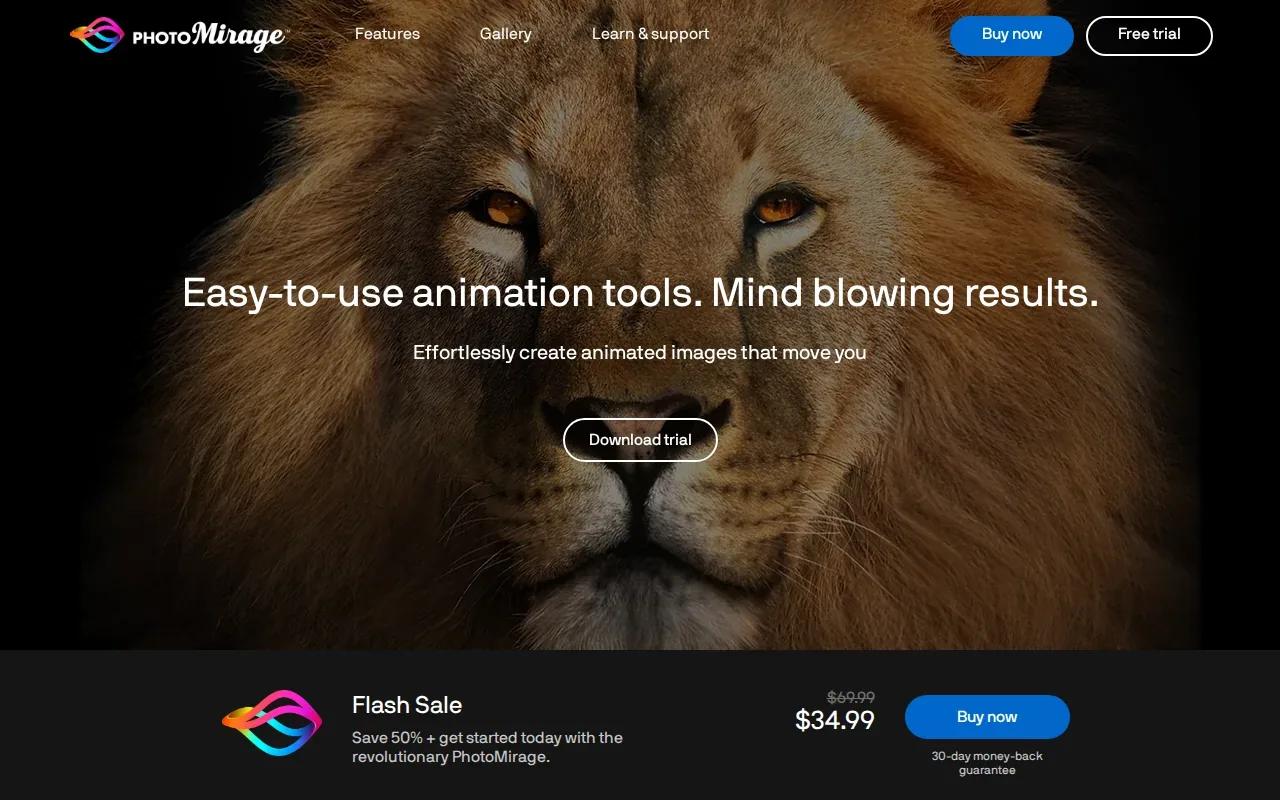
You draw Motion Arrows across the parts that should move, then place Anchor Points around areas that should remain fixed. For example, you could direct movement through water while keeping a person or nearby object still. Preview the result, adjust the arrow direction or speed, and refine the effect until the loop feels right.
The editor also includes masking and crop tools. A mask can mark an area to stay motionless, while crop presets help prepare the image for export. You can save a project in PhotoMirage's native .cpm format to return to it later.
This kind of control is handy for a website background or a social post where only part of the scene should move. It takes more direct editing than selecting a ready-made template, but you get to guide the motion yourself. PhotoMirage has a free 15-day trial.
6. Pika: Turn a single image into a short motion clip
Pika is an image-to-video tool focused on turning one image into a short motion clip. It fits creators who already have a visual they like and want to test a few camera or subject movements around it.
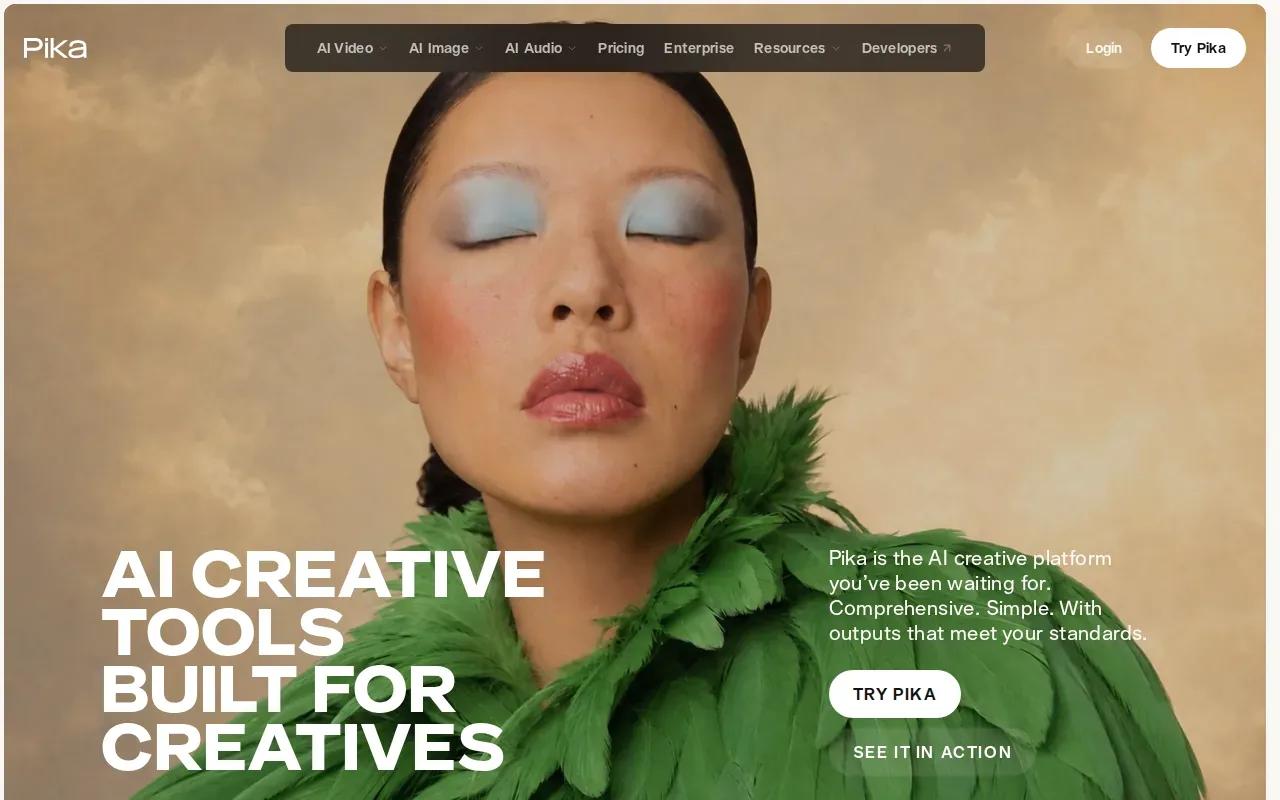
You start with a photo, illustration, or product image, then prompt for motion, camera direction, mood, or style. A simple request might describe a slow push-in as clouds drift behind a subject. Another might ask for a gentle light sweep across a product. Keeping the action restrained can help the original subject remain the focus.
For a social post, that image-first approach gives you a clear starting point. You can make several versions from the same visual by changing the camera move or mood, then choose the clip that best fits the post. Check the current generation settings before planning a fixed runtime.
Pika works best when you have a strong image and a clear idea of what should move. If the image contains a busy background or a lot of fast action, the result may need a simpler prompt or another try. Add any final text or logo in your editor rather than relying on generated lettering.
| Need | How Pika fits | What to check |
|---|---|---|
| Keep one image as the visual base | Image-to-video starts from your selected image. | Review whether the main subject stays recognizable. |
| Test different motion ideas | Make variations by changing the motion prompt. | Change one part of the prompt at a time. |
| Make a product or social clip | Describe a small camera move or product action. | Check the current output settings before publishing. |
If your goal is a single moving image, Pika gives you a prompt-led route. If the clip needs spoken dialogue or a longer scene, look at the model and workflow details before you commit.
Frequently Asked Questions
What is AI photo animation?
AI photo animation uses software to add movement to a still image or turn it into a video clip. Some tools animate a face or selected image regions. Others use a prompt to create camera movement or a new action around the image. The best fit depends on whether you need a loop, a slideshow, or a scene with sound.
What kind of photo works best for animation?
A clear image with an easy-to-see subject is a good starting point. For a portrait effect, choose a photo where the face is visible. For a product clip, keep the item easy to distinguish from its background. If the image has several competing subjects, start with a simple motion idea and review the result closely.
Can I animate a photo for free?
Yes, some tools have free access or a trial. Wan Studio's free plan includes a couple of Wan 2.5 videos each month at 480p, with no card required. FlexClip lists free 720p exports with project and length limits. PhotoMirage has a free 15-day trial. Check current terms before using a clip in an ad.
How long does it take to animate a photo?
Processing time depends on the tool and the generation. MyHeritage says a Deep Nostalgia animation starts immediately and takes a few seconds. Other workflows may need more steps, such as choosing a template or adjusting motion paths. Leave time to preview and revise a clip before you post it.
What file types can I use for an animated photo?
Accepted formats depend on the tool. Cutout.Pro accepts JPG, PNG, and WEBP images, while PhotoMirage lists formats including JPEG, GIF, PNG, BMP, TIFF, and RAW. Cutout.Pro describes MP4 exports. Check the tool's input and export options before preparing assets for a specific platform.
Conclusion
For a photo that needs to become a short video with sound or dialogue, start with Wan Studio and test one image with a simple prompt. If you only need a face animation, a loop, or a slideshow, pick the tool built around that task. Try a draft first, then check the crop and output settings before you publish.