An AI product video maker can turn a still photo or a short prompt into a clip without a camera setup. The best fit depends on what you need on screen: a moving product shot, a speaking presenter, or a longer edit. Here are six tools and the jobs they suit.
We analyzed 31 YouTube comments about AI product video makers and found that 26% mentioned more customizable visual assets.
1. Wan Studio
Wan Studio is a browser-based video studio for turning text prompts or images into short clips. It suits small businesses and social creators who want to start with a product photo, describe the scene, then make a video without filming.
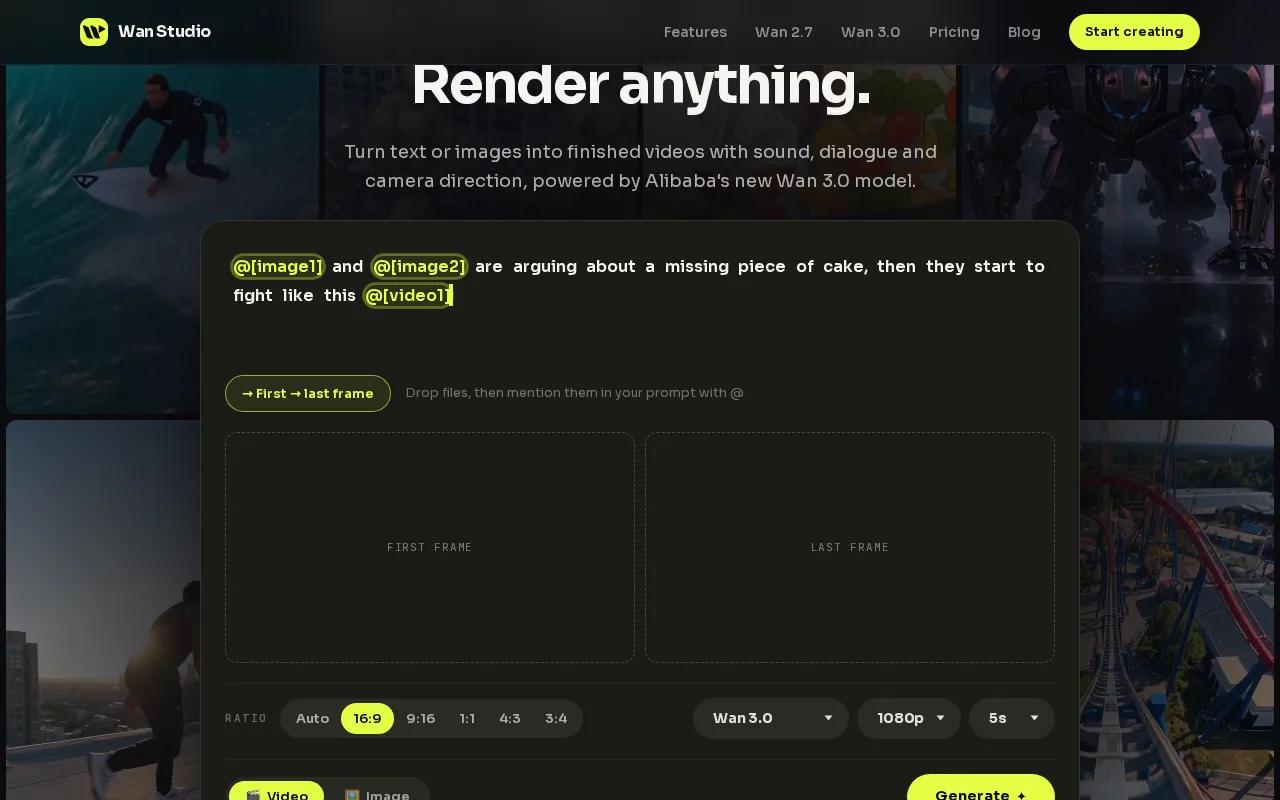
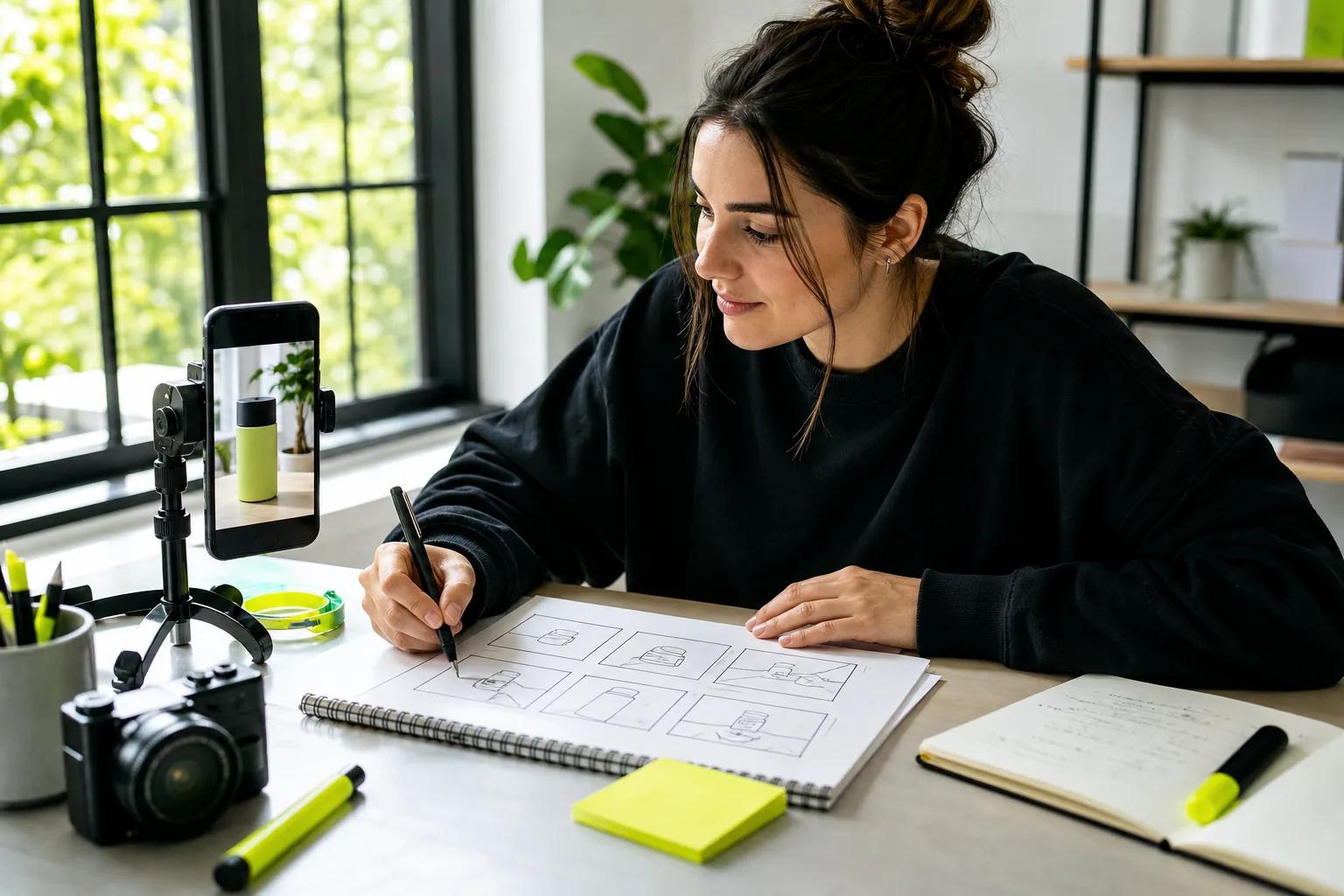
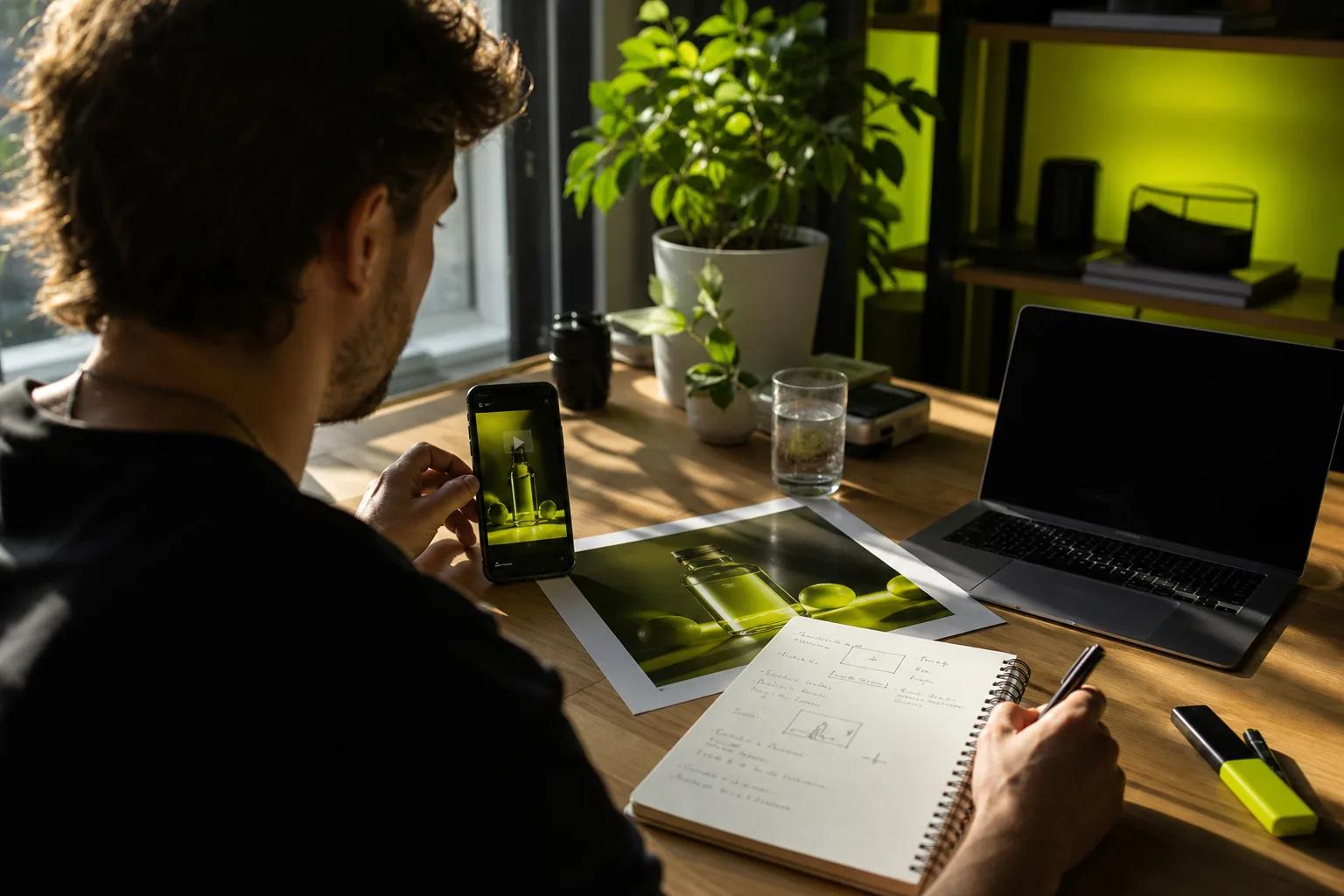
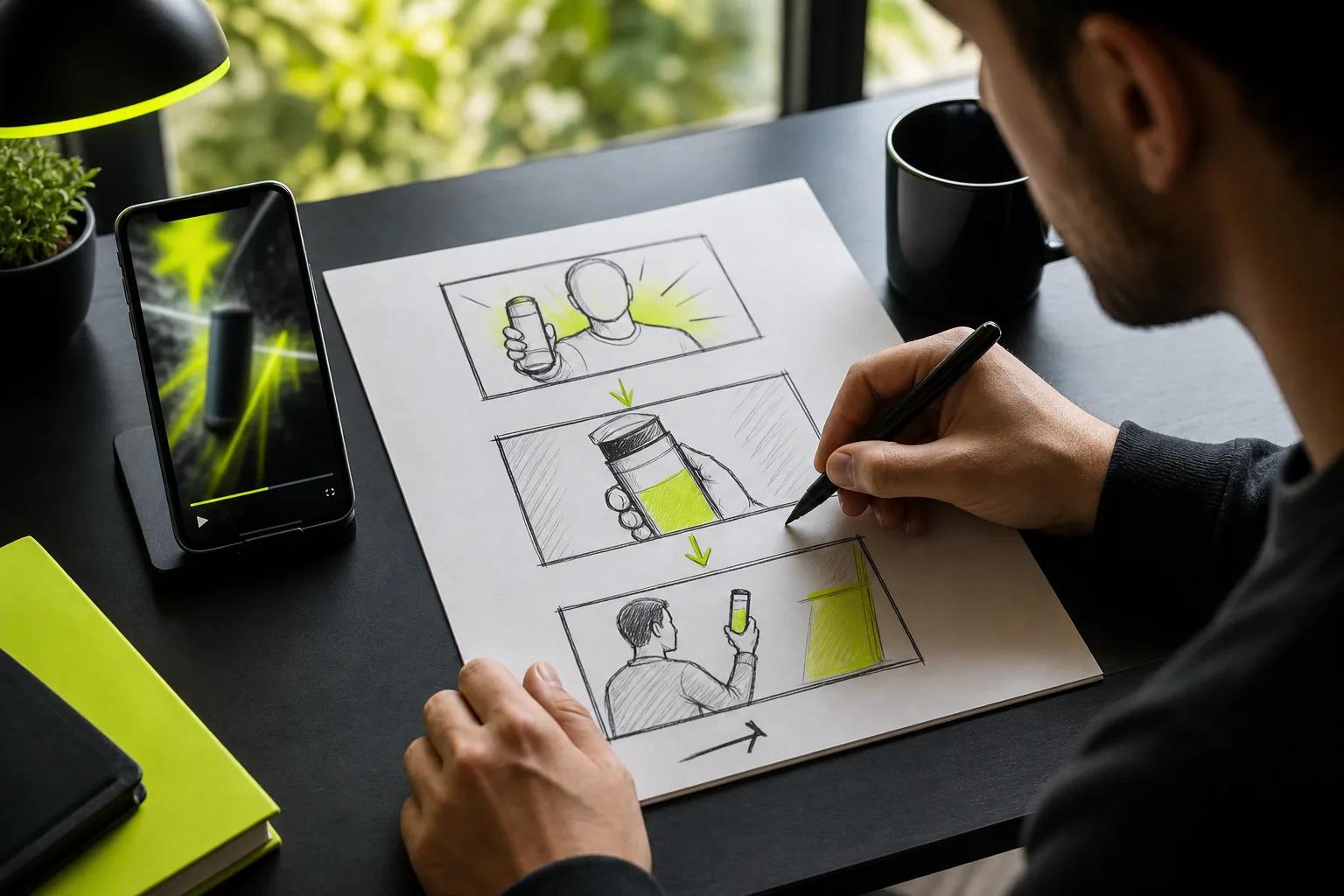
For an image-led ad, use the photo as the first frame and describe the camera move. Planning the product video and writing a focused script can help keep the scene focused. A prompt such as “Slow push-in on a ceramic mug as morning light crosses the table” gives the model a subject and an action. On Wan 3.0, you can add quoted dialogue for a character to speak. Wan models from 2.5 onward can generate sound with the video, including music, effects, and dialogue.
Wan 3.0 supports clips up to 30 seconds, with output up to 1080p on paid plans. It can keep characters consistent across shots in a scene. For closer control over references or an existing clip, Wan 2.7 supports reference-driven video and video editing. Those are different model workflows, so pick the one that matches your starting material.
The free plan includes a couple of Wan 2.5 videos a month at 480p, with no card required. Paid plans start at $14 per month and include Wan 3.0 plus a commercial licence. The free plan is for trying the tool, so check the plan terms before using a video in a paid campaign. This comparison of product video generators has more examples of photo-led ads and social clips.
To keep the product on-brand, use a clear first frame and review the generated item before publishing. Check its shape, color, and any visible label against the real product.
2. HeyGen: For presenter-led product explainers
HeyGen makes videos where an AI presenter delivers your script. It fits a product team that needs a founder-style explanation, a feature walkthrough, or a short social clip with someone speaking on screen.
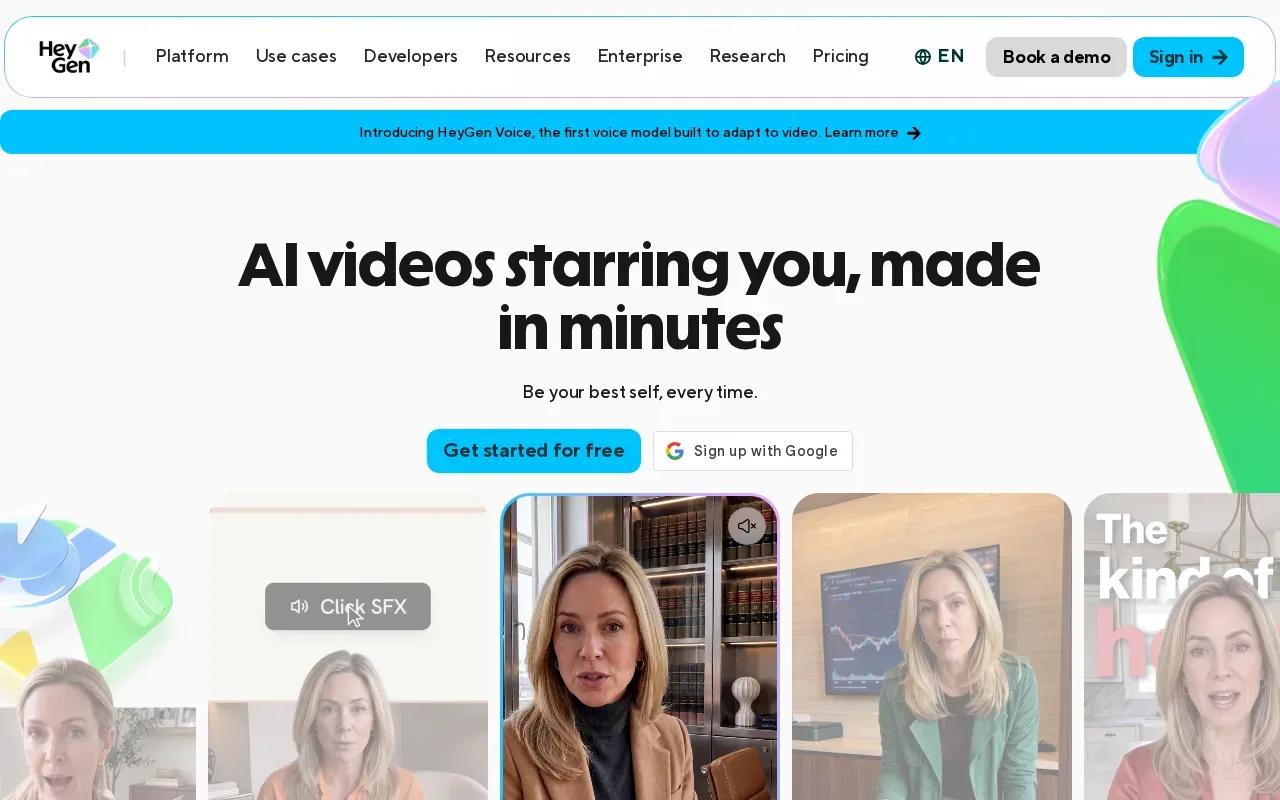
Start with a script that explains one product benefit or answers one buyer question. Then choose a presenter and voice. HeyGen’s presentation workflow lets you edit wording, pacing, and scenes before rendering, so a change to a product detail can lead to a revised script rather than a new camera session.
Presenter consistency is a key reason to consider it. HeyGen's Avatar V digital twin is built to keep a presenter's face and expressions consistent from video to video. That makes it a better match for a spoken explainer than a tool focused mainly on moving a product still.
Use a presenter when the viewer needs to hear a clear explanation. For example, a small shop could show a person describing how a new item works, while a social creator could turn a product brief into a short talking-head clip. Keep the script brief, and check the final mouth movement against the spoken words before sharing it.
HeyGen is a different kind of AI product video maker than an image-to-video tool. It starts with the message and presenter, rather than a product photo as the main visual. Choose it when the explanation matters more than a cinematic product shot.
3. CapCut: For quick social-ready product clips
CapCut combines AI video generation with editing tools for social clips. It suits creators who want to generate a short scene, then adjust the result for a vertical post or a quick ad.
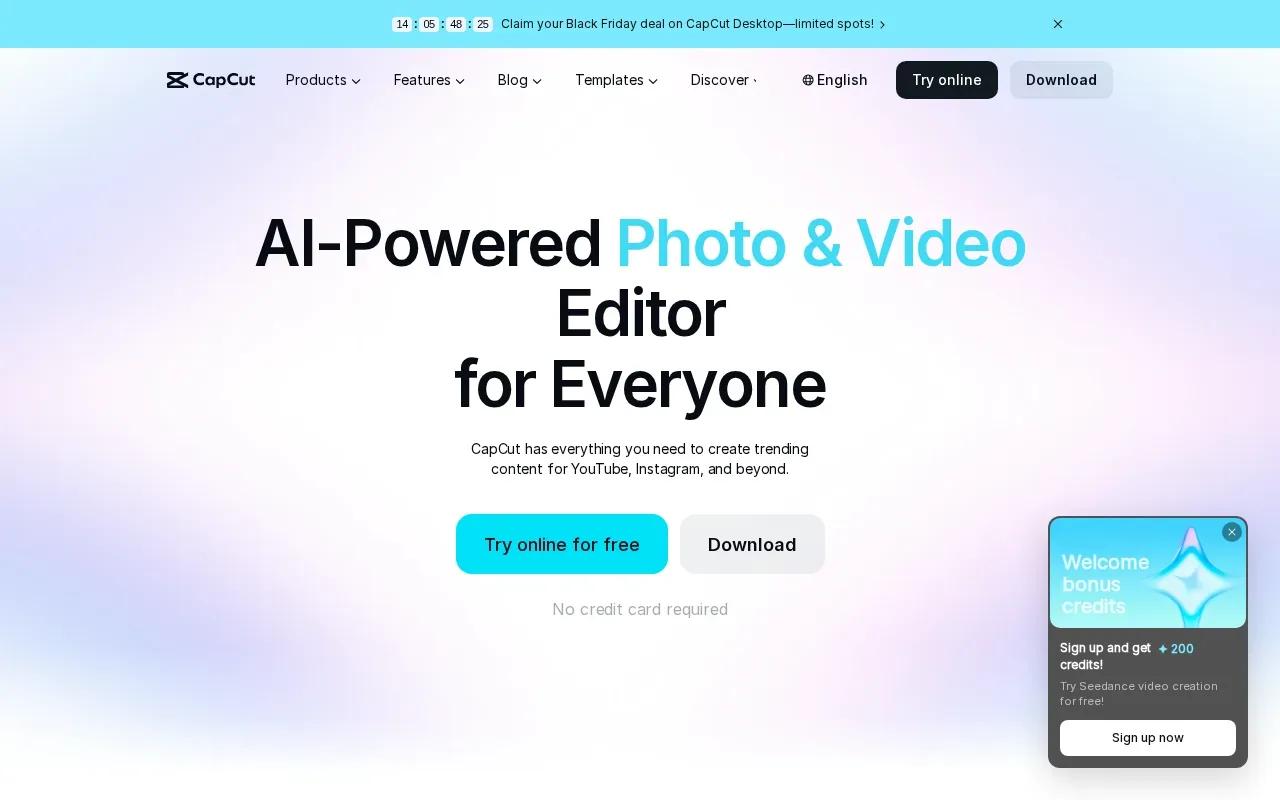
Its AI video workflow accepts text or an image as input. The workflow also supports synced lip movements. For a product clip, you can begin with a still image, generate motion, then work on pacing, effects, voiceover, or music in the editing workspace.
That editing step matters. A generated scene may need a shorter opening, a new line of narration, or a tighter crop before it feels ready for TikTok or Reels. Check the current plan details if your workflow depends on a particular feature.
For a presenter-style social post, lip sync can help a character or person appear to speak a line. Still, preview the mouth movement and audio together. Captions can make video content more accessible. Add readable captions when people may watch with sound off, then check that they don’t cover the product or its key details.
CapCut works best when you want generation and hands-on editing in the same workflow. If you need a fast cut for a sale or product update, make the first version short, check it on a phone, and refine the pacing before export.
4. Runway: For cinematic product shots and camera movement
Runway is a fit for marketers who want directed camera movement in a short visual. It can help when a product spot needs a slow push-in or a more cinematic feel, rather than a presenter explaining features.
A slow push-in can give a hero shot a sense of motion. Start with a clear subject and describe one camera move. If the prompt asks for too many actions at once, the main product moment can get lost.
Runway’s Standard plan starts at $15 per month. Its strength is camera movement and visual shots rather than a presenter speaking through a script.
Think of it as a source for visual shots that you can use in a larger campaign edit. A beauty brand, for example, might use a generated close-up as an opening scene, then add its own copy and call to action in an editor. Keep any claims or product details in the final edit accurate to the item you sell.
Runway suits a visual-first brief. Pick another tool if your core need is a presenter speaking through a script.
5. Synthesia: For scripted presenter videos
Synthesia turns a script into a presenter-led video. It suits teams that need a steady spokesperson to explain a product feature or deliver the same core message across several videos.
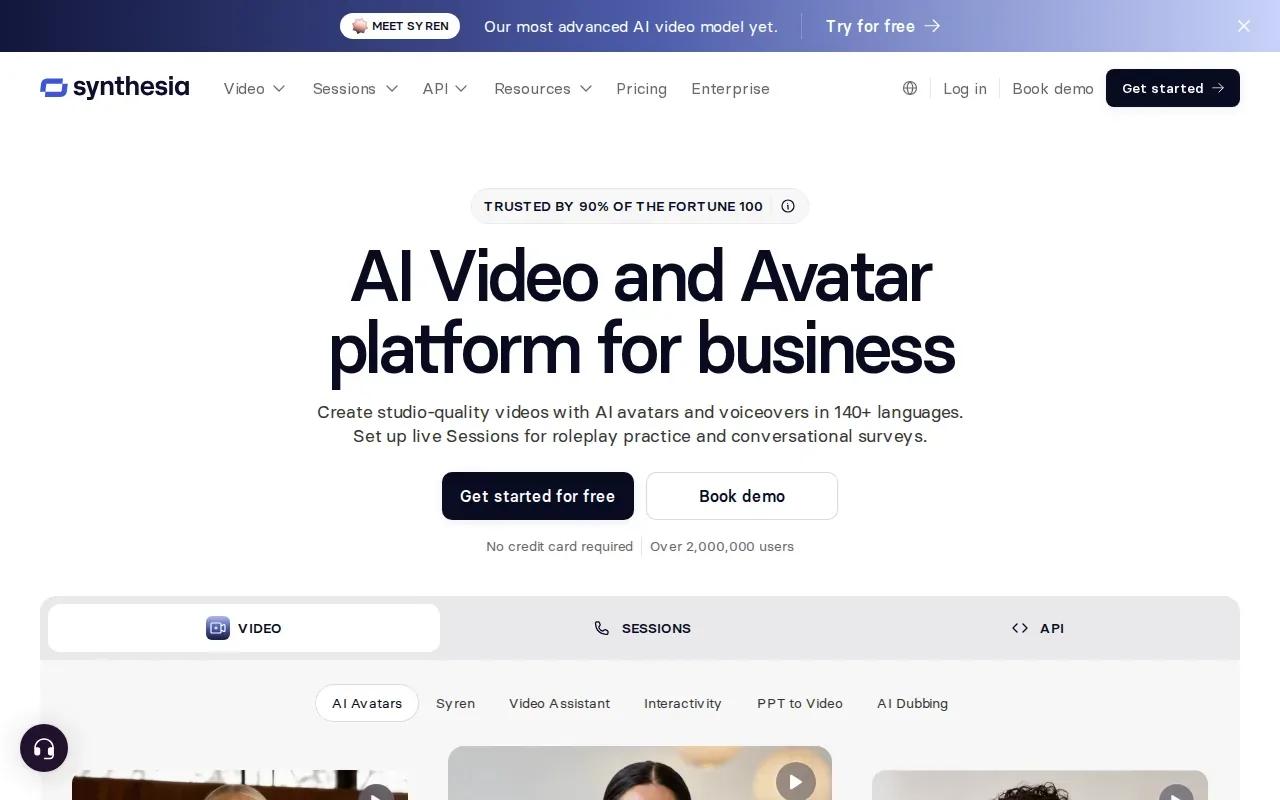
A steady presenter can help when a clear, repeatable delivery matters more than camera movement. Write the script first, then check the finished video for correct wording and timing.
Synthesia has a free basic tier, and its Starter plan is $29 per month, billed monthly. Those details make it possible to try a presenter-led workflow before paying for regular production. Review the current plan terms to confirm that the tier fits how often you’ll make videos.
For a product demo, use a short script that names the feature and shows why a shopper should care. A presenter can explain what’s happening, but the video still needs useful visuals. Pair the narration with product images or a screen view that matches the words, then check every detail before publishing.
Synthesia is a sensible choice when the script is the center of the video. For an ad built around a moving product image or a camera move, another tool on this list may be a closer fit.
6. InVideo AI: For longer AI-generated video projects
InVideo AI is built for prompt-led video projects that can run longer than a short social clip. It suits creators who want a draft assembled from a script, with scenes that they can review and adjust.
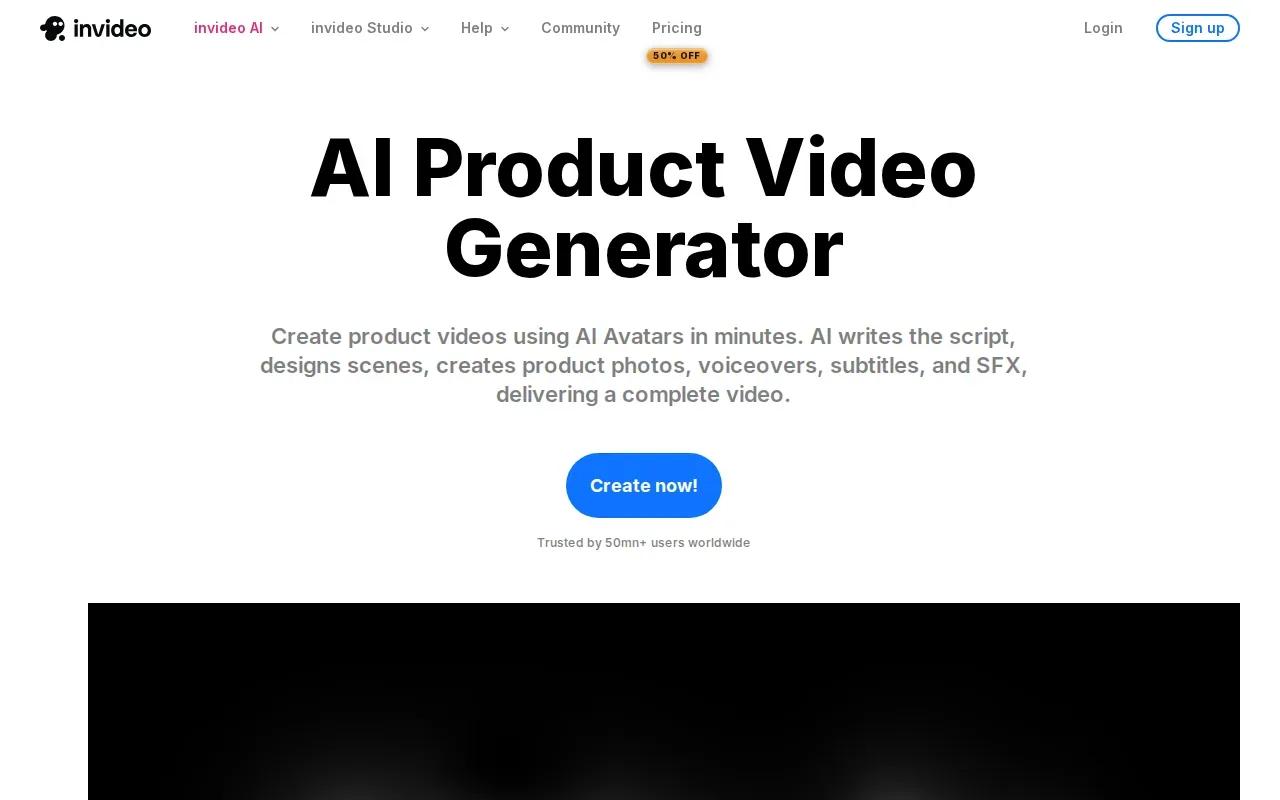
Its workflow can use a template or a script, then suggest images and video for scenes. You can replace those visuals with your own media or stock content, change scene order, add transitions, and set a voiceover. That makes it useful for a product overview that needs more than one moment, such as an opening hook followed by a product demo and a closing message.
A longer draft is a different use case from a short image-to-video ad. Review the complete video before sharing; a long draft can still need tighter scenes and more product-specific visuals.
| Part of the workflow | What you can do | What to check |
|---|---|---|
| Start | Choose a template or add a script | Does the opening state the product benefit? |
| Build scenes | Use suggested visuals, then replace them with your own media or stock | Does each visual match the line it supports? |
| Finish | Add voiceover or music, preview, then render | Is the pacing right for the channel and the video length? |
InVideo AI is the pick here for a longer scene-based draft. For a quick product spot, keep the script focused and trim any scene that doesn’t help the viewer understand the item.
FAQ
What is an AI product video maker?
An AI product video maker turns inputs such as a prompt, a product image, or a script into video. Some tools animate a still image, while others build a video around a presenter or a series of scenes. You still need to review the result for accurate product details, clear sound, and a good fit for the channel.
Can I make a product video from a photo?
Yes, some tools can turn a product photo into a moving clip. Add an image as the starting frame, describe the movement you want, then review the output closely. Check the item’s shape, color, and visible details against the original photo before using the video in an ad or listing.
Which tool is best for a presenter-led product video?
HeyGen and Synthesia are the clearest fits here for presenter-led videos. Both are built around spoken scripts with lip-synced presenters. Choose based on the presenter workflow you want, then test a short script and check the face and mouth movement before making a full campaign.
Can I use AI product videos for ads and product pages?
Yes, you can use generated clips in ads or on product pages, but check the plan terms and your rights to the source material first. Review the video for product accuracy and make sure any spoken or written claim is true. If you use a paid Wan Studio plan, it includes a commercial licence.
Conclusion
For a short product clip built from a prompt or photo, start with Wan Studio’s free plan and see how the output fits your brand. Use one clear image, describe one camera move, then review the result before posting. If your video needs a presenter or a longer scene sequence, choose the tool above that matches that job.