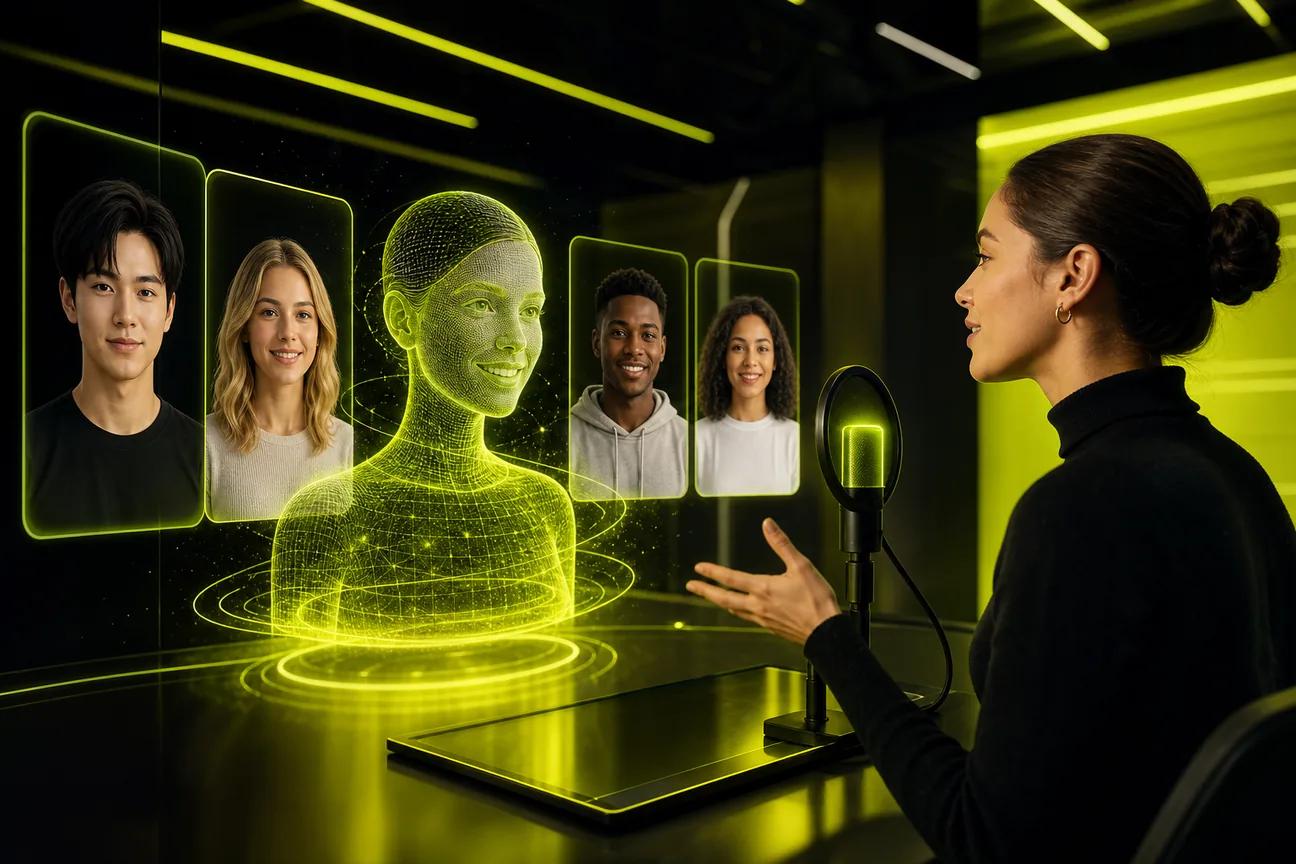
A still photo can speak on screen, but the right tool depends on how you want to make the video. These AI talking avatar generator tools range from prompt-led clips to scripted presenter videos, with very different free limits and sync results.
Wan Studio is a good fit when you want a short scene with sound made alongside the video. Here are nine other named options, plus a quick way to match each tool to your next project.
1. Wan Studio — Prompt- and image-led short videos
Wan Studio turns a text prompt or first-frame image into a short video with native sound. It’s best for creators who want a product photo or illustrated character to move and speak inside a scene, rather than a standard presenter reading a long script.
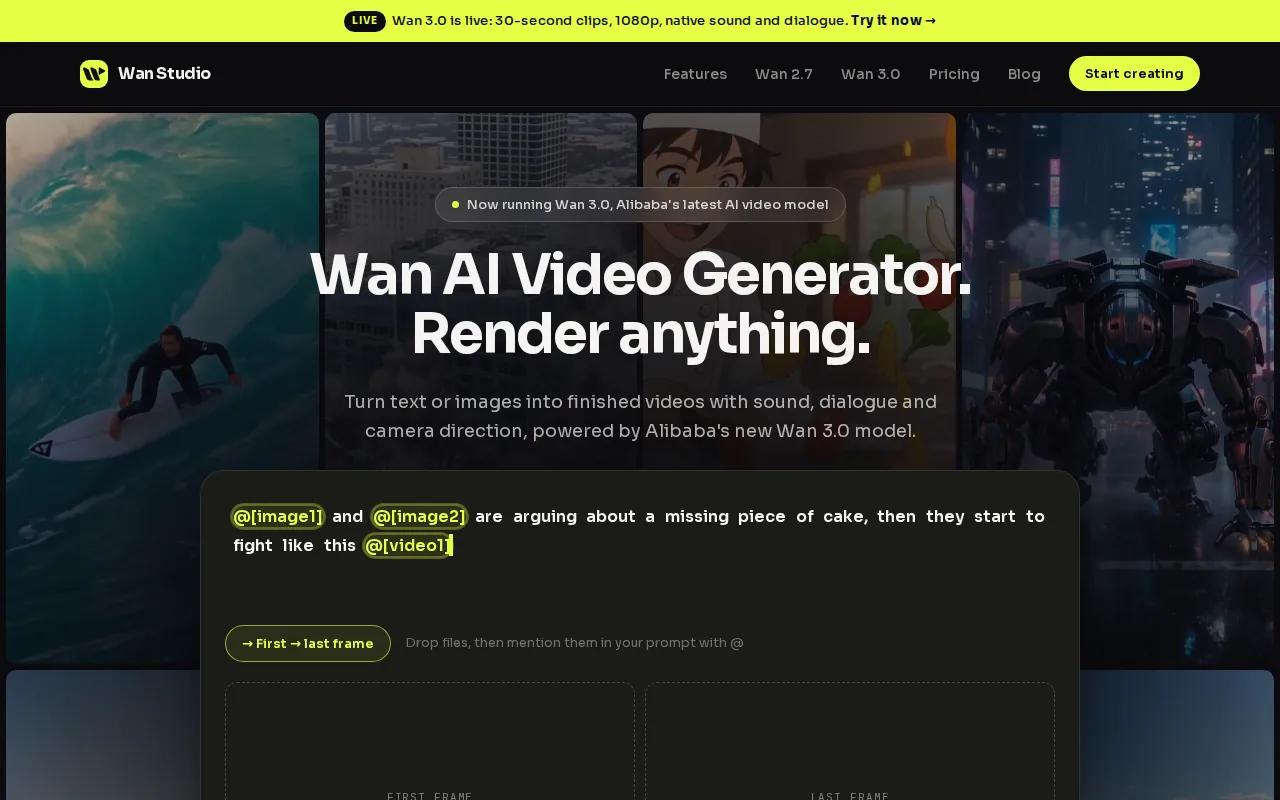
Wan 3.0 can make clips up to 30 seconds, with dialogue lip-synced to the generated audio in the same pass. Choose a vertical, square, or landscape frame, then describe the camera move and the line your character should say. Wan 2.5 is available on the free plan, which gives you a couple of 480p videos a month without a card. Paid plans start at $14 per month and include a commercial licence.
Want to keep the shot brief for a Reel or ad? Start with a five-second clip, then adjust the prompt before spending credits on a longer render. Visit this page.
This isn’t a classic talking-head editor. Think short, directed scenes with dialogue, music, and motion, instead of a presenter reading a full training script.
2. HeyGen: Photo avatars and longer outputs
HeyGen makes scripted avatar videos and supports photo-based creation. It’s a strong fit when you need a recognizable face to deliver a longer explainer, course update, or social message.
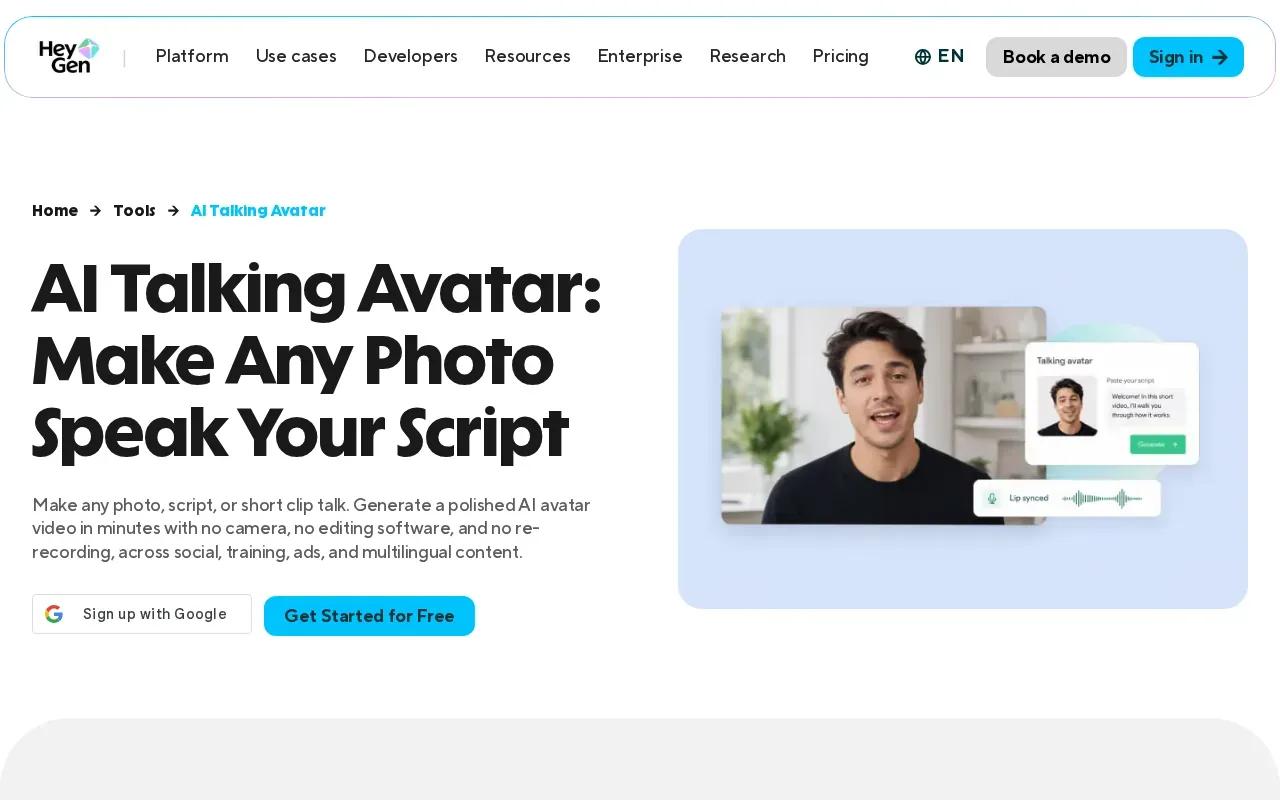
The free tier includes three videos with Avatar IV access, while the maximum output length is up to 30 minutes. A 90-second single-pass render held the same face across the clip, which matters when a brand spokesperson needs to stay recognizable past a quick demo.
Longer output doesn’t guarantee perfect delivery in every language. Test a short sample with your own script before making a full lesson or translated campaign. If you need a complete presenter reading a prepared script, this format may suit you better than a prompt-led scene.
3. Synthesia: Presenter-style videos with a free allowance
Synthesia is built around presenter-style videos. It’s best for teams making concise explainers or learning clips where a clear on-screen speaker matters more than cinematic scene changes.
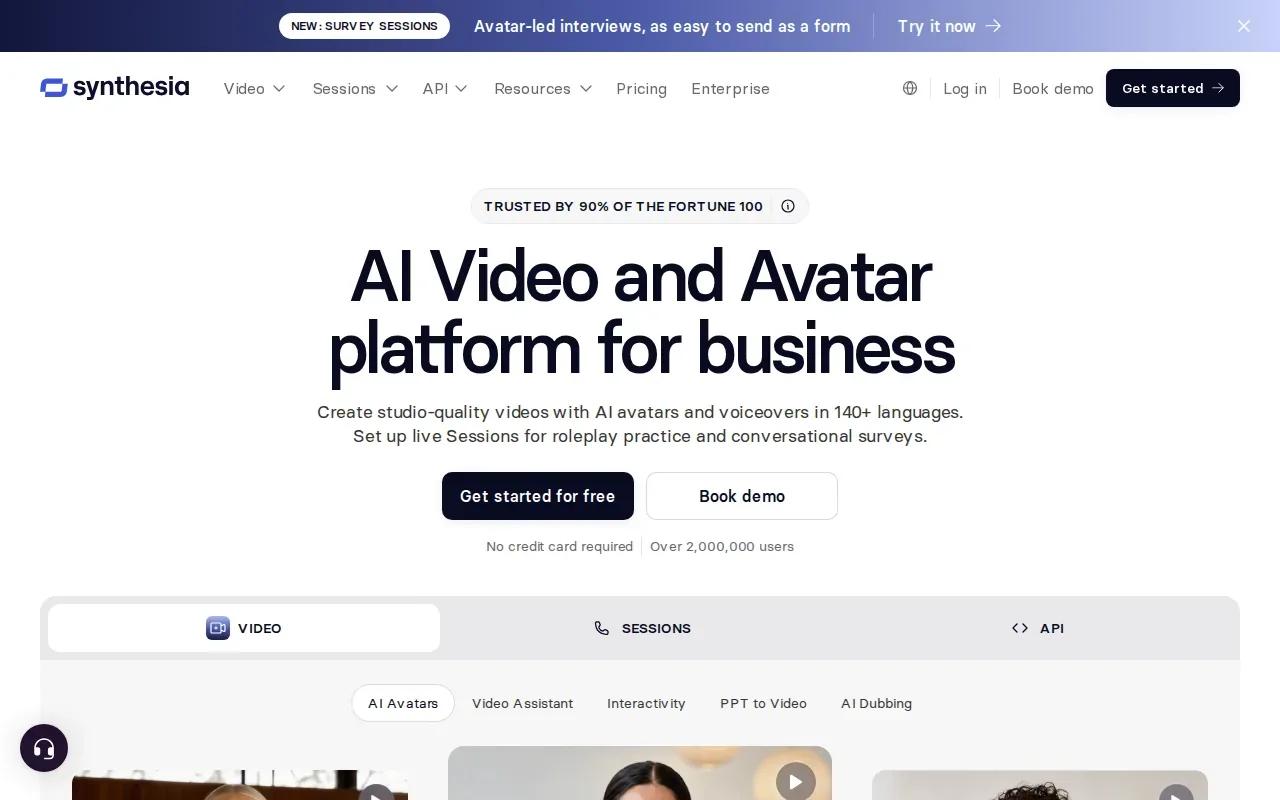
The free allowance is 10 minutes per month and includes nine avatars. It adds a watermark and doesn’t include MP4 downloads. Lip sync held well in Spanish in the provided results, while Japanese showed minor phoneme mismatches. That difference is a reminder to test the exact language and voice you plan to publish.
For a short course section, write one focused script and check the exported result before building a full set of lessons. If an MP4 file is part of your handoff, account for the free tier’s download restriction.
4. D-ID: Fast photo-to-talking-video creation
D-ID turns a face image into a talking-head video from text or uploaded audio. It’s suited to a quick photo-based presenter, or to teams exploring generated video in a product or learning workflow.
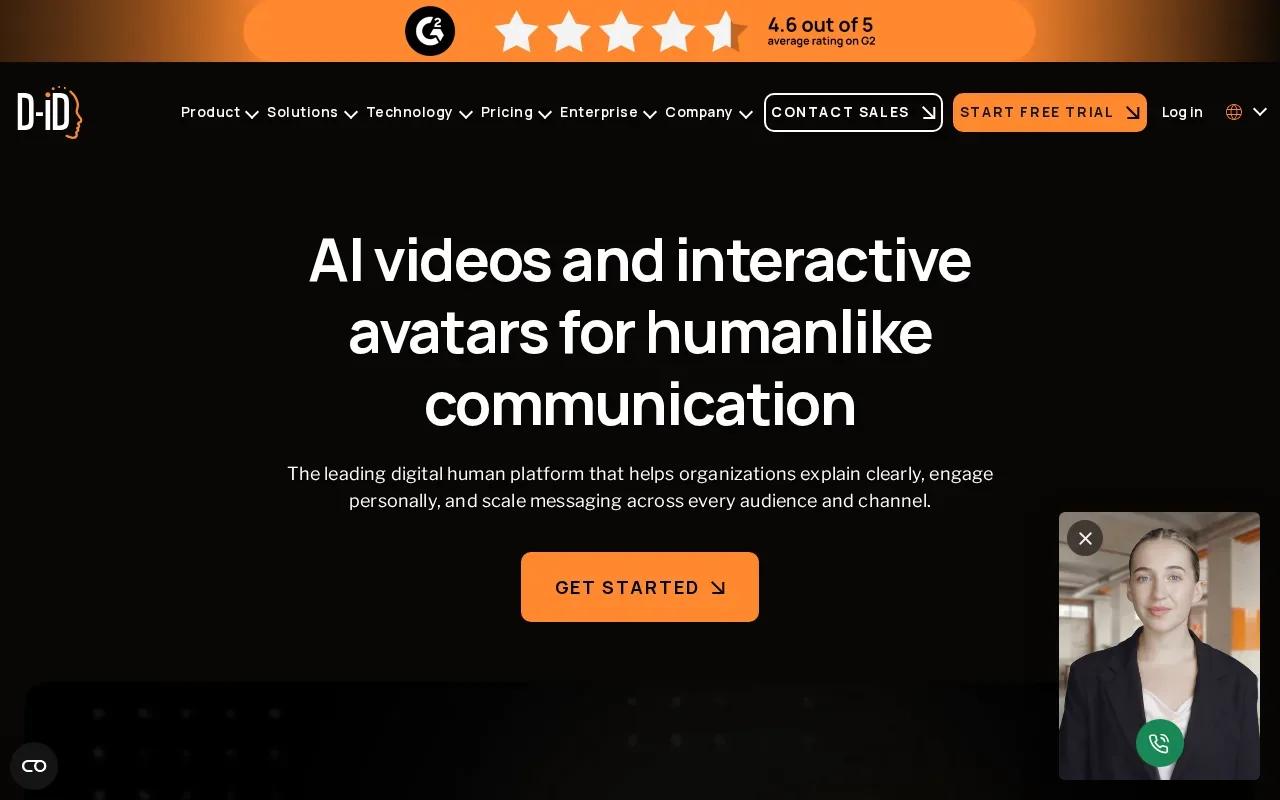
D-ID was the fastest render, but also had a clear sync caveat: sync held for the first 40 seconds, began sliding, and by the end of 90 seconds the mouth was arriving behind the audio. Keep the first test short and watch the full result, not just its opening seconds.
The 14-day trial gives three watermarked results.
5. Argil: Story-led AI video creation
Argil is aimed at making a finished video from a story or script. It’s best for social creators who’d rather start with a concept than assemble a talking head and edit the rest by hand.
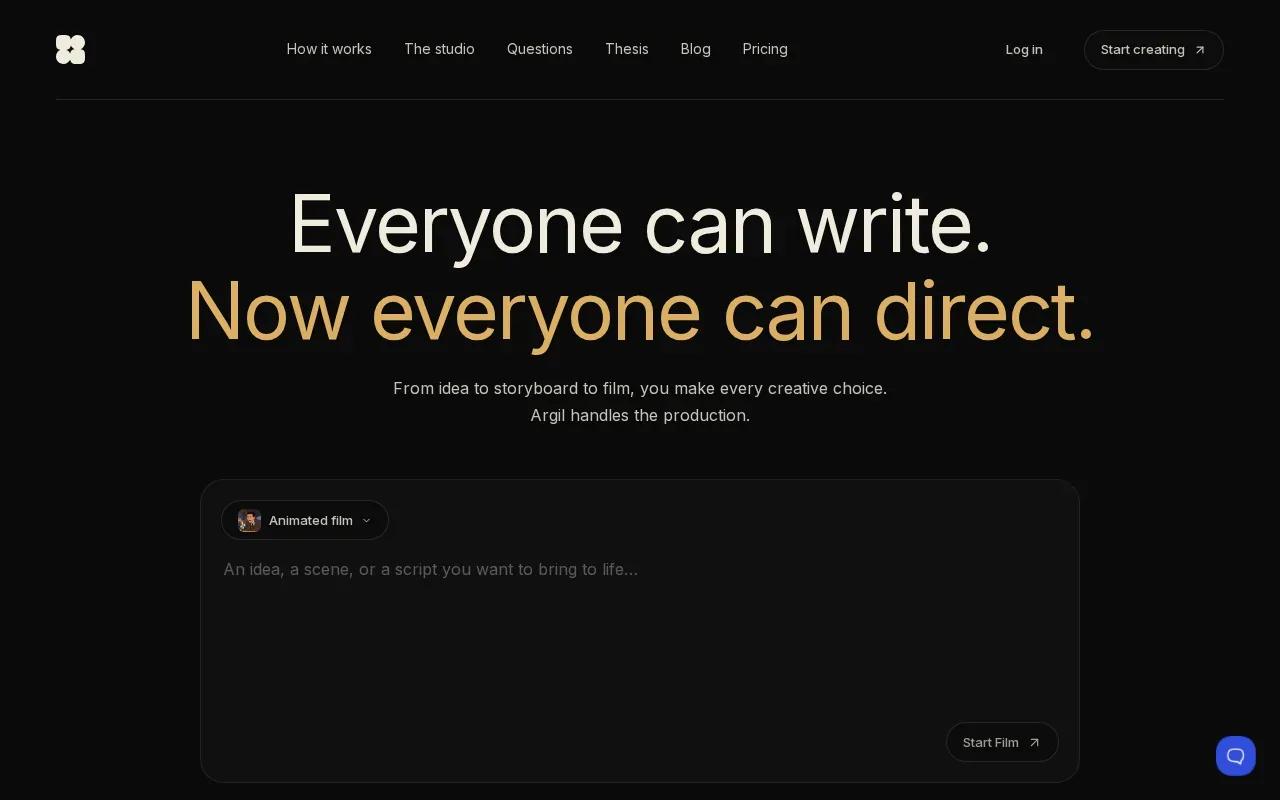
One noted result included captions, B-roll, and transitions in the finished video. That changes the workflow: you’re assessing a complete short-form edit, not only whether the avatar’s mouth matches the voice. The trade-off is fit. A complete social clip is a different need from a plain presenter shot for an online lesson.
Write the story in short spoken lines, then check whether the finished cut keeps the message clear on a phone screen. Keep the source material and final export in mind when planning a campaign.
6. Akool: Personalized visual marketing
Akool is a visual marketing tool with talking avatars and script-led video creation. It’s best for marketers making a branded promo that needs a presenter, voice, or several scripted shots.
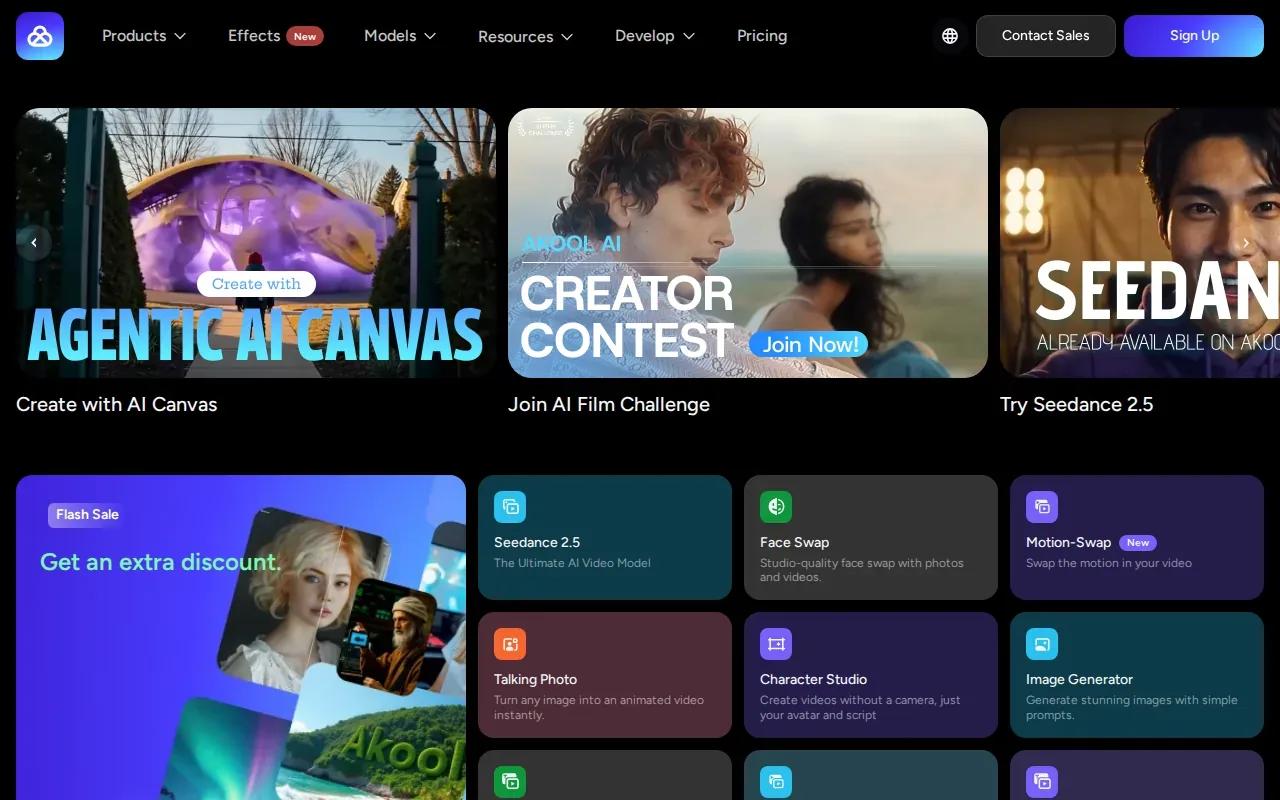
Akool offers hundreds of talking avatars, voice cloning, audio uploads, and more than 100 templates. You can split a video into shots and match each shot to script lines, which gives a marketer a way to build a promo around separate product points.
Use that shot-based structure for a short ad: give each shot one message, then review the cuts and spoken lines together. Akool’s positioning is centered on personalized visual marketing, so consider it when the campaign needs more than a single static talking face.
7. VEED: Talking-avatar generation with editing tools
VEED combines talking-avatar creation with video editing. It’s a fit for marketers and solo creators who want to generate a speaker clip, then make edits in the same workflow.
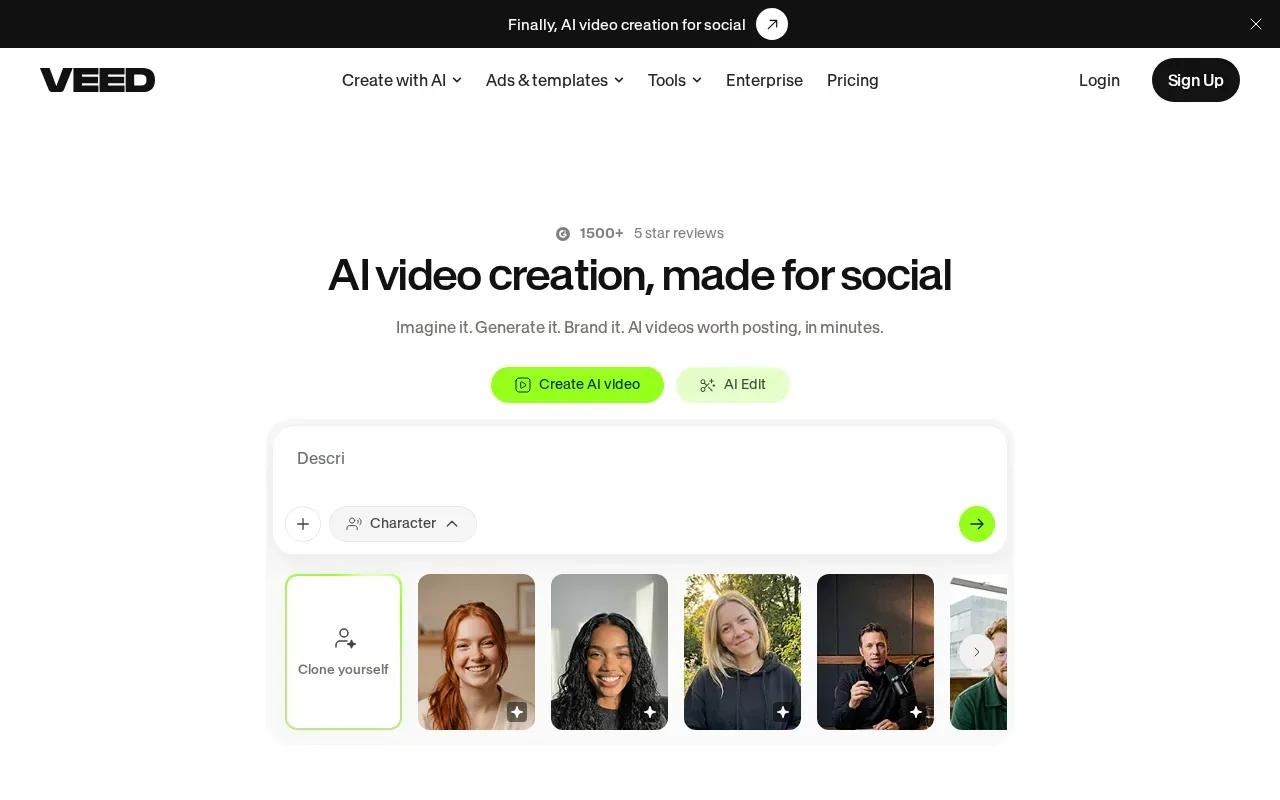
The free plan is available with watermarks. VEED’s English lip sync was accurate. VEED’s workflow also covers AI editing, dubbing, and subtitles, so it can suit a short campaign clip that needs a final pass before posting.
Check the export at normal playback speed and listen while watching the mouth. A clip that looks aligned when paused can feel off once the voice runs at full pace.
8. Canva: Accessible avatar features for lightweight projects
Canva puts avatar creation and design tools in one editor. It’s best for lightweight social or presentation work where the avatar needs to sit inside a larger branded layout.
Avatar features are included in the free plan, with tight credit limits. Canva’s tools let you make or refine a face and use AI video avatar apps in the editor. That can help when the final asset also needs captions, text, or design elements around the speaker.
Try it for a short announcement or a visual lesson slide. Keep an eye on the available credits if you plan to make several versions, since each round of changes can draw on limited use.
9. ElevenLabs: Voice-focused creation with lip-sync options
ElevenLabs pairs text-to-speech with a lip-sync video model. It’s best for creators who care about voice generation and want to build a talking clip around that audio.
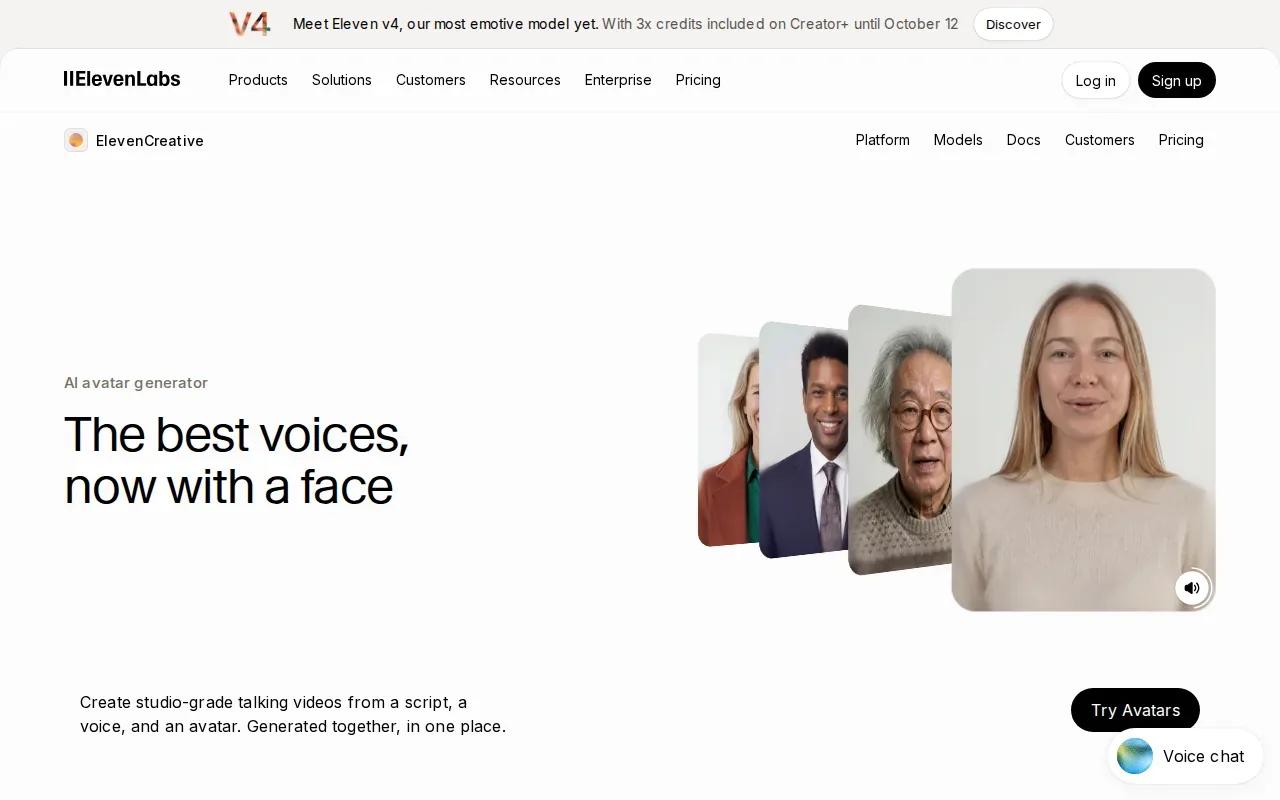
The free allowance is 10,000 credits per month for non-commercial use. ElevenLabs lip sync held cleanly across the full script in English and Spanish. That makes it worth testing when voice is central to the video, especially if you’re checking those two languages.
Before you produce a batch, listen to the generated speech on its own. Then check the full video for mouth timing and expression. A voice that sounds right by itself still needs to fit the on-screen delivery.
10. Elai: Short presenter videos with language-dependent results
Elai is a presenter-video option for short scripts. It’s best for a brief announcement or an early test of a multilingual presenter format.
The free plan allows one minute of video. Lip-sync accuracy varies by language: English and major European languages performed well in the provided results, while other languages showed occasional mismatches. Test a short passage in the target language before translating a full course or campaign.
Keep the first script tight. One clear idea is easier to assess than a long read, especially when you’re checking whether the spoken words and mouth movement stay in step.
Quick comparison: free access, formats, and best-fit use cases
Free access can help you test a workflow, but it doesn’t tell you whether a tool will suit the finished job. Compare the actual output you need: a short scene, a presenter clip, or an edited video ready for social.
| Tool | Free access or limit | Workflow fit |
|---|---|---|
| Wan Studio | A couple of Wan 2.5 videos monthly at 480p | Prompt- or image-led short scenes; vertical, square, or landscape framing |
| HeyGen | Three free videos with Avatar IV access | Photo avatar and longer presenter outputs |
| Synthesia | 10 minutes monthly; watermark, no MP4 download | Presenter-style explainers and learning videos |
| D-ID | Three watermarked minutes for personal use in a 14-day trial | Photo-to-talking-head video; MP4 output |
| Argil | — | Story-led finished social videos |
| Akool | — | Personalized marketing with scripted shots |
| VEED | Free plan with watermarks | Talking avatar plus editing, dubbing, or subtitles |
| Canva | Avatar features on free plan, with tight credit limits | Avatar assets inside a wider design |
| ElevenLabs | 10,000 credits monthly for non-commercial use | Voice-led talking clips with lip sync |
| Elai | One minute of video | Short presenter scripts and language tests |
For a short ad built around a product image, Wan Studio is the most direct fit in this shortlist. For a scripted presenter, compare the script length, language, and export rules before you commit.
A quick buyer’s checklist for natural-looking avatar videos
Start with the source. A talking photo usually needs a clear face, while a prompt-led scene can use an image as its first frame. If you’re animating a real person, make sure you have permission to use their likeness and voice.
Next, write the script as spoken language. Break long sentences into short lines and read them out loud. Test the voice on its own, then watch the video from start to finish for mouth timing, odd pauses, or facial movement that distracts from the message.
Test your target language before making a full translation. Lip-sync behavior can vary by language, so a sample with the sounds your script uses is more useful than a generic demo. Lip sync means matching mouth movement to spoken or sung words, but the finished result still needs a human check.
Check the final use, too. You may need an MP4 download, a watermark-free export, captions, or a commercial licence. Captions help viewers follow speech; prerecorded captions are worth considering for spoken audio in video.
If you want a photo-based workflow, the picture-to-talking-video walkthrough covers the choices involved in making a speaking image. For Wan Studio, use a product photo as the first frame when you need the item itself to anchor the scene.
FAQ
Can I make a talking avatar from one photo?
Yes, some tools can turn a face photo into a speaking video. D-ID is built around photo-to-talking-head creation, while HeyGen also supports photo-based avatars. Wan Studio uses a first-frame image to guide a short generated scene, which is a different workflow from a presenter reading a long script.
Which tools let me test an avatar for free?
Several options have a free tier or trial, but the limits differ. Wan Studio gives a couple of Wan 2.5 videos monthly at 480p. HeyGen includes three videos with Avatar IV access, while Synthesia’s free allowance has a watermark and no MP4 download. Check the specific cap before planning a finished campaign.
How can I make lip sync look more natural?
Use a clear face image, keep the first script short, and test the exact voice and language you plan to publish. Watch the whole video while listening, rather than judging a still frame. Some tools showed language-specific sync differences, so a short sample can reveal issues before you build a longer video.
Can I use an AI avatar video in an ad?
It depends on the tool’s terms and your plan. Wan Studio includes a commercial licence on paid plans, while its free plan is for trying the service. Check the licence for the specific tool, voice, and avatar you use, and get permission before modeling a real person’s likeness or voice.
What should I check before downloading?
Check the export format, watermark, resolution, and whether the plan allows downloads. Then review the audio and mouth movement through the full clip. If the video is for social, confirm its frame fits the platform and add captions when viewers may watch without sound.
Conclusion
Choose Wan Studio when you want a short, prompt- or image-led clip with sound and dialogue generated alongside the scene. Start with a free Wan 2.5 video, test your idea, then check the plans if you need Wan 3.0 or a commercial licence.