A custom moving backdrop can make a product photo feel like a finished ad, without a studio shoot. This shortlist of AI video background generator tools starts with Wan Studio, where you can turn text or a still image into a short video with sound.
We analyzed 37 YouTube comments about AI video background generators and found that 30% mentioned specific prompts and workflow steps.
1. Runway
Runway supports text-to-video and image-to-video through Gen-4.5. It’s a fit for creators who want to describe a shot or start from a still and direct what changes over time.
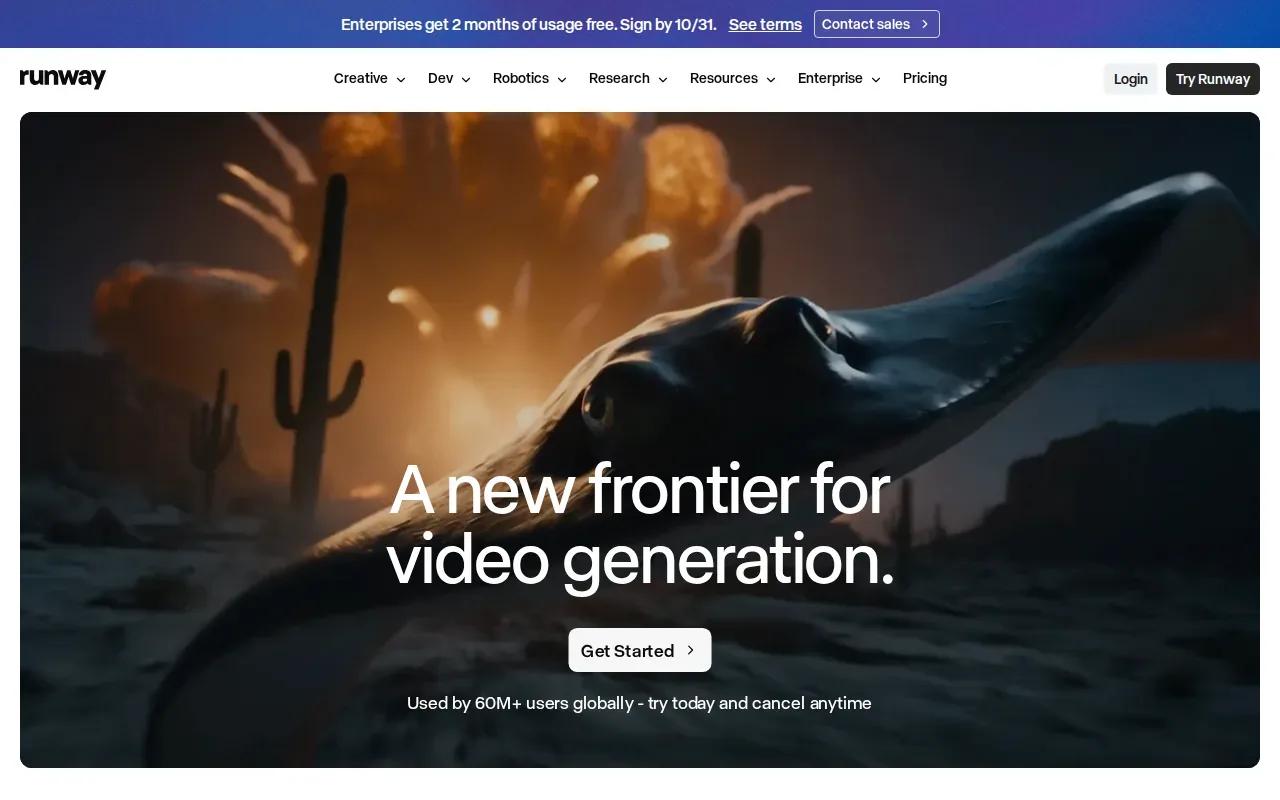
For a backdrop, start with a still image if you need the composition to stay anchored. Then prompt for movement: mist drifting across a lake, a slow camera push toward a product, or leaves moving in a breeze. The source image already sets the subject and frame, so a focused motion prompt can be clearer than describing the whole scene again.
Runway’s own creative workflow also supports using text, images, video, or audio to generate videos. That makes it useful when your source material is not a written prompt alone.
A generated scene isn’t the same as removing a person from existing footage and replacing the space behind them. If you need to preserve a presenter while changing the room, look for a direct background-change workflow instead. Runway is a stronger match when you’re making a new scene or animating a still.
2. Veo 3.1 by Google
Veo 3.1 by Google makes short videos from text or images. It suits creators who want a generated scene with sound and have a clear idea of the setting, action, and camera framing.
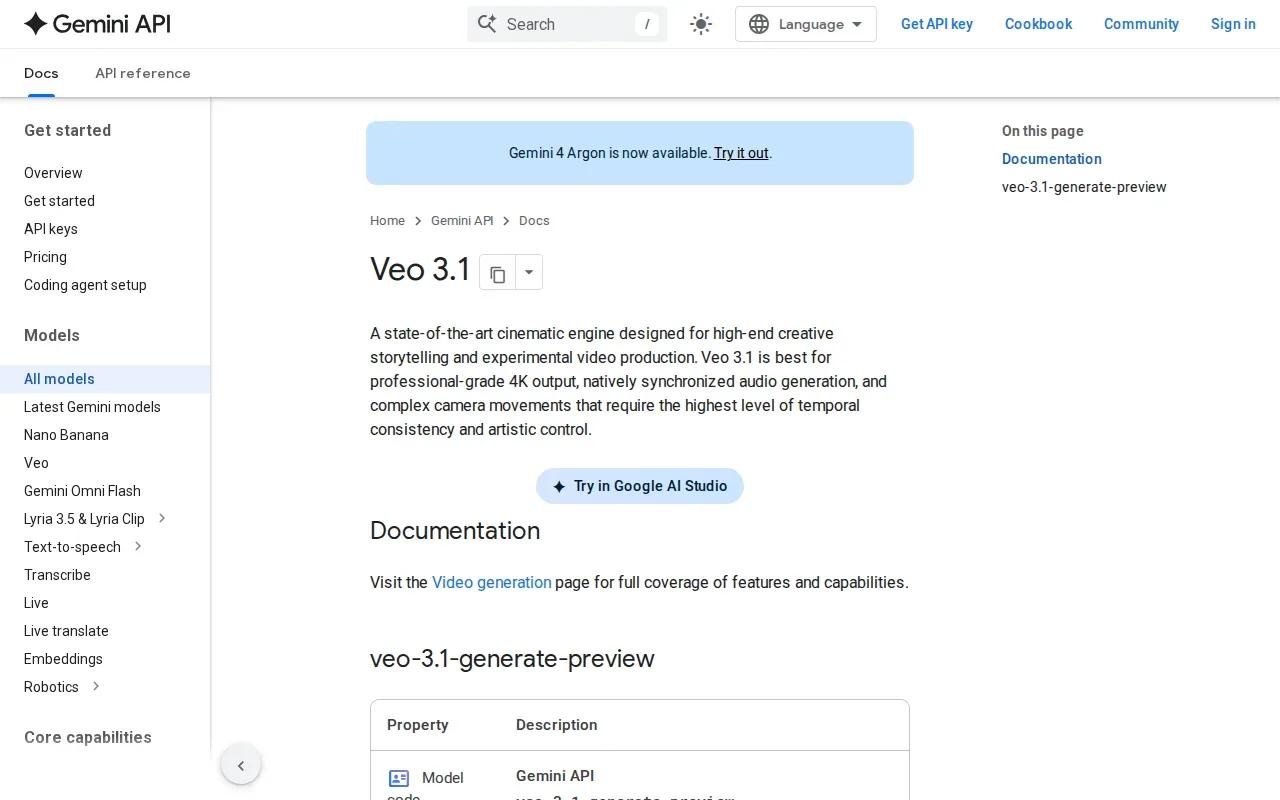
Veo 3.1 by Google makes clips of 4, 6, or 8 seconds. For a short ad, Reel, or YouTube Short, plan around that clip length and check whether the generated setting, action, and framing keep the product easy to notice.
Try a few prompt variations before settling on a background. For instance, a shop owner could test a warm café setting before deciding whether the scene competes with the product. Keep the visual direction clear, and review the result in the context of the finished creative.
If the first result doesn’t suit the campaign, experiment between Veo 3.1, Seedance 2.0, Kling 3.0 Omni, or Sora 2 for different outputs.
3. Sora 2 by OpenAI
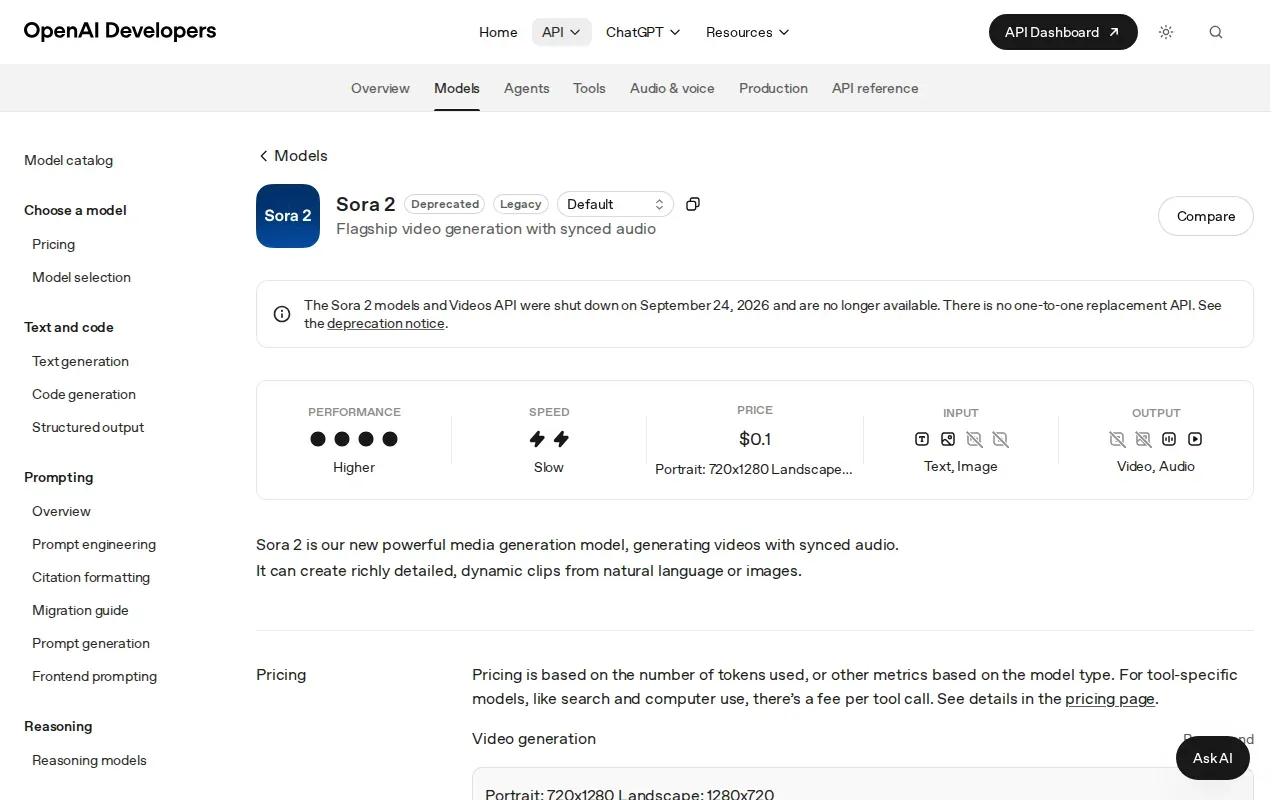
Sora 2 by OpenAI is one option to compare when exploring prompt-led video generation for short creative concepts. Experiment between Sora 2, Veo 3.1, Seedance 2.0, and Kling 3.0 Omni to see which output best fits your campaign brief.
For hands-on marketers and social creators, compare results using the same prompt or product image and assess whether each gives you usable footage for ads, TikToks, Reels, or YouTube Shorts. This helps you evaluate options against your creative brief without assuming every result will be ready to publish.
Plan around a short clip length, then check the result against the requirements of your placement and campaign before treating it as final.
For any fast-changing video workflow, verify that the exact model and product you need are available before you write a brief, promise a delivery date, or commit to a campaign.
4. Vidu AI
Vidu AI creates videos from text prompts, images, and references. It’s a useful choice when you want to test a background direction for a social clip, product scene, or presentation.
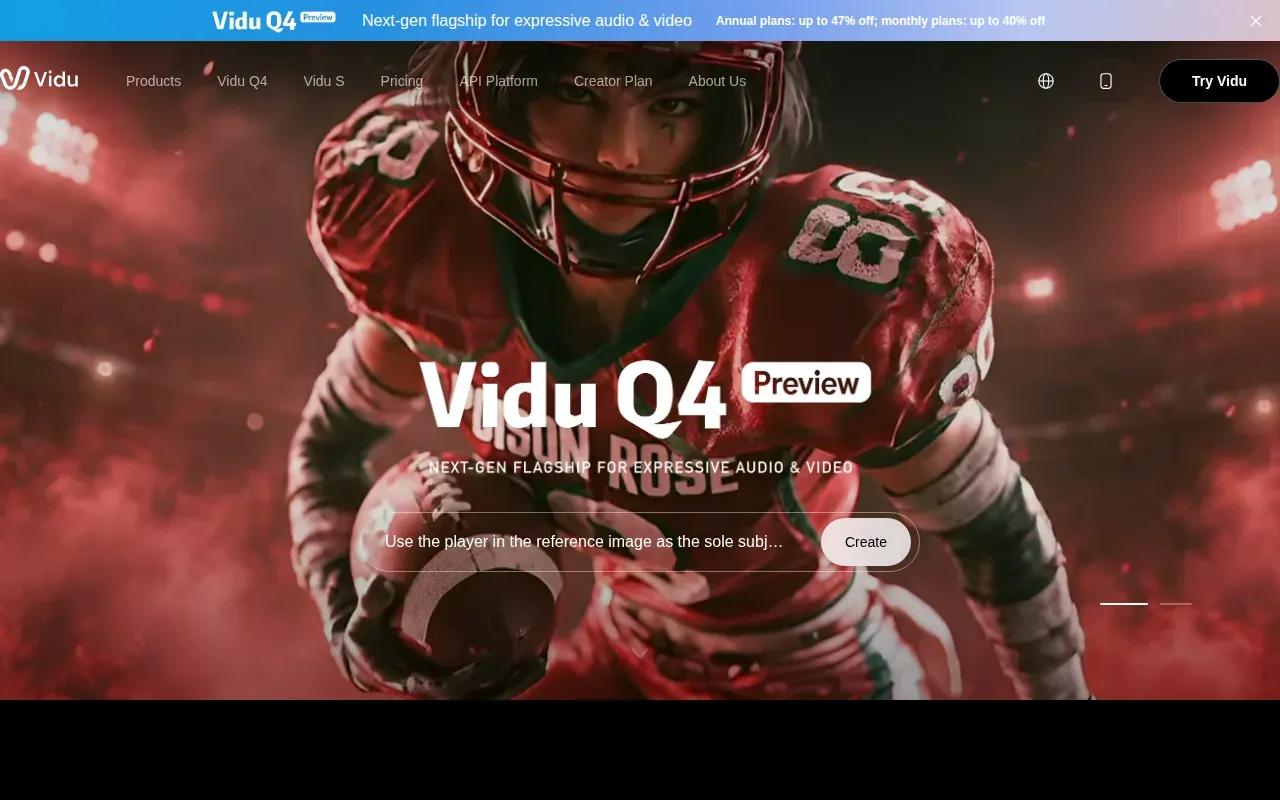
For a backdrop, describe the setting, mood, and motion you want. A prompt might ask for a soft-moving sunset behind a product, with the background kept visually quiet. When reviewing a generated scene, check that it supports the main subject instead of pulling attention away from it.
You can adjust available settings such as style, video count, and aspect ratio before generating. That gives you a way to compare how the same backdrop idea feels in a vertical social post versus a wider presentation. If you have a source image, a reference-based setup can help shape the scene around it.
Vidu AI supports fast workflows for social content, ads, and storytelling. Treat the background as one layer in the final asset when you judge a result: does it leave enough room for the product, presenter, or headline?
For more product-focused workflows, Wan Studio also has a guide to AI video ad generator tools. The two use cases overlap, but a generated backdrop still needs to keep the item or person in front easy to see.
5. Video Background Changer Pro
Video Background Changer Pro is the direct background-change option in this list. It’s aimed at people who already have footage and want to remove, replace, blur, or make the background transparent.
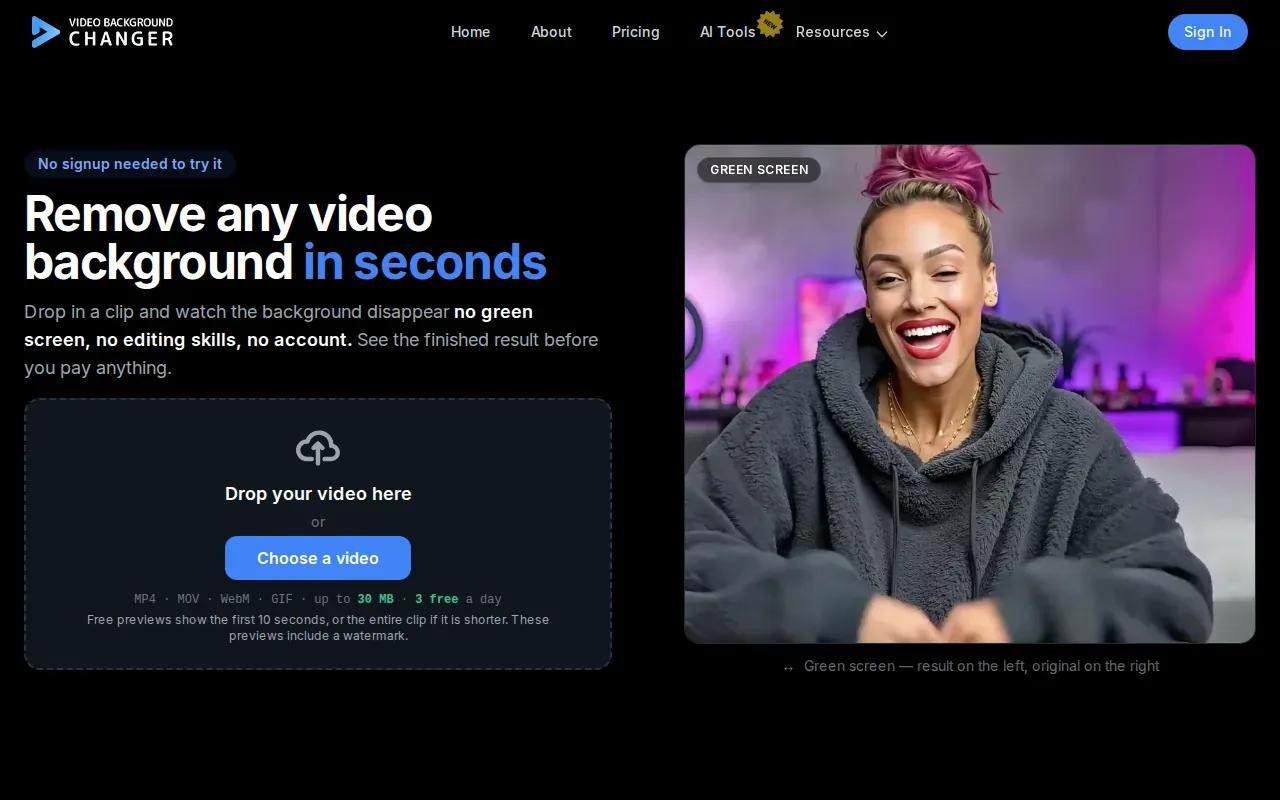
That differs from a text-to-video tool. You’re starting with a recorded clip, then changing the space behind its subject. The tool offers AI background removal and replacement, green-screen output, alpha transparency, and background blur. It also has a workflow for generating a custom background from a description.
This can suit a presenter recording a quick product update at home. If the room distracts from the message, background removal or blur may be a better fix than generating a whole new scene. For a web overlay, the tool supports transparency through alpha channels; check that your chosen export format fits the software or site where you’ll use it.
Keep the task clear. If you need a new animated scene, choose a generation tool. If you need to keep the person in your original footage while changing what’s behind them, this direct editing workflow is the closer match.
Compare the AI video background generator options
The right tool depends on what you’re starting with. A prompt or product photo points toward video generation. A recorded presenter clip points toward background editing.
| Tool | Best starting point | Useful for | Known limit or detail |
|---|---|---|---|
| Runway | Text or image | Prompted scenes and image animation | Gen-4.5 supports text-to-video and image-to-video |
| Veo 3.1 by Google | Text or image | Short video | Clips of 4, 6, or 8 seconds |
| Sora 2 by OpenAI | Video generation | Comparing different outputs | Short clips |
| Vidu AI | Text, image, or reference | Background concepts for social clips and product visuals | Settings depend on the workflow |
| Video Background Changer Pro | Existing video | Background removal, replacement, blur, or transparency | Direct editing workflow, not only scene generation |
For short-form ads, also check that the frame fits your destination. Wan Studio supports vertical 9:16 output, and its free plan gives you a way to test a Wan 2.5 clip before paying. See Wan Studio pricing for the paid options and commercial licence.
FAQ
What does an AI video background generator do?
An AI video background generator makes a moving scene from a text prompt or an image. You can use that scene behind a product, title, or presenter, depending on your editing workflow. Some tools generate a new video; others focus on changing the background in footage you already recorded. Pick based on what you’re starting with.
Can I make a video background from a photo?
Yes, several tools in this shortlist support image-to-video workflows. Add a photo as the visual starting point, then describe the motion you want. For a product shot, keep the product’s shape and position in mind. A prompt about camera movement or light can add motion without asking the scene to change completely.
What file format should I use for a generated video?
Wan Studio generates its videos with sound. Formats and export choices can differ by tool and workflow. If you need a transparent overlay, check the export options before making the clip. Video Background Changer Pro supports alpha transparency, but confirm the format suits your intended editor or site.
Can I use these backgrounds for TikTok, Reels, or Shorts?
Yes, a vertical clip can suit TikTok, Reels, and YouTube Shorts. Set the aspect ratio before generating when the tool allows it, then check that your main subject stays clear in the frame. A background with too much motion or detail can compete with captions, a product, or the person speaking.
Is there a free AI video background generator?
Wan Studio has a free plan with a couple of Wan 2.5 videos each month at 480p, and it doesn’t require a credit card. That’s enough to try a prompt or animate a still before choosing a paid plan. The free tier is for trying Wan out; paid plans include a commercial licence.
Conclusion
For a generated backdrop that can include sound and dialogue, start with Wan Studio.