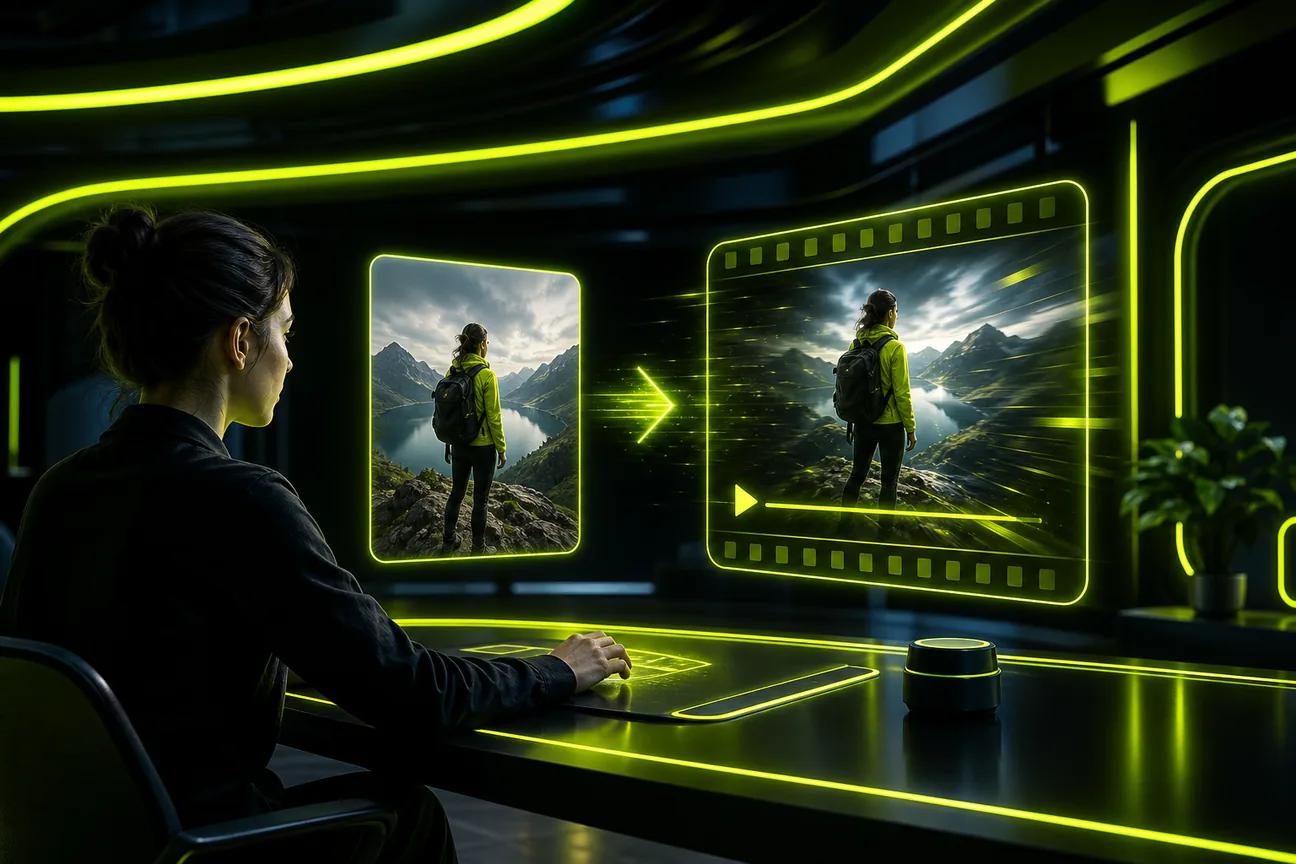
A single photo can become a moving scene, a product spot, or a narrated story. The right AI video from a photo tool depends on what you need the finished clip to do, especially when sound, dialogue, or control matters.
Here are five named options, starting with Wan Studio, plus a quick comparison to help you choose.
1. Wan Studio
Wan Studio is a browser-based AI video creation platform for turning prompts and images into short videos. It suits marketers, small business owners, and social creators who want to turn a product image into an ad or a vertical clip without filming.
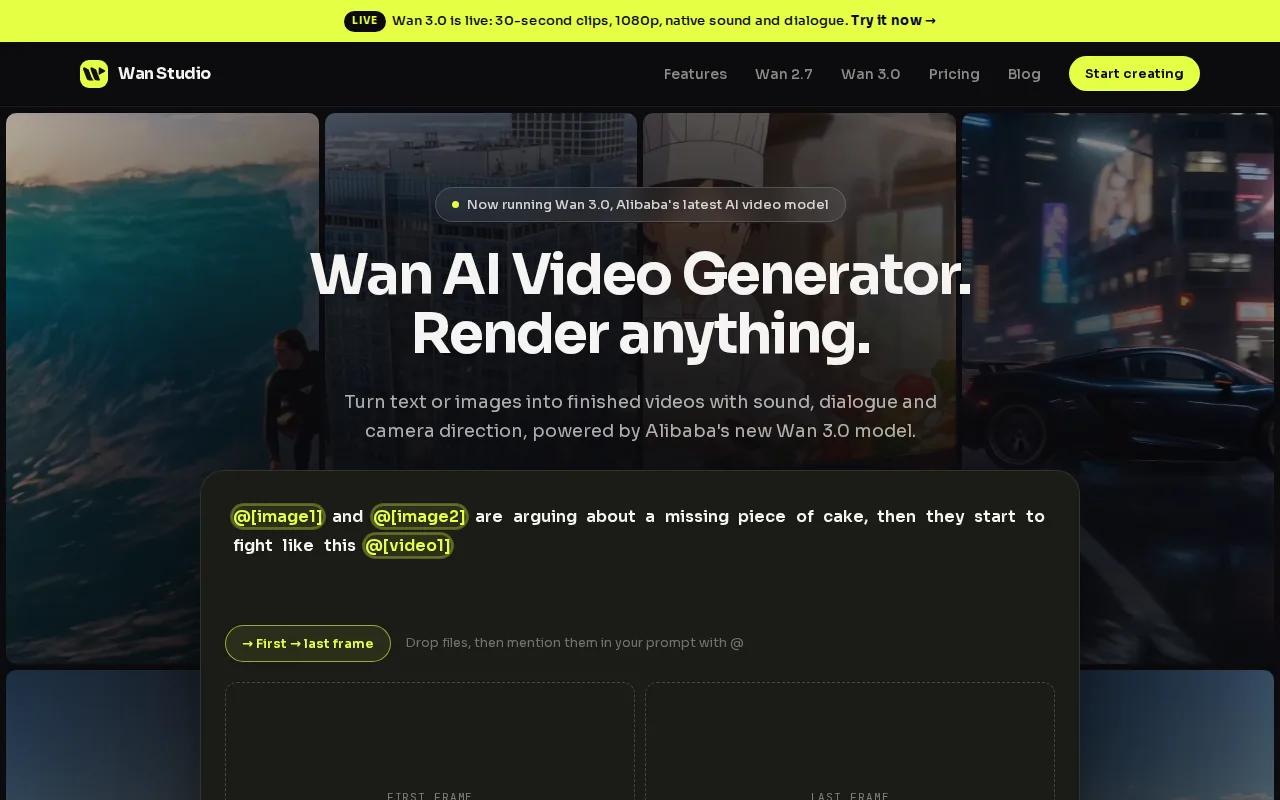
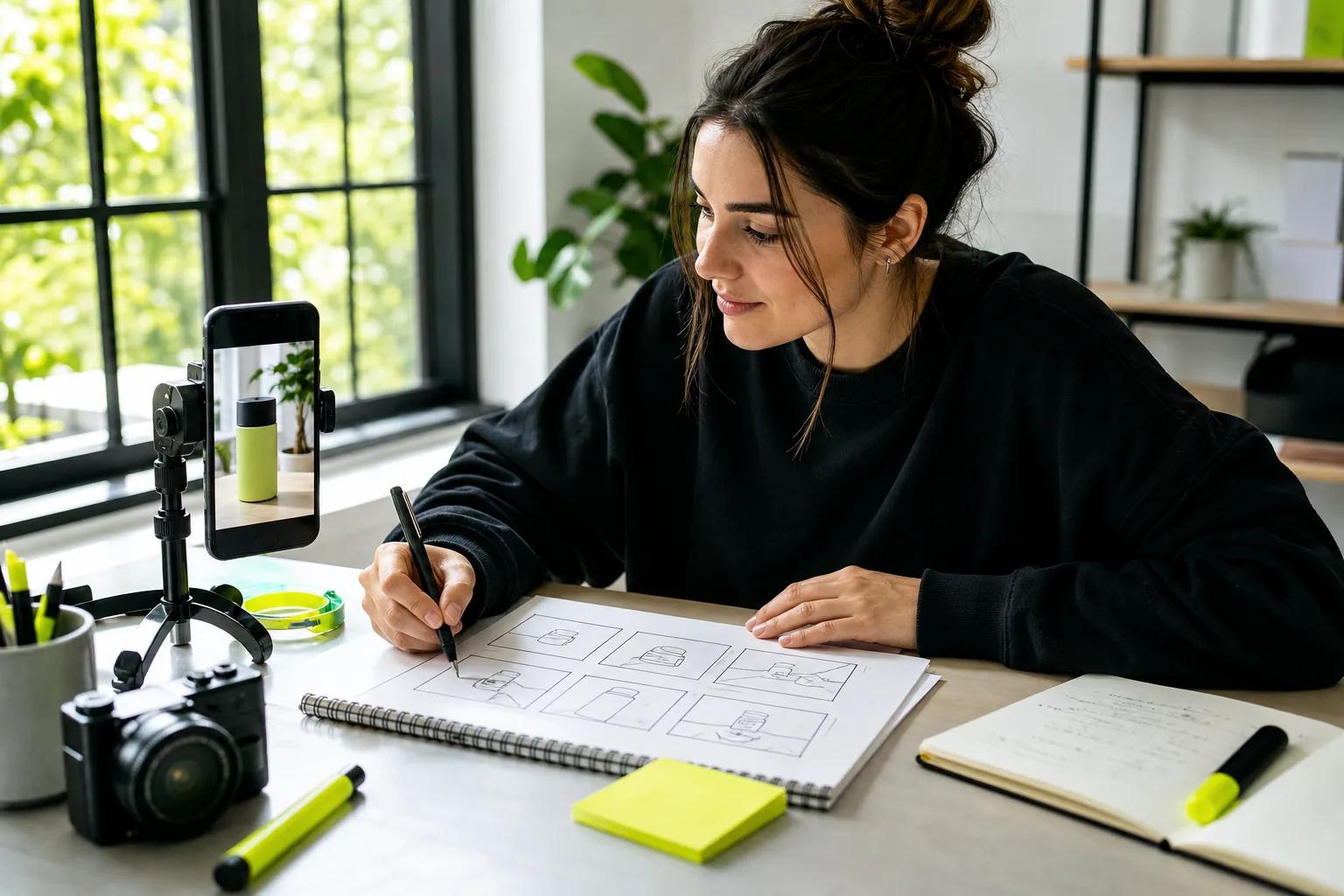
Start with a photo as the first frame, then describe what should happen. A prompt might ask for a slow camera push toward a product while sunlight moves across the scene. On Wan 3.0, you can also describe sound or write dialogue in quotes. The model generates sound and lip-synced dialogue with the video, though you should review the result before posting.
Wan 3.0 supports clips up to 30 seconds and output up to 1080p. It can keep characters consistent across shots in a multi-shot scene. That makes it a useful fit for a short ad with a speaking character, rather than a silent motion test. For tighter control over references and start or end frames, Wan 2.7 supports those inputs and runs up to 15 seconds.
The free plan includes a couple of Wan 2.5 videos each month at 480p, with no card required. Paid plans start at $14 per month and include Wan 3.0 with a commercial licence. Each plan includes a different amount of generation credit, so check the estimate shown before you make a longer or higher-resolution clip.
If you want a closer look at image selection, prompting, and exporting, the photo-to-video workflow guide covers those steps. Wan Studio is a strong first test when you want one image to become a scene with sound, not only a moving still.
2. Vidu: For fine control over photo animation
Vidu is an AI video generation platform built around the Vidu model, with a focus on semantic accuracy. It’s a fit when you have a specific photo or character frame and want to guide how that image moves.
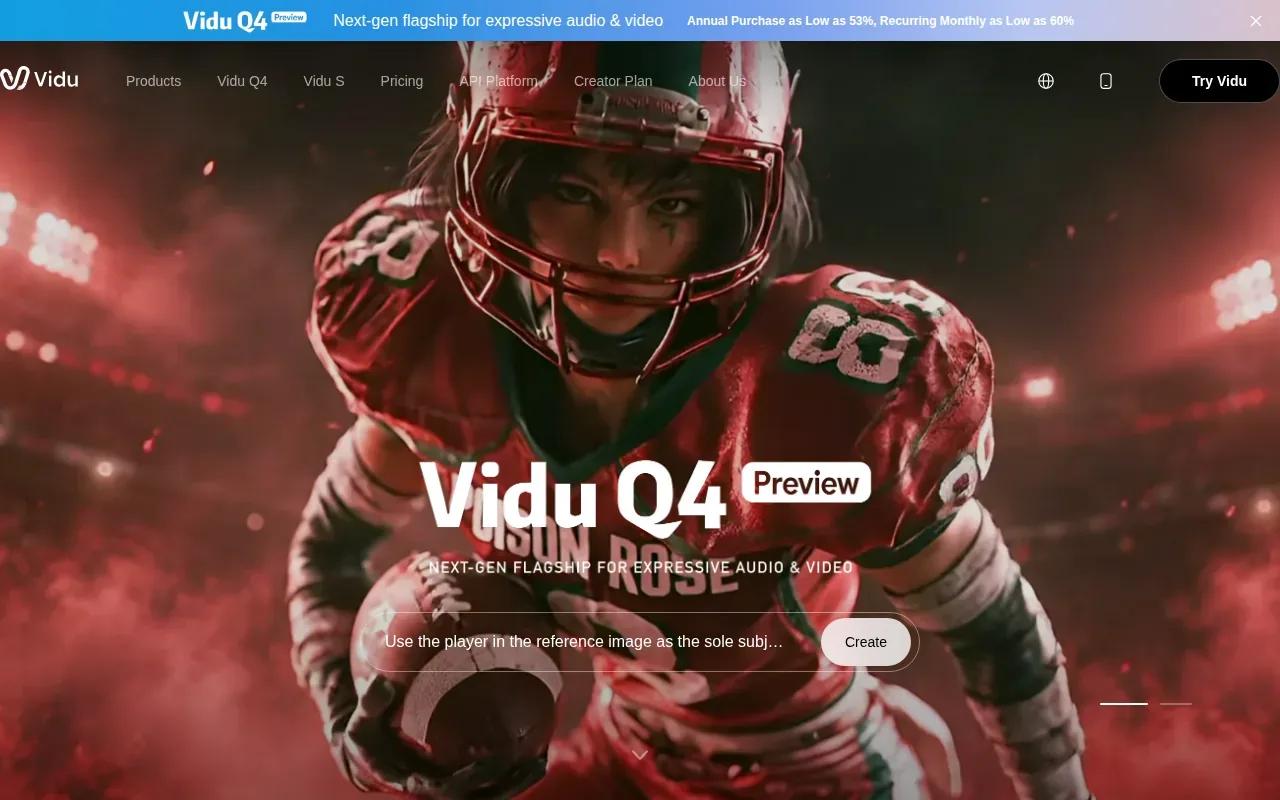
Its Image to Video mode animates a still photo. Vidu also supports control over start and end frames, so you can give the clip a planned opening and destination. That can help when you’re testing a transition between two product angles or want a character to end in a certain pose.
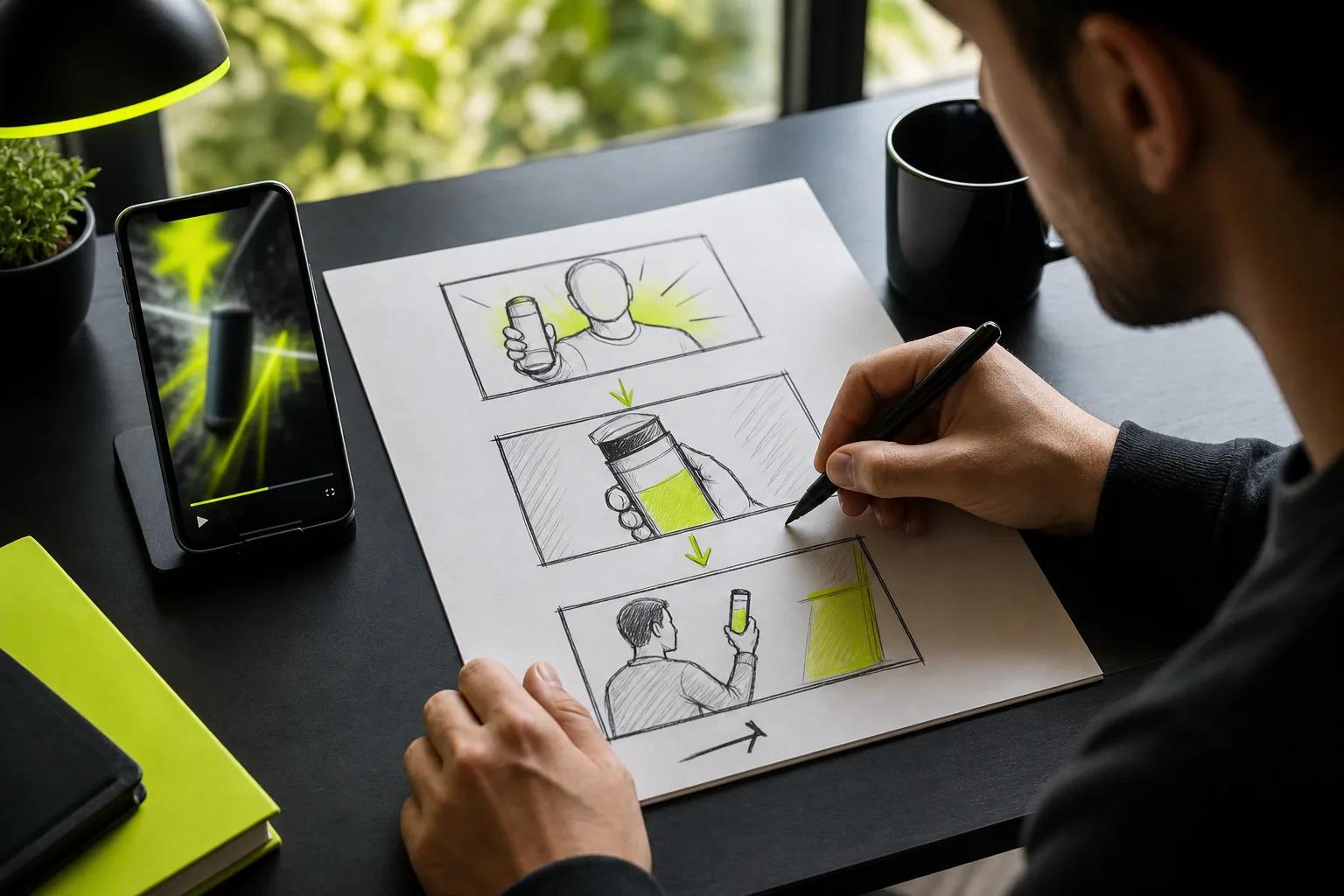
For a first pass, use a clear image with the subject easy to see. Then describe one main action and the motion you want. You can review the result for subject consistency, movement, and scene stability before deciding whether the draft is ready for a campaign or needs another generation.
That review step matters for product work. A bottle might stay centered while the camera moves, but you’ll still want to check that its shape and details hold through the clip. For a social post, you may care more about whether the movement feels lively and keeps the source image recognizable.
Vidu suits a visual draft that needs guided movement and start-to-end framing. For prompt ideas that name the subject and camera action clearly, Wan Studio’s image-to-video prompt tips can help you shape a brief before generating.
3. Pika: For short, punchy social clips
Pika is positioned for creators who need short, punchy generated clips for social. You can type a prompt or start with an image, then ask the model to build a moving scene.
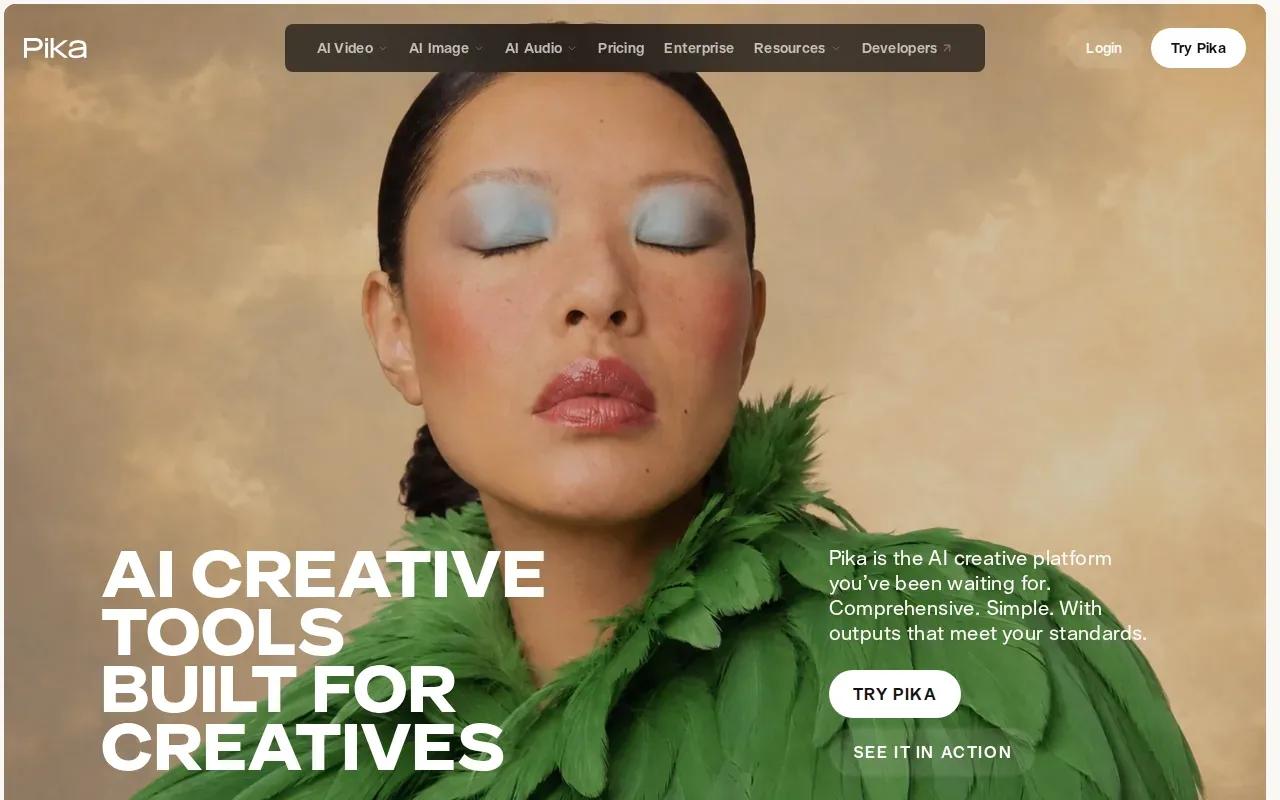
That makes Pika a candidate for a quick social concept: take a portrait, product image, or illustration and test a lively motion idea. A focused prompt is easier to judge than a long wish list. Describe the subject, then give it one clear action or camera move.
For a creator working on a post, the useful question is whether the result suits the feed and the message. Does the image still read at phone size? Does the movement support the point, or distract from it? A fast visual idea can be helpful even when you still need another tool or editing pass to finish the post.
Pika is a better match for short-form experimentation than for a long narrated photo sequence. If your clip needs spoken dialogue or a specific character to stay steady through several shots, check the exact workflow and output before you commit to a full campaign.
Keep the first prompt simple. If the motion feels wrong, change one instruction at a time. That makes it easier to tell whether the issue came from the source image or the direction.
4. Krea: For testing a photo across multiple models
Krea is a unified AI creative workspace that brings image and video models together. It’s useful for creators and designers who want to test one source photo across several engines before choosing a direction.
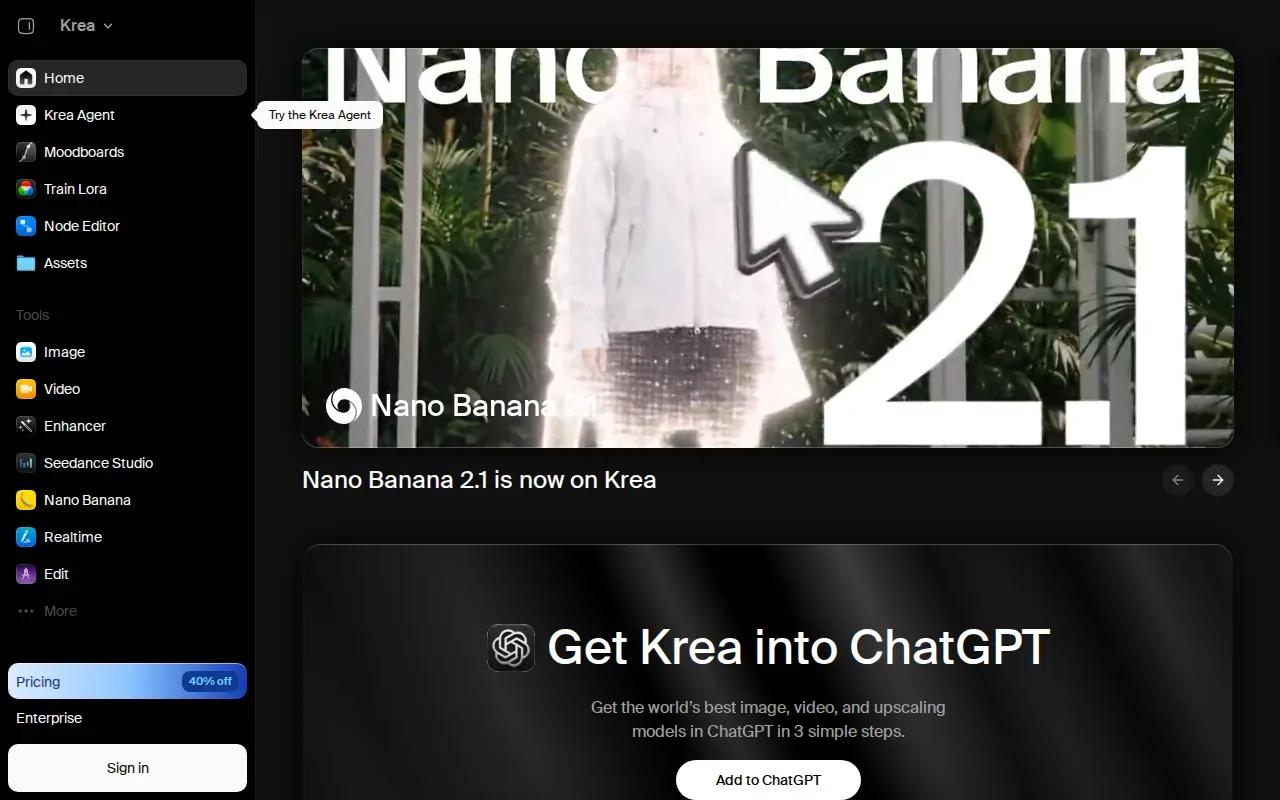
Instead of guessing which model will handle a shot best, run the same image through different options and compare the motion and look. This is handy when a product photo has a particular lighting style or a character needs to feel right in motion. The original image stays the shared starting point, which makes the comparison easier to read.
Krea also supports LoRA training for character consistency across image-to-video sequences. That may suit recurring work where a custom character appears in more than one clip. You can test the same character in different scenes and see whether the result fits your visual plan.
Model testing takes more than checking which output looks striking at first glance. Look at the subject’s shape, the movement, and how the clip begins and ends. If the video needs sound, confirm the capabilities of the model you select, since Krea integrates multiple models and supported features can vary.
Choose Krea when model choice is part of your creative process. It gives you a way to compare versions from one source image instead of treating the first render as the final answer.
5. Pictory: For narrated videos built from photo collections
Pictory is an AI video platform for turning text, media, and existing assets into video. Its photo-to-video workflow can animate one image or organize a collection into a narrated sequence. That makes it a fit for marketers, creators, and teams with several images to shape into a story.
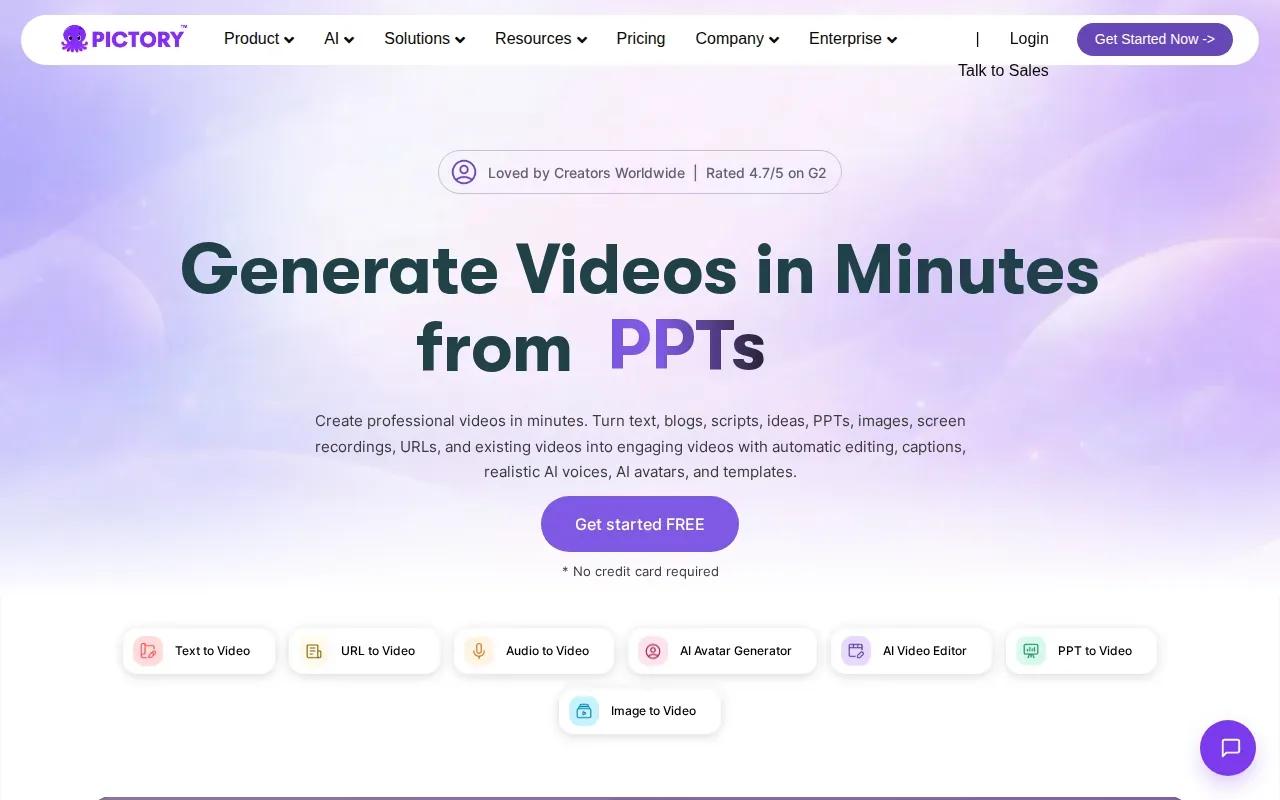
For a collection, add the images and put them in the order you want. Pictory can arrange them into scenes with motion and transitions. You can then adjust the photo order, captions, timing, and narration to fit the message. A shop might use a set of product photos to explain a new item, while a teacher could build a visual lesson from diagrams.
Pictory also supports brand styling, such as applying fonts, colors, and logos across a project. That can help when a team needs several videos to share a similar look. Captions and narration can explain what viewers are seeing, so the photos do not have to carry the full story on their own.
The platform supports long-form image-driven projects up to 30 minutes per project. That’s a different use case from a single short social clip. A narrated collection can work for a tutorial or brand video, while a one-photo ad may call for a more direct image-to-video tool.
If you already have a library of visuals, Pictory’s main strength is turning that set into an ordered video with narration and captions. Plan the sequence first, then check that each image supports the point being made.
Compare the best AI video-from-photo tools at a glance
The best fit depends on the job. Use this table to match the tool’s strengths to the kind of clip you need, rather than treating every image-to-video tool as interchangeable.
| Tool | Best fit | Photo workflow | Useful deciding factor |
|---|---|---|---|
| Wan Studio | Short ads and social scenes | Use a photo as a first frame, then describe motion | Wan 3.0 supports up to 30-second clips with native sound and lip-synced dialogue |
| Vidu | Guided photo animation | Animate a still with control over start and end frames | Useful when the clip needs a planned opening and finish |
| Pika | Short social concepts | Start with an image or a prompt | Suited to quick, punchy generated scenes |
| Krea | Comparing models | Test one source image with multiple engines | Helpful when the best motion or look isn’t clear yet |
| Pictory | Narrated photo collections | Arrange image assets into scenes | Fits longer, image-led projects with captions or narration |
For a single image that needs to become a spoken social ad, start with Wan Studio. For a set of images that needs an explanation or story, consider Pictory. If you’re unsure which visual direction works, Krea gives you a way to compare outputs from one source.
Frequently Asked Questions
Can AI make a video from one photo?
Yes, image-to-video tools can use one photo as the starting frame for a generated clip. You usually describe the movement or scene you want, then review the result. The output may add camera motion or new movement around the subject. Check the finished clip closely, especially if it shows a product whose details need to stay accurate.
Do I need video editing skills to animate a photo?
No, you can make a first draft without knowing traditional video editing. Most of these tools start with an image or prompt and generate a clip for you to review. You’ll still need to choose a clear source image and give useful direction. For a finished ad, check the framing, motion, sound, and any spoken words before sharing.
How long can an AI photo video be?
It depends on the tool and model. Wan 3.0 supports clips up to 30 seconds, while Pictory can handle a project up to 30 minutes. Those limits suit different jobs: a short scene is easier to use in a social post, while a long narrated project can hold a sequence of images.
Can AI video tools add sound or voice?
Some can. Wan models generate synchronized sound, music, and lip-synced dialogue with the video. Pictory can add voice narration to a photo sequence. Check which model or workflow you’re using, then listen to the full export. A clip can look right while its sound or dialogue still needs another pass.
Conclusion
For a product photo that needs to become a short ad with sound, start with Wan Studio.