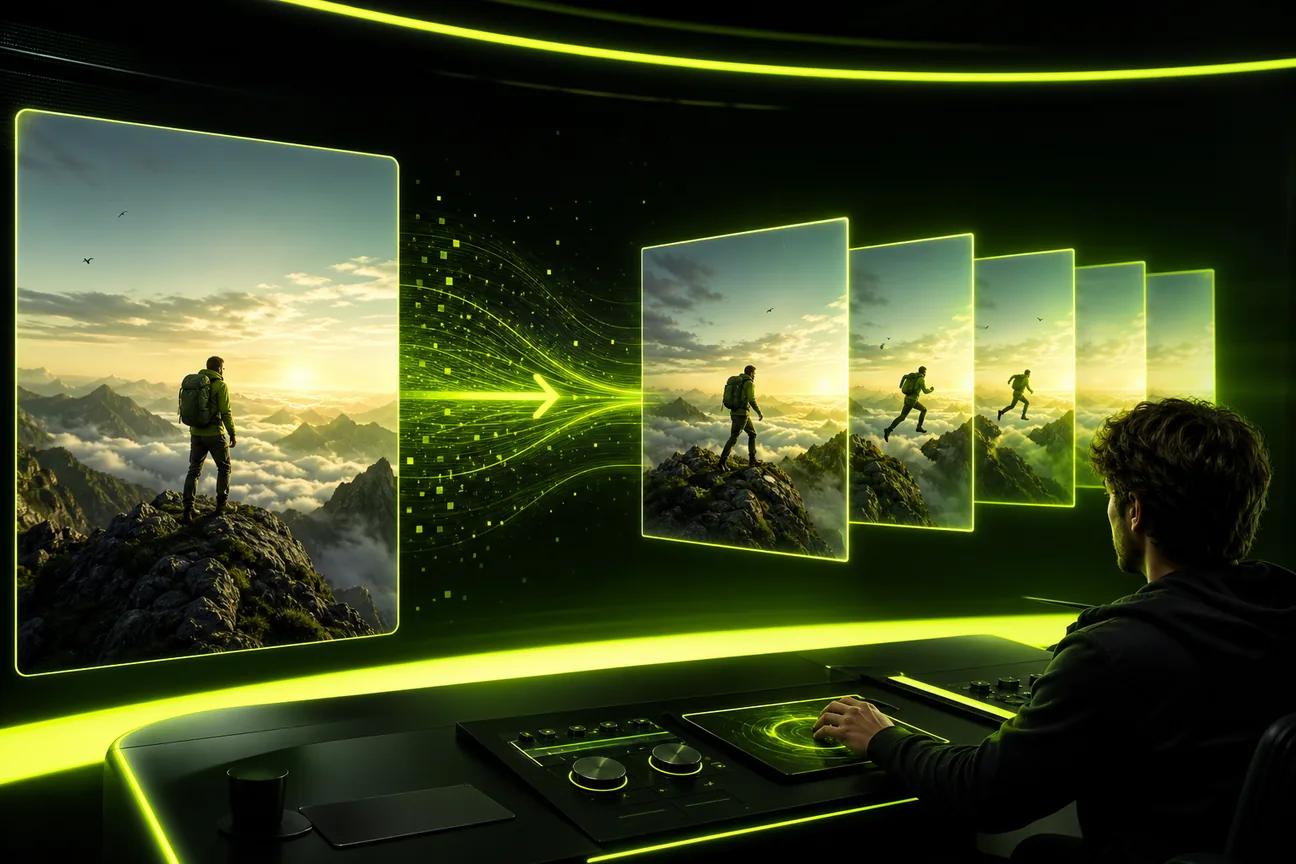
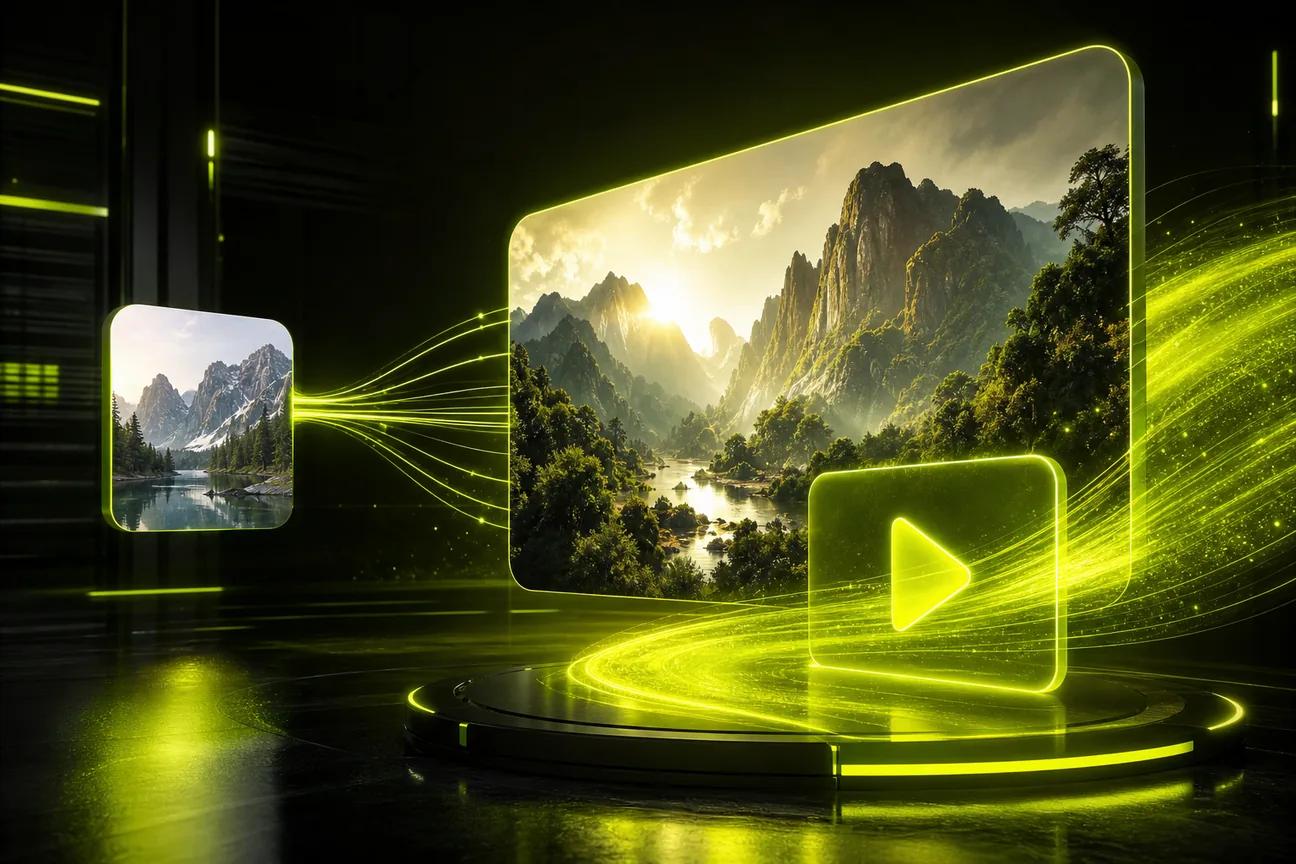
A clear photo can become a moving product spot or a short social clip with image-to-video AI. The right tool depends on what you need the picture to do, how long the clip should run, and whether it needs speech. Here are six options, starting with Wan Studio, for creators who want to turn photos and prompts into short videos.
We analyzed 61 comments and questions from Reddit, YouTube and Quora about AI tools for image to Video and found that 30% mentioned the availability of free credits.
1. Wan Studio
Wan Studio is a browser-based video creation platform for turning text prompts and images into clips with sound. It’s a strong fit for marketers, small businesses, and social creators who want to start with a product photo or a scene idea, then make a short ad, Reel, or Short without filming.
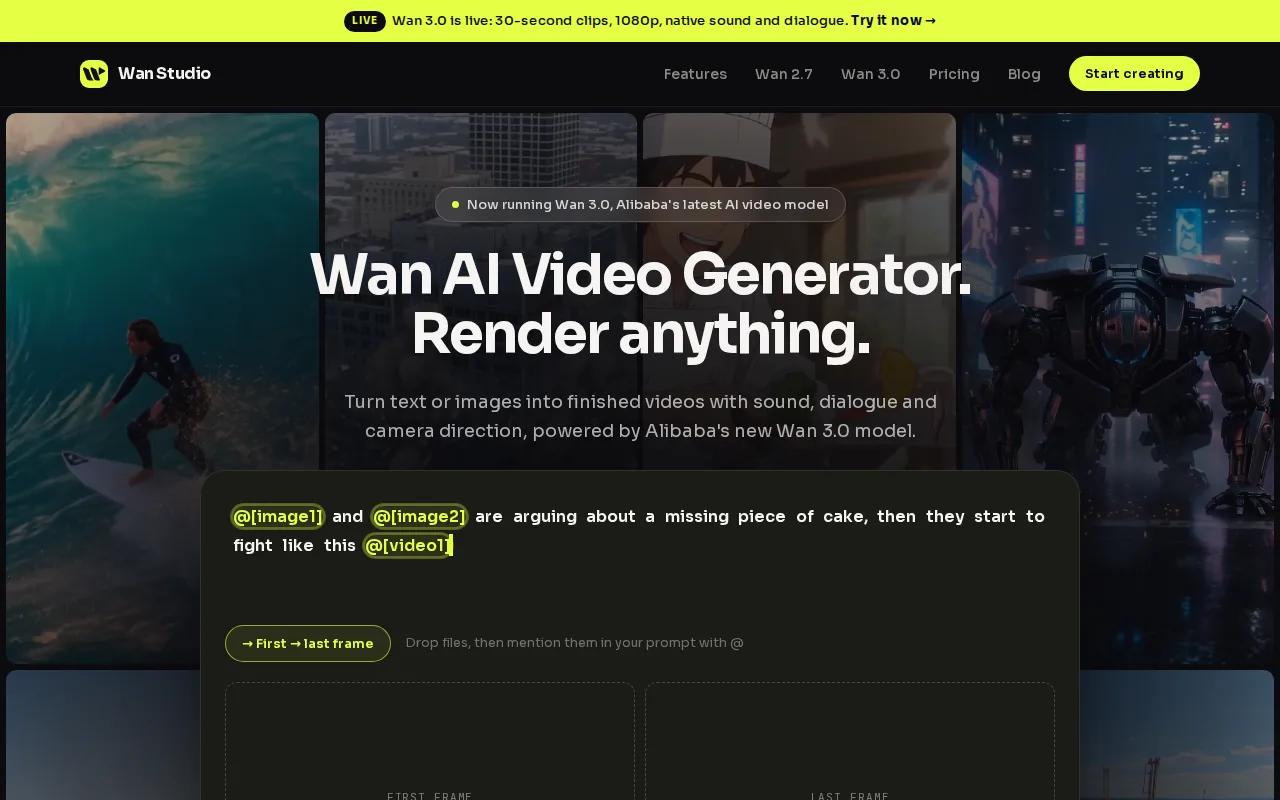
Wan Studio’s Wan 3.0 model can generate clips up to 30 seconds, with native sound and lip-synced dialogue. It can keep characters consistent across shots, and you can describe camera moves in your prompt. Wan 3.0 is included on paid plans. The free plan gives you a couple of Wan 2.5 videos each month at 480p, with no card required.
For a product spot, use a clean photo as the first frame. Then describe motion, not the whole image: “Slow camera push toward the jar as sunlight moves across the counter.” Choose a format for the channel, generate a short draft, and check that the product still looks right. Wan Studio lets you view a live credit estimate before generation. Its Wan 2.5 model is the free-tier option, while paid plans add Wan 3.0 and a commercial licence.
Wan Studio is independent and isn’t affiliated with or endorsed by Alibaba. See the clip-generation workflow in the video below.
If you’re new to this process, the step-by-step photo-to-video workflow explains how to prepare a still and shape the resulting clip.
2. Midjourney: Animate still images into short clips
Midjourney’s V1 model animates a still image you’ve already made. It suits creators who have a finished image and want to add a little movement without building a longer scene.
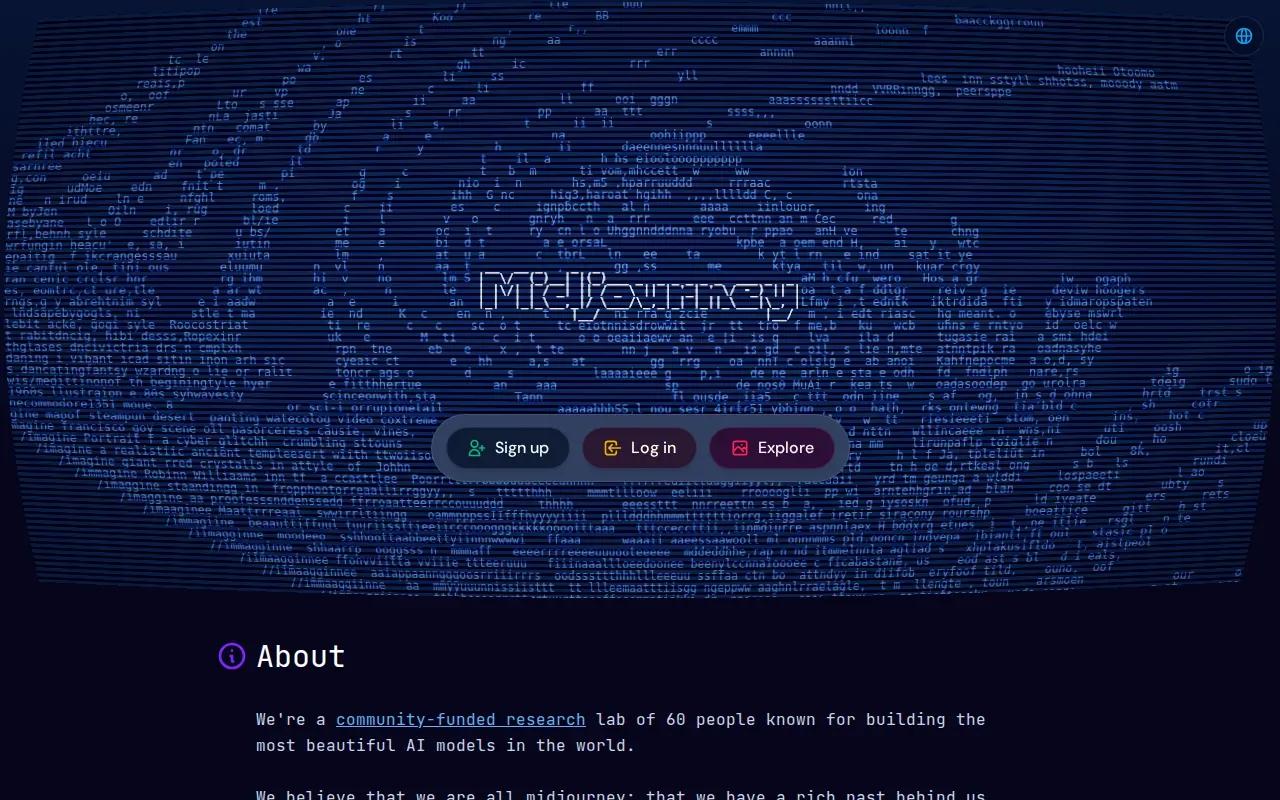
The flow is direct: click Animate on a still, and the model produces a five-second clip. You can extend the video in five-second steps. That gives you a simple way to test a moving visual for a short post or a quick creative draft.
Think carefully about the first image. Since V1 starts from a still you’ve made, the composition, subject, and visual style are already set before animation begins. Use an image where the main subject is easy to read, and decide what should move before you start. A subtle shift may suit a portrait; a product shot may need a small camera move rather than a major change in the scene.
There’s one clear limit to keep in mind: Midjourney’s V1 model has no lip sync. If your clip needs a character to speak on camera, choose a tool with a stated lip-sync feature instead. Midjourney is a more direct fit when the goal is a short animated image without spoken dialogue.
3. Pika: A creative tool with a defined monthly credit plan
Pika is an AI creative tool with a monthly credit plan. Its Standard plan costs $8 per month and includes 700 monthly credits with access to Pika 2.5. That gives creators a clear price and credit amount to consider when they’re weighing paid access.
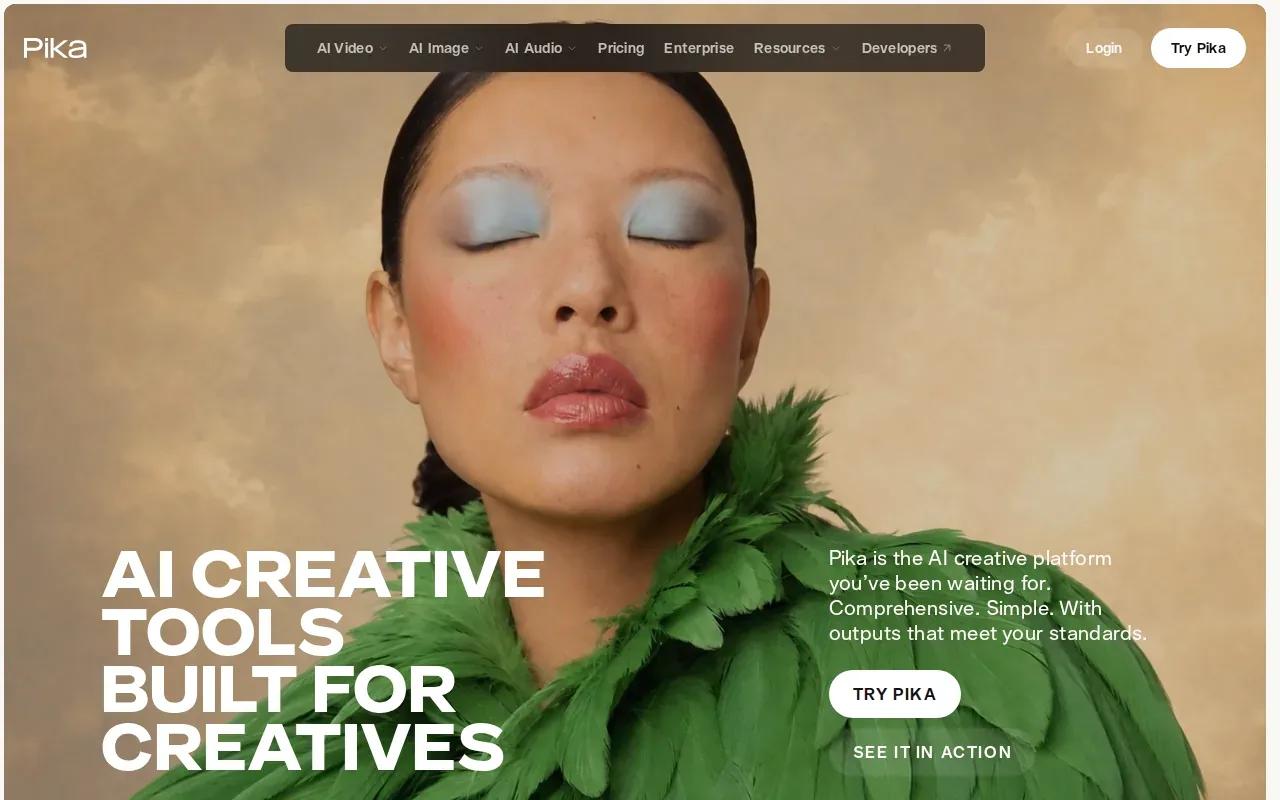
Credits are the key part of the decision. Your monthly allowance is finite, so think about how many drafts you expect to make and whether your workflow needs frequent retries. A product team testing several hooks for the same photo may use credits differently from a creator making one clip for a weekly post.
Before choosing a plan, check the credit cost for the generation settings you want. Don’t assume every length or quality setting will use the same amount. Match the plan to the kind of generation you’ll actually run.
Pika’s plan information makes it easier to compare a monthly credit allowance with a free tier or a pay-as-you-go setup. It’s worth putting the expected number of drafts beside the price before you commit. If you create only now and then, a monthly subscription may feel different from a steady social schedule.
4. Vidu: For semantic accuracy and consistent subjects
Vidu is an AI video generation platform built around the Vidu model. It focuses on semantic accuracy and multi-entity consistency, which makes it worth considering when an image contains more than one subject or when the same character needs to carry through a scene.
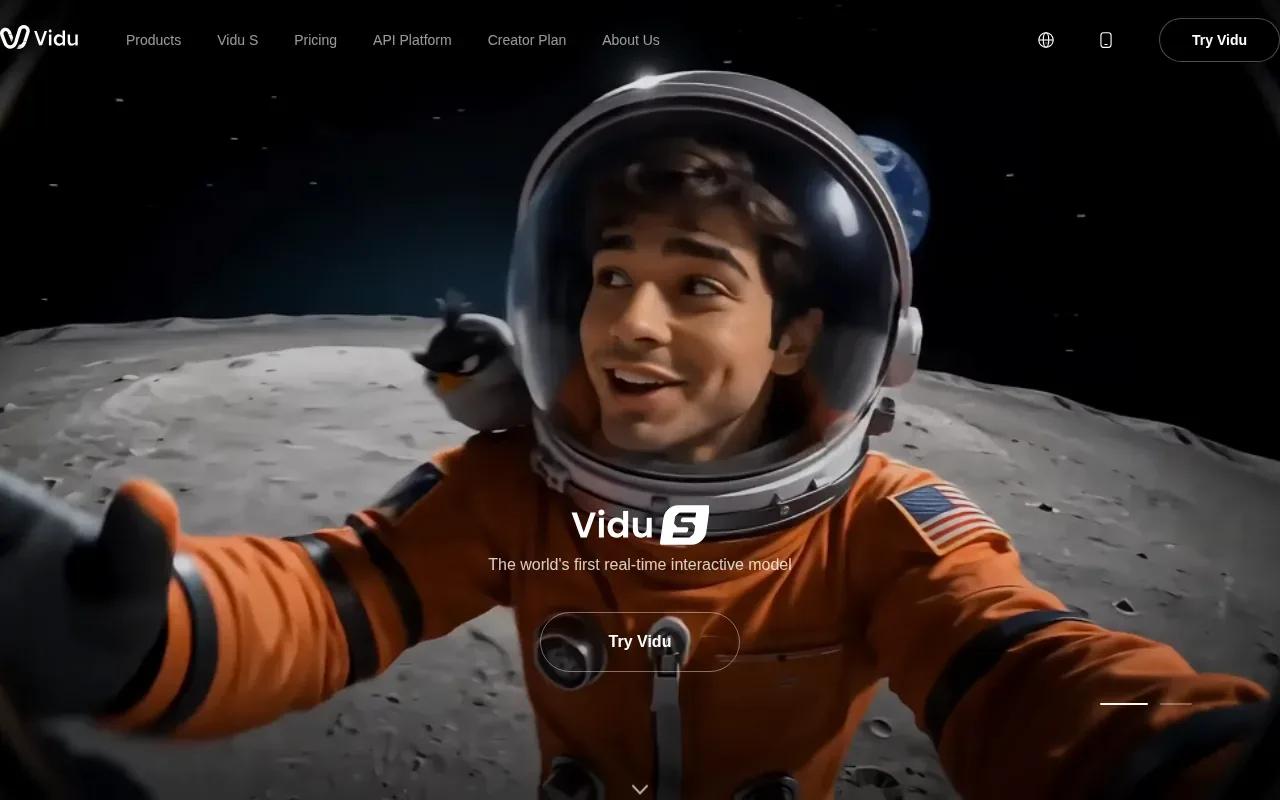
Vidu supports clips up to 16 seconds and states that it can maintain a consistent identity. That combination may suit a short product sequence or a social story where a person, object, or character needs to stay recognizable as the action changes. A longer clip gives you more room for a few beats, but it still calls for a prompt with one clear action at a time.
For image-to-video, upload a starting image and describe the movement you want. The prompt should focus on what changes: the subject’s action, the motion in the setting, or the camera. Vidu’s generator supports settings for duration, movement amplitude, and resolution, so those controls can help you shape how much motion appears in the result.
If you’re animating a group, name each subject and say what each one does. That gives the model a clearer job than a broad instruction like “make the scene lively.” For a solo product shot, keep the action smaller and check that the product’s shape remains recognizable before you publish.
Vidu is the better fit here when subject identity and several entities matter more than adding spoken dialogue. The image-to-video tool comparison can help you think through how different workflows fit a still image and a motion prompt.
5. OpenArt: A multi-model workspace with voice and lip-sync options
OpenArt is a workspace rather than a single model. It brings several creative tools together, with AI voiceover in more than 30 languages and lip sync. It’s a fit for creators who want to build a clip and work with voice in the same broad creative environment.
OpenArt supports consistent character identity, which can help when you reuse a character across scenes. Its verified video length limit is up to five minutes. That ceiling gives you room to plan a longer sequence than a short social post, though the right length still depends on the story and the model you choose.
For a talking scene, write the spoken line plainly and keep it brief. Then review the generated result with sound on. Listen for the words and watch the mouth movement, especially if the clip will represent your brand or explain a product. A tool’s lip-sync feature is a reason to test a draft, not a reason to skip review.
OpenArt’s workspace approach may suit a creator who wants voice and character tools alongside video generation. If you mainly need a single short clip from a product photo, compare that broader workflow with a tool centered on a direct image-to-video task. The best fit depends on what you want to make repeatedly.
6. Akool: A multi-model workspace with extensive lip-sync language support
Akool puts multiple video models in one workspace. Its verified model set includes 24 video models on a shared set of credits, including Veo 3.1 and Kling 3.0. Akool also states that it supports lip sync in more than 150 languages and consistent character identity.
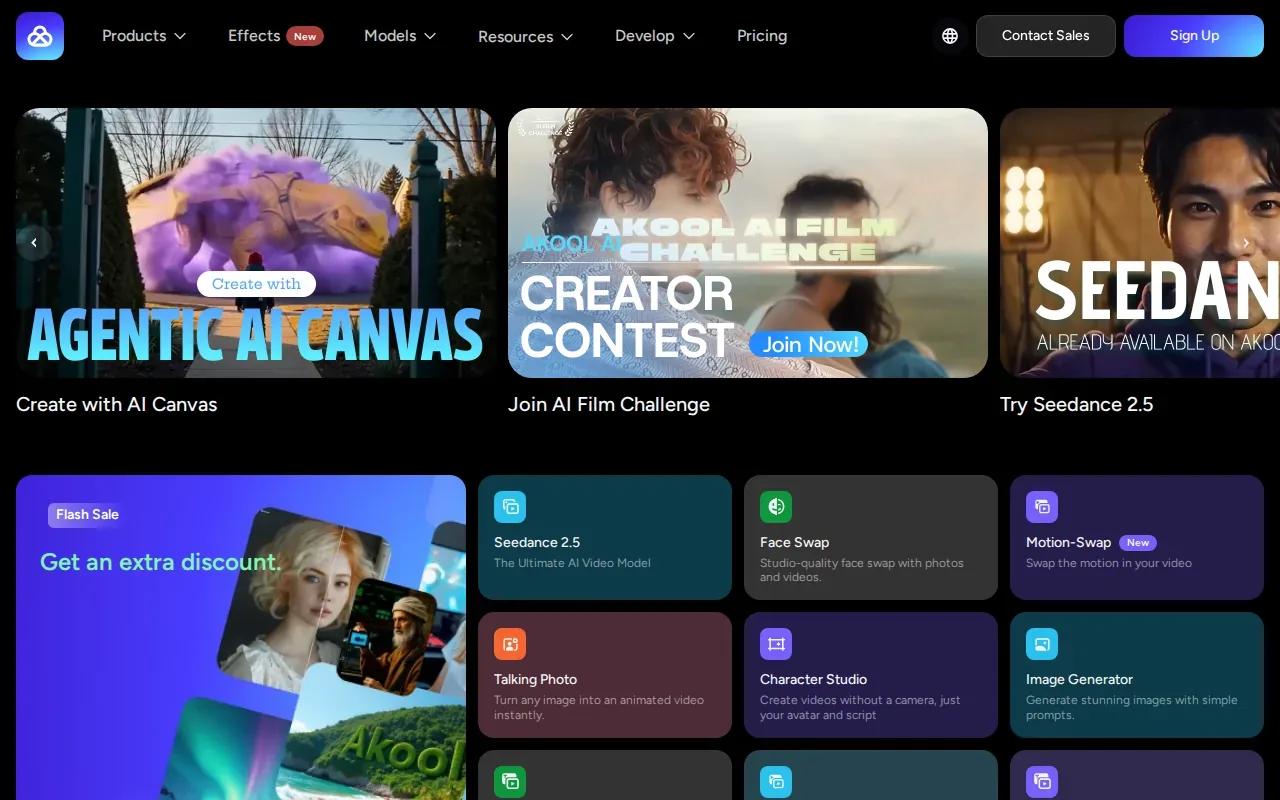
That language range makes Akool worth a look for teams producing speech-led content for viewers in several languages. Its character consistency claim may also matter when a recurring presenter or character needs to stay recognizable. The shared credits span the video models, so check how a chosen model and generation setting use credits before you plan a batch of videos.
Use this quick decision view to match the workflow to the job:
| Your need | What Akool’s features support | What to check before making a batch |
|---|---|---|
| Spoken clips for different language audiences | Lip sync in more than 150 languages | Review the spoken line and mouth movement in a test clip |
| Try more than one video model | 24 models use a shared credit set | Confirm the credit use for your selected model |
| Reuse a presenter or character | Consistent identity | Check that identity holds across the scenes you plan to use |
For a single product image, start with one short draft before committing a larger credit balance. If the job depends on a speaker, review the voice and lip sync; if it depends on a model comparison, test the same source image and prompt in the models you’re considering.
FAQ
What is image-to-video AI?
Image-to-video AI turns a still image into a moving video, often guided by a text prompt. You upload a photo, describe the movement or camera action, choose available settings such as duration or aspect ratio, then generate and review the clip. The starting image helps set the look, while your prompt tells the model what should change.
Which image-to-video tool is free to try?
Wan Studio has a free plan with no card required. It includes a couple of Wan 2.5 videos each month at 480p. That’s useful for testing a photo and prompt before paying. Keep in mind that Wan 3.0, with clips up to 30 seconds, is included on paid plans rather than the free tier.
How do I get better results from an image-to-video prompt?
Describe the subject’s action and one camera move, then add the setting or visual style if it helps. For example, say “the camera slowly pushes toward the cup as steam rises.” If the photo already shows the subject and setting, focus the prompt on motion instead of repeating what’s visible. Make one change per draft so you can judge the result.
Can AI image-to-video tools make a character speak?
Some tools include lip sync or generate dialogue with video, but the feature varies by product. Wan 3.0 supports native sound and lip-synced dialogue, while OpenArt and Akool state that they offer lip-sync options. Always listen to the voice and check the mouth movement before you post a clip, especially for an ad or brand message.
Conclusion
For short product clips and social ads, start with Wan Studio if you want a browser-based workflow, sound, and a free way to test image-to-video. Try a Wan 2.5 draft with your own photo, then review the motion before deciding whether a paid Wan 3.0 plan fits your next project.