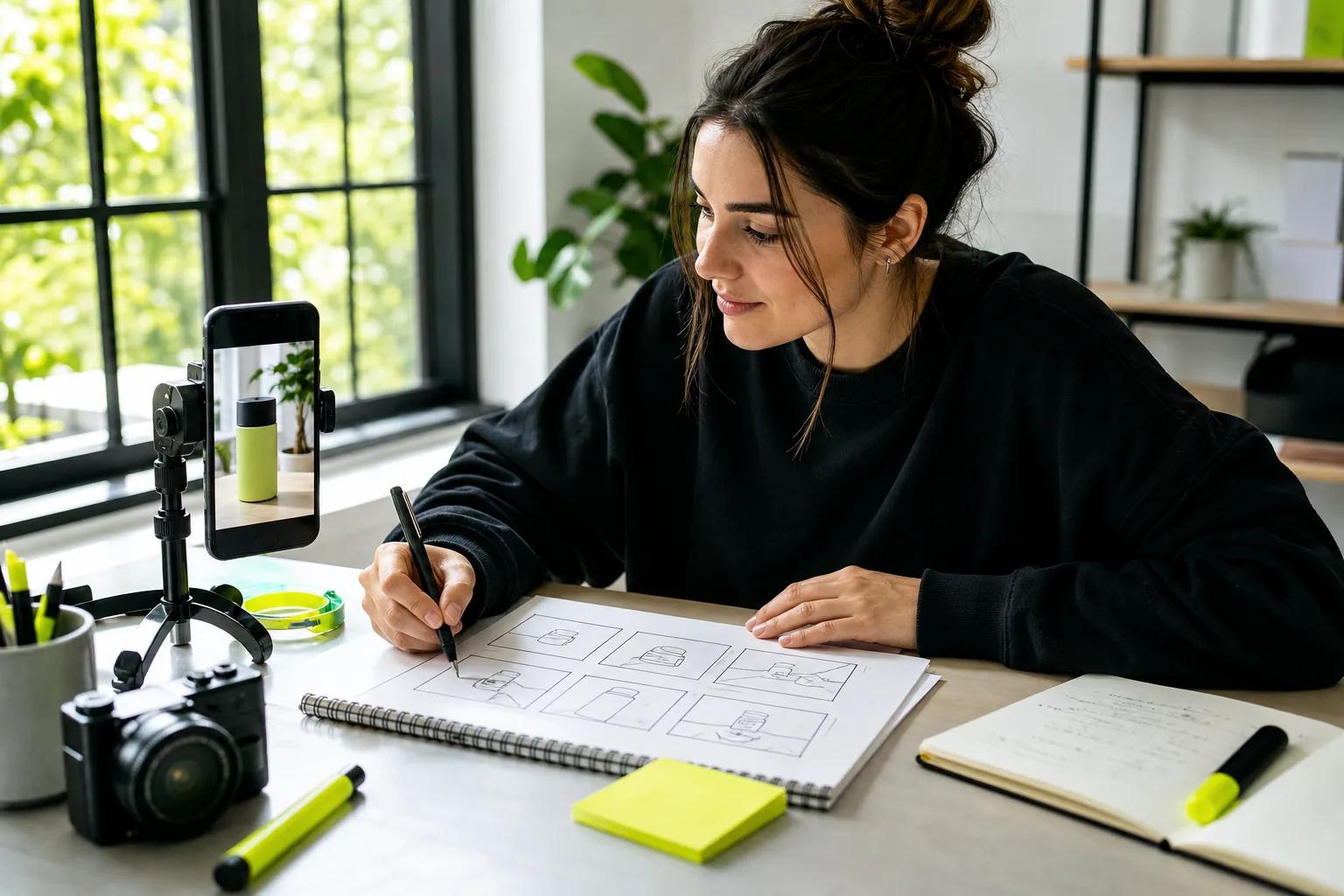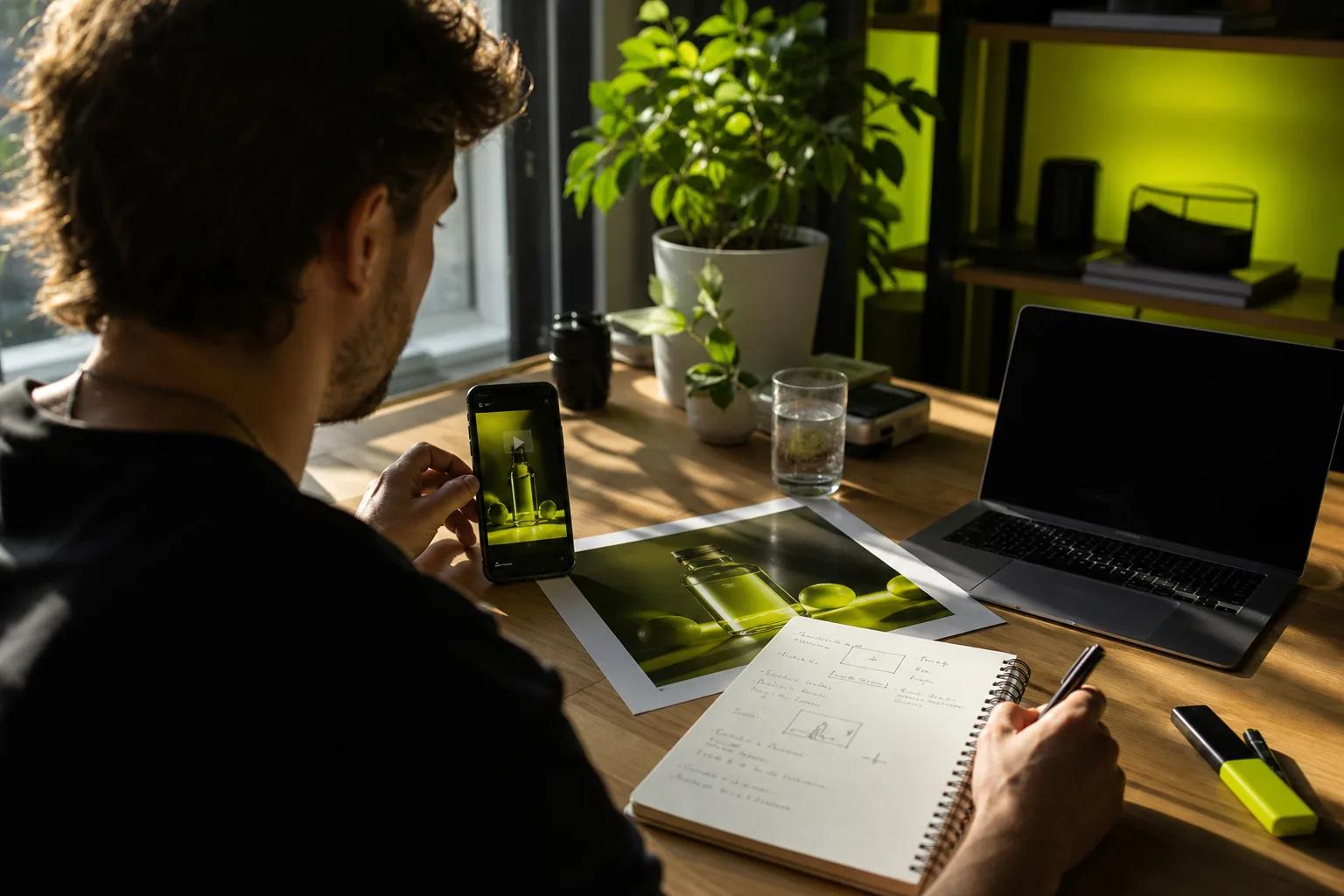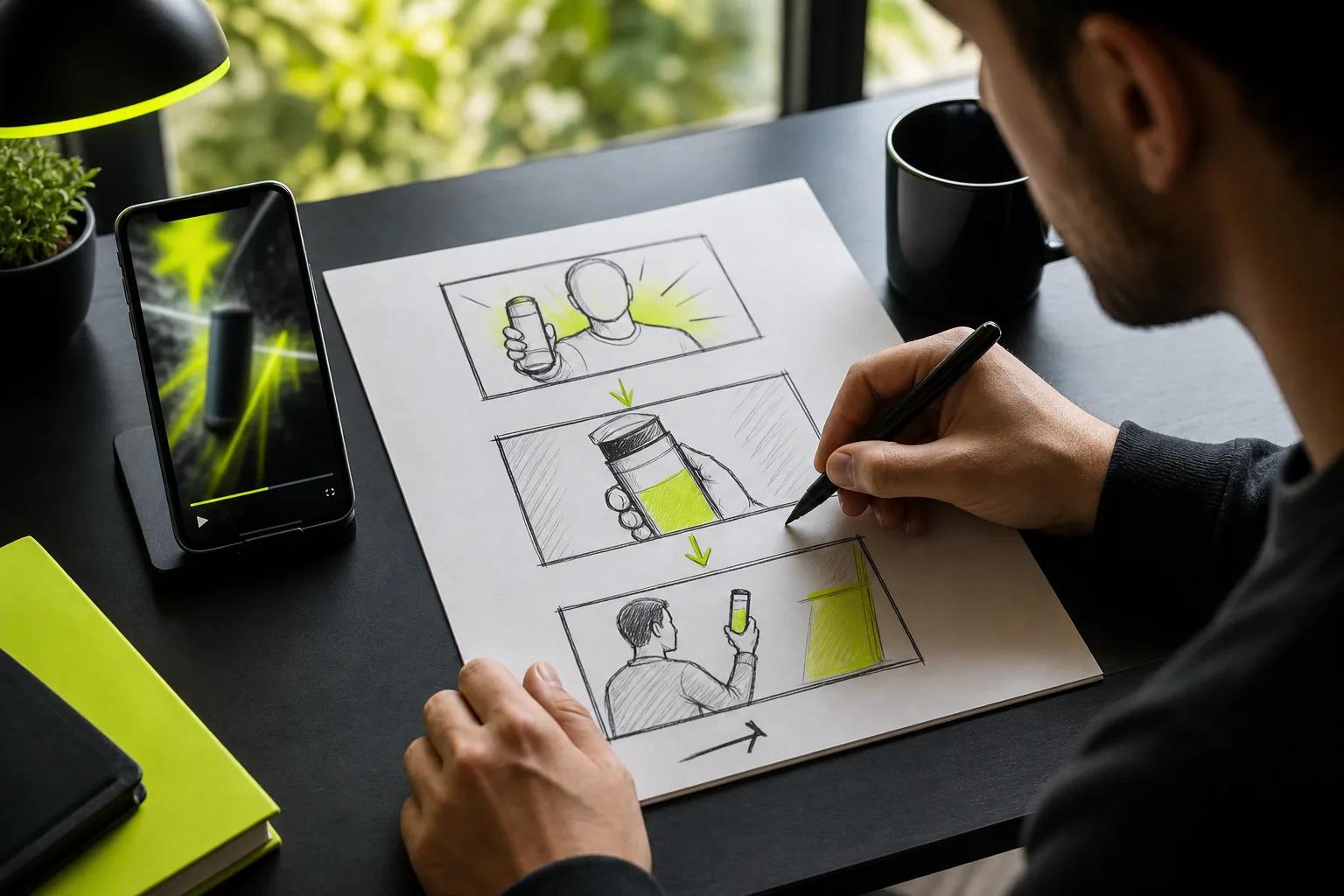
A still photo can do more than sit in your camera roll. The right image to video prompt examples give it a clear action, a camera move, and a mood without asking the model to guess every detail.
We analyzed 56 comments from Reddit and YouTube about image to video prompts and found that 43% mentioned detailed prompt structure including camera movement.
Use the prompts below as starting points. Keep the subject you care about steady, then change one motion at a time until the clip fits your ad or social post.
Reusable Image-to-Video Prompt Building Blocks
A useful image-to-video prompt tells the model what should move, how the camera should behave, and what needs to stay the same. Since your image already sets the scene, focus the text on motion instead of describing every visible detail again.
Try this simple structure: subject motion + camera move + light or mood + limits. For example: “Steam curls above the cup. The camera makes a slow push-in. Soft morning light. Keep the cup and table still.” That gives each instruction a job.
Wan Studio’s prompt workflow lets you add a first-frame image, then describe the shot in plain language. For more ideas, see the image-to-video prompt templates.
A useful prompt can name the subject, motion, camera movement, lighting, and style. Keep the prompt short enough to scan. One main action and one camera move are usually easier to control than a string of competing directions.
Give the model one clear job
Start with the motion that matters most. A portrait might need a small breeze in the hair. A landscape might need clouds drifting past the mountain. A product photo might need a slow camera move while the item stays still.
Add a limit when a detail must remain unchanged. Say “keep the label readable” or “keep the face and clothing stable.” These instructions make your intent clear, but always review the result. Generated motion can still alter fine details.
Think of the source image as the first frame of a shot. The prompt is the direction you’d give a camera operator: what moves, how quickly, and what stays in place.
For your first test, keep the framing fixed and add only a small change. If that looks right, try a gentle push-in or a slow pan in a new generation. Change one part of the prompt at a time, so you can tell what caused the difference.
Use a clear image with the main subject in view. A sharp first frame gives the model more to follow, while a cluttered or cropped source can make motion harder to direct.
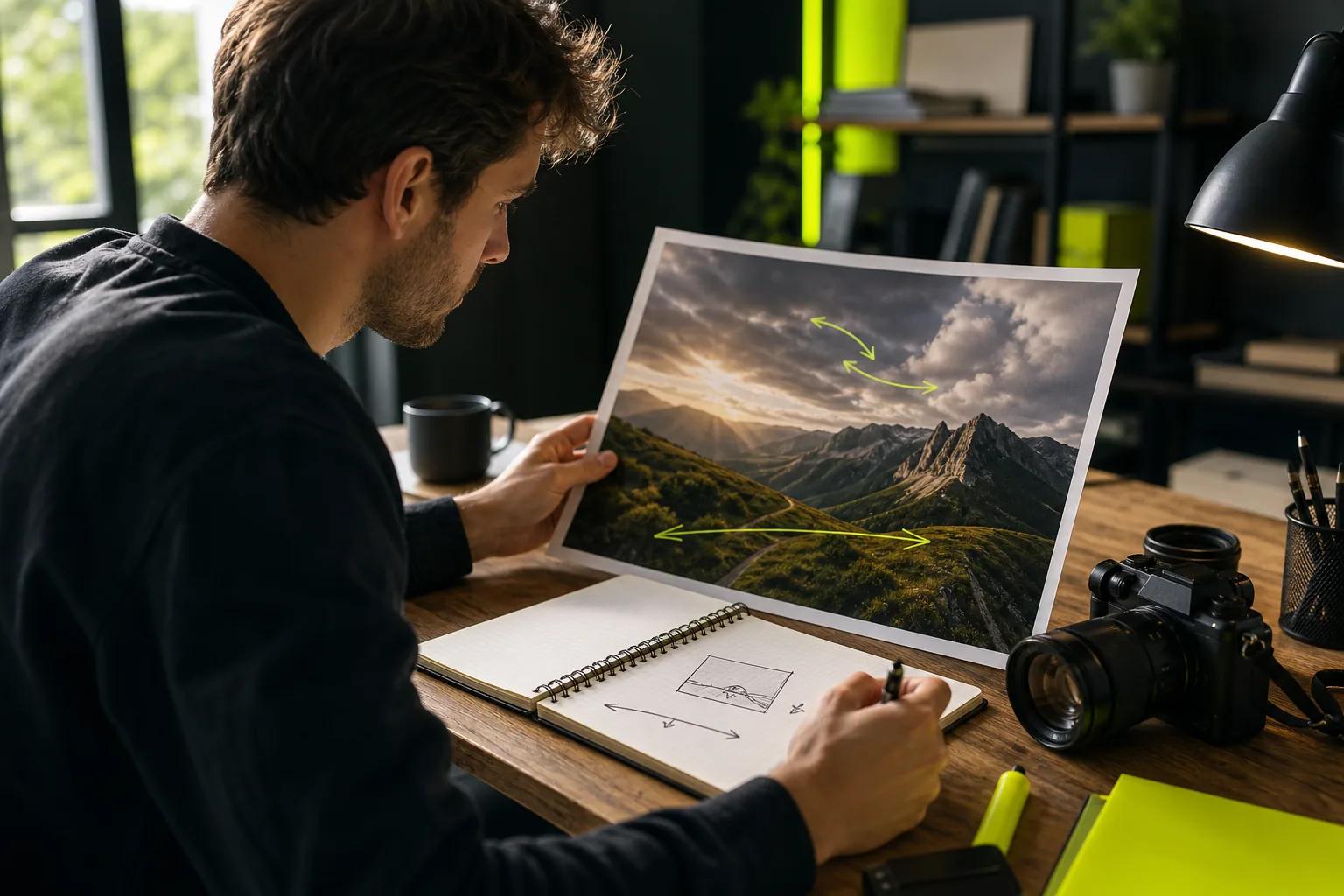
Image-to-Video Prompt Examples for Product Photos and Ads
Product clips work best when the motion supports the item instead of changing it. Start with a photo that shows the full product clearly. Then choose one controlled move, such as a small push-in or moving light across the background.
Clean label or package shot
Prompt: “Keep the item in the uploaded photo still and centered. The camera stays locked. A soft studio reflection moves slowly across the background. Preserve the product shape, label lettering, color, and shadow. Calm, clean ad style.”
This is a good starting point when packaging text needs to remain legible. Check the letters at the start, middle, and end of the clip. If the label shifts, use the generated motion as a background layer and keep the original photo on top in your editor.
Small hero-shot push-in
Prompt: “Use this photo as the first frame. The camera makes a slow, subtle push toward the stationary item. Keep the full item in frame. Preserve its proportions, surface, color, and placement. One smooth shot with steady lighting.”
Choose this for a simple product photo with some space around the subject. Watch for the item seeming to grow on its own or for its edges to bend. If that happens, shorten the move or hold the camera still.
Food or drink detail
Prompt: “Keep the cup and everything on the table unchanged. A small curl of steam rises above the hot drink and fades. The camera remains fixed. Warm window light, natural pace. No added food or props.”
Only use steam when the product is meant to be hot. The motion should add atmosphere, not imply a product feature that isn’t true. Keep ingredients and serving size as shown in the real photo.
Material close-up
Prompt: “Move the camera slowly along the visible fabric. Keep the same angle and distance. Preserve the weave, seams, and color in the source image. Soft, even light. No new details.”
A close-up can add texture to an ad without changing the full composition. But a single photo can’t show hidden sides or prove how an item is made. Use real product views for those details.
Wan Studio can turn a product photo into a short clip, with options for aspect ratio and duration. For more prompt ideas on shot structure, see its guide to creating AI videos. When the item must stay exact, check the shape, color, and lettering before publishing.
For a short ad, you can use a steady product shot, then add your offer or call to action in an editor. Generated text can change between frames, so don’t rely on it for prices, legal notes, or a key sales line.
Short-Form Image-to-Video Prompt Examples for TikTok, Reels, and Shorts
For vertical social clips, make the opening action easy to read on a phone. Set a 9:16 frame when that’s the format you need. Leave room near the edges if you plan to add captions in an editor.
A short clip doesn’t need five events. Give it one hook, one motion, then a clean pause or final frame. You can add the words on screen after generation, where you can control spelling and placement.
Portrait opener
Prompt: “Vertical close-up of the person in this photo. They breathe naturally and glance toward the camera. A light breeze moves a few strands of hair. The camera makes a gentle push-in. Keep their face, clothes, and expression consistent.”
Use subtle motion for a portrait. Large head turns or hand gestures can change a face or pose more than you intended. Review the person’s eyes and mouth through the full clip, not just the first frame.
Product reveal for a social ad
Prompt: “Vertical 9:16. The item stays still in the center while a narrow beam of warm light moves across it. The camera makes one quick push-in, then holds on the full item. Clean background, upbeat pace, no added text.”
The first moment should show why someone should keep watching. Try a light sweep, a detail close-up, or a small change in the background. If the product is central to the sale, use the real image as your guide and inspect its edges after generation.
Travel or nature loop
Prompt: “Vertical view of the mountain scene in this photo. Clouds drift slowly past the ridge while grasses move lightly in the breeze. The camera stays still. Soft dawn light. End on a calm frame close to the opening view.”
A stable camera and gentle scene motion can help a short clip feel calm rather than busy. If you want a loop, try asking for an ending that returns near the opening composition. Check the cut between the final and first frames before posting.
Quick tutorial or tip
Prompt: “Vertical close shot of the illustrated kitchen scene. A hand points to the cup, then lifts it slightly. The camera holds steady. Bright natural light. A friendly voice says, “Start with one spoonful.””
For dialogue, use the exact line you want spoken and keep it short. Wan 3.0 supports native sound; listen to the audio and watch the mouth movement before using the clip. Don’t present a generated speaker as a real customer giving a testimonial.
Wan Studio supports vertical framing and gives you a browser-based way to move from an image to a short video. For Wan 3.0, clips can run up to 30 seconds, with native sound and character consistency across shots. For a fast social post, a shorter clip may be easier to review and adapt to the feed.
One source image can lead to several openings. Keep the subject and format steady, then vary the first motion. Compare the versions in the platform’s own preview data rather than guessing which one will perform best.
Cinematic, Character, and Dialogue Prompt Examples to Try in Wan Studio
Image-to-video can do more than add a zoom. Use it to set a mood, give a character a small action, or make a still scene feel like the opening shot of a film. The image anchors the look; your prompt describes what happens next.
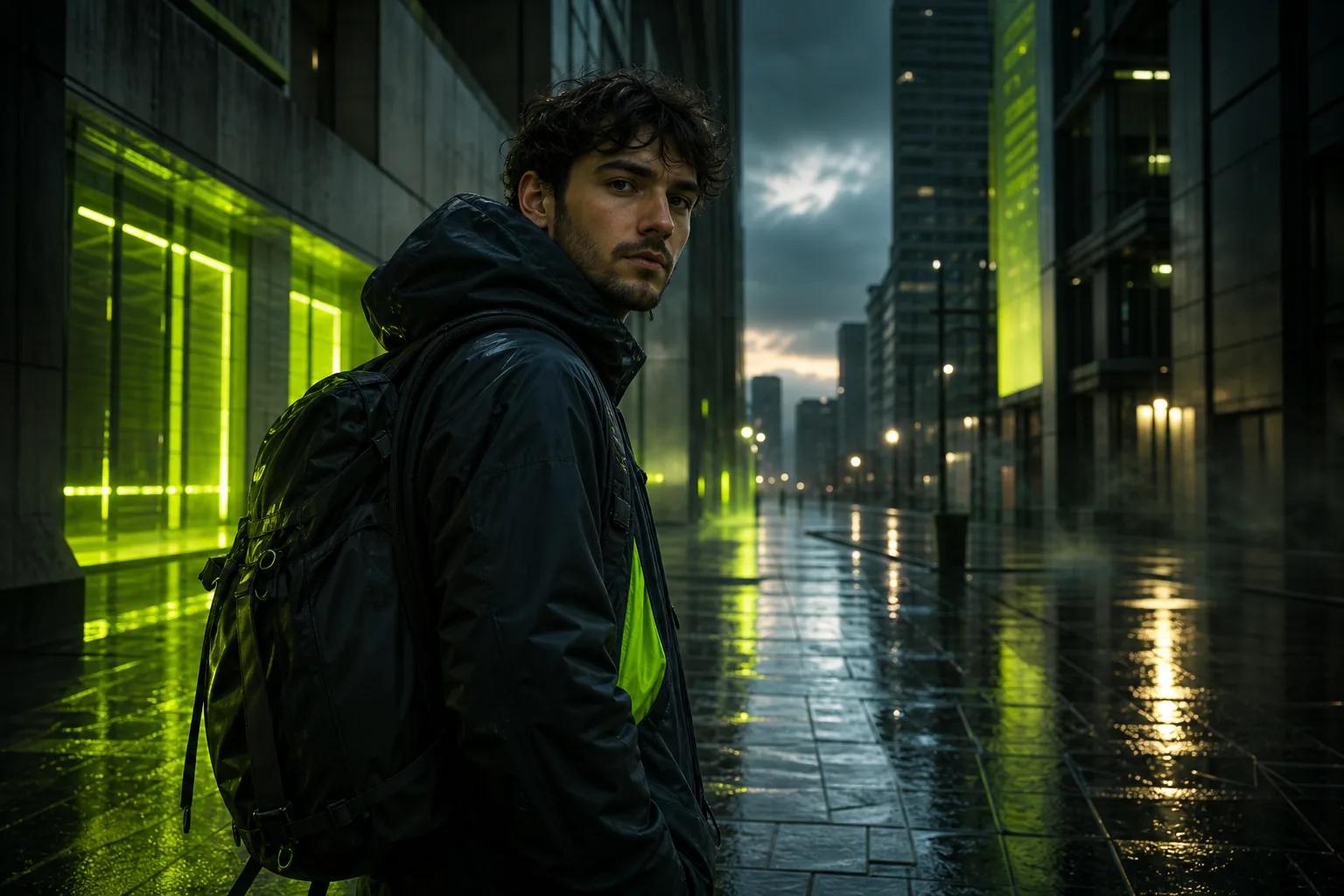
Cinematic street scene
Prompt: “The person in the first frame stands beneath a streetlight after rain. Reflections shimmer on the pavement. Slow camera push-in, then a cut to a wider view as a breeze moves their coat. Cool night light, quiet city ambience, cinematic pacing.”
Wan 3.0 can make multi-shot scenes up to 30 seconds and keep characters consistent from shot to shot. Keep each shot direction clear. For a longer scene, describe the overall mood first, then state what changes in each shot.
Character with a spoken line
Prompt: “A softly lit animated character faces the camera. They smile slightly and say, “The map says we’re close.” Small natural head movement. Camera stays fixed. Quiet room tone, no music.”
Put the exact spoken words in quotation marks. That tells the model what the character should say, while the rest of the prompt sets the scene. Keep the line brief so it fits the clip and is easy to hear.
Stylized scene with a clear move
Prompt: “A hand-painted forest at dusk. Fireflies glow between the trees as mist moves along the ground. The camera glides slowly forward on one path. Deep blue shadows, warm points of light, dreamlike animated style.”
For an image-to-video prompt, avoid asking the model to replace the whole scene when you mainly want motion. Name the part that should move. Then state the camera direction and the visual style in plain terms.
Wan 2.7 supports image and video references, plus first-and-last-frame control. Wan 3.0 takes text or a first-frame image and supports longer clips. For more prompt ideas, see these examples.
If you’re testing a scene with dialogue, start with one character and one short line. Review the full clip for face consistency and lip sync. Wan Studio offers a free plan with a couple of Wan 2.5 videos each month at 480p, so you can try the workflow before moving to a paid plan.
FAQ
What should I include in an image-to-video prompt?
Include the motion you want, the camera move, and anything that must stay unchanged. Your source image already sets the subject and scene, so don’t spend the whole prompt describing them again. Add a light or mood cue if it helps. Keep the instructions focused on one main action.
How do I keep a product photo recognizable?
Ask for restrained motion and say which details must remain the same, such as the product’s shape, color, or label. A locked camera can help when text matters. Review the full clip for changes. If the label shifts, keep the original image as a layer in your editor.
Can I add dialogue to an image-to-video prompt?
Yes. With Wan models that support native audio, put the exact spoken line in quotation marks. Keep it short and describe the speaker’s action in plain words. Then listen to the clip and check the mouth movement before publishing, since generated results still need review.
What image works best for a short social clip?
Choose a clear image with the subject fully in frame and enough space for the motion you want. For vertical posts, prepare a 9:16 composition when possible. A clean source gives the model fewer scene details to guess. If you need captions, leave open space for them.
How long should an image-to-video clip be?
Use only as much time as the idea needs. A product reveal or a single spoken line may work as a short clip. Wan 3.0 supports up to 30 seconds, but a longer limit doesn’t mean every post needs a long runtime. Match the duration to the action, then review the pacing.
Conclusion
Start with a strong image and give the model one clear action to animate. For a product, protect the details; for a character, keep the motion small and dialogue brief. Try one prompt in Wan Studio, review the whole clip, then adjust a single instruction before your next render.