A still portrait can become a speaking video, but the right tool depends on what you want the finished clip to do. These talking photo AI tools range from portrait-led presenters to scene-based videos with sound, so you can pick a workflow that fits your next post or ad.
We analyzed 42 comments and questions from YouTube, Quora and Reddit about AI talking photo and found that 50% asked about available features and constraints.
1. Wan Studio
Wan Studio is a browser-based video tool for turning text prompts or images into short scenes with sound and dialogue. It’s a good fit when you want more than a face reading a script, such as a product photo that becomes a short ad with a camera move and a spoken line.
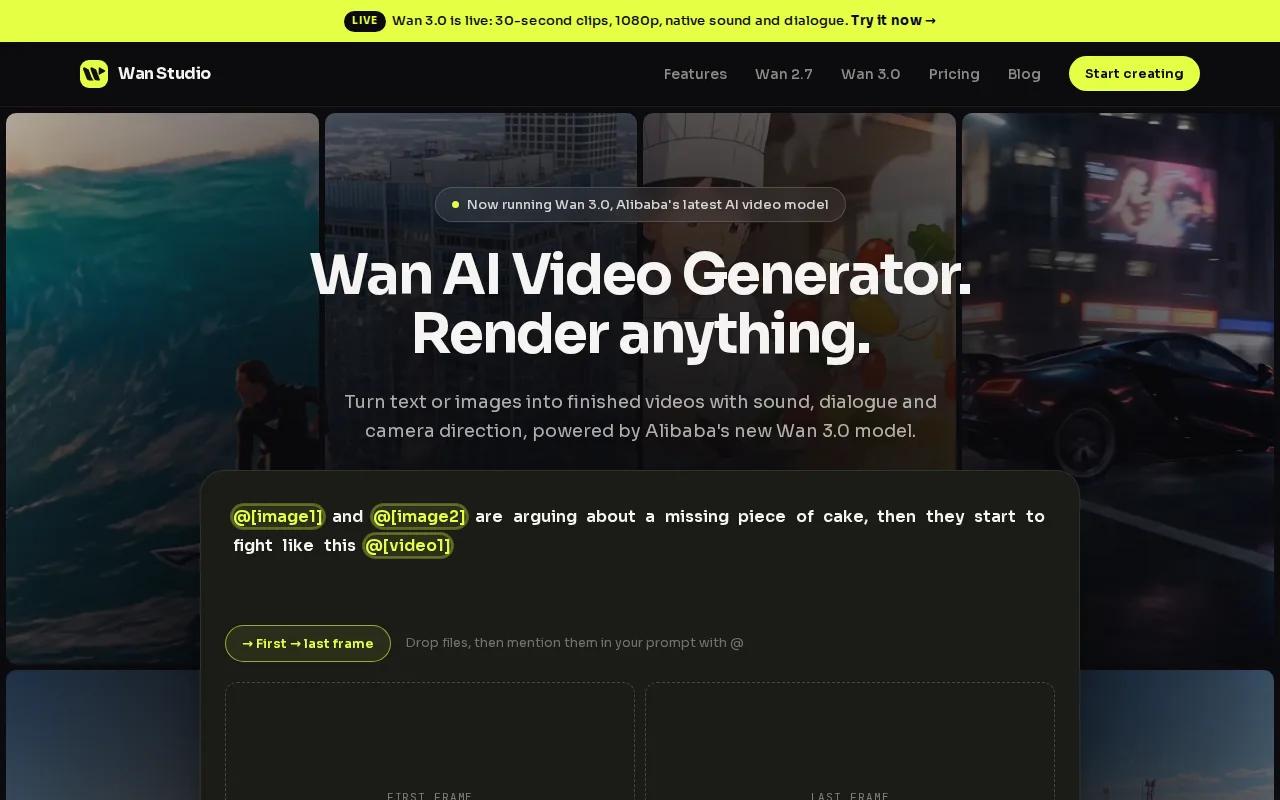
With Wan 3.0, a first-frame image can guide a clip of up to 30 seconds. The model can generate music, sound effects, and lip-synced dialogue in the same pass. It can also keep characters consistent across shots in a scene. That makes it worth considering for a short sequence rather than a single static talking head.
For example, start with a product image, describe a slow camera move, then add a line in quotes for the character to say. The output is an MP4 with sound, and you can choose a vertical frame for a phone-first post. For a simple portrait-led clip, see our guide on how to make a picture talk.
Wan Studio has a free plan with a couple of Wan 2.5 videos a month at 480p, with no card required. Paid plans start at $14 a month and include a commercial licence. Wan 3.0 is available on paid plans, so check which model and plan match the clip you need.
2. BIGVU Portrait to Video: natural-looking portrait animation
BIGVU Portrait to Video animates a portrait into a speaking video. It suits creators who want a portrait-based clip and would rather keep the workflow close to a teleprompter than build a larger scene.
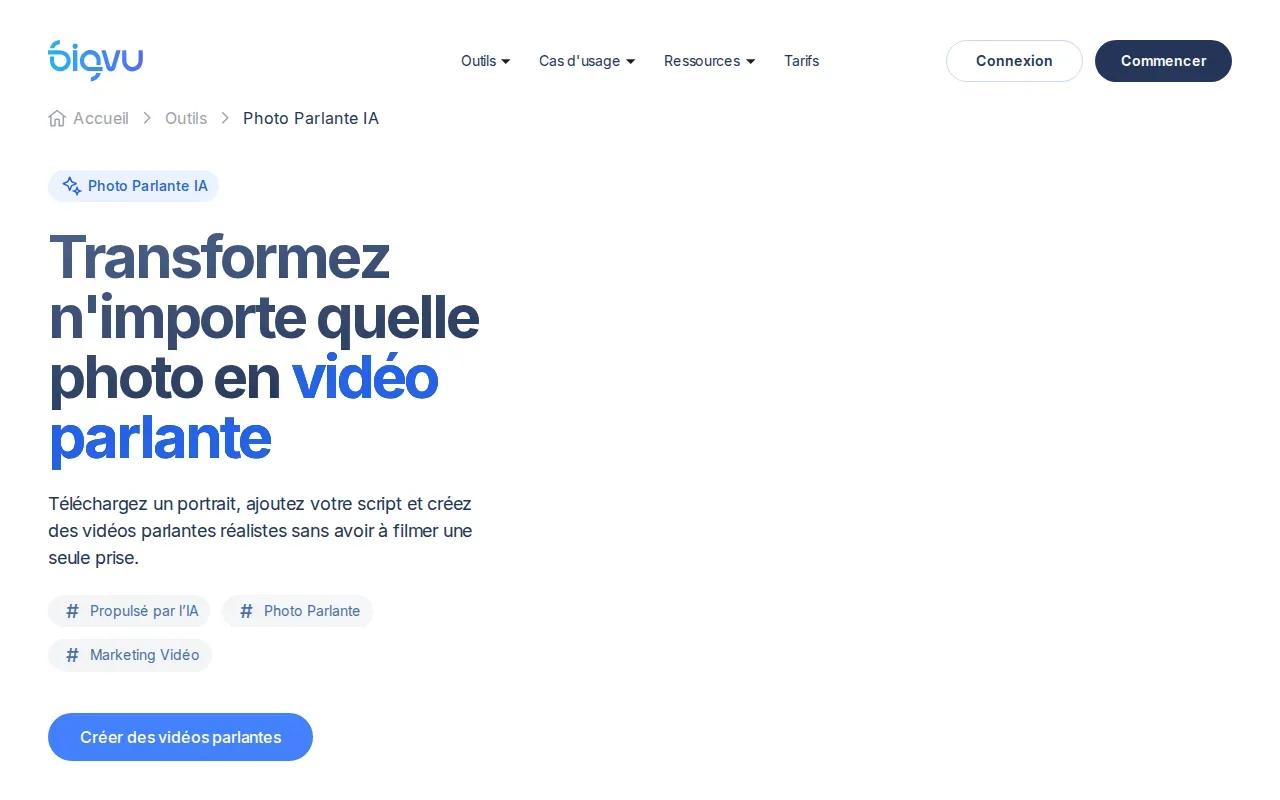
Its Portrait to Video feature is powered by OmniHuman technology. If you speed up a message to fit a social post, check the lip sync again at that speed, since a fast voice can make mouth movement harder to judge.
BIGVU’s free plan includes access to Portrait to Video alongside the teleprompter. That gives you a way to try the portrait workflow without making a paid plan the first step. Before using a clip in an ad, watch it at the speed your audience will see it and check the spoken line from start to finish.
A useful test is a short script with one clear point. If the portrait reads well at the pace you need, you can move on to a longer message. BIGVU Portrait to Video focuses on portrait animation and lip sync.
3. HeyGen: talking-photo videos with a free tier
HeyGen supports photo-based videos with spoken scripts and lip sync. It’s a fit for creators who want a portrait to deliver a message, especially when they need a free way to test the format first.
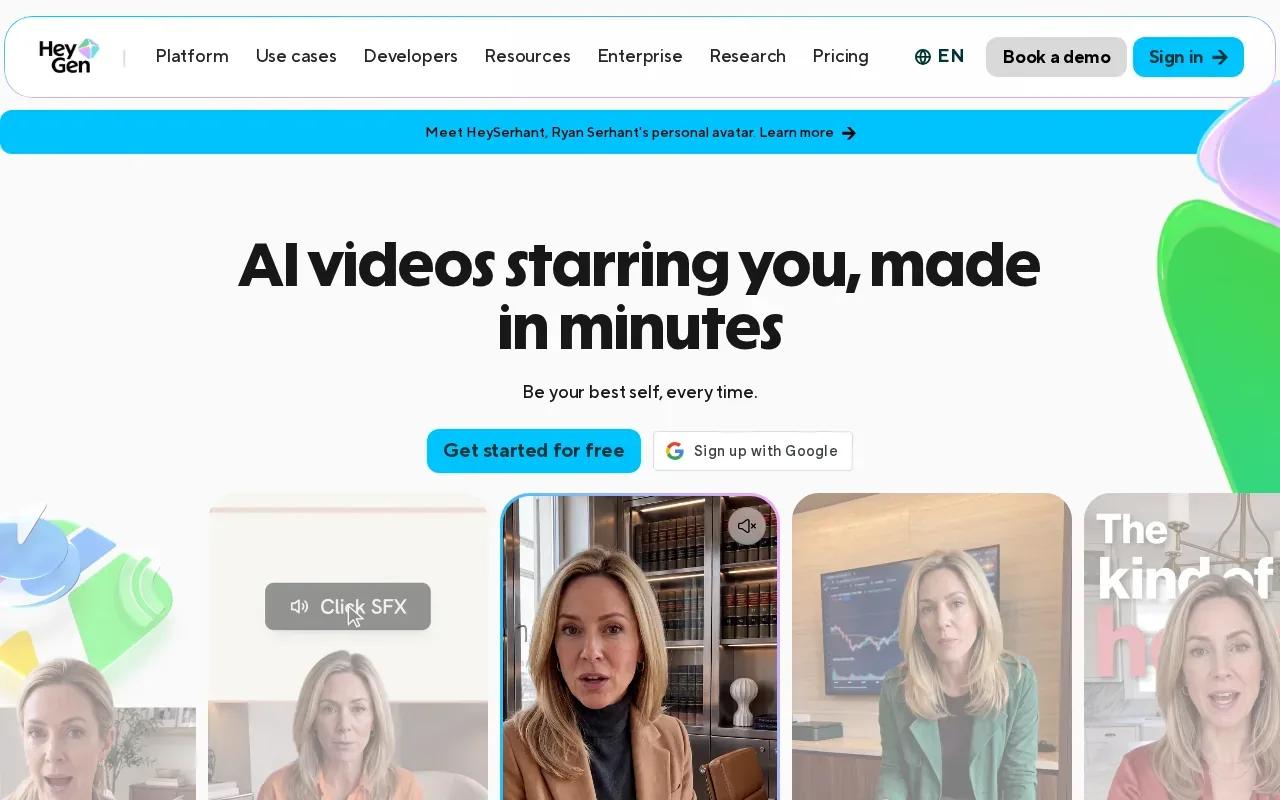
Its free tier allows three one-minute videos a month and one custom twin. That gives you room to try a few scripts or versions before deciding whether the workflow suits your channel. Keep the one-minute limit in mind when you plan the message. A tight opening line is easier to review than a long script that tries to cover everything.
The tool’s image-to-video flow can start from an image and add motion or voice. The key choice is whether you want a still portrait to speak or a broader image-led clip. HeyGen’s photo workflow is centered on the portrait delivering the message, which is a different job from animating a product image into a multi-shot scene.
For a quick check, write a short script, generate a version, and listen with the video in view. Watch the mouth during the words that matter most, such as a product name or offer. If you’re weighing presenter-led options against scene-based tools, compare the workflows before choosing.
4. Mango AI Talking Photo: portrait-to-talking-head synthesis
Mango AI Talking Photo turns a still portrait into a talking-head video. It’s aimed at people who want a face to deliver a short script or audio track without filming a presenter.
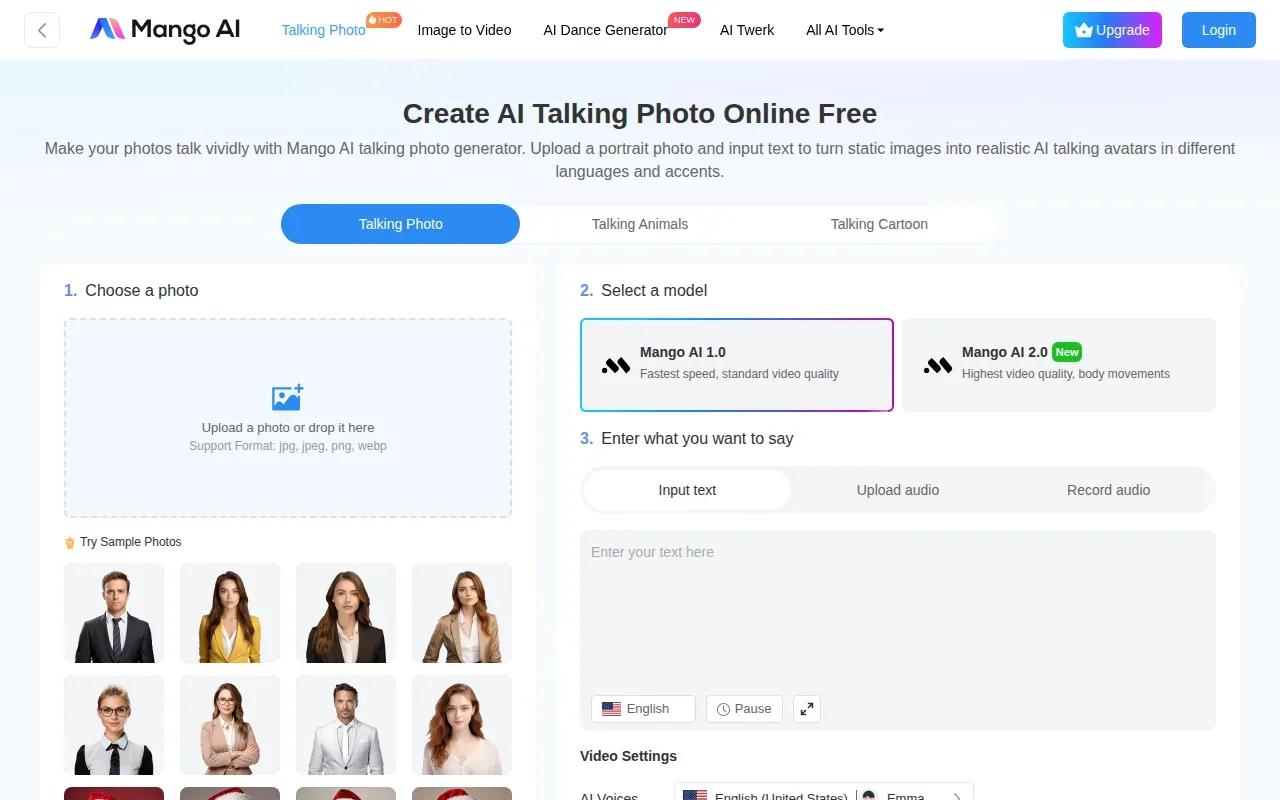
The core workflow starts with one portrait and generates mouth movement from the speech. You can provide text or audio, which makes it useful when you already have narration recorded. The result is a direct fit for a short explainer, a greeting, or a presenter-style social post.
For a clear result, choose a front-facing image with good light and a visible face. Then keep the script focused on one message. A long sentence with several clauses can be harder to review than a short line with a natural pause. Check that the mouth movement follows the key words before you share the finished clip.
Mango AI’s main strength in this shortlist is the portrait-to-talking-head task itself. If your idea needs camera movement around a product or multiple shots in one scene, consider a scene-generation tool instead. That distinction can save time when you’re picking the first workflow to test.
5. Vidnoz AI: animate a portrait using an audio track
Vidnoz AI turns a still portrait and an audio track into a talking-photo video. It’s a useful match when you’ve already recorded the voice and want the portrait animation to follow that audio.
The workflow centers on audio-driven facial animation. That makes it a different starting point from a tool where you type a script and choose a generated voice. If you’ve recorded a message in your own voice, you can use that audio as the driver for the talking image.
For a marketing clip, record the exact line you want to use before generating the video. Then check the full render while listening for clear speech and watching the face. A product name or call to action deserves a close look, since those words need to land clearly for the viewer.
Vidnoz AI is best considered for a portrait plus audio workflow. Keep your first test short and judge the result against the audio you supplied.
6. FlexClip AI Talking Photo: selectable voices for portrait videos
FlexClip AI Talking Photo turns one portrait into an animated talking-head video, with selectable voices. It suits creators who want a straightforward portrait clip and would like to choose how the voice sounds.
The tool accepts portraits, selfies, historical photos, cartoon characters, and AI-generated images. You can add text or voice input, then describe the pose you want with a text prompt. That gives you a little control over movement while keeping the main task focused on a speaking image.
FlexClip also supports text overlays and social icons, and it can share a video through a short link. Its workflow can help when you want a finished talking portrait ready to pass along or post. Review the result before sharing, especially if the source image shows a real person whose words could be mistaken for something they actually said.
Use a clear, well-lit image with the face easy to see. If you want to make a series, keep the image and voice choice steady so each clip feels like part of the same set.
Talking Photo AI Tools at a Glance
Use this quick view to match the tool to your starting material. The key difference is whether you’re beginning with a prompt, a portrait, or recorded speech.
| Tool | Best starting point | Useful fit |
|---|---|---|
| Wan Studio | Text prompt or first-frame image | Short scenes with sound and dialogue |
| BIGVU Portrait to Video | Portrait | Portrait animation with a free-plan test |
| HeyGen | Image and script | Portrait-led clips, with three one-minute videos monthly on the free tier |
| Mango AI Talking Photo | Portrait plus text or audio | Talking-head synthesis from a still image |
| Vidnoz AI | Portrait plus audio track | Audio-driven facial animation |
| FlexClip AI Talking Photo | Portrait plus text or voice input | Selectable voices and short-link sharing |
For commercial work, check the plan terms before you publish. Wan Studio’s commercial licence is included on paid plans; the free plan is for trying the tool.
FAQ: Talking Photo AI
What is talking photo AI?
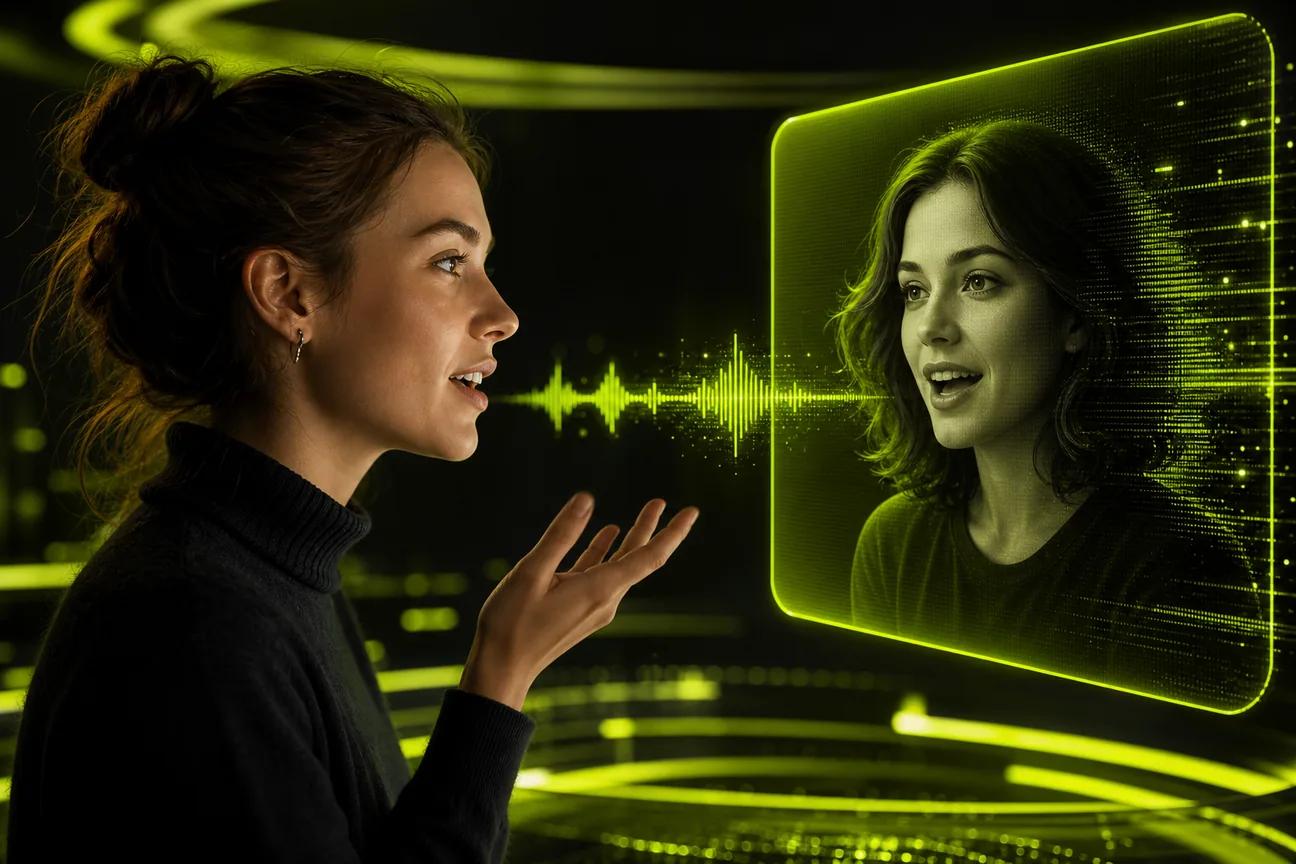
Talking photo AI turns a still image into a video where the pictured face appears to speak. A tool uses a script or audio as the speech input, then generates mouth movement to match. Some tools focus on a single talking head, while others can place a character inside a larger scene with motion and sound.
How do you make a photo talk with AI?
Choose a clear portrait, add a short script or audio track, then generate and review the video. If the tool lets you pick a voice, listen to a sample before you render the full clip. Watch the mouth during the whole line, then check the finished video at the size and speed you plan to post.
Can I make a talking photo video for free?
Yes, some options in this list have free access. Wan Studio’s free plan includes a couple of Wan 2.5 videos each month at 480p, while HeyGen’s free tier allows three one-minute videos a month. Free access and included features vary, so check the current plan terms before making content for a business.
Can I use a talking photo video in an ad?
You can use a generated video in an ad only when the tool’s terms and your rights to the image and voice allow it. Wan Studio includes a commercial licence on paid plans. Get permission to use a person’s likeness, and don’t make a real person appear to say something they never said.
What makes a talking photo look more natural?
A clear, front-facing portrait gives the animation an easier face to work with. Use a short line that sounds natural when spoken, then review the full clip with sound on. Pay close attention to names and fast phrases. If the result looks off, simplify the script or try a different source image before making more versions.
Conclusion
Choose Wan Studio when you want a portrait or product image to become a short scene with generated sound and dialogue; choose a portrait-led tool when the face simply needs to deliver a script. Start with one short test clip, review it closely, and check the usage rights before you post.