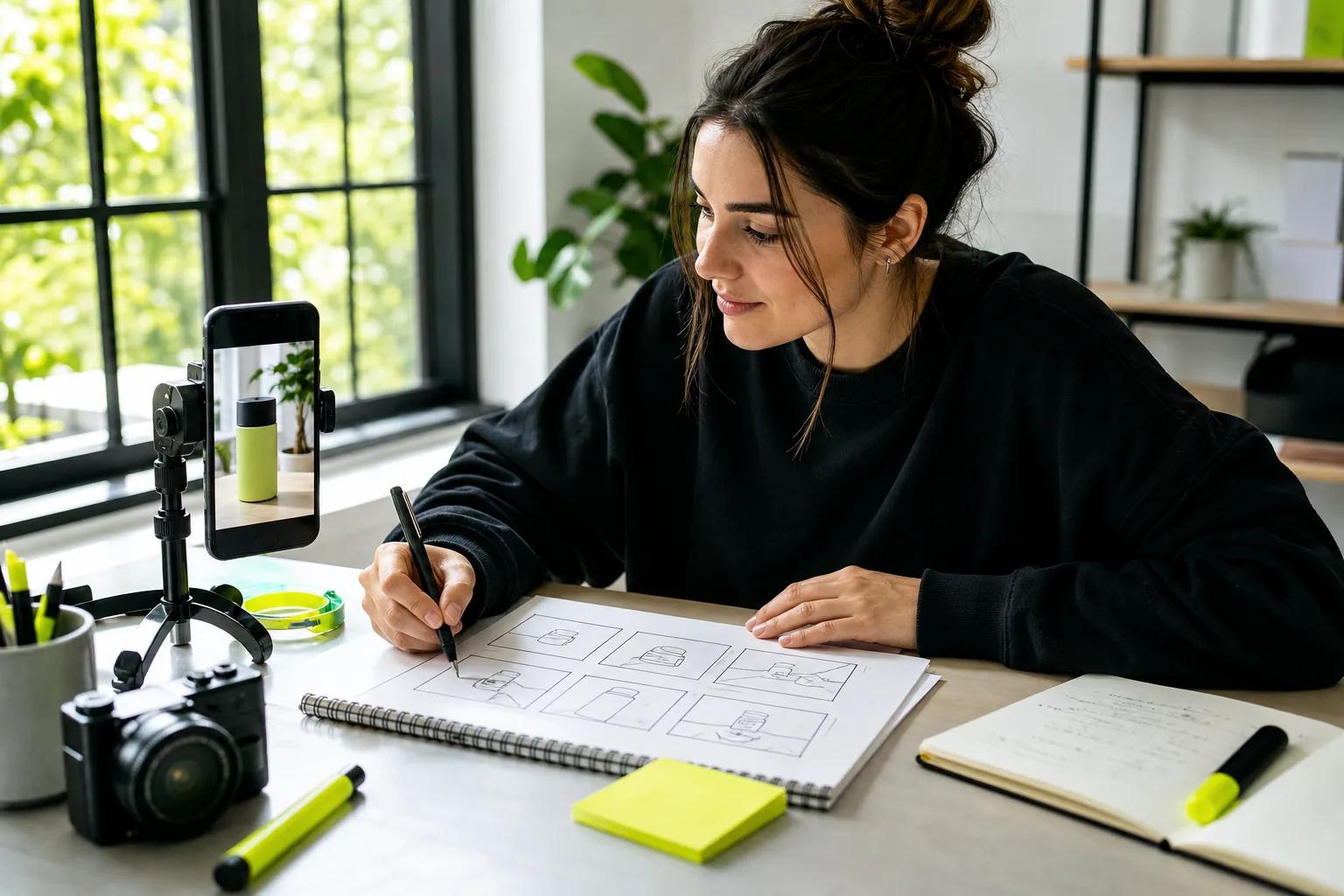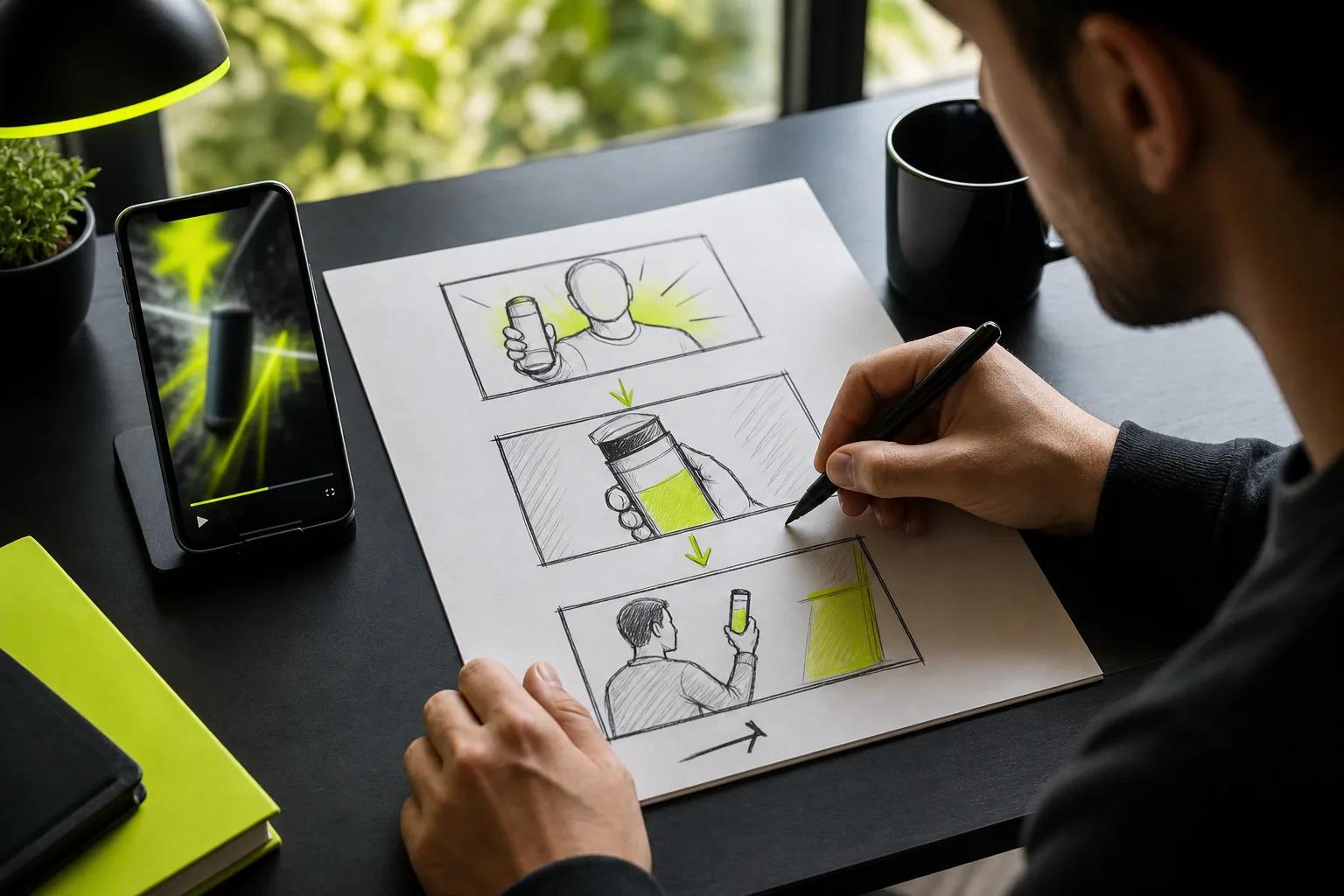
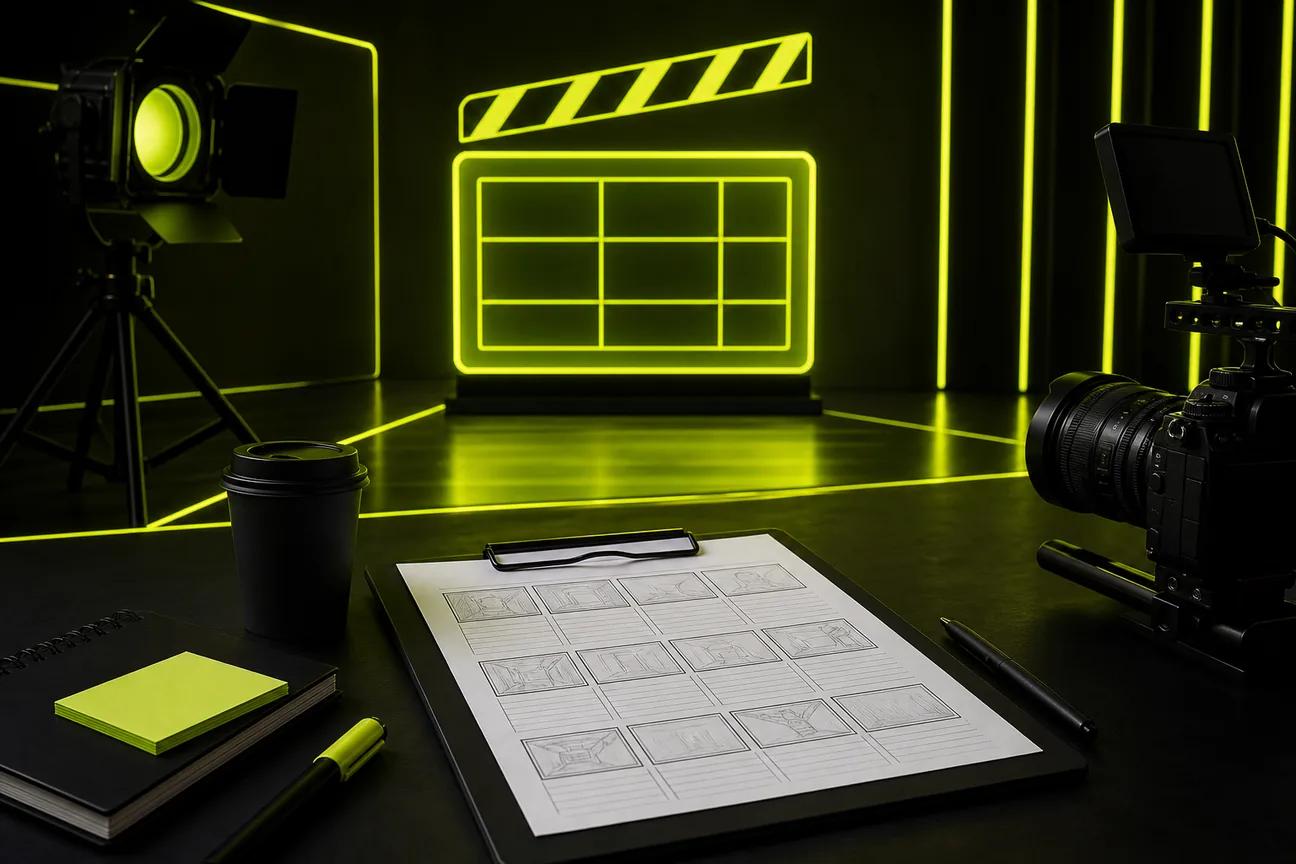
A good shot plan turns a script or idea into a clear list of what the viewer needs to see. These five video shot list templates suit short-form clips, product demos, explainers, story scenes, and testimonial ads.
Each one is a format you can copy into a document or sheet, then adapt to your shoot. A storyboard feature can help plan scenes, but it can’t guarantee lip sync or character continuity in the finished video.
1. Vertical Short-Form Video Shot List: For TikTok, Reels, and Shorts
This template is a compact beat-by-beat plan for a vertical clip. Use it when the video needs a quick opening, one clear action, and a final payoff. It also works for a product photo you want to animate rather than film.
Keep the list lean. A useful version has a row for each beat, with columns for timing, subject, action, framing, camera move, audio, and caption-safe space. For example, a 12-second clip might open on a close-up of a cup, show a hand pouring coffee, then hold on the finished drink. Each shot should add something new.
Set the frame to 9:16 when you know the clip is for a phone feed. Keep the main action near the center, with room around it for captions and platform controls. Note the first frame, the moment with the most motion, and the ending frame. Those three points give the edit a simple shape.
Wan Studio can turn a prompt or first-frame image into a short clip in the browser. Its Wan 3.0 model supports fixed 9:16 framing or adaptive framing, with clips up to 30 seconds. You can describe a camera move in plain words, then generate a draft before spending time on a longer version. For a generated clip, use the shot list as a prompt outline, not a promise that every logo or small detail will render as intended.
If the idea starts with a script, a few frames can help you settle the visual order before generating. Read more.
Here’s a short example of a shot-by-shot visual plan:
Keep each beat focused. If the opening needs to hook viewers, don’t make it carry the product demo and the call to action too.
2. Product Demo Shot List: For Small-Business Video Ads
A product demo list plans the shots that show what an item does. It’s best for a small business with a product photo, a simple use case, or limited time to film. Build the sequence around one customer question, such as “How does it work?” or “What changes after I use it?”
Start with a small set of jobs for the viewer: identify the item, see it in use, understand the result, and know what to do next. Then write one shot for each job. A coffee maker demo could show the machine on a counter, a hand adding water, coffee pouring into a cup, and the finished drink. The exact shots should match the product and the claims you can support.
Use columns for shot ID, scene, framing, action, audio, duration, priority, and status. Add a note for any detail that must stay correct, such as a product color or package shape. If the product needs to be seen clearly, plan a close-up. If the viewer needs context, add a wider view of where it is used.
A shot list is an inventory of footage, while a storyboard shows which shots appear in what order. One planned set of product shots can support more than one edit: a quick ad may use a hook, demonstration, proof, and call to action, while a product page might hold on the demonstration longer.
Wan Studio’s image-to-video workflow can start from a product photo, which anchors the opening composition. Wan 3.0 accepts a first-frame image and can generate clips up to 30 seconds; Wan 2.7 also supports reference images and video. Check the output closely before publishing, especially when the clip shows a label, product feature, or result that must be accurate.
For the message and shot order, use the same simple logic in a product video plan: show the need, show the item doing its job, then give the viewer one next step. That keeps a short ad from turning into a tour of every feature.
When you don’t have footage, the shot list can still guide the prompt. Describe what should move, how the camera should move, and what must remain visible. Generate a short draft first; once the framing works, decide whether a higher-resolution version is worth making.
3. Talking-Head Explainer Shot List: For Presenter-Led Videos
This format pairs a presenter’s spoken points with the footage needed to support them. It fits a founder clip, short tutorial, or service explainer. It’s especially useful when one person is filming and editing, since a checklist helps catch missing cutaways before the setup comes down.
Begin with the script. Give every spoken section a shot: presenter on camera, screen capture, product close-up, or a cutaway that makes the point easier to follow. Add a separate row for each camera setup. Group rows by setup or location so you can film similar shots together instead of changing the lights after every line.
Include a framing note such as medium shot or close-up. Add angle and movement only when they affect the scene. “Eye-level, fixed camera” is a useful note for a steady presenter shot. “Slow push-in” tells the camera operator, or an AI video prompt, to move closer over time.
Keep audio in the plan too. Mark whether a row needs direct speech, voice-over, room tone, or a sound effect. If the presenter says a key line, record a clean take before moving on. Then capture the cutaways that let the editor cover a pause or trim a stumble without cutting away from the point.
A storyboard is useful when the explainer depends on a visual sequence, such as a screen walkthrough. For a simple talking-head clip, a written list may be enough. Pair spoken lines with notes about what appears on screen using a planning reference.
Keep post-production in mind. Add fields for file name, selected take, and edit note if another person will cut the video. A short note such as “use the close-up over the second sentence” is more useful than a vague reminder to “add B-roll.”
4. Cinematic Multi-Shot Story Template: For Scenes With a Narrative
This template breaks a scene into numbered shots that connect as one short story. Use it for a character moment, a dramatic product reveal, or a mini scene with dialogue. It helps most when each shot changes the story, not just the camera angle.
Give each row a shot number, time range, framing, angle, movement, action, dialogue or sound, and transition. A three-beat scene might start with a wide shot of a character entering a room, cut to a close-up as they notice a letter, then end on their reaction. The action should move forward in every beat.
For camera movement, write the move and its purpose. “Slow push-in as the character reads” gives a clear direction. “Camera moves around” leaves too much open. Use a fixed camera when a steady view is part of the feeling, or a pan when the viewer needs to follow an action across the frame.
Some AI video tools include multi-shot planning. That structure can help turn a loose scene idea into a clearer sequence, but you should still review each generated shot for continuity and timing.
Wan Studio’s Wan 3.0 can keep characters consistent across shots in a scene up to 30 seconds, and it generates native sound and lip-synced dialogue. The model can work from text or a first-frame image. If a scene needs image or video references, Wan 2.7 supports those inputs. Keep the dialogue brief and review the result before treating it as final.
For a printable crew plan, leave space for setup time, gear, location, and priority. Those details help you see which shots share a camera position or lighting setup. They also make it easier to cut lower-priority coverage when the shoot runs short.
5. UGC-Style Testimonial Shot List: For Trust-Building Ads
A testimonial shot list mixes direct-to-camera lines with proof and product-use footage. It suits a creator-style ad or customer story, but the words and visuals must reflect a real person’s experience. Don’t invent a quote, result, or review for the sake of a stronger edit.
Plan a few visual changes so the clip doesn’t stay on one static frame. For example, open on the speaker, cut to a close-up of the item during the explanation, then return to the speaker for the final thought. A few useful rows might be:
- Opening: medium shot, eye-level, direct-to-camera line.
- Use: close-up of the action the speaker describes.
- Proof: a truthful detail that supports the claim.
- Close: speaker on camera with one clear next step.
Note the framing, angle, approximate duration, prop, and audio for each shot. Keep the spoken lines short enough to fit the clip. If the video is meant to feel casual, don’t over-direct every movement. Still, make sure the viewer can see the action that supports the speaker’s words.
For a real shoot, capture the main line in a few takes, then record the matching cutaways. For an AI-generated scene, write one action per shot and keep the dialogue attached to the right speaker. Wan Studio supports lip-synced dialogue with Wan models that include native audio, but a generated line still needs a quality check before it goes into an ad.
Keep a note of the approved claim and the final caption. This gives the editor a clear reference and helps prevent a cut from implying more than the speaker actually said.
Compare the Five Video Shot List Template Options
The right format depends on the work at hand. Use the table to pick a starting point, then add fields that fit your team. A spreadsheet is easy to sort and share; a PDF is handy on set; a shared document or Notion-style board can keep notes and references together.
| Template format | Best use | Useful fields | Watch for |
|---|---|---|---|
| Vertical short-form | Social clips and quick hooks | Beat, timing, ratio, movement | Keep the opening action clear |
| Product demo | Small-business ads | Product detail, action, proof, CTA | Show only claims you can support |
| Talking-head explainer | Tutorials and presenter videos | Script line, shot, cutaway, audio | Plan B-roll before filming |
| Multi-shot story | Narrative scenes | Shot order, framing, dialogue, transition | Check continuity between shots |
| UGC-style testimonial | Trust-focused ads | Speaker line, proof shot, prop, close | Keep quotes and claims truthful |
Choose a spreadsheet when you need sortable rows, status checks, or a list multiple people can edit. A PDF works when the crew needs a fixed copy to mark on set. A shared document or board is handy when each shot needs a reference image or a longer note. You can begin with the same core fields, then save a copy as a PDF for filming.
A shot list is not a full schedule. Add setup time, location access, crew needs, and gear if those details affect the day. Mark essential shots as high priority and keep optional coverage separate. That gives you a clear place to trim when time or access changes.
AI can help draft rows from a brief or script, but treat the result as a first pass. Check that every row has a purpose and that the plan includes audio, timing, and a clear edit handoff. If you’re generating instead of filming, replace equipment notes with prompt details such as subject, action, camera move, light, and sound.
FAQs About Video Shot List Templates
What should a video shot list include?
A video shot list should include one row for each planned shot, with enough detail to capture or generate it. Start with scene, shot type, framing, action, and timing. Add camera angle or movement when it affects the look. Include audio notes, location, priority, and status when your crew or editing handoff needs them.
What’s the difference between a shot list and a storyboard?
A shot list is a written inventory of the footage a video needs. A storyboard shows how selected shots look and flow in sequence, often with sketches or frames. They work well together: the storyboard helps settle visual order, while the list helps track what to capture and what is ready for editing.
Can I make a shot list in a spreadsheet or Excel?
Yes, both work well for a shot list. Put one shot on each row, then use columns for framing, action, timing, audio, priority, and status. Sort by location or setup when filming. If you want a paper copy, print or export the sheet as a PDF for the crew.
Can AI create a shot list from a prompt?
Yes, some AI video workflows can turn a prompt or script into a scene or shot plan. Review the draft before using it. Confirm that each shot advances the idea, that the timing fits the finished clip, and that dialogue and visual details match your brief. A generated plan still needs human checks.
Conclusion
Start with the template that matches the viewer’s main question: a hook for a social clip, a clear use case for a demo, or supporting cutaways for a presenter. Copy the relevant rows into a sheet, add your first few shots, then test the plan with a short draft in Wan Studio or on camera.