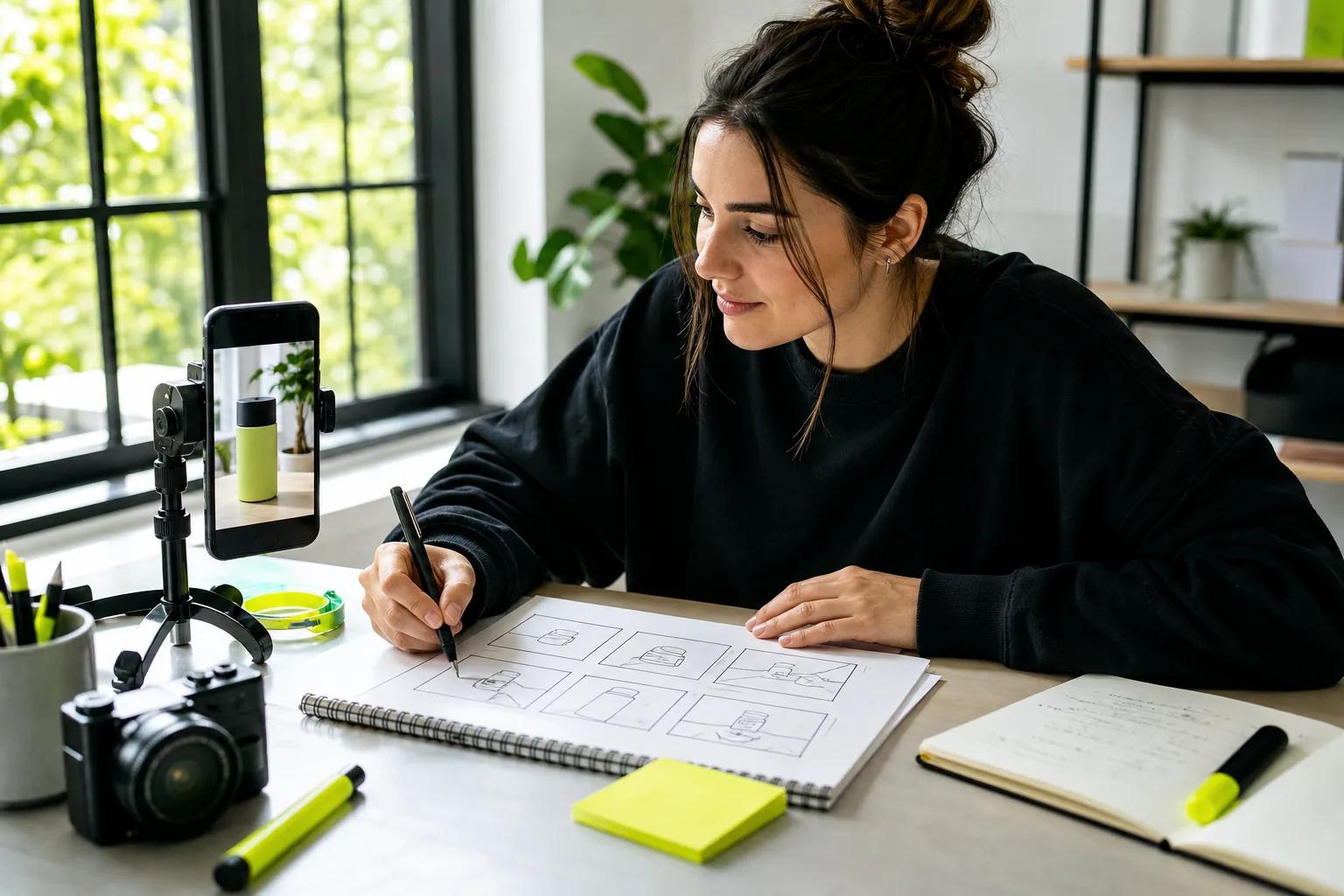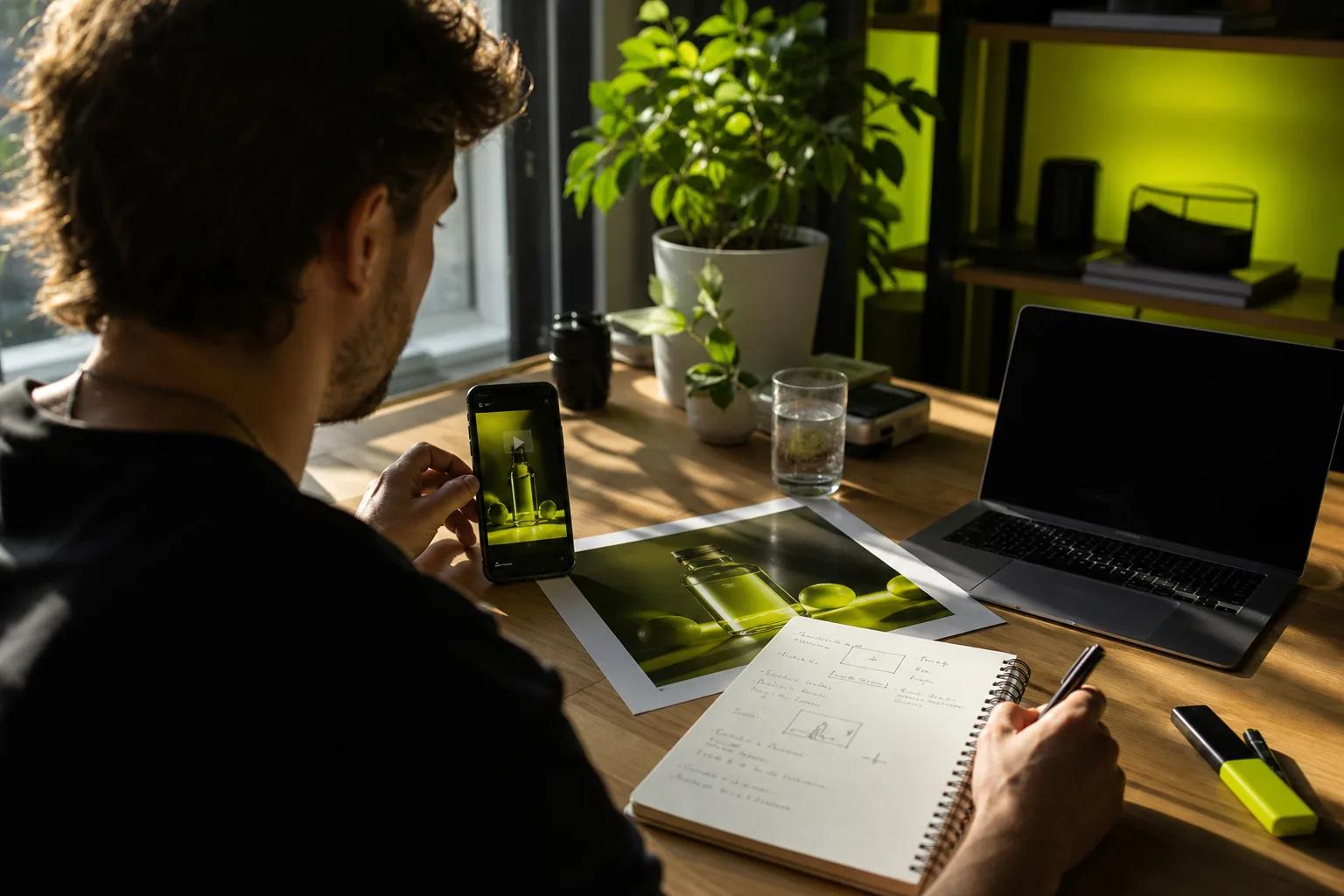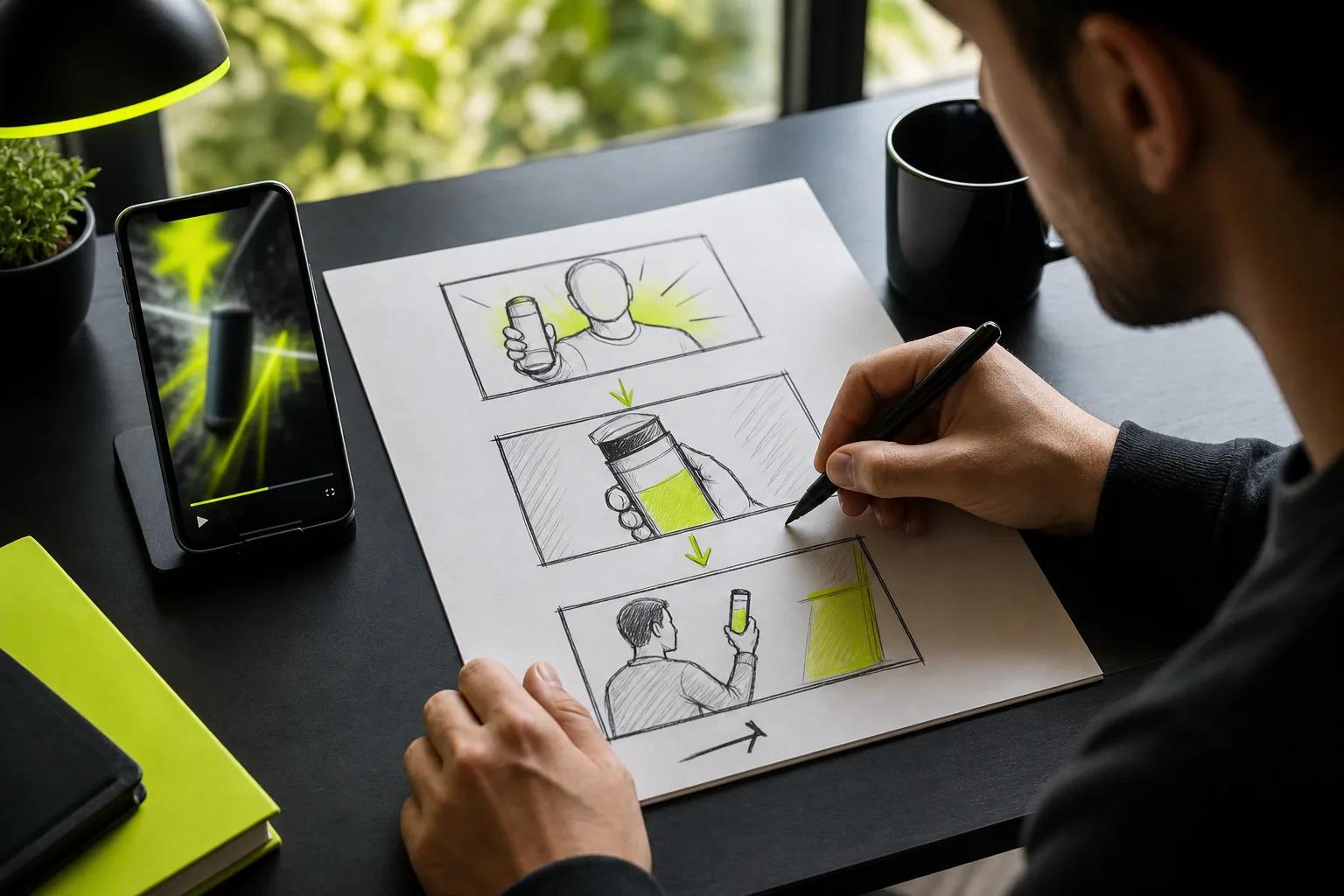
A still photo can become the opening shot of a video, with a little motion and a clear plan. To animate an image, choose what should move, describe that action, then review the clip before you share it. Here’s a hands-on workflow for making a short video from a photo, whether you’re building a product ad or a Reel.
We analyzed 46 YouTube comments about animating an image and found that 22% mentioned software limitations.
Step 1: Choose a Clear Image and a Motion Goal
Start with a sharp image where the main subject is easy to see. A portrait needs a clear face. A product photo should show the item’s shape and key details. If the image is blurry or tightly cropped, motion may make those flaws more obvious.
Next, decide what the video needs to do. A product clip might draw attention to a feature with a slow camera push. A landscape could use drifting clouds. A portrait may need a small head turn or a spoken line. Keep the goal to one main action at first.
Check the space around the subject, too. If you want a camera move, the frame needs room for it. Think about the final layout before uploading: a vertical crop suits TikTok, Reels, or YouTube Shorts, while a wide frame may fit a website or presentation. Wan Studio’s image-to-video workflow uses your uploaded photo as the first frame, so it anchors the clip’s look and composition.
Image-to-video tools generate motion from a still, while keyframes let you set positions at different points in an edit. A simple zoom or pan is often enough when you want to preserve the photo as-is. If you want the subject or setting to move, AI generation can build motion from your prompt instead. When writing a prompt, focus on movement, camera action, and mood.
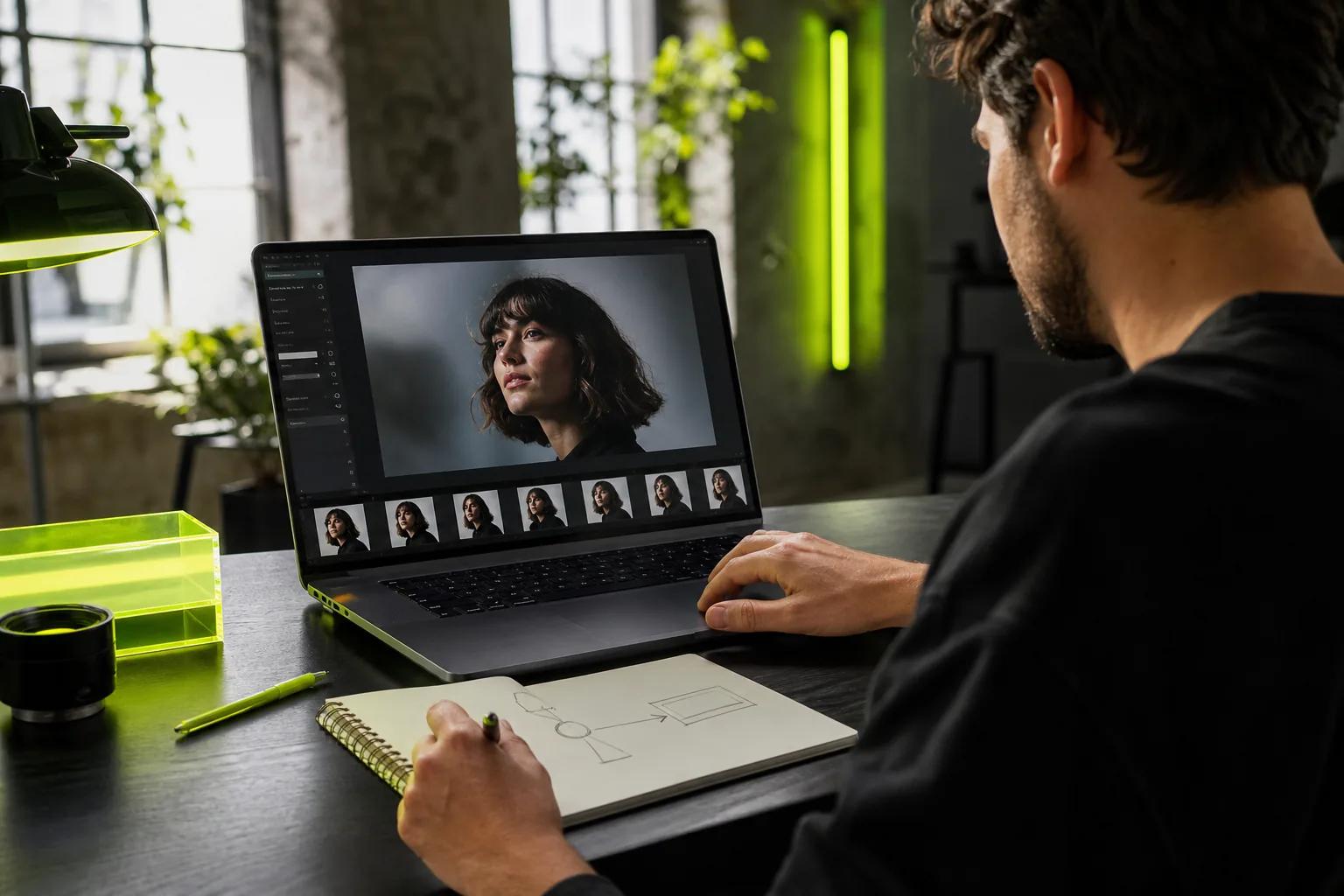
Before you upload, confirm you have the right to use the image, especially if it shows another person. Wan Studio screens image references that appear to show real people for privacy reasons. For more information, see Wan Studio’s Wan 3.0 model page.
Step 2: Write a Prompt That Directs the Motion
Your image already shows the subject, setting, and style. Use the prompt to tell the model what happens next. Name the action first, then add one camera move and a note about the mood or light. Skip a long description of details the image makes clear.
For a product photo, you could write: “Slow camera push toward the ceramic mug. Steam curls gently above it. Warm morning light. Keep the mug’s shape and printed design unchanged.” For a portrait, try: “The person turns slightly toward the camera and smiles. A soft breeze moves their hair. Slow push-in, natural window light.”
Use plain film terms when they help. A push-in moves closer. A pan shifts the view side to side. A static shot keeps the camera still while something in the scene moves. Decide what stays still, too. That can reduce unwanted motion, especially when a product label or a face needs to remain clear.
Don’t ask for five actions in one short clip. If the shot needs a person to turn, pick up an object, walk away, and speak, the model has a lot to resolve. Make the first version simpler. Then add another action only if the result needs it.
Wan Studio supports prompts that describe the shot, camera movement, lighting, and sound. For spoken words, put the exact line in quotation marks. For example: “She looks at the camera and says, ‘Your morning, made simpler.’” Native audio and lip sync depend on the Wan model you choose, so check the mouth movement and sound in the output rather than assuming every take will match perfectly.
If you’re building prompts often, the image-to-video prompt tips and templates can help you keep the instruction focused. Change one part at a time. If the camera move works but the hair moves too much, adjust that motion phrase rather than rewriting the whole prompt.
Step 3: Generate the First Animation and Refine It
Make a short draft before you spend time polishing the idea. In Wan Studio, add the photo as the first frame, write your motion prompt, then set the clip length and frame shape. The studio shows an estimated credit cost before you generate. A short, lower-resolution draft makes it easier to test whether the motion works.
Wan Studio offers several routes for a still image. Wan 2.5 is available on the free plan, with a couple of 480p videos each month and no card required. Paid plans include Wan 3.0, which supports image-to-video clips up to 30 seconds, and Wan 2.7, which supports reference images and first- or last-frame control. Choose based on the job: Wan 3.0 can plan a longer scene, while Wan 2.7 gives you extra control over references and endpoints.
Watch the full render, not only the opening frame. Check the face, hands, product details, and background for changes. A smooth camera move can still distort a small label. If the subject bends or shifts in a way that breaks the original image, simplify the request or use a gentler move.
Change one thing per retry. If the subject barely moves, strengthen the action phrase. If the camera feels too fast, ask for a slow, steady move. If the movement is good but the framing is off, adjust the aspect ratio or crop rather than changing the subject’s action. This keeps each attempt useful: you’ll know what caused the difference.
For a sequence with the same character, consistency needs a little more planning. Keep the character description and visual style steady across prompts. Wan 3.0 is designed to keep characters consistent shot to shot within a scene, while Wan 2.7 lets you attach references and assign them roles in the prompt. Neither feature means every generated frame will be perfect, so review each shot before using it.
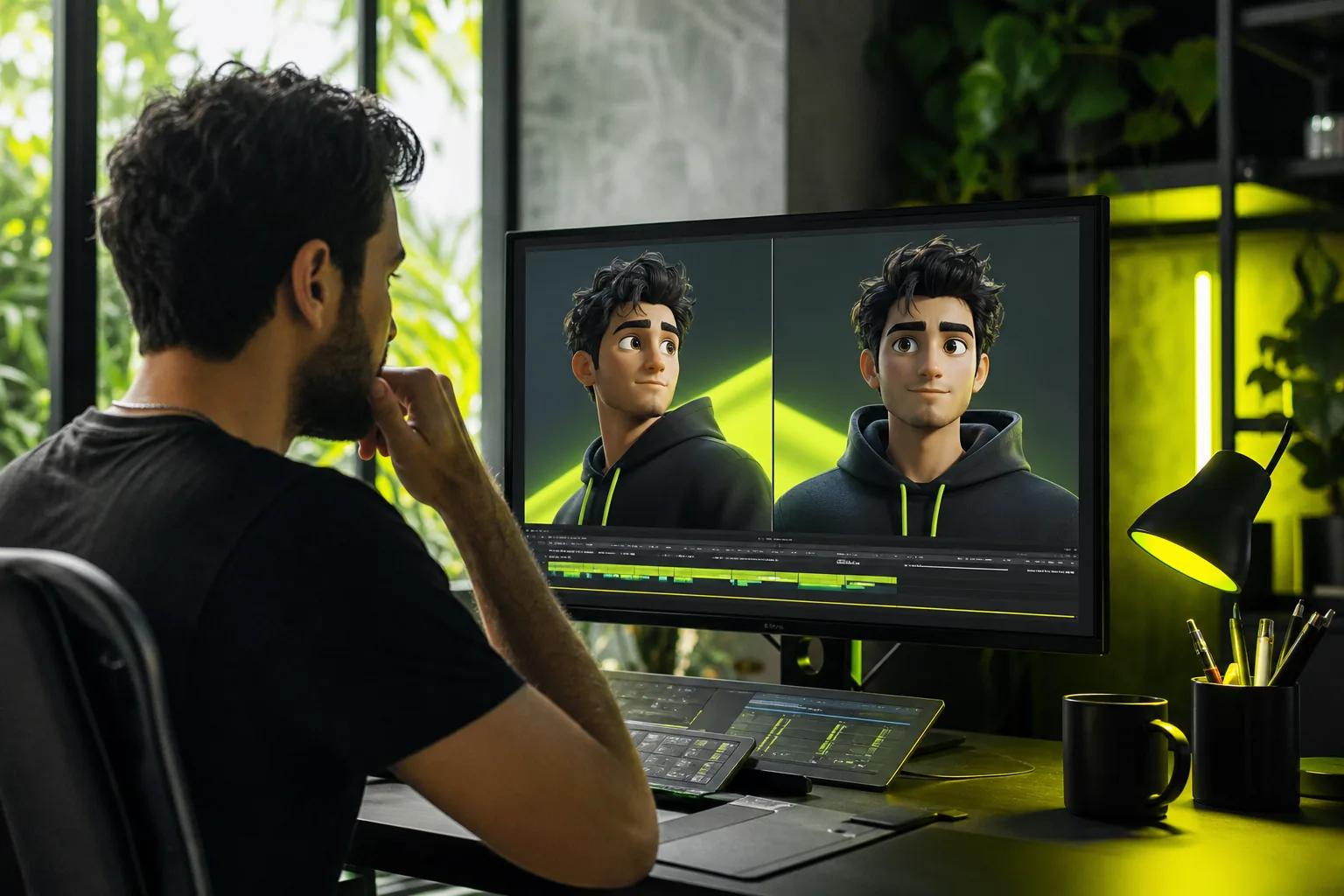
When you’re close, render the version you want to keep at your intended resolution. Wan 3.0 supports output up to 1080p, with 480p and 720p options as well. For a hands-on look at model controls, see the Wan 2.7 image and reference workflow.
Step 4: Add Sound, Music, or Lip-Synced Dialogue
Sound should support the action on screen. A landscape may need a soft ambient bed. A product reveal might work with a brief musical cue. A talking portrait needs dialogue that fits the clip, with enough time for the words to land.
Some image-animation workflows use an editor to add audio after the motion is done. Wan models from Wan 2.5 onward can generate native audio in the same pass as the picture, including music, sound effects, and lip-synced dialogue. In Wan Studio, put spoken words in quotes and describe the sound you want. For example: “The barista says, ‘Ready when you are,’ as the espresso machine hisses.”
Keep dialogue short. A long script can crowd a brief clip, and fast speech can be hard to follow. Listen once with headphones if you can. Check that the voice is clear and that the sound fits what viewers see. For lip sync, watch the mouth closely; generated alignment can vary from take to take.
If your image has no person speaking, don’t add dialogue just to fill space. Sound effects or a music bed may fit better. You can also leave the clip silent and add approved music during your social platform’s editing or publishing process.
Wan Studio makes video and audio together for supported Wan models, but the result still needs a human check. If you’re making a talking portrait, the step-by-step guide to making a picture talk covers framing, dialogue, and lip-sync review.
Before posting, check that you have the rights to any music or voice material you add. Paid Wan Studio plans include a commercial licence; the free plan is for trying the service. Match the sound to the use of the clip, then keep the mix clear enough that the main message doesn’t get buried.
Step 5: Review, Export, and Adapt the Video for Social Media
Do one final pass with the sound on, then watch again with it muted. The first check catches awkward audio or lip sync. The second shows whether the picture tells the story on its own. Look for a slow opening, a strange last frame, or a detail that changes between frames.
Choose the aspect ratio for the place you’ll post. Wan Studio supports vertical 9:16, square 1:1, and landscape 16:9, among other fixed ratios. Wan 3.0 also has adaptive framing, which can pick a composition for your prompt. If the clip is for a specific social feed, set that format before generating when you can. The uploaded first frame’s aspect ratio also guides the output.
Export an MP4 for a standard social video workflow. If you’re making a short looping graphic instead, an editor may let you export a GIF, but check the file size and image quality before sharing. Don’t upscale a small draft and expect it to look like a high-resolution source. Generate at the resolution you need for the final placement.
For a product ad, compare the export with the original photo. Confirm the product’s color and shape still look right. Check any visible writing by eye. Generated video can alter small details, and a polished camera move won’t fix an inaccurate label.
Also check accessibility. Give the post useful alt text that describes the image or video’s main point. If motion is decorative, avoid making it flash or move so fast that it distracts from the message. Add captions when people need to understand speech without sound.
Wan Studio lets you download the finished MP4. Generated media stays in its library for 30 days, so download anything you want to keep. If you’re preparing a vertical post, the TikTok video workflow has more format and publishing tips.
FAQ
Can I animate a photo without AI?
Yes. Put the image on an editing timeline, set its starting position, then add a keyframe later with a different position or scale. The editor fills in the motion between those points. This works well for a gentle zoom or pan when you want the source image to stay unchanged. Use AI image-to-video when you want the subject or setting itself to move.
What kind of photo works best for animation?
A sharp image with a clear subject is a good starting point. Leave some space around the subject if you want to pan or zoom. For product clips, use a photo where the shape and important details are easy to see. For a portrait, make sure the face is clear. A clean source gives you more to work with during review.
Can AI animate a picture and make it talk?
Yes, some AI video models can generate lip-synced dialogue from an image. In Wan Studio, supported Wan models generate speech in the same pass as the video. Add the exact words in quotation marks, keep the line short, then check the mouth movement and audio in the rendered clip before posting.
What file format should I use for an animated image?
Use MP4 when you want a regular video for a social post, ad, or website. A GIF can work for a short loop, but it may be less suited to detailed footage. Pick the format based on where the animation will appear, then check the exported file on a phone or screen close to the one your audience will use.
Conclusion
Start with one clear photo and one motion goal, then make a short draft and inspect it before you publish. Download any clip you want to keep, and make the next version only after you know what needs to change.