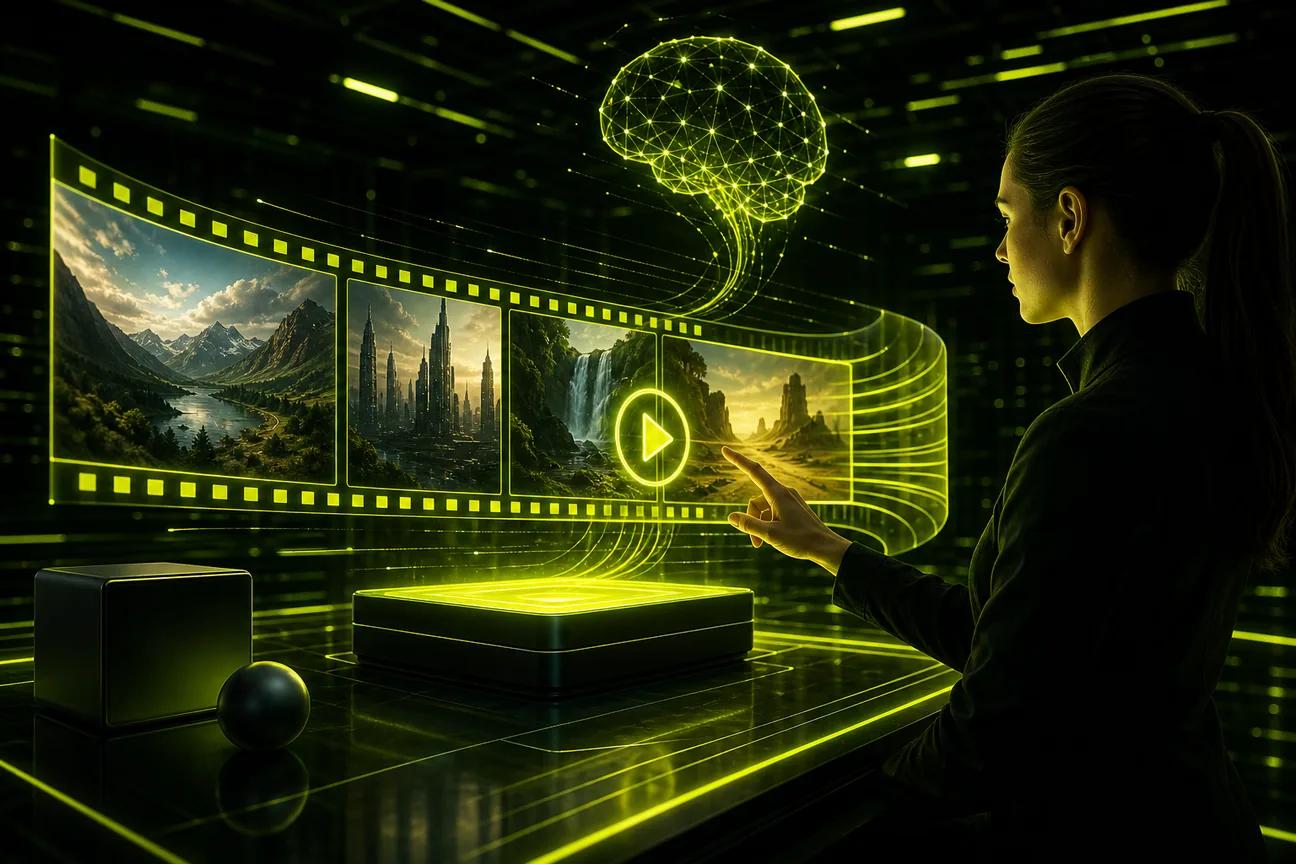
Want to turn a simple idea or product photo into a TikTok-ready clip? This guide shows you how to make AI videos for TikTok, then edit and post them with less guesswork. Start with one clear idea, make a vertical clip, and check every detail before you upload.
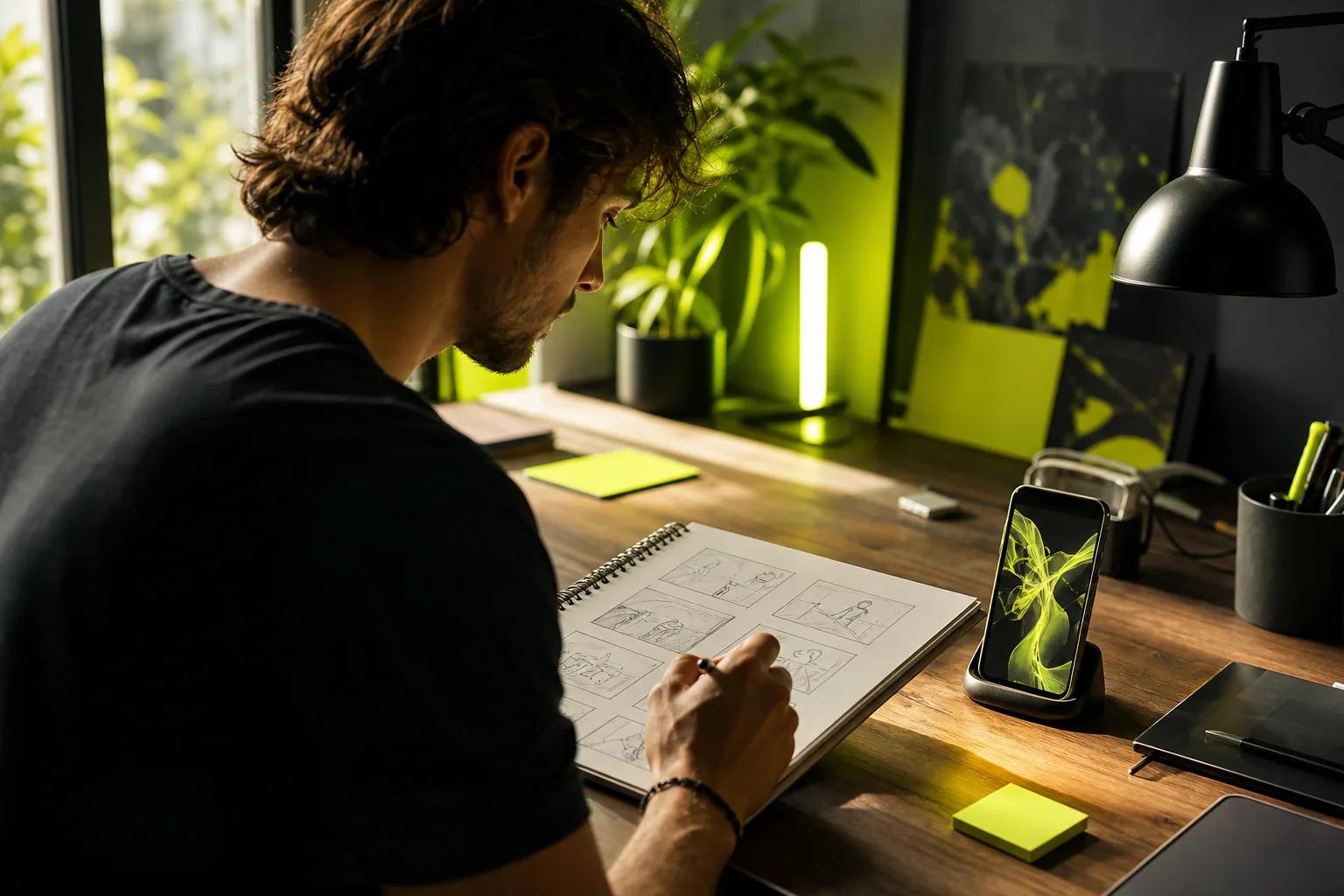
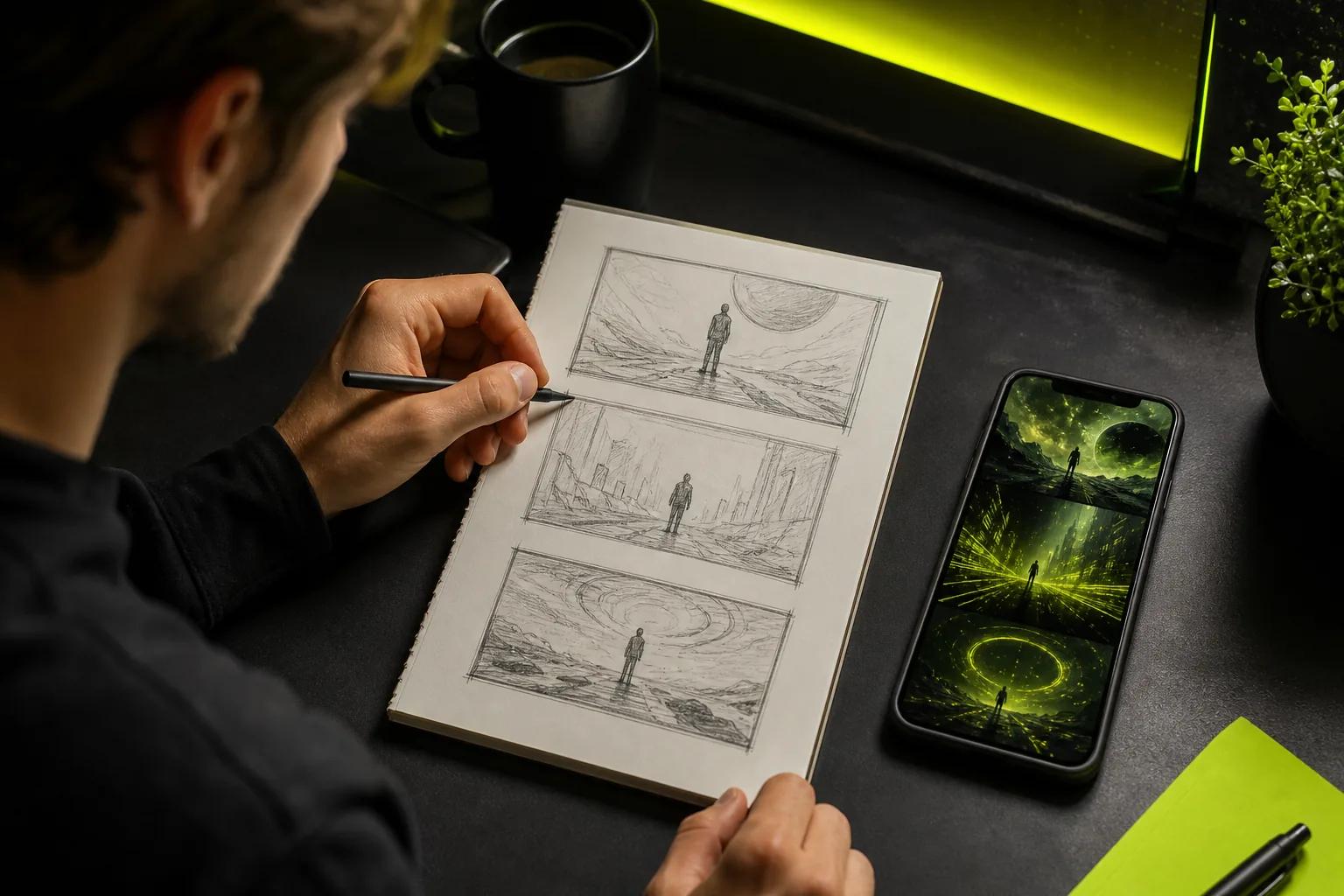
Step 1: Plan a TikTok concept and vertical storyboard
Give the video one job. It might show how a product works, tell a short story, or answer a question your customers ask. Write that job in one sentence. Then choose the opening image or action that makes someone pause.
Sketch a few beats before you generate anything. A product clip could open on a close-up, show one useful feature, then end on the item in use. A character scene might start with a surprising line, cut to a reaction, and finish with a small payoff. For story ideas, you could also adapt a folktale or visual detail from Indian mythology books into a short scene.
Plan for a 9:16 frame, the shape used for full-screen vertical video. Keep the main subject near the center, with open space for captions. TikTok buttons and captions cover parts of the screen, so don't put key text right at the bottom or along the right edge.
For a shop clip, decide what the viewer should learn before adding a link or offer. Show the real product honestly. AI can help animate a photo, but it shouldn't make up a feature or result.
If you want to compare tools before you start, this TikTok AI video generator comparison can help you match a workflow to your next clip.
Step 2: Create source images and choose an AI video generator
Start with a source image when the product, outfit, or character needs to look a certain way. You can use a photo you own or make a still image with an image generator. Review the image first. If the product shape or label is wrong, fix the still before you spend time animating it.
Image-to-video turns a still into motion. Text-to-video starts with a written description instead. Wan Studio supports both workflows. Its Wan 3.0 model can take a text prompt or a first-frame image, while Wan 2.7 also supports image and video references. Wan Studio is an independent product that provides access to Wan models; it isn't affiliated with or endorsed by Alibaba.
Use this quick decision table to pick the right starting point. It compares the job each route suits, rather than trying to rank every generator.
| Your need | Starting route | What to check |
|---|---|---|
| Animate a product photo | Image-to-video | Does the first frame keep the product's shape and layout? |
| Build a scene from a written idea | Text-to-video | Can you set the vertical ratio and clip length? |
| Make a talking character or spoken ad | A generator with native dialogue and lip sync | Check the model's sound and dialogue features before generating. |
| Trim clips and add text or effects | A video editor | Can you make cuts, add overlays, and export a vertical file? |
Wan Studio's free plan includes a couple of Wan 2.5 videos each month at 480p, with no card required. Paid plans start at $14 per month and include a commercial licence. Credit use changes with the model, duration, and resolution, so check the estimate shown before you generate.
For a closer look at still-photo workflows, browse these image-to-video AI generator options. A free editor such as CapCut can handle cuts and overlays; its free basic use has no watermark. Test your actual export before planning a full batch.
Step 3: Write a detailed prompt, generate clips, and refine them
Write the prompt like a short shot brief. Name the subject first. Then say what it does, how the camera moves, and what the scene looks and sounds like. One main action per clip usually gives you more control than asking for several events at once.
Try a prompt like this: “Vertical 9:16 close-up of a ceramic mug on a kitchen counter. Steam rises as the camera slowly pushes in. Soft morning window light. A kettle clicks off in the background.” For dialogue, add the exact spoken line in quotation marks. Wan models support native sound; Wan 2.5 and later can generate music, sound effects, and lip-synced dialogue in the same pass as the image.
For a two-person scene, name the speaker on each line. Tell the model that only the speaker's mouth moves, while the other person listens or reacts. These directions can guide a generation, but they don't guarantee a perfect result. Watch the preview for odd mouth movement, shifting faces, or objects that change shape.
Generate a short, low-resolution draft first. If the framing or motion misses the mark, change one part of the prompt at a time. For example, keep the subject and light fixed while changing “fast pan” to “slow push-in.” On Wan Studio, Wan 3.0 supports clips up to 30 seconds and fixed 9:16 framing. Wan 2.7 supports reference inputs and clips up to 15 seconds.
Keep the strongest take, not the first take. A prompt guide can help you build clearer shot instructions, especially when you need to reuse a character or product setup.
Step 4: Edit the clip, add sound, and create accessible captions
Bring the selected clip into an editor and watch it once without stopping. Cut any pause before the hook. Trim the end once the point or joke lands. For a product post, make sure the item stays visible when the voice describes it.
Add music or sound effects only if they help the scene. AI-generated sound can come with the clip in supported Wan models. You can keep it, lower it under a voice-over, or replace it with sound chosen for your post. If you use a trending sound, check TikTok's in-app options and make sure it fits the message.
Captions make spoken content easier to follow with the sound off. Use auto-generated subtitles as a draft, then check names, product terms, and every line that matters. Keep captions in a safe middle area, away from the buttons and text that TikTok places over the video.
Use a free editor for basic cuts, text overlays, and filters. Keep overlays brief. If the clip has a spoken offer, make sure the caption says the same thing. Don't rely on tiny text to explain a claim the video doesn't show.
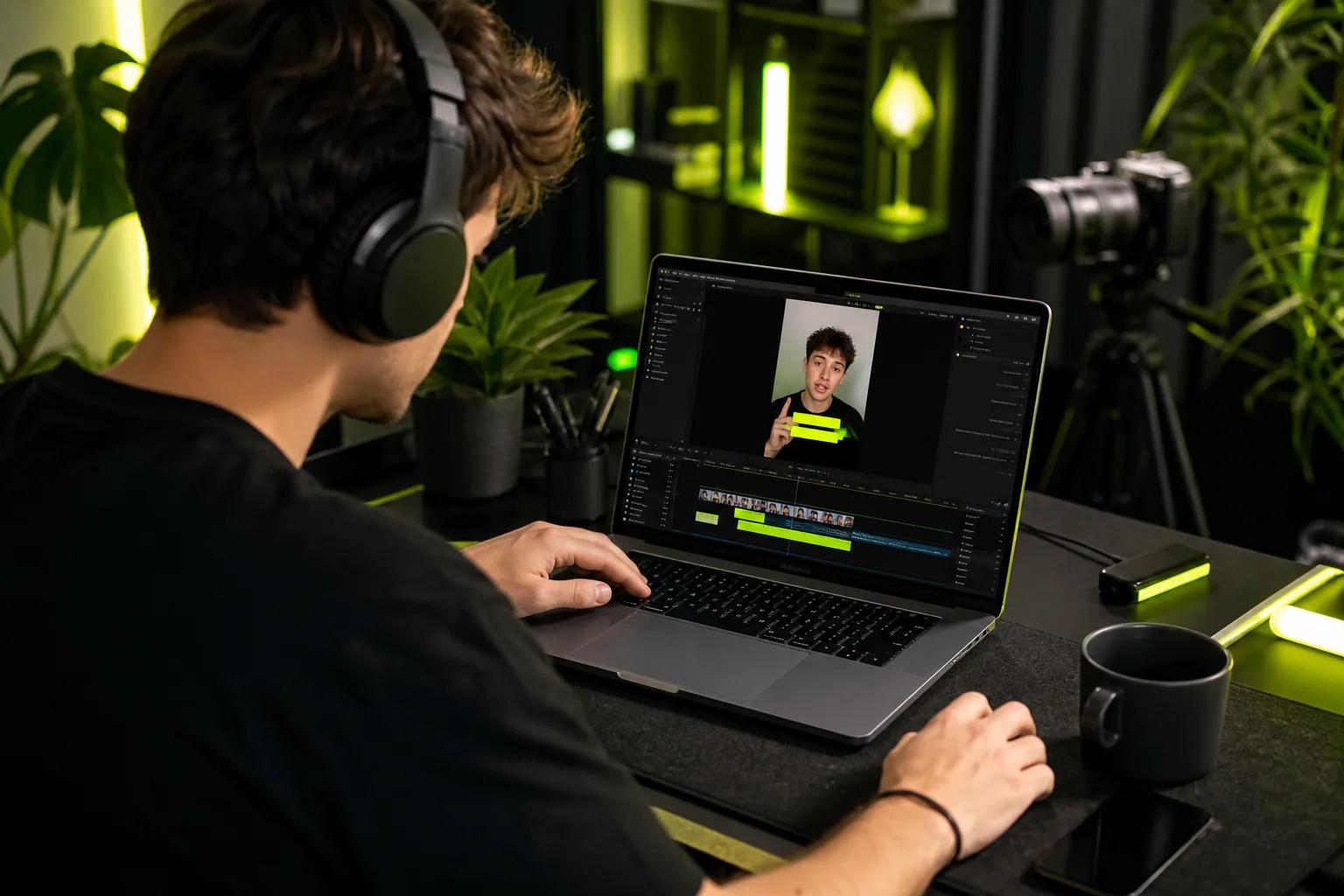
Before export, check that captions are easy to read against each shot. A white caption over a bright wall may disappear, so add a simple shadow or solid backing. Keep the edit clean enough that the main action still draws the eye.
Step 5: Export in the right format and upload to TikTok
Export a vertical 9:16 video so it fills a phone screen. MP4 is a common choice for social video, and Wan Studio downloads generated videos as MP4 files with sound. Choose a resolution that fits your need: the free Wan 2.5 plan exports at 480p, while paid plans include 720p and 1080p options.
Check the saved file before uploading. Watch the first and last seconds. Confirm the sound plays, captions aren't cut off, and the subject stays in frame. If the source image set the aspect ratio, check that it matches your vertical storyboard.
Upload the clip in TikTok and review the preview in the app. Add your caption and choose a cover frame that shows the subject clearly. TikTok's official site is the destination for publishing your post; use the platform's AI-generated content label when it applies to your video.
For a product post, check the spoken and written claims against the real item. If you add a shopping link or affiliate link, make sure it points to the right product and that your caption makes the relationship clear. A polished video still needs an honest offer.
Step 6: Improve reach and batch-create videos efficiently
No prompt can promise a viral post. You can give a good idea a fair shot by making the opening clear and keeping each clip focused. Put the question, visual surprise, or product use in the first moment. Then deliver on that opening instead of adding a long intro.
Use a sound that fits the post, not a trend that distracts from it. Keep the finished video within TikTok's current upload limits, and choose a length that gives the idea room without repeating itself. A short demo may need one shot. A mini story may need several cuts, each with a distinct purpose.
Batching helps when you have several posts to make. Choose a few ideas around one product or theme, then reuse the same framing and visual style. Draft prompts together. Generate short tests, review them, and spend higher-resolution credits only on the clips worth keeping.
- Make one hook variation by changing the opening shot.
- Make one feature variation with a different close-up.
- Make one story variation that answers a customer question.
Save the final files outside your generator's media library. Wan Studio stores generated media in its library for 30 days, so download anything you want to keep. A prompt-based workflow also makes it easier to reuse a scene with a new opening or voice line. For more prompt ideas, use this guide to AI video prompt generator tools as a starting point.
After posting, note which opening drew useful comments or kept viewers watching. Make the next batch from that signal. Change one thing at a time, such as the hook or caption style, so you can tell what helped.
FAQ
Can I make AI videos for TikTok for free?
Yes, you can start with a free AI video plan or a free basic editor. Wan Studio's free plan includes a couple of Wan 2.5 videos per month at 480p, with no card required. Free access varies by tool, so check resolution, watermarks, and usage rights before you plan a post for a business account.
What prompt should I use for an AI TikTok video?
Use a prompt that names one subject, one action, the camera move, and the look or sound. For example: “Vertical close-up of a glass of lemonade on a sunny table. Slow push-in as ice shifts. Light outdoor ambience.” Add exact dialogue in quotes when you want a character to speak. Review the result and revise one detail at a time.
How do I make an AI video vertical for TikTok?
Set the video ratio to 9:16 before you generate, if the tool gives you that choice. Keep the subject near the center and leave space for app controls and captions. If you're animating a still, check its shape first because some image-to-video tools follow the source image's aspect ratio.
How do I add captions to an AI TikTok video?
Add captions in your editor or use TikTok's caption tools during upload. Treat automatic subtitles as a first draft. Review them for misspelled names and product terms, then move the text away from screen controls. Captions that are part of the video file stay visible when you share that file elsewhere.
Can AI-generated TikTok videos include speech and music?
Some models generate speech, music, or sound effects with the video. Wan 2.5 and later support native audio, including lip-synced dialogue when you place the spoken words in quotes. Check the model and preview the output before you post. Lip sync and sound are model capabilities, not a promise that every generation will be flawless.
Conclusion
Start with one clear idea, make a short vertical draft, and check the result before you polish it. If you want to turn a product photo or prompt into a social clip, try a small test in Wan Studio, then download the version you want to keep. For a tool-by-tool view, see the TikTok video generator comparison.