How to create Instagram ads that feel at home in the feed, then send people to a useful next step? Start with the goal, build the ad in Meta Ads Manager, and match the creative to its placement. You can use an existing photo or make a short video from a prompt, then review the finished ad before spending more.
We analyzed 34 comments and questions from YouTube and Quora about creating Instagram ads and found that 53% asked about ad setup and targeting.
Step 1: Choose How You’ll Create and Manage the Ad
First, check your account setup. You’ll need an Instagram professional account, either Business or Creator, and a Facebook Page linked to it. If you don’t have those yet, switch your Instagram account in its settings and create a Page for your business. Then connect both in Meta’s business settings.
For a quick way to promote a post that’s already doing well, Instagram’s boost option may be enough. It has fewer choices. For a campaign built around sales, leads, website visits, or another measured action, use Meta Ads Manager. It gives you a campaign objective, an ad set for audience and budget choices, and the ad itself. Meta describes Ads Manager as its tool for creating and managing ads across its platforms.
Open Meta Ads Manager and check that the right Page and Instagram account are connected before you begin. If your ad sends people to a website, make sure your measurement setup can track the action you care about. For an online shop, that might be a purchase. For a service business, it could be a submitted lead form.
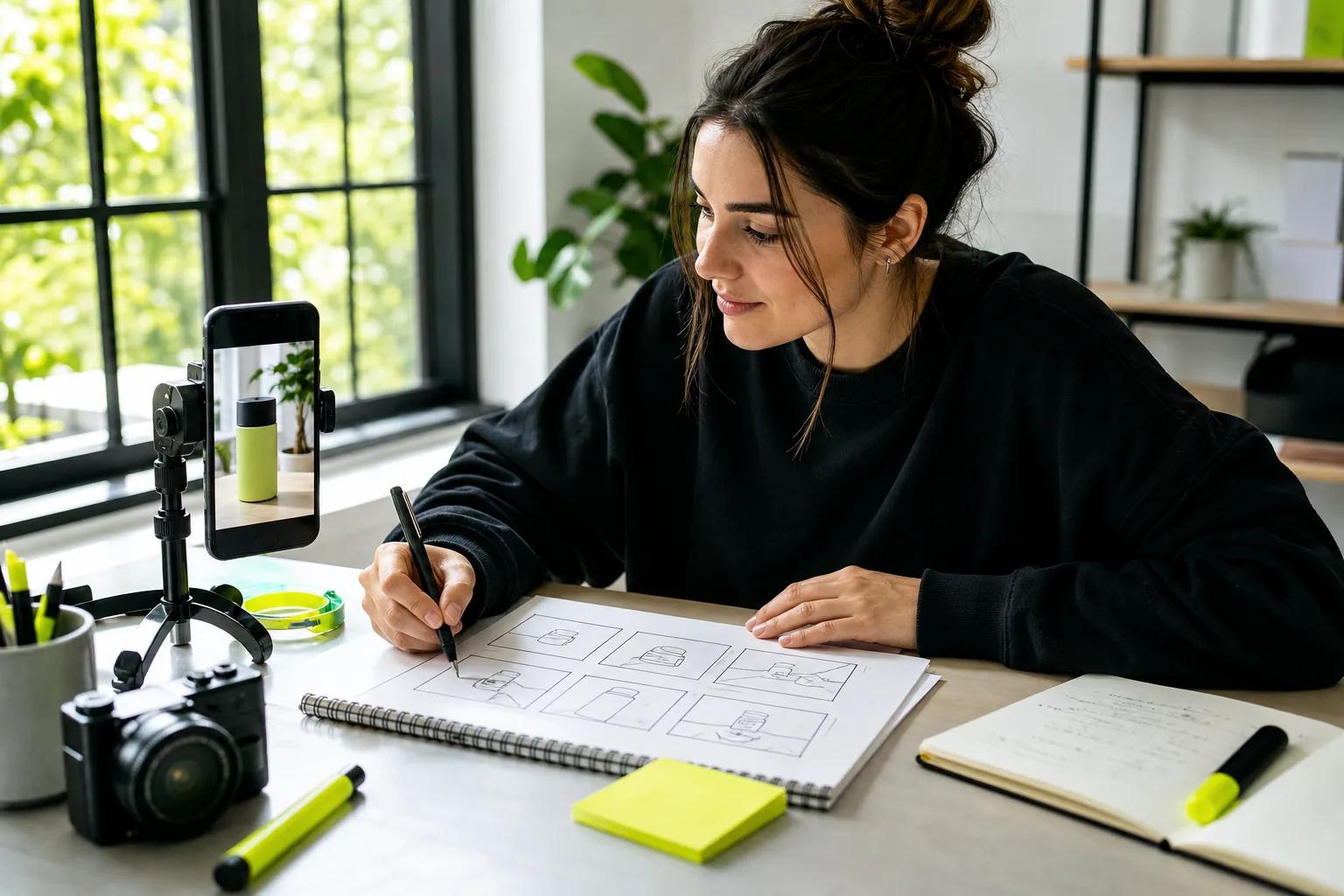
Ads Manager can feel like a lot on the first visit. Keep the campaign structure simple. Choose one goal, one audience to start, and a small set of creative versions. If you’re still planning the message and story, this step-by-step video ad planning guide can help you shape the idea before you build the campaign.
Choose one workflow before you make assets: boost a post for a quick test, or build in Ads Manager when you need more control over delivery and results.
Step 2: Select a Campaign Goal, Audience, and Budget
At the campaign level, pick the result you want Meta to seek. The label you see can vary with the campaign setup, but the choice should match the action you care about. Use a sales goal when you want purchases. Use leads when you want contact details or inquiries. Choose traffic when a visit to a website or page is the main goal.
Don’t pick an engagement goal just because likes are easy to see. If you need sales, the campaign should be set up around sales and tracked accordingly. A lot of views can feel good, but they won’t tell you whether the ad brought in a customer.
At the ad set level, choose who should see the ad. Start with location and the age range that fits your offer. Add interests only when they clearly relate to your buyer. A neighborhood service, for example, needs a local audience. A product that ships widely may need a larger area. Avoid adding so many narrow filters that only a tiny group remains.
If you have customer or site-visitor data, you may be able to build a custom audience or test a similar audience, depending on what’s available in your account. You can also begin with broader audience settings and let delivery find people likely to take the action you chose. Don’t split a small budget across many ad sets at launch. That makes it harder to see which audience and creative are working.
Choose a daily budget if you want a clear spend limit for each day. A lifetime budget sets a total for the campaign period. Pick an amount you can afford to spend while learning, and check the planned dates before publishing. Ad costs change with audience, competition, timing, and campaign goal, so there isn’t one price that fits every business.
Before launch, confirm that the destination works on a phone. If the ad promises a product detail, sale, or booking, the landing page should make that next step easy to find.
Step 3: Create an Instagram Ad Creative That Fits the Placement
Instagram has several ad formats. A single photo can show one product clearly. Video can show it in use. A carousel lets someone swipe through multiple cards, while a collection ad can group products for browsing. Stories and Reels use full-screen vertical creative. Feed ads can use a photo or video, and Explore placements put ads among discovery content. Shopping ads may include product tags when your shop setup supports them.
Pick the format that helps a viewer understand the offer quickly. A single photo works when one image says enough. Use a carousel when each card adds a new detail, such as a different color or step in a process. For a product demonstration, a short video may show what a still image can’t.
For Reels and Stories, start with a vertical 9:16 draft. Keep the main subject near the center, with room around it for interface buttons and text. Don’t place your only important detail at the bottom edge. For Feed, consider a square version if the crop makes the vertical creative feel cramped. Check each placement preview in Ads Manager rather than assuming one file will look right everywhere.
Make the opening frame clear before adding extra effects. Show the product or the problem it solves. Use one main point and one next step, such as viewing the item or signing up. If you add text, make it large enough to read on a phone. Also watch with the sound off, since the visual should still make sense without audio.
Wan Studio can turn a prompt or product photo into a short video, but review the output for product details before you use it as an ad. For a hands-on walkthrough of planning and posting vertical content, see how to make Instagram Reels.

Match the file to the placement, then check the crop and the first frame on a phone. A polished ad that hides its product or message under interface controls needs another edit.
Step 4: Make a Short Video Ad From Prompts or Product Photos
If you don’t have footage, start with a clear product photo or write a prompt for a new scene. Wan Studio runs in a browser and turns text prompts or images into short videos. The free plan includes a couple of Wan 2.5 videos a month at 480p, with no card required. Paid plans start at $14 per month and include a commercial licence.
For a product photo, use image-to-video. Upload the photo as the first frame, then describe one action and one camera move. For example: “The cup stays centered as steam rises. Slow camera push toward the rim. Warm morning light.” A focused prompt gives the model a clear job. Avoid asking for a string of unrelated actions in one short clip.
If you’re starting from text, name the subject and what it does. Then describe the setting and camera movement. Add sound only if it helps the message. Wan 2.5 can generate music, effects, and lip-synced dialogue in the same pass as the video. Put the exact spoken line in quotes, then check the words and mouth movement in the result.
Wan 3.0 is the default model on paid plans. It supports clips up to 30 seconds and output up to 1080p, with fixed aspect ratios or adaptive framing. For Instagram, choose 9:16 when you know the clip is for a full-screen placement. Use a short draft first, then spend more credits on a version that has the right motion and framing.
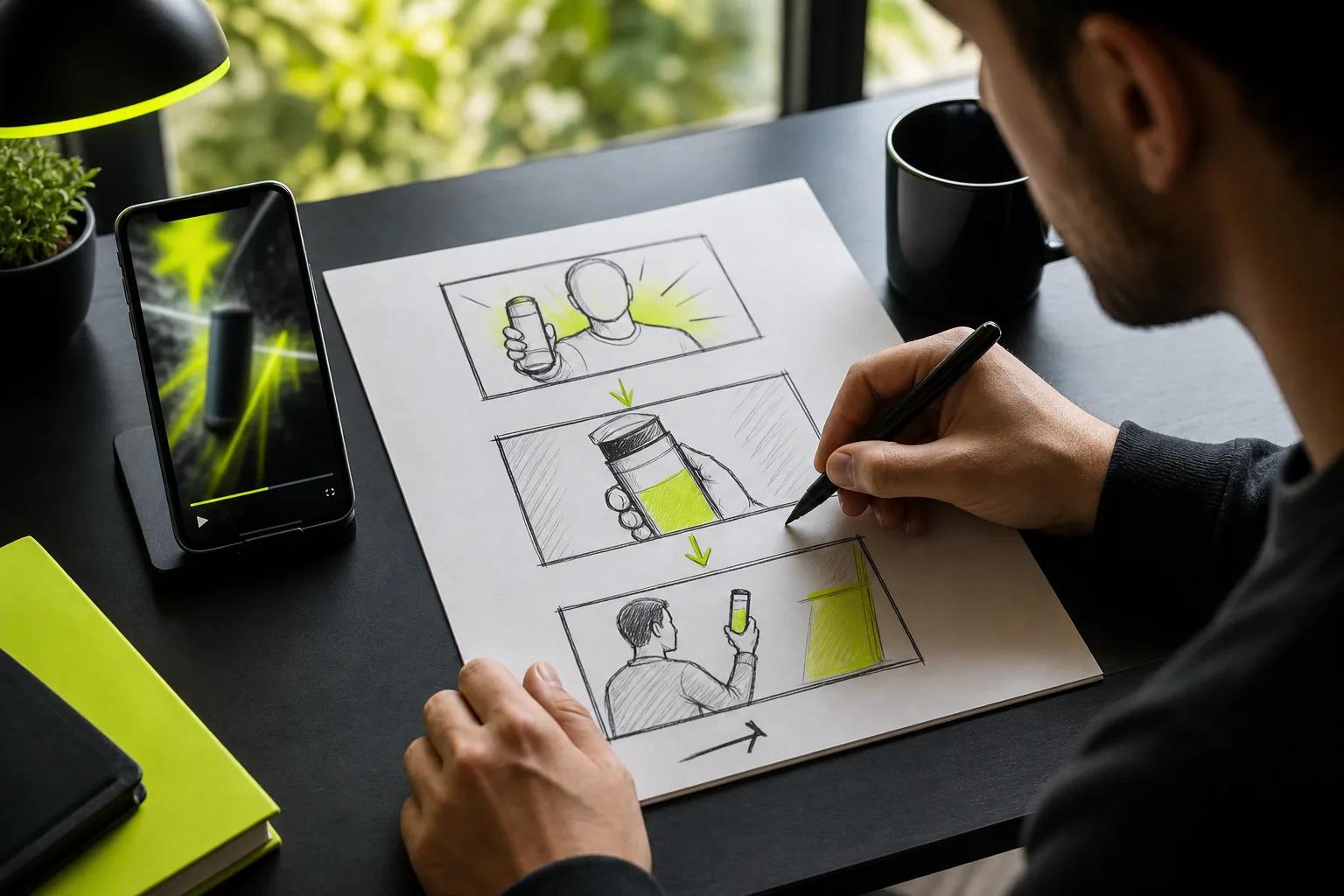
Keep the ad focused: one hook, one benefit, one action. A simple sequence might open on the product, show a close detail, then end on the viewer’s next step. Use generated dialogue or sound as a creative element, not as proof of a product claim. Check every visual detail before publishing.
Wan Studio keeps the process in the browser, from prompt to MP4 download. For a photo-led workflow, these steps for turning a photo into a video cover image choice, motion prompts, and export checks.
Step 5: Review, Publish, and Improve Your Instagram Ad
Before you publish, open each preview in Ads Manager. Check that the right Instagram identity appears, the link goes to the right page, and the call to action matches your goal. Play the video with sound, then mute it. Look for a slow opening, clipped captions, odd lip sync, or product details that change between frames.
Make sure the ad follows applicable platform rules. Review requirements for your category, especially if you advertise regulated goods or make health, financial, or performance claims. Use honest wording and make sure the destination page backs up what the ad says.
If you sell products, check whether your shop and catalog are set up for the placement you want. Product tags and catalog-based formats depend on account setup and eligibility. Don’t assume a tag will appear just because a product is visible in the creative. Preview the ad and confirm the right item is connected.
Once the ad is live, judge it by the goal you chose. For sales, review purchases and cost per purchase. For leads, look at completed leads and cost per lead. For traffic, check link clicks and what visitors do after they arrive. Instagram Insights can help you understand organic account activity; Ads Manager is where you should review campaign delivery and results.
Test one change at a time. Keep the audience and offer steady while you try a new opening frame. Then compare that version with the original using the same goal. If you change the audience, creative, and offer together, you won’t know what caused the result. Give a test enough time to gather useful data before making another change.

Keep a note of each version’s audience, opening, and goal. That small habit makes the next test easier to read and helps prevent you from repeating a weak ad by accident.
Frequently Asked Questions
Do I need a Facebook Page to run Instagram ads?
You’ll generally need a Facebook Page linked to your Instagram professional account to set up ads through Meta’s business tools. Check the account connections before building a campaign. This helps ensure the ad uses the Instagram identity you expect, rather than showing a different Page identity.
What’s the best Instagram ad format for a small business?
The best format depends on what you need to show. Use a single image for one clear offer, a carousel when each card adds useful detail, or a short vertical video for a product demonstration. Preview the ad in its intended placement and choose the format that makes the next step easiest to understand.
How much should I spend on Instagram ads?
Set a budget you can afford to spend while learning, then pick a daily or lifetime limit in Ads Manager. Your actual ad cost depends on the goal, audience, competition, and timing. Start with one campaign and a simple audience setup so your spend and results are easier to assess.
Can I make Instagram video ads from product photos?
Yes. You can animate a product photo with image-to-video tools such as Wan Studio. Start with a clear image, describe one action, and set the frame for the placement. Review the generated clip closely to confirm the product’s shape and details stay right before using it in a paid ad.
How do I know if my Instagram ad is working?
Compare results with the campaign goal you picked. Track purchases for a sales campaign, completed inquiries for a lead campaign, or useful visits for a traffic campaign. Views and likes can show attention, but they don’t prove the ad met its business goal. Use Ads Manager to check paid campaign results.
Conclusion
Build one focused campaign, make creative that fits its placement, and review the preview before you spend more. If you need a video but don’t have footage, try a short draft in Wan Studio using a product photo or prompt, then check the result on your phone before uploading it to Ads Manager.