Good social videos give people a reason to stop, then get to the point. If you're learning how to make social media videos, start with one clear goal and shape every shot around it.
We analyzed 32 comments and questions from Reddit and Quora about making social media videos and found that 31% mentioned a single edit for multiple platforms.
Use these steps to plan a strong opening, make or film the visuals, and check the finished clip before you post. You can shoot it yourself or build a short video from a prompt or product photo with Wan Studio.
Step 1: Choose the Goal, Audience, and Platform
First, decide what the video should do. A clip can help people notice your brand, understand a product, or take one next step. Pick one goal. Trying to cover several at once often leaves viewers unsure what to remember.
Now name the person you want to reach. Be specific about what they need to know. A small shop might want to show how a tool works. A creator might answer a question that keeps coming up in comments. The audience’s problem gives you a useful starting point for the idea.
Choose the platform before you settle on the frame. TikTok, Instagram Reels, and YouTube Shorts all support short-form video, but the same clip may need a different opening, caption, or crop on each feed. A vertical 9:16 frame is a useful choice for full-screen phone viewing. Keep the subject and key details away from the edges, where app controls may cover them.
Then write a one-line brief: “This video helps [audience] understand [one point] so they can [next action].” For example: “This video shows new customers how the lid locks, so they can see how to carry the cup.” That sentence will guide your script and your shot choices.
Short-form video remains a major part of social plans in 2026, but a trend alone isn’t a reason to post. Choose a format that suits your goal. A quick demonstration needs a clear view of the action; an awareness clip may need a striking first image.
If you're building a product spot, this step-by-step promotional video plan can help you connect the message with a clear next action.
By now, you should have a target viewer, one goal, and one planned platform. Next, turn that brief into a hook a viewer can understand right away.
Step 2: Shape the Idea Into a Hook and Short Script
The hook is the first line, action, or image that gives someone a reason to keep watching. Skip the long greeting and the logo animation. Start with the problem, result, or question your video will answer.
Try a direct line such as, “Here’s the fast way to check the fit,” or open on the product already doing its job. A question can work too, if the clip answers it. Don’t promise a surprise and then spend the rest of the video on background.
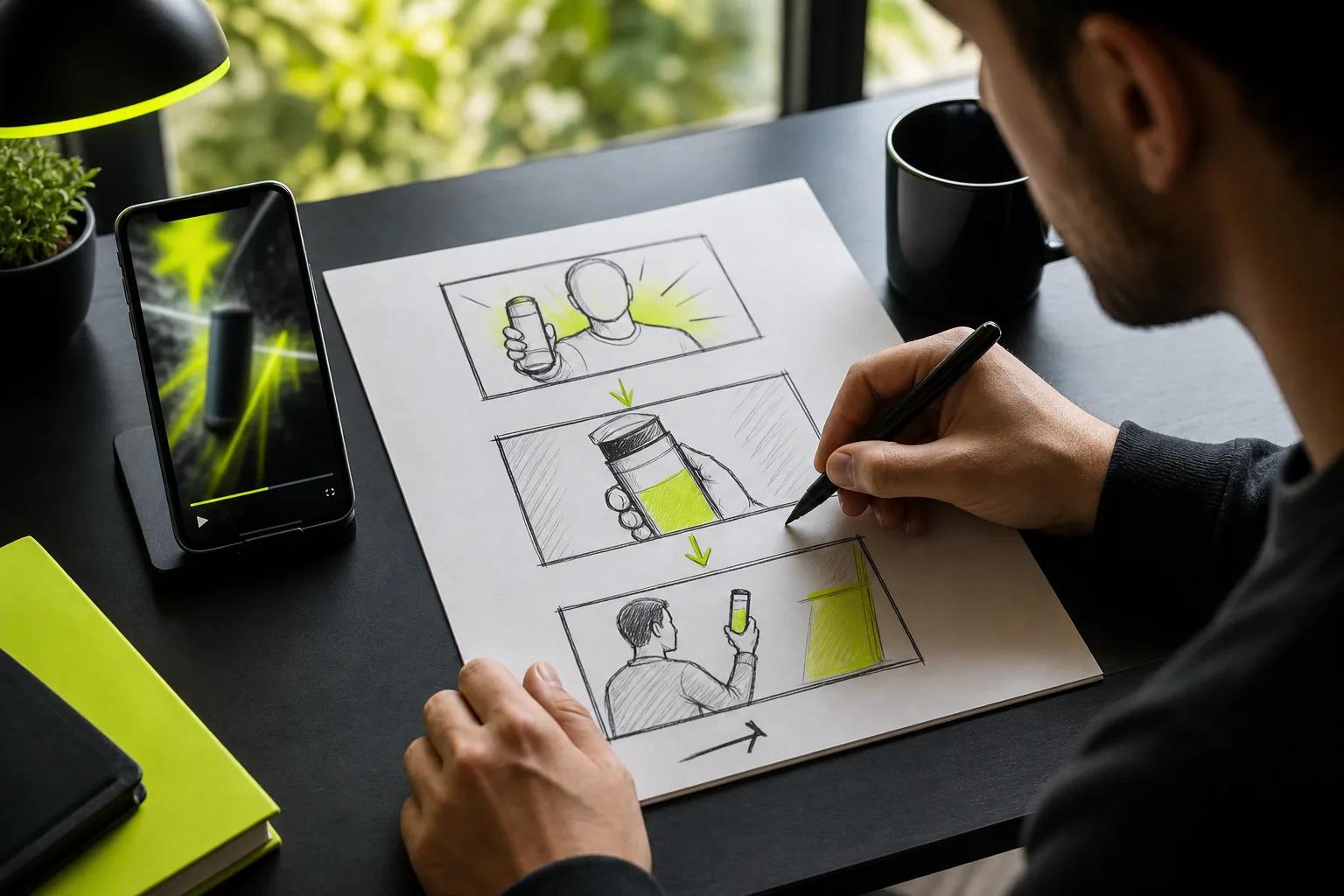
Write the script in three beats: hook, proof, next step. The proof should make the message visible. If you say a bag fits under a seat, show it sliding under one. If you say a tool opens a jar, show the hand using it. Keep the spoken words short enough to say naturally.
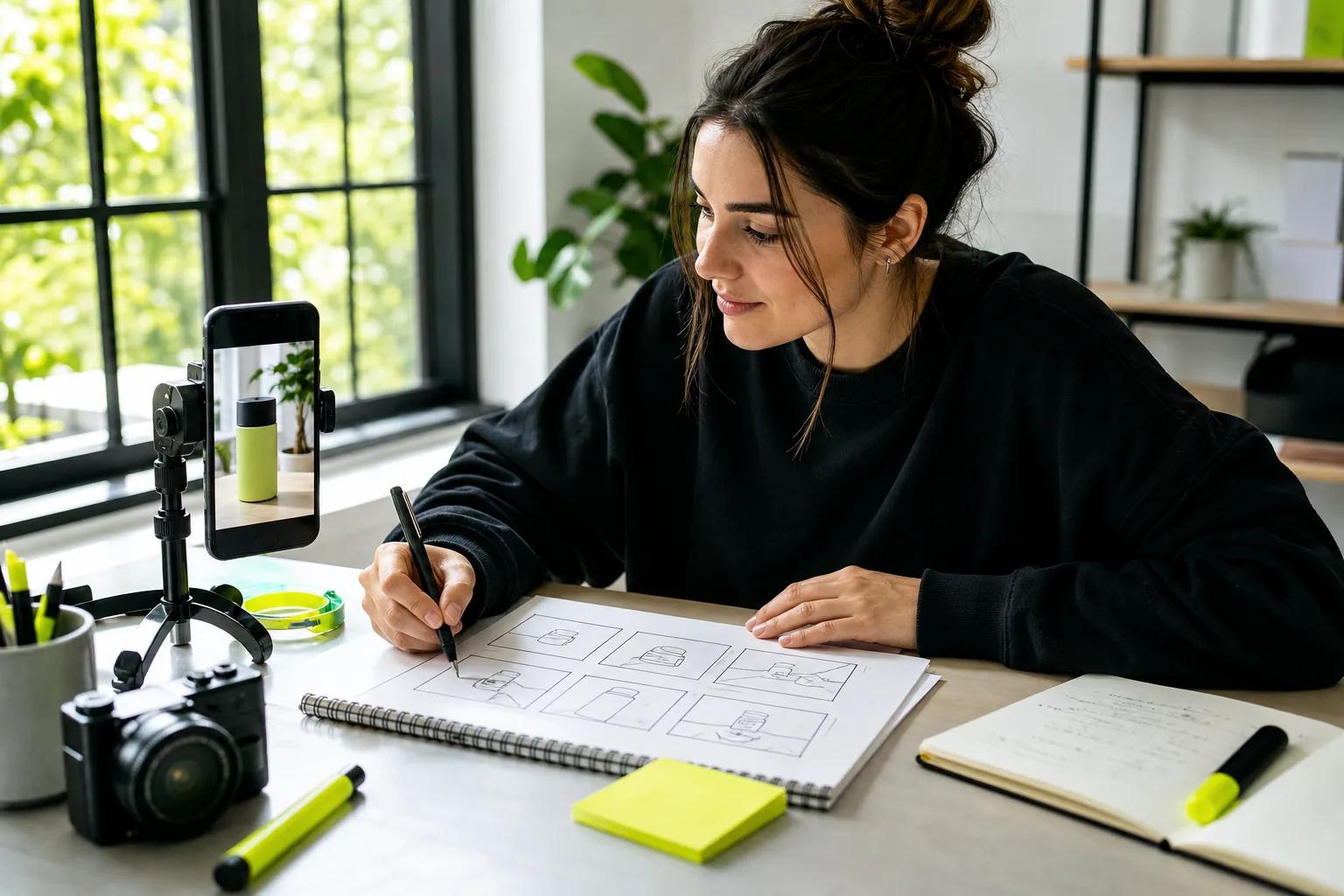
A simple two-column outline helps match speech to visuals. Put the line on one side and the shot on the other. For example, pair “The clasp stays shut in your bag” with a close view of the clasp closing, followed by the bag moving. This catches gaps before you film or generate the clip.
For a spoken scene made with AI, put the exact dialogue in quotation marks in your prompt. Wan models support dialogue with lip sync and sound generated alongside the video, but review the result rather than assuming every take will match perfectly. Keep a character’s line brief so it’s easier to check.
A useful prompt also says who or what is on screen, what happens, and how the camera moves. Add a lighting or mood cue only when it helps the viewer picture the scene. For example: “Close shot of a ceramic mug on a kitchen counter. Steam rises as the camera slowly moves closer. Soft morning light.”
For help turning the idea into speakable lines, use this guide to writing a video script. Read your draft aloud once. If you run out of breath or stumble over a line, trim it.
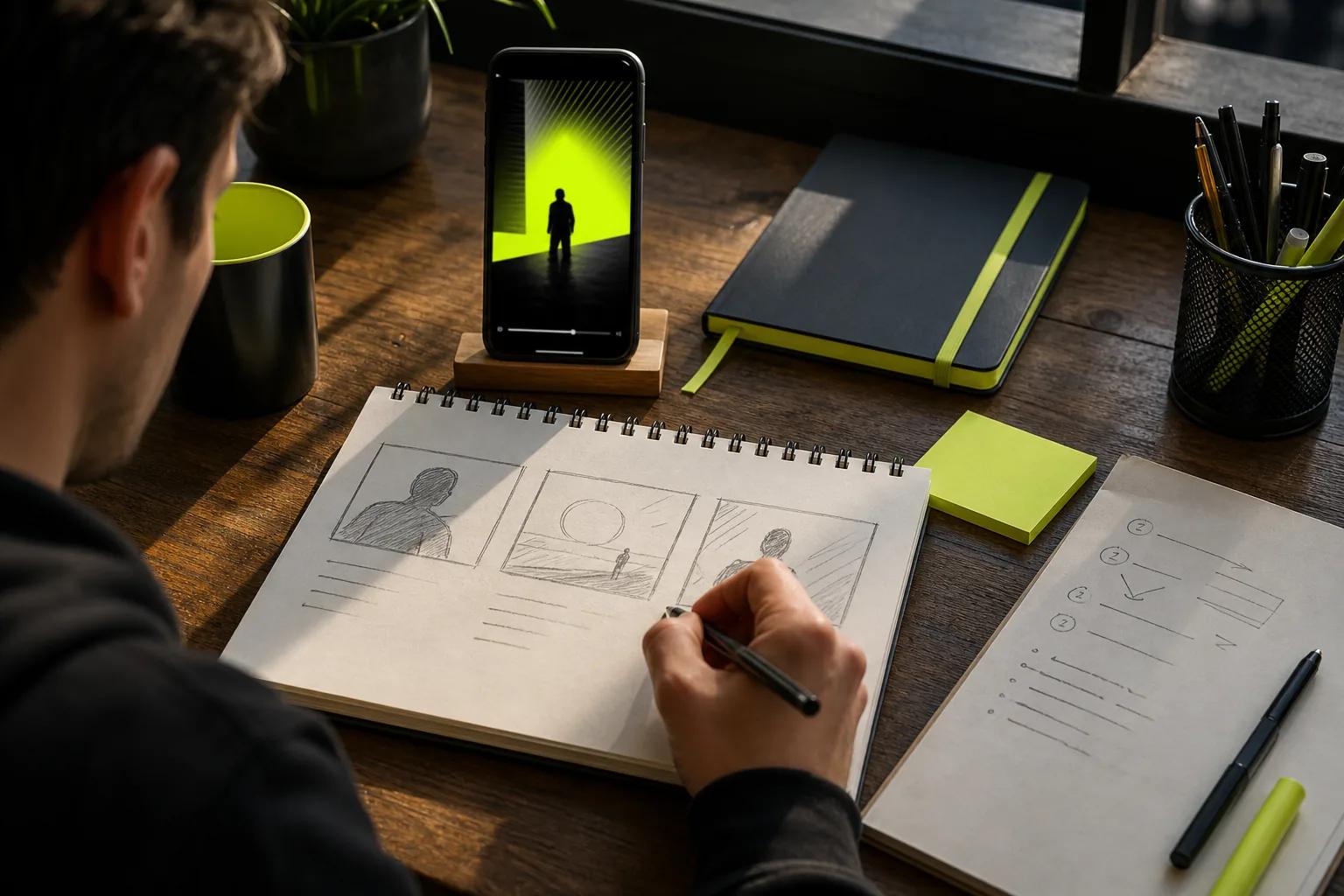
By now, you should have a hook, a short script, and a visual for each key line. That’s enough to plan the shoot or write a focused generation prompt.
Step 3: Prepare Your Visuals, Product Photos, and Audio
Gather the visual pieces before you record. If you’re filming, pick a tidy spot with light on the subject. Clean your phone’s camera lens and steady the device on a firm surface or tripod. A stable frame makes it easier to see the action, especially in close-up shots.
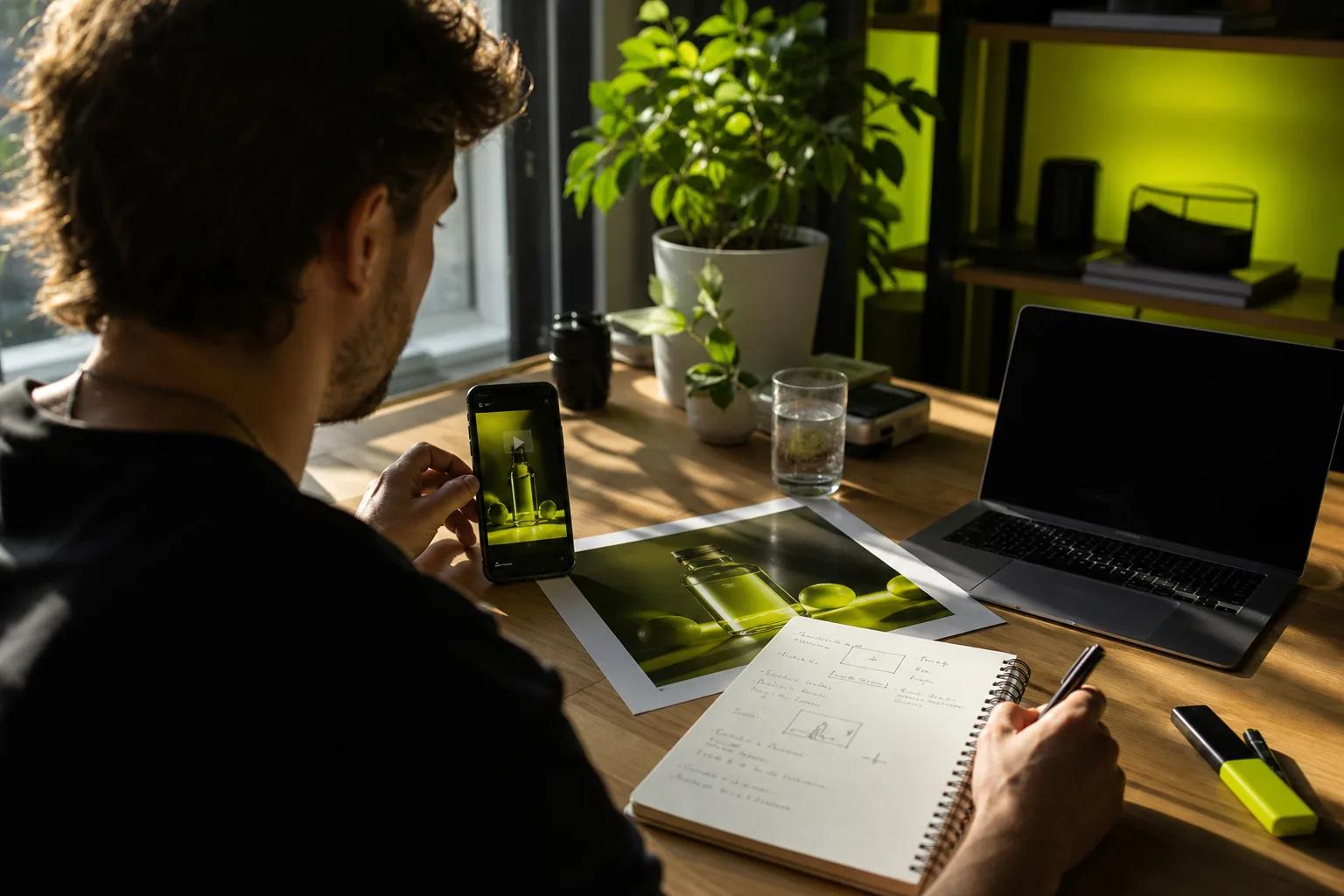
For a product video, check the item in the frame before you start. Move it until the shape and useful details are easy to see. Reflections can hide marks on glass or shiny surfaces; shifting the light may fix that faster than moving the camera. Take a short test and view it on a phone screen.
Have a product photo but no footage? Use it as the starting frame for image-to-video. In Wan Studio, you can add an image and describe the movement or camera move you want. The photo anchors the opening composition, so choose one where the item is clear and fully in frame. On Wan 3.0, you can select a vertical frame for a phone-first post.
If the video includes speech, record in a quiet room and keep the microphone near the speaker. Listen for noise before filming the full take. If you’re generating a scene with Wan, describe the sound you want, such as soft room ambience or a short line of dialogue. Wan 2.5 and later support sound generated with the picture; the exact capabilities depend on the model you choose.
Plan for viewers who may watch with sound off. Leave space for captions, and keep the main subject clear without audio. Add captions during editing if your workflow needs them. Check each line against the spoken words rather than trusting an automatic transcript without review.
Wan Studio can make short social clips from text prompts or images in a browser, without filming. Wan 3.0 supports clips up to 30 seconds and can keep characters consistent shot to shot within a scene. If you need image or video references to guide a scene, Wan 2.7 supports those inputs. Pick the model based on the input and control you need.
If the source is a set of still images, this guide to making a Reel from photos covers a photo-based route, including slide timing and music.
Before you move on, make sure the frame suits the channel and the source image or footage shows the right subject. A strong source makes the next step easier.
Step 4: Create the Video and Review Each Shot
Now make the first version. If you’re filming, record the hook first while the setup is fresh. Get a few takes of the main action, then capture close-ups that show the details your script mentions. Leave a beat before and after each action so you have room to trim.
If you’re generating a clip, start with a short prompt that covers the subject, action, camera move, and sound. Set the duration and frame shape for the platform. For a product-photo clip, say what should move and what should stay in view. For a character scene, describe the action in order and keep the character details steady.
With Wan Studio, you can generate a draft from text or start with a photo. Wan 3.0 creates clips up to 30 seconds and supports native sound, music, and lip-synced dialogue. If a character speaks, write the line in quotes. Watch the mouth movement and listen to the words together before using the clip.
Review the result once for the story, then again for details. Does the opening make sense without context? Does the subject stay in frame? Is the product still recognizable as it moves? Check hands, faces, text, and any spoken line closely. A generated scene can be useful and still need another pass.
For a filmed clip, look for focus shifts, shaky movement, or a hand blocking the subject. Keep the take that shows the action most clearly, not necessarily the one with the most energy. If you need another version, change one thing at a time. A different camera move or shorter prompt can make the cause of the change easier to see.
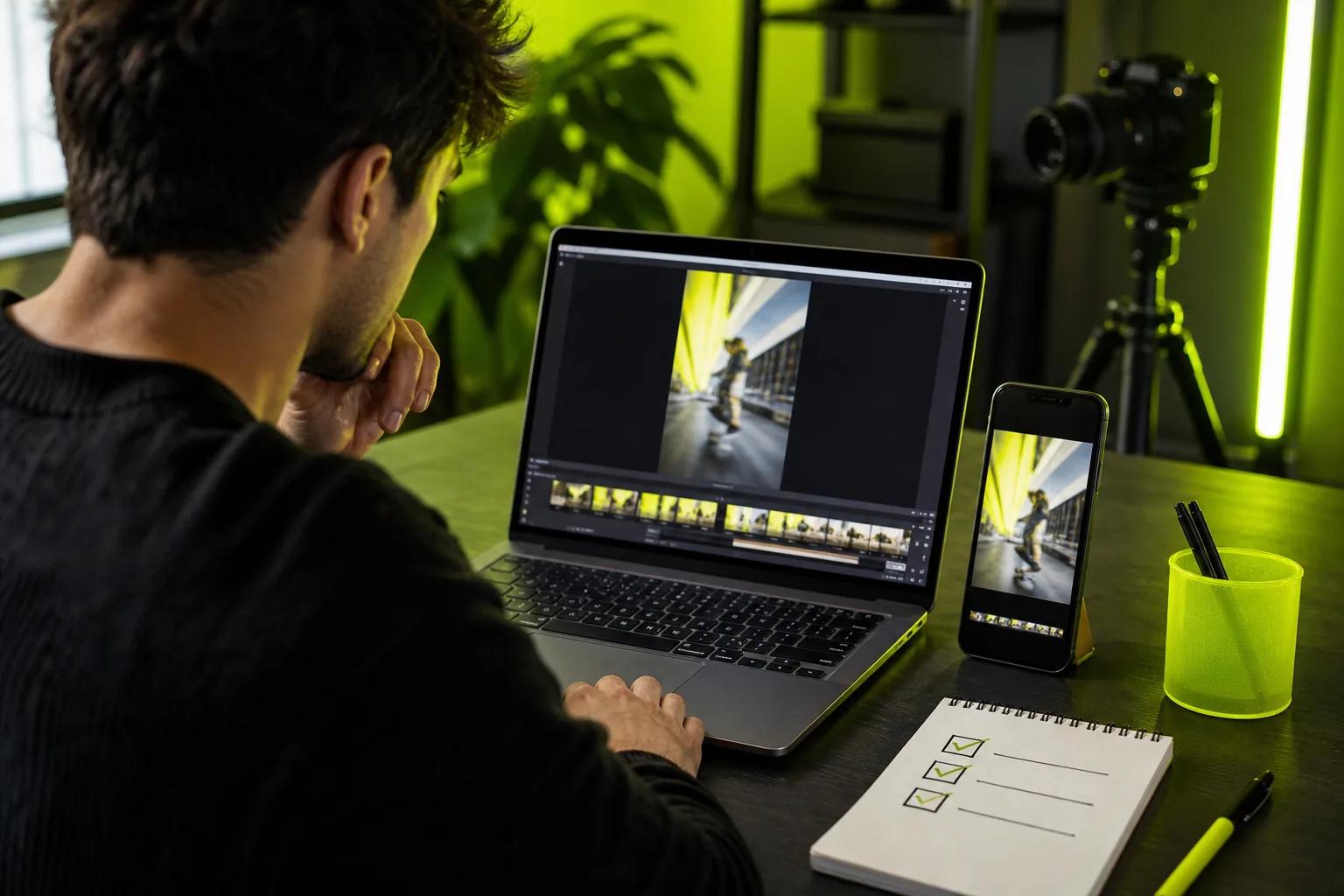
By now, you should have one usable take or generated clip that delivers the idea. Keep the best version and move to the edit.
Step 5: Edit for the Feed, Publish, and Learn From Results
Start the edit by removing setup time and any pause before the hook. Keep each shot only as long as the viewer needs to understand the point. If the video repeats the same detail, cut the extra beat. A short clip should feel clear, not rushed.
Add on-screen text where it helps. Keep it brief and easy to read on a phone. Leave breathing room around the subject and avoid placing key words close to the edges. If there’s dialogue, use captions that match what’s said. Read them once for spelling and timing.
Listen to the mix on a phone speaker. Speech should be easy to hear, and music shouldn’t fight it. Then watch once with the sound off. The main point should still make sense through the image and text. This quick check can catch a clip that depends on audio to explain too much.
Export a clean copy in the frame shape you planned. If you’re posting one idea on more than one platform, check each version in its own preview. A crop that looks fine in one feed may put a face or caption under another app’s controls. Make platform-specific changes instead of assuming one export fits everywhere.
Before publishing, check the first frame, the final moment, the captions, and the sound. For a product clip, confirm that the item still looks right. Wan Studio downloads generated videos as MP4 files with sound. Keep a copy of the final file somewhere you can find it; generated media in the studio library is stored for 30 days.
After posting, compare the result with the goal you chose in Step 1. If you wanted people to watch, look at view duration or completion. If you wanted visits, check clicks. Change one part of the next video, such as the opening image, while keeping the audience and message steady. That makes the result easier to learn from.
For a product-focused workflow, this product video guide explains how to connect a customer need with a useful shot and a clear edit.
By now, you should have a published video and one specific thing to test next time. Keep that note with the file so the next version starts with a real lesson.
FAQ
How long should a social media video be?
Make the video only as long as it needs to deliver one clear point. A quick product detail may take a few seconds, while a short demonstration needs time for the action to make sense. Choose the runtime after you outline the hook, proof, and next step. Wan 3.0 supports clips up to 30 seconds.
What size should a social media video be?
A vertical 9:16 frame is a useful starting point for full-screen phone feeds such as TikTok, Reels, and Shorts. Keep faces, products, and important text away from the edges. If you plan to post on several channels, preview each version in its destination app before publishing.
Can I make social videos from product photos?
Yes. You can use a product photo as the first frame in an image-to-video workflow, then describe the movement or camera action you want. Choose a clear photo where the item is fully visible. Review the output to make sure the product still looks right throughout the clip.
How do I make dialogue look and sound natural in an AI video?
Keep the line short and put the exact words in quotation marks in your prompt when using a model that supports lip-synced dialogue. Then review the spoken words, sound, and mouth movement together. Wan models from Wan 2.5 onward support native sound and dialogue, but each generated clip still needs a human check.
Do I need to film a social media video myself?
No. You can film with a phone, animate a photo, or generate a scene from a text prompt. Wan Studio runs in a browser and can turn prompts or images into short videos, so filming isn’t required for every idea. Choose the approach that gives you the clearest way to show the point.
Conclusion
Make one video for one viewer and one goal, then check that the opening delivers what the rest of the clip promises. If you have a prompt or product photo ready, try it in Wan Studio and review the first draft before you post.