You can turn an idea or product photo into a YouTube Short without setting up a camera. This guide to how to make YouTube Shorts with AI walks you through the work, from choosing a format to checking the finished clip before it goes live.
We analyzed 46 comments from YouTube and Reddit about making AI YouTube Shorts and found that 35% mentioned different AI video tool options.
Step 1: Choose a Shorts Niche and Validate Your Idea
Pick a niche you can keep making videos about. A strong idea has a clear viewer, a repeatable format, and enough room for new episodes. Think quick product demos, short how-to tips, or a tiny story with a twist.
Before you write, search YouTube Shorts for your topic. Note which openings show the payoff fast, and what viewers seem to respond to in the comments. Look for a format that appears across more than one creator. One popular clip can be a fluke; a pattern gives you something useful to test.
Borrow the structure, not someone else’s script or footage. For example, if a short ranks five kitchen mistakes, you could use that countdown shape for common mistakes in your own field. Give it original facts and examples. If you need a tool shortlist for different production needs, compare the options in this guide to AI YouTube Shorts generators.
Use an AI assistant to build a small idea list. Ask it to suggest ten video concepts for a specific audience, then score each idea for usefulness, ease of production, and how easily it can become a series. Check claims before using them, especially in health, money, or safety content.
Choose one idea and define its promise in a sentence: “After watching, the viewer will know how to ___.” If you can’t fill that blank clearly, keep shaping the idea.
By now, you should have one audience, one repeatable format, and a specific idea for your first Short.
Step 2: Write a Short Script and Voiceover With AI
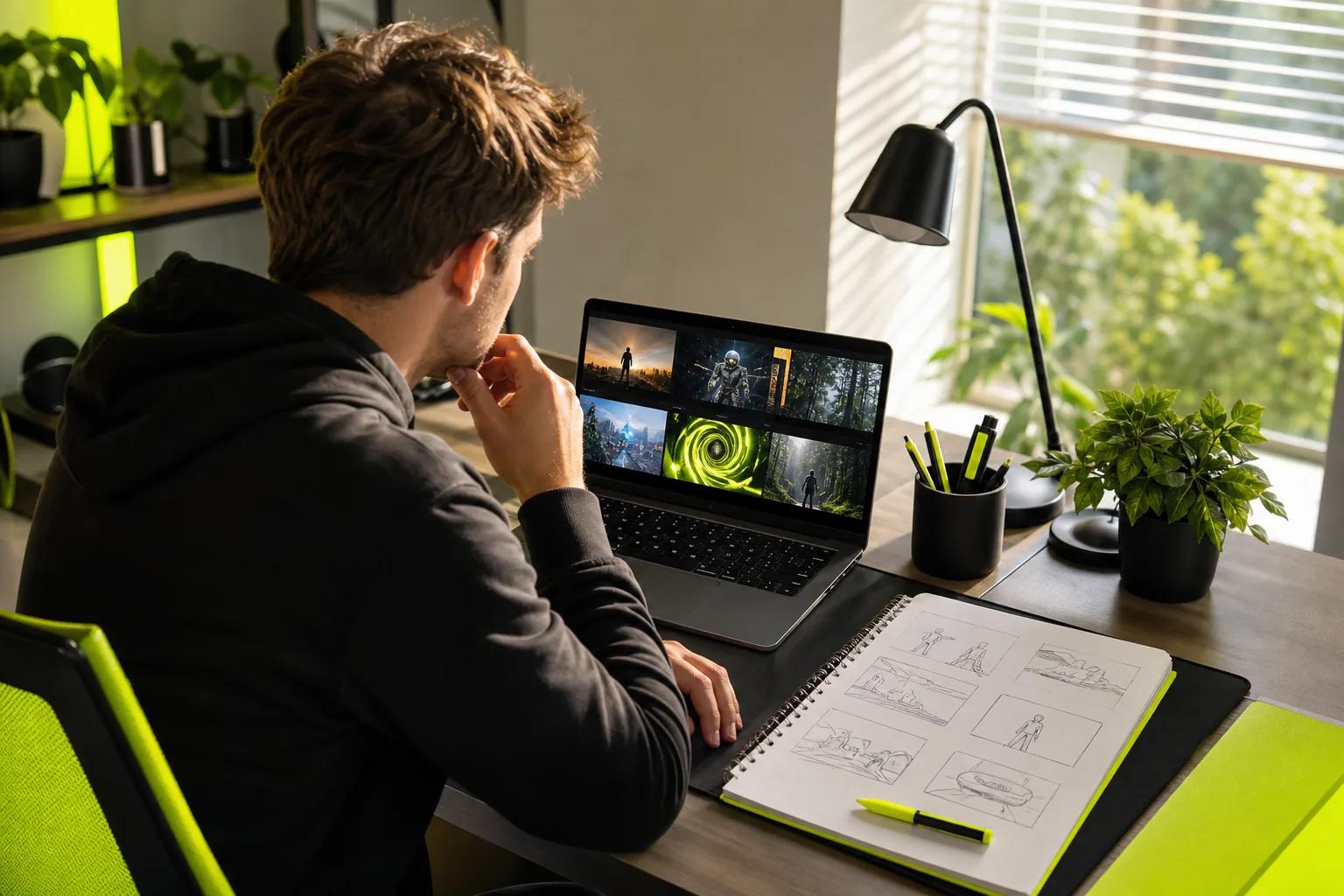
Give the Short one main point. Ask an AI writing assistant to draft a few versions, but give it a clear brief rather than “make this viral.” Include the audience, the takeaway, the tone, and the intended length. Ask for plain speech that sounds natural when read aloud.
Use a simple shape: open with a hook, explain one useful point, then end with a payoff or next step. A product clip might open with a common problem, show the product in use, and finish with one clear benefit. A story can set up a question, add a snag, then resolve it.
Ask the assistant to put each spoken line beside the image or action that should appear at that moment. That side-by-side plan helps you spot lines that have no visual proof. Cut greetings and throat-clearing. Read the script out loud, time it, and remove any phrase that makes you stumble.
If you want a voiceover, make a separate audio track or use a video model that generates speech as part of the clip. Keep the voice easy to understand, and leave room for pauses. Captions should support the spoken words, not bury the frame in text.
For a character speaking on screen, Wan Studio provides access to Wan models with native sound and lip-synced dialogue. With Wan 2.5, music, effects, and dialogue are generated with the image. Wan 2.7 and Wan 3.0 also support native sound and dialogue. Treat lip sync as something to inspect, not an excuse to skip review. Put the line in quotes in your prompt and check how it looks and sounds afterward.
For more on Wan, see this Wan resource.
By now, you should have a timed script, a visual plan, and a choice between narration and on-screen dialogue.
Step 3: Generate Visuals and Assemble the Short
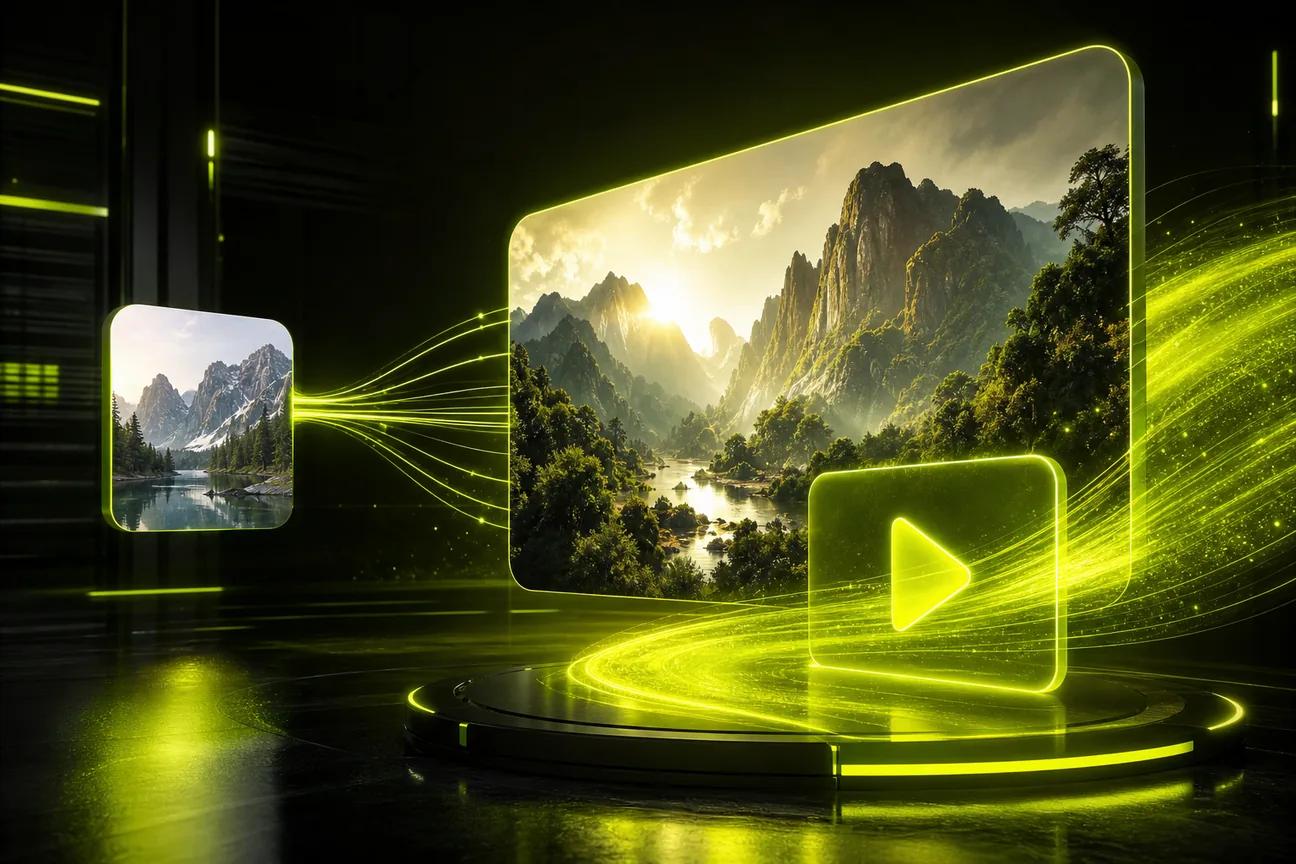
Decide whether to start with a prompt, a product photo, or footage you already have. A photo can anchor the look of an image-to-video clip. For a small business, that might be a clear photo of a mug, with a prompt asking for a slow camera move and steam rising. Keep the product’s shape and key details in view.
For a new scene, describe the subject and action first. Then add one camera move, a lighting cue, and any sound or dialogue you need. For example: “Close view of a hand opening a bright yellow umbrella in a rainy street. The camera pulls back as the rain stops.” Avoid stuffing the prompt with several unrelated actions. The model has to fit them all into a short clip.
Wan Studio runs in a browser and can turn text prompts or images into videos. Wan 3.0 can make clips up to 30 seconds, with fixed vertical 9:16 framing or adaptive framing. If a particular product image needs to lead the scene, use it as the first frame. A first-frame image also sets the output’s aspect ratio, so start with a vertical image when you want a vertical Short.
Wan 2.7 is the model to consider when you need reference images or clips, or want to edit an existing video. It supports clips up to 15 seconds. Wan 3.0 supports up to 30 seconds but doesn’t take reference clips or provide video editing. Pick based on the shot you need, not just the model name.
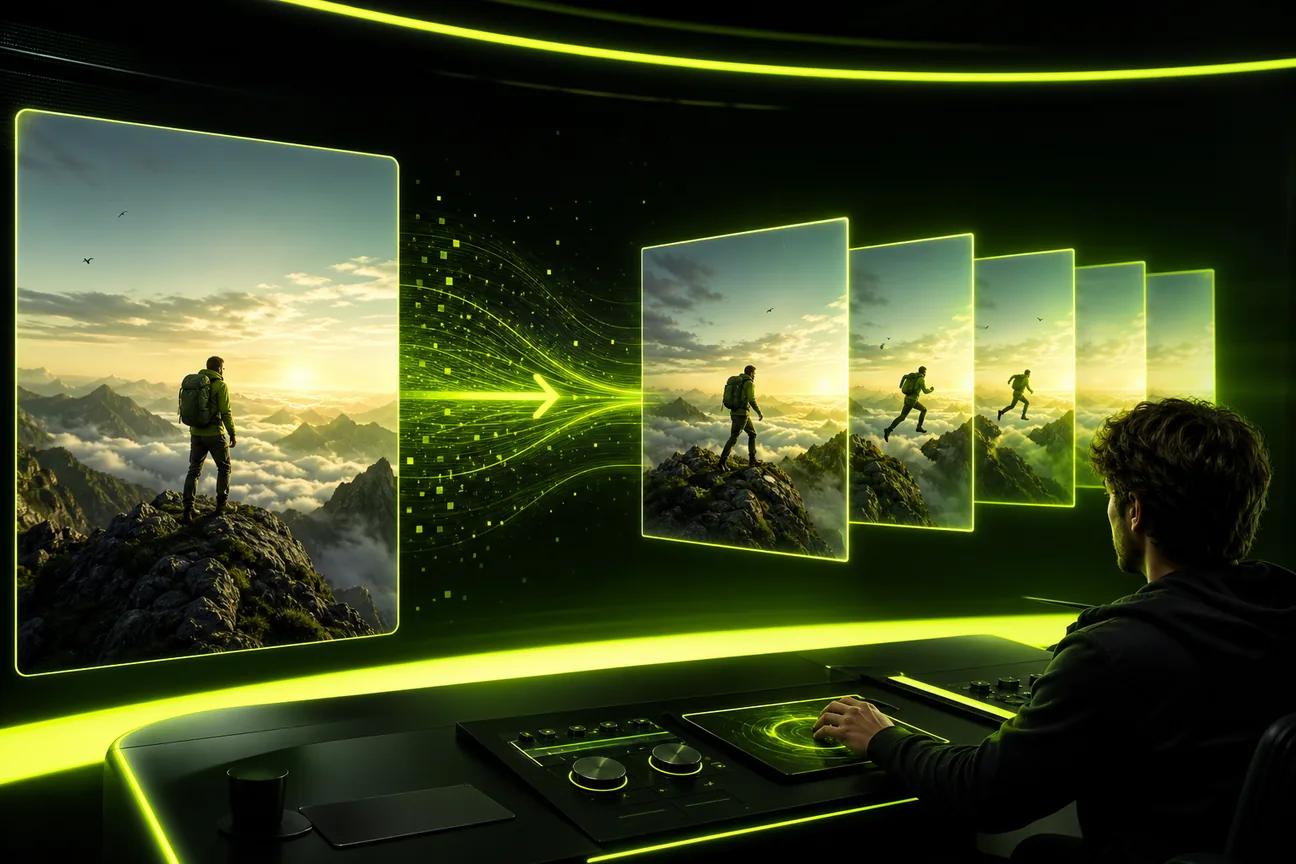
For a multi-shot Short, plan each beat in order. Keep character details steady in the prompt, then review the face, clothes, and props between shots. Wan 3.0 can keep characters consistent shot to shot across a scene of up to 30 seconds, but generated details still need a human check.
Generate a short draft first. Watch it once for the story, then again with sound on for dialogue, music, and timing. Trim slow starts or dead air in an editor. If you’re working from a still image, plan the source image and motion prompt as part of the workflow. An editor’s job is to give you control over the final cut; use an editing tool to make adjustments.
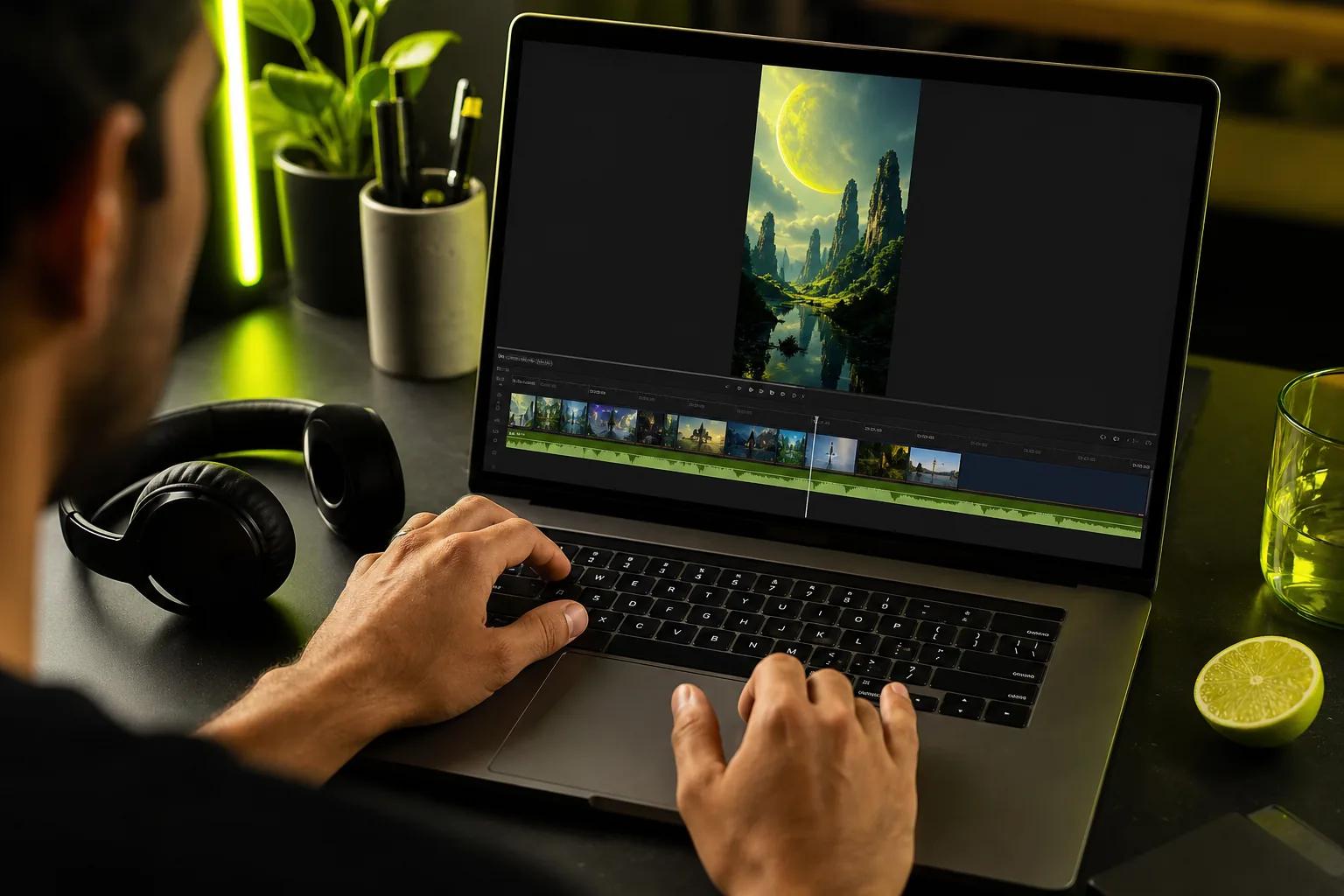
By now, you should have a vertical draft with a clear opening, checked sound, and no obvious visual errors.
Step 4: Optimize, Publish, and Scale Your Shorts Channel
Give the Short a title that says what the viewer gets. Keep it specific and honest. “How to stop a desk lamp from flickering” tells people more than “You won’t believe this.” Add a short description if it helps explain the topic. Use tags only when they fit the content; don’t treat them as a replacement for a clear title or video.
Choose a cover frame that makes sense at phone size. A thumbnail should show the subject or outcome without tiny type. If you add text, use just a few words and check that it stays clear when the image is small. Preview the cover alongside the opening frame so the click promise matches the video.
Before upload, check the full clip on a phone. Keep captions within the visible area and away from faces. Watch once with sound off to check whether the story still makes sense, then listen to the dialogue and music. YouTube’s own site is the place to start when you’re ready to publish on YouTube; review the current upload and channel settings in your account.
Choose a posting rhythm you can sustain. A steady weekly plan gives you time to make each clip well and learn from the next one. Batch the parts that repeat: draft several ideas in one sitting, then generate and review each clip separately. Don’t schedule a whole batch without checking every video first.
Use channel analytics to compare your own posts. Look for where viewers stop watching, which opening holds attention, and which topics lead to useful comments. Change one thing at a time, such as the hook or the first shot, so you can tell what might have helped. Don’t assume one strong post means the whole format will work every time.
For monetization, check YouTube’s current eligibility rules in your account before building a plan around ad revenue. AI-made content still needs original value and careful rights checks. Use footage, music, photos, and voices only when you have permission or the right to use them. Don’t clone a real person’s voice or face to mislead viewers. When a clip looks realistic but depicts something that didn’t happen, check YouTube’s current disclosure rules before posting.
Wan Studio has a free plan for trying Wan 2.5, with a couple of 480p videos each month and no card required. Paid plans start at $14 per month and include a commercial licence. Review the current plan details before using generated work in an ad, and download clips you want to keep: the media gallery stores generations for 30 days.
Once a format works for your channel, save its brief and prompt structure. Reuse the framework, but bring a fresh example or new point to each upload. That’s how you build a repeatable workflow without turning your feed into the same Short on loop.
By now, you should have a publishing checklist, a schedule you can keep, and a simple way to learn from each post.
Frequently Asked Questions
Can AI make a whole YouTube Short?
Yes, AI can help with the idea, script, visuals, voice, and first cut. Some video models also generate sound and spoken dialogue with the clip. You still need to review the words, images, timing, and rights before you post. AI can speed up production, but it can also make visual or audio mistakes that aren’t obvious from a prompt.
How long should an AI YouTube Short be?
Make it only as long as the idea needs. Wan 3.0 supports clips up to 30 seconds in one generation, while Wan 2.7 supports up to 15 seconds. For a longer edit, you can assemble separate shots in an editor. Keep each beat focused so the viewer has a reason to stay.
Can AI-generated Shorts use lip sync?
Yes. Wan 2.5, Wan 2.7, and Wan 3.0 can generate dialogue with lip-synced mouth movement as part of the video. Put the spoken words in quotes in the prompt. Then watch the face while listening to the audio, since generated speech and mouth movement should be checked before publishing.
Can I use AI-generated Shorts for a business?
You can use Wan Studio’s paid plans for work that needs a commercial licence; its free plan is for trying the service. Check the terms for any other tool you use, and confirm you have rights to each source photo, clip, voice, and music track. For ads, also review product details and claims in the final video.
How do I grow a Shorts channel with AI?
Choose a clear audience and repeatable format, then publish on a schedule you can keep. Review your channel’s own results to see which topics and openings hold attention. Make one change in the next video and compare it with the last one. Don’t rely on view counts alone; comments and viewer actions can show whether the Short delivered its promise.
Conclusion
Start with one idea you can explain in a sentence, then make a short draft and review it on a phone before publishing. If you want to test a prompt-led workflow, try a single scene in Wan Studio and adjust one detail at a time. For more ways to shape a repeatable video process, explore the related guides on the Wan Studio blog.