Writing a video prompt can feel like giving directions to a camera that can’t ask questions. Clear text to video prompts fix that: name the subject, show one action, then direct the camera and mood. Use the examples below as starting points for product ads, vertical shorts, image animation, dialogue, and multi-shot scenes.
We analyzed 50 comments and questions from YouTube, Reddit and Quora about AI text to video prompts and found that 30% mentioned clear concise prompt structure.
Product Video Prompts for Small-Business Ads
A useful product ad prompt makes the item the main subject. Tell the model what it looks like, what moves, and what the camera should do. “Make a cool ad” leaves those choices open. A shot brief gives the model something clear to build.
Try this template: “Create a [duration] [aspect ratio] video of [product] on [surface or setting]. [One visible action]. Camera: [shot and movement]. Lighting: [specific light]. Style: [brand mood]. Keep [important detail] consistent. Avoid [unwanted elements].”
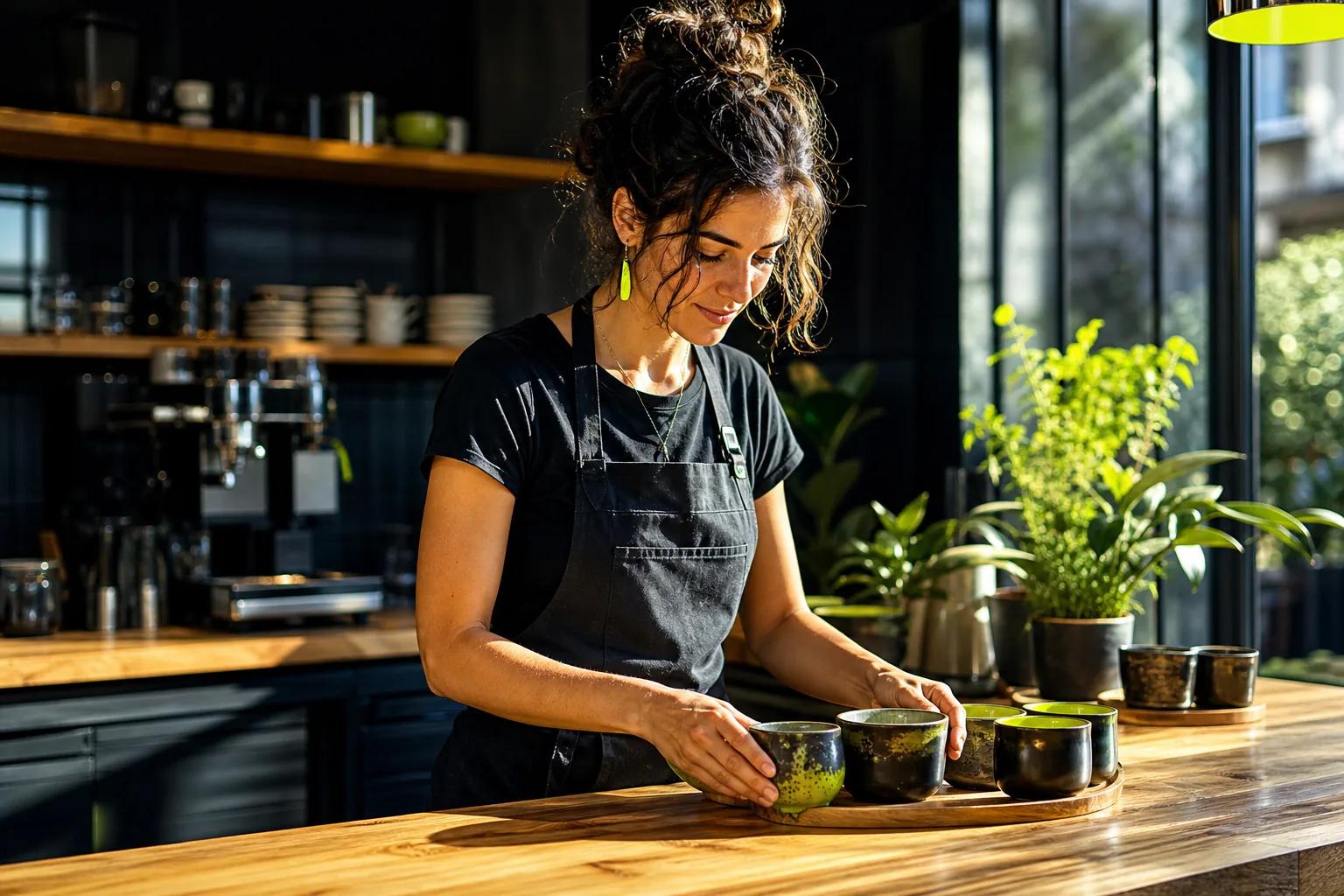
For example: “Create a 6-second vertical 9:16 video of a hand-thrown ceramic mug on a wooden café counter. Steam rises as the camera makes a slow close-up push-in. Warm window light shows the glaze and soft shadows. Calm, handmade feel. No text or extra hands.” This gives the clip one job: make the mug look inviting.
For a small business, choose a moment a customer can see. A baker dusting a pastry with sugar is more useful than “a successful bakery.” A close-up of a fabric weave tells more than “a stylish clothing brand.” Ask for one action, then add the name, price, captions, and legal copy during editing. Exact text can be hard for video models to render cleanly.
If you have a product photo already, use it as the starting frame and describe how the scene should move. Wan Studio supports text prompts and image-to-video; its paid plans include a commercial licence. Its free plan is for trying Wan, so check the plan terms before using a generated clip in a paid campaign. For related workflows, see the AI product video generator options for ads and social.
Start with a short, low-resolution test if the tool lets you choose those settings. When the camera path and product shape look right, render the version you plan to use at your preferred resolution. Wan Studio’s generation screen shows a credit estimate before you commit.
Think of the generated shot as the visual hook, not the whole campaign. Leave room in the frame for your own offer or call to action.
Text-to-Video Prompts for TikTok, Reels, and YouTube Shorts
Short-form clips need an opening image that reads at a glance. Put the key subject and action near the start of the prompt. Add vertical framing, a simple camera move, and a clear mood. The clip should set up one idea, not explain a whole business.
Use this template: “Create a [duration] vertical 9:16 video for [platform]. Show [subject] [one action] in [setting]. Open on [visual hook]. Camera: [movement]. Use [lighting and style]. Leave clear space for captions. No generated text.”
Example: “Create a 7-second vertical 9:16 video for a Reel. Open on a close-up of a barista pouring oat milk into a cup of espresso. Pull back slightly as the foam forms a simple pattern. Soft morning light, warm café colors, steady camera. Leave space at the top for captions. No words or logos.” The first beat shows the pour; the rest gives viewers a moment to take in the result.
For a creator clip, try: “A clay character opens a tiny lunchbox on a park bench. Start with a quick close-up of the latch, then tilt up as the character smiles. Bright afternoon light, playful stop-motion look. One character only. No captions.” This keeps the prompt grounded in visible action instead of broad phrases like “make it fun.”
Don’t cram the caption or hashtags into the generated scene. Add those in the social app or your editor, where you can check spelling and adjust timing. A prompt can reserve blank space for captions, but you’ll have more control over the final words outside the generation.
When the result feels cluttered, remove a character or action before adding more style words. One clear moment often works better on a phone screen than a tiny plot with too many moving parts.
Image-Based Prompts for Product Photos and Scene Continuity
Image-to-video prompts start with a visual anchor. Use this approach when the product, outfit, character, or opening composition needs to stay close to a supplied image. Describe what should happen next, rather than restating every visible detail.
The image is the first frame. The ceramic lamp’s light grows warmer as the camera makes a slow push-in. A curtain moves gently in the background. Keep the lamp’s shape and color unchanged. No new objects or text. The still image sets the scene; the prompt directs the motion.
The character turns toward the window and gives a small wave. Use a slow camera move to the left in soft evening light. Keep the clothing and face consistent. A quick turn is easier to describe than a long sequence of running, spinning, and changing clothes.
Wan Studio offers a first-frame image workflow. Wan 2.7 also accepts image and video references, which you can assign roles in the prompt. For example, you might ask one reference to guide a character and another to guide a location. Wan 3.0 supports text or a first-frame image, but not those extra reference inputs. Choose the model to match the material you have.
When you need the same look in a series, use the same source image and repeat the details that matter. Keep the subject’s clothing, color, and setting consistent in the wording. Change one thing at a time, such as the camera move or lighting, so you can see what each change does.
Image-to-video can also help repurpose a product photo. Keep the motion restrained: a slow push-in, a small turn, or a background change. If the generated clip changes the product’s shape, simplify the action and try again. For more on this topic, see this photo-to-video resource.
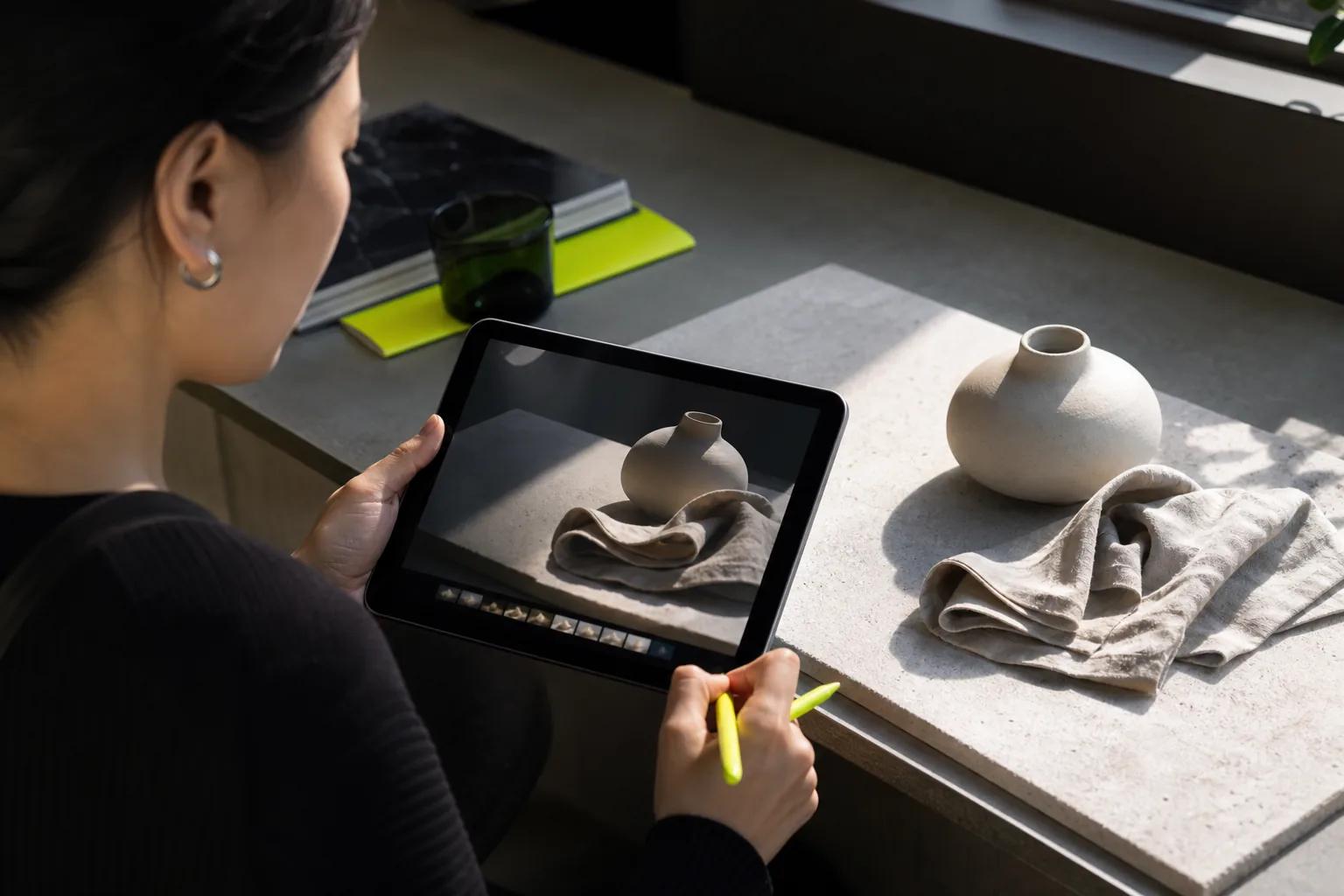
For formats, Wan Studio supports vertical 9:16, square 1:1, and landscape options. When the starting image sets the aspect ratio, frame the source image for the platform before uploading it.
Prompt Templates for Dialogue, Music, and Multi-Shot Scenes
Sound belongs in the prompt when it changes the scene. Name the voice or sound, keep dialogue short, and say who speaks. In Wan 2.5, Wan 2.7, and Wan 3.0, native audio can generate music, effects, and lip-synced dialogue with the video. Results can vary, so review the mouth movement and sound before you publish.
Dialogue template: “A [character] in [setting]. [Character] says, ‘[short line].’ Camera: [shot]. Sound: [room tone or ambience]. Keep the scene quiet, with no other speakers.”
Example: “A shop owner stands beside a sunny front window. She says, ‘Fresh batch is ready.’ Medium close-up, gentle push-in. Soft room tone and faint street sounds. One speaker, no on-screen text.” A short line gives the clip a clear speaking moment. If the line feels too long for the shot, split it across two clips.
For music without speech, describe the sound and its timing: “A close-up of hands shaping dough on a wooden table. The camera slides slowly to the right. Soft percussion starts as flour falls across the surface; keep the room quiet otherwise.” Don’t ask for a song, voice-over, sound effects, and dialogue all at once unless each has a clear place.
Multi-shot prompts work best when the shots share a subject and setting. Try: “0-3 seconds: wide shot of a florist tying a ribbon around a bouquet. 3-6 seconds: cut to close-up of the ribbon and hands. 6-9 seconds: return to the florist as she lifts the bouquet. Warm window light, same shop, same outfit.”
Use a cut when the next view is closely related. A sudden switch from a shop counter to a distant beach asks the model to invent too much at once, which can shift the look. Wan 3.0 can keep characters consistent across shots in a scene up to 30 seconds. For reference-driven shots or video edits, Wan 2.7 has those input modes.
FAQ
What should I include in a text-to-video prompt?
Include a clear subject, one visible action, a setting, camera direction, lighting, style, and format. Add a short constraint if there’s something you want to avoid, such as extra people or generated text. Keep the main subject and action near the start. A focused shot brief is easier to direct than a paragraph full of unrelated ideas.
How do I make AI video prompts look cinematic?
Describe the shot rather than relying on the word “cinematic.” Name the framing, camera movement, light, and mood. For example, ask for a close-up with a slow push-in and soft window light. Use one visual style per prompt, then change one detail at a time if the first result misses the look.
Can I use a product photo to make a video?
Yes. Use the photo as the first frame in an image-to-video workflow, then describe the motion you want. Ask for a slow camera move or one small action, and say which product details must stay the same. Review the generated clip for changes to the item before using it in an ad.
How do I prompt dialogue and lip sync?
Put a short spoken line in quotation marks, name the speaker, and describe the shot and background sound. Wan 2.5, Wan 2.7, and Wan 3.0 support native audio and lip-synced dialogue. That doesn’t guarantee every take will look right, so check the speech and mouth movement before you keep the clip.
How long should an AI video prompt be?
Use enough words to direct the shot, but don’t add details that compete with each other. A few clear sentences can name the subject, action, camera, light, and format. If the scene has several beats, divide them into shots or timestamps. Short clips usually benefit from one main action at a time.
Conclusion
Start with one subject and one action, then add the camera move and format. Test a short version before polishing the prompt. If you want to try these examples with text or an image, start with Wan Studio’s free plan, then explore the related model and workflow guides as your needs grow.